Monitor vs PC Headphone Connection: Do You Plug Headphones into Monitor or PC?
A data-driven guide comparing plugging headphones into a monitor versus the PC. Learn latency, sound quality, setup tips, and scenarios for gaming, work, and casual listening.


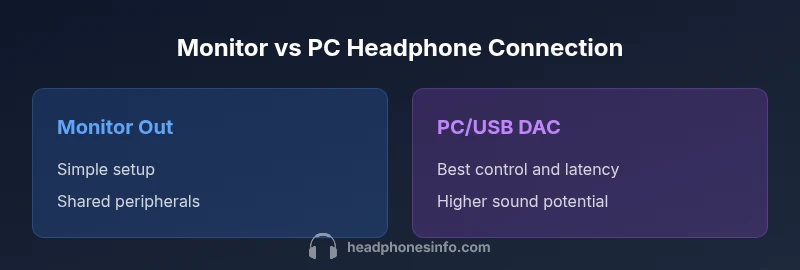
Bottom line: for most users, plug headphones into the PC or USB DAC for the best control, latency, and volume accuracy. Use the monitor’s 3.5mm out only when you need a simple, passive path or shared output, such as a dual-monitor setup or when the PC lacks a dedicated audio interface. If you game or mix, prioritize PC input for lowest latency.
Do you plug headphones into monitor or PC: Practical overview
If you're wondering do you plug headphones into monitor or pc, the short answer is often: choose based on your needs for control, latency, and fidelity. The decision is not one-size-fits-all; it hinges on your equipment, the impedance of your headphones, and whether you plan to use a dedicated DAC or amplifier. According to Headphones Info, the PC path generally yields tighter control over volume, lower latency, and more predictable driver behavior because you bypass the monitor's DAC and any processing it applies. The Headphones Info team found that this is especially noticeable with high-impedance or sensitive headphones that demand a robust driving stage. However, many modern monitors offer a 3.5mm audio out or a USB hub that can carry audio from the PC to your headphones, which is highly convenient for minimalist desk setups or when space is at a premium. So, if your priority is maximum control, highest fidelity, and flexible routing, plug into the PC. If you want a streamlined, space-saving arrangement and you’re willing to accept slightly higher latency or a softer output, the monitor path can suffice. The best path depends on your use-case, listening environment, and gear quality; this guide expands on the trade-offs and practical steps to optimize either path.
PC audio routing: how the PC handles sound
A PC-based headphone setup can use several paths, with the most common being the onboard audio jack, a dedicated USB DAC/amp, or a USB-C audio interface. The PC acts as the source, and your chosen output determines the sonic result. A direct 3.5mm or USB-C connection to headphones often relies on the PC's built-in DAC and amplifier, which can be perfectly adequate for casual listening but may lack headroom for high-end headphones. Many users invest in an external USB DAC/amp because it delivers cleaner impedance matching, lower distortion, and more precise dynamic range across genres. When using HDMI or DisplayPort, the PC can route audio to the monitor; the monitor then outputs via its own DAC/amp or via a USB hub. The important point is that the PC-based route gives you the most consistent baseline quality, because you control the source, drivers, and software. If you're aiming for neutral accuracy or want to tailor the sound with EQ and dynamics processing, a dedicated DAC/amp connected to the PC is typically the best path. Headphones Info emphasizes that source quality matters most when you push headphones to their limits, especially with high-impedance models.
Monitor pass-through and its caveats
Monitors with audio pass-through can be a convenient way to reduce cable clutter by routing PC audio through the display to your headphones. This path utilizes the monitor's DAC and amplification, feeding the 3.5mm out on the monitor or a USB-C hub connected to your headphones. While this setup is attractive for simplicity and shared peripherals, it comes with trade-offs. The monitor DAC is often designed for general consumer listening and may not provide the same headroom, imaging, or distortion characteristics as a quality USB DAC paired with an amplifier. Latency can also vary depending on the monitor’s internal processing and firmware. In some cases, the monitor will introduce a minor delay relative to the PC output, which matters in fast-twitch gaming or rhythm-based tasks. If your use-case is casual watching or basic productivity, and you don’t mind slightly reduced headroom, monitor pass-through can be perfectly adequate. If your headphones have a wide impedance range or you seek consistent performance across multiple devices, a PC path with a dedicated DAC remains the safer route.
Latency and timing: gaming vs music
Latency is a critical factor for gaming and real-time audio tasks, while music listening can tolerate a bit more slack. When you plug headphones into the PC (especially via a USB DAC or dedicated sound card), you generally gain the most predictable latency because software buffers and drivers can be tuned for responsiveness. The monitor path introduces additional buffering and processing in the display chain, which can add a few milliseconds of delay. For competitive gaming, even small delays can alter timing cues in shooter games or rhythm-action titles, so the PC path is usually preferred. For film or music, latency is often less noticeable, and some users may not mind minor variations if the trade-off is better dynamics or cleaner output. The takeaway is to test both routes in your own environment, adjust buffer sizes and sample rates, and choose the path that yields the most consistent, artifact-free playback for your primary use-case.
Sound quality and driving headphones: impedance and amps
Headphone impedance and sensitivity play a key role in deciding where to plug in. Low-impedance headphones (roughly under 32 ohms) can perform well directly from a PC's built-in DAC/amp, though an external DAC can still improve clarity, staging, and transient response. High-impedance models (32 ohms and up, especially over 100 ohms) typically require a stronger drive from a DAC or amplifier to reach full loudness without distortion. In a monitor-based path, the monitor's DAC/amp may struggle to drive high-impedance headphones to their fullest potential, resulting in limited headroom and slightly coarser detail. A PC path with a capable external DAC/amp often yields better imaging, lower noise floor, and more consistent tonal balance across genres. The choice becomes especially important if you use studio-grade headphones, plan to mix or master, or enjoy dynamic and bass-heavy tracks. The Headphones Info team suggests matching the DAC/amp to the headphones’ impedance and staying mindful of the monitor’s internal limitations, if you intend to rely on it.
Setup paths: step-by-step for PC path and monitor path
For a PC path with a external DAC/amp: 1) connect the DAC to PC via USB, 2) connect the headphones to the DAC’s output, 3) select the DAC as the default playback device in your OS, 4) install any required drivers, 5) adjust the DAC’s physical volume and the OS/app volume independently, 6) run a quick sound test with a familiar track. For a monitor pass-through: 1) connect the PC to the monitor with HDMI/DisplayPort, 2) connect headphones to the monitor’s 3.5mm out (or through the monitor’s USB hub if applicable), 3) ensure the monitor is selected as the audio source in the OS if necessary, 4) use the monitor’s volume control for quick adjustments, 5) test for latency and volume consistency, 6) consider enabling a separate USB DAC for improved fidelity if needed. A practical tip is to keep a compact USB DAC handy to switch between paths without re-cabling.
Testing and calibration: how to verify sound quality and latency
Begin with a familiar track and a controlled setup: plug into the PC path first, adjust the volume to a comfortable level, and run a quick latency check by playing a game or video with lip-sync checks. Use a calibration track to verify stereo imaging and dynamic range. Switch to the monitor path and repeat the test, noting any perceived changes in brightness, punch, or bass extension. You can use system audio measurements or timing tests with software that lets you adjust buffer size and sample rate for near-zero-latency. Keep a consistent listening environment—same headphones, same room conditions, and same volume range—to ensure the comparisons are valid. Headphones Info notes that the perceived difference often depends on the headphone model and the DAC’s performance; high-quality DACs tend to reveal more subtle differences in imaging and tonal balance between the two paths.
Use-case driven recommendations: best practices by scenario
Gaming: prioritize PC/USB DAC for the fastest responses and precise channel separation. Music and movies: a monitor path can be acceptable if it’s simply more convenient and you don’t require the last word in fidelity. Workspace and productivity: a PC path with a DAC can deliver clearer vocal presence and better noise floor for conference calls. If you need to share audio across two devices or keep desk space minimal, consider a USB-C hub that can route both charging and audio with a single connection. For critical listening, refer back to the PC path with a dedicated DAC/amp, especially when pairing with high-end or high-impedance headphones. The Headphones Info team emphasizes aligning your hardware to your listening goals and performing direct A/B testing to confirm which path best suits your needs.
Comparison
| Feature | Plug into PC | Plug into Monitor |
|---|---|---|
| Latency | Low/adjustable via PC software and drivers | Higher and variable due to monitor processing |
| Volume control & DAC | Full control via external DAC/amp or PC output | Monitor DAC/amp limits headroom and control |
| Setup complexity | Moderate: USB DAC, drivers, OS routing | Simple: plug into monitor; fewer devices |
| Compatibility | Broad: USB DACs, motherboard outputs, OS drivers | Model-dependent: depends on monitor features |
| Best for | Gaming/critical listening on PC with DAC/amp | Casual listening with monitor; convenient hub |
Upsides
- Greater control over sound signature with PC DAC/amp
- Easier troubleshooting and driver updates on PC
- Lower latency for gaming with dedicated DAC/amp
- Flexible routing with external DACs for high-impedance headphones
- Monitors can share peripherals through a single hub in some setups
Disadvantages
- Requires more cables and external gear for best sound
- Monitor path can introduce latency and limited headroom
- Not all monitors have high-quality DACs or robust drivers
- USB DAC compatibility may depend on OS and motherboard
PC/USB DAC path generally wins for precision; monitor path is a convenient fallback
Prioritize PC or USB DAC for critical listening, gaming, and mixing. Use monitor pass-through when simplicity and space matter, or when PC lacks a reliable built-in audio path.
People Also Ask
Which path offers the lowest latency for gaming?
In most cases the PC path with a proper DAC/amp delivers the lowest latency and most consistent response. Monitor pass-through can add minor delays depending on the monitor’s DAC and processing. Always test with your games and adjust settings for the best result.
For gaming, use the PC path for the fastest response; test monitor output to see if it meets your latency needs.
Is monitor audio good enough for casual listening?
Monitor audio can be adequate for casual listening, especially if you don’t have a dedicated DAC. However, many monitors have built-in DACs that are not as capable as dedicated DAC/amps, which affects dynamics and distortion at higher volumes.
Monitor audio works for casual use, but a dedicated DAC can improve clarity and detail.
Can I use wireless headphones with monitor out?
Wireless headphones require their own receiver and typically won’t benefit from monitor pass-through in latency terms. You’ll still connect the dongle to PC or DAC; monitor output won’t noticeably improve wireless latency.
Wireless headphones connect to their own receiver; monitor output isn’t a latency fix here.
Should I unplug and switch paths often?
If you frequently switch use-cases (work vs gaming), a hot-plug workflow is ideal. Use a USB DAC with a single headset to simplify switching, and keep monitor outputs quiet when not needed.
If you switch often, a USB DAC makes it quick to switch between PC and monitor setups.
What about mic input when plugging into monitor?
Many monitor audio outputs are separate from mic inputs. If you rely on a headset mic, ensure the mic path remains correct and test both PC and monitor routes for mic compatibility.
Check mic routing on both paths to avoid losing microphone input.
What to Remember
- Prioritize PC DAC/amp for best sound control and latency
- Test both paths to confirm what sounds better to you
- Check headphone impedance against your DAC's drive capability
- Use monitor path for quick setups and shared/space-saving layouts
- Maintain consistent volume levels across paths during setup