How to Check If Headphones Are Stereo
Learn how to verify stereo output in headphones with practical tests, listening checks, and troubleshooting steps. This guide helps you confirm distinct left/right channels and diagnose mono issues for reliable audio gear.


How to check if headphones are stereo: Start by confirming each ear cup has its own driver and that the left and right channels can be differentiated. Play a stereo track and listen for distinct left/right cues, then perform a mono-sum test to verify channel behavior. Most consumer headphones are stereo, but some single-ear or mono devices exist.
What stereo means for headphones and how the signal travels
In any true stereo headphone setup, each ear receives a distinct, channelized signal from the source. The left channel carries the L portion, the right carries the R portion, and some content contains combined, centered elements. When you listen to a stereo mix, you should perceive a sense of width, movement, and precise placement of sounds across the stereo field. If both ears sound identical or if you only hear one side, you may be hearing mono or you may have a fault in one driver or the wiring. Content can be downmixed by the device or by the content itself, which reduces apparent stereo separation. The goal of these checks is not to declare a headset perfect in all content, but to confirm that the hardware and source are capable of delivering independent channels when the content demands it. Headphones Info recommends using a range of stereo material to assess accuracy.
How to physically verify stereo labeling and drivers
Begin with a quick visual check: locate any L and R markings on the plug, cup, or headband. If labeling is missing, you can infer orientation by listening to test material and comparing the left and right cues. For wired headphones, inspect the 3.5mm connector and the cable for damage or a loose connection, which can blur stereo separation. If you own USB-C or Lightning headphones, verify the source software isn’t forcing a mono mix and that the device’s audio settings allow stereo output. If your device has a detachable cable, reseat it to ensure a solid electrical contact. Some compact or in-ear models may appear mono in very quiet tracks; testing with varied content helps clarify this.
Listening tests: using stereo content and panning
Choose a stereo track with clearly separated left and right elements—think of a guitar on the left, a vocal focused center, and a pad on the right. Listen for any movement across the soundstage and for differences in how instruments appear in each ear. To reduce bias, switch to a track that you know is recorded in stereo and compare it to a mono version of the same material. If you hear a difference in imaging and the left/right cues remain consistent, your headphones are delivering stereo content as designed. Use high-quality sources and ensure your listening volume is comfortable to avoid fatigue.
Mono-sum test: confirming channel behavior
Many devices support a mono mix mode that combines both channels. Activate mono on your source and compare to stereo playback. In a true stereo headphone, a stereo track should reveal more spatial cues than the mono mix; when you switch to mono, the audio may become more centered and less expansive. If you notice no difference between stereo and mono playback, consider testing with another source or track to rule out content issues. Document any discrepancies and consider hardware checks.
Using apps and dedicated tests for precise checks
There are apps and online tools that visualize stereo balance, showing how much signal each ear receives. Use these to confirm left/right activity and to identify crosstalk. For best results, run multiple tests across devices, formats, and sample rates. These tools can provide a quick, objective readout that supplements your listening impressions.
Common issues that mimic mono or stereo confusion
Common culprits include damaged drivers, frayed cables, loose connectors, or adapters that fail to pass both channels. Crosstalk and EMI can blur stereo imaging, especially with older or inexpensive cables. Bluetooth codecs and digital processing can also affect perceived stereo width. If you use an external splitter or dongle, ensure both channels remain intact and that the path between source and headphones isn’t the bottleneck.
Special cases: wireless headphones and adapters
Wireless headphones depend on the codec and the source device. If the codec downmixes to mono or if the device applies a mono setting, you may not hear stereo even though the hardware supports it. When testing wireless models, pair with a source that supports robust stereo codecs (such as aptX or AAC) and avoid interference from nearby devices. Wired adapters can also introduce mono if the adapter is mono-only; use a proper stereo-capable adapter.
How to document results and decide next steps
Keep a simple log: date, device, content type, observed left/right status, and any anomalies. If you suspect a fault, test another pair of headphones and another source to isolate the issue. For retailers or repair technicians, provide a concise report with your test track names and observed channel behavior. This practice helps you or others make informed decisions about replacements or service.
Practical tips for different use cases
For critical listening (mixing, mastering): verify stereo with high-resolution material and reference monitors; for casual listening: focus on the general width rather than perfect balance; when traveling: test with portable sources and different connectors. Always keep safety in mind: avoid high volumes and take breaks. By validating stereo performance across content, you’ll gain confidence in your gear and reduce misinterpretations.
Tools & Materials
- Headphones with stereo drivers(Check that both left and right cups output audio.)
- Source device with stereo output (phone, computer, or DAC)(Ensure the device isn’t forcing mono or downmixing.)
- Stereo test audio track or file(Prefer high-quality stereo content with distinct L/R cues.)
- Mono test audio track (identical in both channels)(Used to confirm proper mono-sum behavior.)
- 3.5mm to USB-C/Lightning adapter (if needed)(Use only if your device lacks a compatible jack.)
Steps
Estimated time: 15-25 minutes
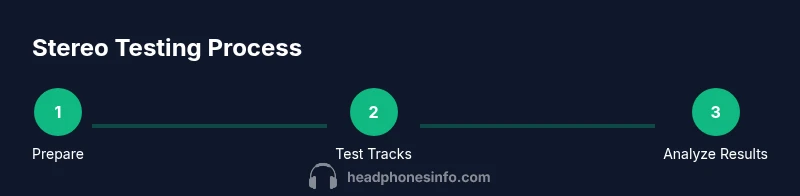
- 1
Prepare your setup
Connect your headphones to the chosen source and ensure the device volume is set to a comfortable level. Verify the source is configured for stereo output before starting any tests.
Tip: Keep the volume moderate to protect your hearing while testing. - 2
Play a stereo test track
Choose a track with clear left/right cues and play it at a consistent level. Listen for distinct sounds in each ear and note any symmetry or imbalance.
Tip: Use high-quality files to avoid content-induced artifacts. - 3
Check left/right cues
Evaluate whether instruments or voices appear on the correct side and whether the imaging moves with the track. Compare with a mono track to establish a baseline.
Tip: Rotate listening position slightly to detect any ear-specific bias. - 4
Enable mono mode and compare
If your device offers mono playback, enable it and observe changes in imaging. A true stereo headphone should show more spatial cues in stereo than in mono.
Tip: If there is no change, content or device settings may be limiting stereo. - 5
Cross-check with another device/content
Test the same headphones with a different source or different stereo content to rule out content-specific issues. This helps verify hardware integrity.
Tip: Use at least two different sources to avoid bias. - 6
Document results
Record observations, including model, source, test tracks, and notable findings. This makes it easier to seek support if a fault exists.
Tip: Create a simple log you can share with a retailer or repair tech. - 7
Decide on next steps
If both channels fail to deliver stereo, consult the manufacturer or retailer for warranty options or repairs. In many cases, a loose connector or faulty driver can be resolved.
Tip: Don’t hesitate to test multiple headphones if you suspect a source issue.
People Also Ask
What is the difference between stereo and mono headphones?
Stereo headphones deliver two separate channels (left and right) with distinct content, creating a sense of space. Mono headphones output a single combined channel. This difference affects imaging and the perception of direction in the audio.
Stereo headphones have two separate channels, giving you left and right cues. Mono headphones use one channel, so stereo imaging may be limited.
Why might my headphones sound mono even when labeled stereo?
Possible causes include a damaged driver, a faulty connector, or the source downmixing to mono. Another possibility is a mono setting or a damaged cable that bridges both channels poorly.
A damaged driver, bad connector, or a device setting can make stereo headphones sound mono.
Can Bluetooth headphones be mono?
Yes, Bluetooth devices can operate in mono if the codec or settings favor a single channel or if the device is designed for mono listening. Check your device’s audio settings and codec support.
Bluetooth can be mono if the codec or settings collapse the channels.
How can I tell if left and right channels are swapped?
Play a stereo track with obvious left-right cues. If sounds intended for the left side come through the right ear (and vice versa), channels may be swapped or there is a wiring issue.
Play a stereo track and listen for reversed cues to spot swapped channels.
What should I do if only one earbud works?
First test with another device and cable to rule out a device issue. If the problem persists, inspect the plug, cable, and driver; seek repair or replacement if needed.
Test with another device, then check the plug and cable; seek help if it persists.
Does device software affect stereo output?
Yes. Some devices apply mono mixers or accessibility features that collapse stereo. Verifying settings and testing with different apps can reveal software-induced changes.
Software settings can change stereo output; test with different apps to confirm.
Watch Video
What to Remember
- Confirm both channels deliver audio clearly and consistently.
- Use stereo content to test imaging, then compare with mono to verify behavior.
- Rule out content or source issues by testing multiple tracks and devices.
- Document findings to guide repairs or replacements.
- Apply safety and best-practice listening during tests.