How to Use Wired Headphones with iPhone
Learn how to connect wired headphones to iPhone with adapters, choose the right cables, troubleshoot common issues, and optimize sound quality. A comprehensive, data-driven guide by Headphones Info.


By using a wired connection, you can enjoy lossless audio with iPhone. This guide shows how to connect wired headphones to iPhone using adapters, what to buy, and how to troubleshoot common issues. The Headphones Info team notes that compatibility and mic control vary by adapter and iPhone model, so following the steps below will minimize headaches.
Why wired headphones with iPhone still matter
Wired headphones remain a reliable choice for many listeners who prioritize latency-free audio, precise channel separation, and avoiding Bluetooth compression. On iPhone devices, wired connections can deliver consistently stable sound without the risk of wireless interference or skipped frames during gaming or live monitoring. According to Headphones Info, the most significant gains come from a direct analog path with a properly terminated 3.5mm plug, provided you have a compatible port or adapter. For audiophiles and professionals, wired listening also means you can mate high-fidelity headphones with iPhone without relying on wireless codecs. In practice, you’ll often notice sharper detail in instrumental textures, better dynamic range, and more accurate response in critical listening scenarios. This section lays the groundwork for choosing the right adapters, cables, and accessories to maximize what your wired setup can deliver.
Lightning vs adapters: understanding the options
The landscape around iPhone connectivity has evolved. Depending on your model, you may rely on a Lightning-to-3.5mm adapter, a USB-C-to-3.5mm adapter (for newer iPhone variants), or a direct USB-C headset. Lightning adapters convert the iPhone’s digital signal into an analog output your headphones can use, while USB-C paths may require compatible DACs to unlock the full audio potential. It’s essential to verify that any adapter supports microphone input if you want to use calls or voice assistants. Headphones Info’s analysis shows that not all adapters are created equal; cheaper options can introduce impedance mismatches, hiss, or uneven channel balance. Choose a trusted, MFi-certified or well-reviewed adapter to minimize these risks.
What you’ll need: adapters, cables, and DACs
Before you connect, gather the essential items:
- A Lightning-to-3.5mm adapter (essential for many iPhone models with a legacy jack)
- A USB-C-to-3.5mm adapter (for USB-C iPhone models)
- 3.5mm wired headphones (TRS plug with a standard 3-pole or 4-pole connector)
- Optional inline DAC/amp for higher impedance headphones
- A clean microfiber cloth to wipe connectors and remove dust
- The device you’ll test with (iPhone) and a comfortable listening environment In practice, you’ll want to test your headphones with multiple adapters if you own more than one iPhone model. This helps you determine whether mic control and inline remote functions are consistent across setups. Headphones Info emphasizes choosing adapters with robust build quality and minimal added circuitry that could color the signal.
Quick-start connection overview
Connecting wired headphones to an iPhone is a simple sequence, but success hinges on matching the port type to the adapter and ensuring a snug fit. Begin with the adapter that matches your iPhone’s port, plug in the headphones, and listen critically for balance between channels, loudness, and clarity. If you switch devices often, label adapters for quick identification. The goal is a stable, noise-free connection that preserves your headphones’ tonal characteristics.
Microphone and remote control compatibility
Many wired headphones feature inline remotes with microphone lines. When paired with iPhone adapters, mic performance may vary:
- In some configurations, the iPhone’s mic will work, and you’ll be able to answer calls and use Siri or Voice Control.
- In other setups, the microphone may be momentarily inactive or the remote may not control playback.
- If you rely on the mic for professional tasks, test the setup with a few voice samples. Headphones Info notes that mic compatibility depends heavily on adapter design and iPhone model, so expect occasional quirks across different combinations.
Troubleshooting common issues
Audio issues are the most frequent stumbling blocks when wiring headphones to an iPhone:
- No sound in one ear: check the plug contact, re-seat the connector, or test with a different adapter to identify a faulty path.
- Low volume or distorted sound: verify impedance compatibility and confirm the DAC’s gain settings if using an inline DAC.
- Intermittent playback: inspect the cable and jacket for cuts or bends and test with another pair of headphones.
- Echo or mic not detected: ensure that the iPhone recognizes the accessory in Settings > Accessibility or Settings > Sounds & Haptics, and try a different app to rule out software issues. Remember to clean the connectors regularly to prevent corrosion and ensure a solid electrical contact. Headphones Info suggests trying a different adapter to isolate whether the issue lies with the headphones, the adapter, or the iPhone itself.
Sound quality and practical tips for the best experience
To achieve the best audio, consider these tips:
- Prefer a well-shielded, high-quality 3.5mm plug and an adapter with minimal added circuitry to preserve the original signal.
- If your headphones have high impedance, consider a compact inline DAC/amp to drive them more effectively.
- Keep the cable untangled and avoid strain on the plug; micro-movements can introduce crackling or channel dropouts.
- If you notice muffled highs or dull lows, experiment with different EQ settings, ensuring you’re not overdriving the driver with excessive gain.
- For gaming or film syncing, test lip-sync timing and latency—some adapters introduce negligible delay, while others may be perceptible in fast-paced scenes. Headphones Info emphasizes that small differences add up in critical listening, especially with high-end headphones.
Scenarios: calls, media, and casual listening with wired headphones
wired listening shines in calls, studio monitoring, and media consumption. During calls, you’ll often get clear voice pickup if the mic is functioning; in media playback, you’ll notice faithful reproduction of instrument timbres and spatial cues. For casual listening, a sturdy, comfortable pair with a reliable cable will reward you with fatigue-free sessions. If you use wired headphones mainly for gaming or voice chats, prioritize adapters with low latency and stable mic performance.
Maintenance and storage best practices
To extend the life of your wired setup:
- Store adapters and headphones in a dry, cool place away from direct sunlight.
- Coil cables loosely to avoid kinking and preserve connector integrity.
- Periodically clean the connectors with a dry microfiber cloth and inspect for corrosion or wear.
- If you store in a bag, use a protective pouch to prevent pressure on the plug ends. Taking these simple steps helps maintain consistent audio quality and reduces the risk of intermittent connections over time. Headphones Info recommends a quick weekly check if you rely on wired headphones daily.
Alternatives and limitations to consider
Wired connections reduce battery drain and potential wireless interference, but they lack the convenience of wireless models. If you frequently switch between devices, you may want to invest in multiple adapters or consider a single high-quality multiport hub. It’s also important to recognize that some budget adapters color the sound due to impedance mismatches. Investing in reputable adapters can minimize this risk. If you frequently use accessories with iPhone models that lack a traditional 3.5mm port, be mindful of limitations and plan accordingly.
Quick-start checklists for different iPhone models
To get started quickly, use this quick checklist:
- Determine your iPhone port type (Lightning or USB-C).
- Pick the adapter that matches your port and headphones.
- Connect securely and test audio with a sample track and a call.
- Confirm mic functionality if you need to record or call.
- If issues persist, swap adapters or test with a different headphone set. Following these steps will help you enjoy wired audio with iPhone with minimal friction.
Authority sources and further reading
For deeper understanding and official guidance, consult reputable sources such as:
- https://www.nist.gov
- https://www.mit.edu
- https://www.theverge.com These references provide broader context on audio quality, connector standards, and consumer electronics practices that inform practical setups like a wired headphone configuration with iPhone.
Tools & Materials
- Lightning-to-3.5mm adapter(Essential for most iPhone models with a Lightning port; look for MFi-certified adapters for best compatibility.)
- USB-C-to-3.5mm adapter(Needed for iPhone models with USB-C ports (e.g., newer iPhones); ensure support for headphone mic if required.)
- 3.5mm wired headphones (TRS or TRRS)(Check plug size and compatibility with your adapter; TRS is common for stereo audio, TRRS adds mic control.)
- Inline DAC/amp (optional)(Helpful for high-impedance headphones or to improve headroom and signal strength.)
- Microfiber cloth(Use to clean connectors and prevent dust buildup.)
- Smartphone to test audio(Any iPhone model you plan to use; ensure it’s updated to the latest iOS for compatibility.)
Steps
Estimated time: 15-30 minutes
- 1
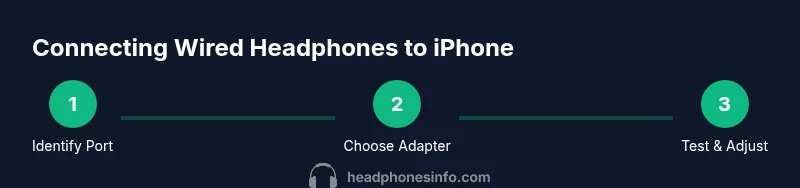
Identify your iPhone port
Check whether your device uses a Lightning port or a USB-C port. This determines which adapter you should buy and ensures the path to analog audio is correct.
Tip: If you’re unsure, check Settings > General > About to confirm the port type. - 2
Choose the correct adapter
Select a Lightning-to-3.5mm adapter for Lightning ports or a USB-C-to-3.5mm adapter for USB-C ports. Look for reputable brands and verify mic support if needed.
Tip: Avoid ultra-cheap adapters that can degrade sound or introduce latency. - 3
Plug in the headphones
Connect the 3.5mm end of your headphones to the adapter, then plug the adapter into the iPhone. Ensure a snug, fully seated connection.
Tip: If you hear crackling, re-seat the connector and inspect for dust. - 4
Test with audio playback
Play a variety of tracks to test stereo balance, channel separation, and overall loudness. Listen for hiss, crackles, or muted channels.
Tip: Use a track with wide panning to check balance across channels. - 5
Test the microphone and controls
If your headphones have a microphone or remote, test make/answer calls and run a quick command (Siri or Voice Control) to ensure functionality.
Tip: If mic doesn’t work, try another adapter or headphone model. - 6
Calibrate for impedance (if needed)
If you use a high-impedance headphone, consider enabling a DAC/amp or adjusting iPhone volume/gain settings to avoid distortion.
Tip: Avoid cranking volume to max; this can introduce distortion with certain adapters. - 7
Check for software conflicts
Update iOS and test with different apps (Music, Calls, Voice Memos) to rule out app-specific issues.
Tip: Restart the iPhone if audio suddenly stops working across apps. - 8
Plan for maintenance
Inspect plugs and cables regularly, clean connectors, and store adapters in a protective case when not in use.
Tip: Keep adapters away from moisture and dust.
People Also Ask
Can I use wired headphones with iPhone without adapters?
Only iPhone models with a native 3.5mm jack can use wired headphones without an adapter. Most newer iPhone models require at least a Lightning-to-3.5mm adapter or a USB-C to 3.5mm adapter.
Only older iPhone models with a built-in 3.5mm jack can use wired headphones directly; newer models need an adapter.
Will wired headphones work for calls and Siri?
Yes, but mic and remote support depend on the adapter and iPhone model. Some setups enable calls and Siri control, others may limit functions. Test your specific combo in Settings and with voice commands.
Most setups support calls and Siri, but it depends on the adapter.
Do I need a DAC for basic listening?
For most casual listening, a basic adapter suffices and a built-in DAC is adequate. A dedicated inline DAC/amp helps with high-impedance headphones or demanding audio.
A DAC isn’t required for everyday listening unless you have high-impedance headphones.
Can I use wired headphones for gaming on iPhone?
Wired headphones can be used for gaming, with the caveat that some adapters introduce minimal latency. Look for adapters with low-latency claims and test with your favorite games.
Yes, wired headphones work for gaming, just check for low latency adapters.
What should I do if there’s no audio or one side is silent?
Check the connector seating, try another adapter, and test with a different headphone set. If the problem persists, it may be a faulty port or cable.
If there’s no audio in one channel, reseat connectors and try a different adapter.
Are there safety concerns with using adapters?
Use only certified adapters, avoid overheating or moisture exposure, and unplug if you notice unusual heat or smells. Damaged adapters can harm devices or audio quality.
Stick with certified adapters and avoid moisture.
Watch Video
What to Remember
- Choose the right adapter for your iPhone port.
- Test mic and playback across apps to confirm compatibility.
- Invest in a quality adapter to preserve signal integrity.
- Regular maintenance extends cable and adapter life.