Where to Plug Headphones Into a Motherboard: A Practical Guide
Learn exactly where to plug headphones into a motherboard, including front-panel headers and rear I/O jacks, plus troubleshooting tips for reliable audio on your PC.


Plug headphones into a motherboard using either the front-panel HD Audio header on your case or the back I/O jack on the motherboard. The choice depends on your build and cable routing. According to Headphones Info, most modern systems route headphones through the front-panel header (JAUD1/JAUDIO) for convenience, with the rear jack as a fallback. Verify orientation before plugging in.
Where to plug headphones into a motherboard: essentials
Plugging headphones into a computer starts with understanding two options: the front-panel audio header wired to your case, and the rear I/O audio jacks on the motherboard. The front-panel header is designed for convenient access, often labeled HD Audio or AC’97 and marked JAUD1/JAUDIO on many boards. The rear panel jack is part of the motherboard’s back I/O region and is typically the standard 3.5mm output. For most users, the front-panel header provides a quicker, more ergonomic listening experience, but the rear jack remains a reliable alternative if routing or case design makes the front header inaccessible. The exact layout and capabilities can vary by motherboard model, so consulting the manual is always smart. In practice, you should plan your wiring so the front-panel connector reaches the header without stressing the cable, and you should confirm that your headphones are compatible with the jack type (HD Audio vs AC’97). This setup is central to many gaming rigs and home workstations where audio quality and ease of use matter most.
The role of HD Audio vs AC’97
Most modern motherboards support HD Audio, which provides higher-quality audio and better feature support than the older AC’97 standard. If your case uses a front-panel HD Audio cable, you’ll typically connect to the JAUD1/JAUDIO header on the motherboard. If your motherboard or case lacks this header, you may still use the rear 3.5mm jack on the back panel. Always double-check the header type in the motherboard manual, because a mismatch between the header type and the cable can prevent proper signal transfer or even physically misalign the connector. When in doubt, rely on the rear-panel input first and reserve front-panel usage for situations where you need quick on/off access to headphones.
How to identify the correct headers on your board
Locate the header blocks near the edge of the motherboard or in the bottom area. Look for labels such as JAUD1, JAUDIO, HD Audio, or AC’97. The pins are keyed to prevent incorrect orientation, and the corresponding cable from your case will have a matching color or a marked pin-1 indicator. If your board manual shows a pinout diagram, compare it to the physical connector to ensure accurate alignment. If you’re upgrading from a board that used a different standard, you may need to update BIOS/firmware or drivers to enable HD Audio features. Taking a moment to map the header locations helps prevent misconnections and potential short circuits.
Step-by-step connection workflow (front-panel vs rear jack)
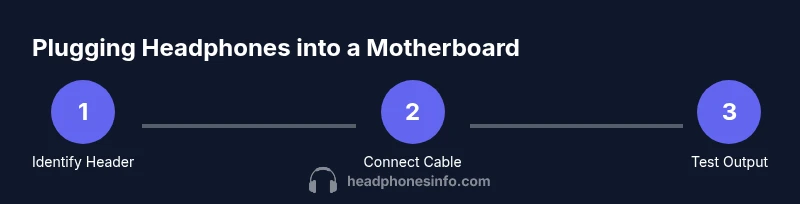
This section presents a practical workflow to connect headphones without forcing components. Start by powering down the PC and unplugging the power supply. Then inspect the front-panel audio cable from your case and the JAUD1/JAUDIO header on the motherboard. Align the cable’s key with the header notch, then gently seat the connector until it’s securely locked. If you cannot connect the front-panel cable, use the rear I/O jack on the back of the motherboard and test audio. After connecting, boot the system and test headphones to confirm sound from the correct output.
Troubleshooting common issues after connection
If no sound appears, ensure Windows recognizes the headset as the default playback device. Open Sound settings and verify the output is set to Headphones or HD Audio as appropriate. If crackling or static occurs, check that the cable is seated securely and not pinched. Updating BIOS or motherboard audio drivers can fix driver conflicts that block output. If issues persist, test headphones on another device to rule out a faulty headset.
Enhancing audio quality without add-on gear
For users seeking crisper sound without investing in external DACs, ensure your motherboard’s audio drivers are up to date and enable any software enhancements like sample-rate conversion or equalization that your motherboard software provides. If you experience limitations with the front-panel header, consider using a USB DAC or USB headset as an alternative, especially for gaming or streaming scenarios where latency matters.
Safety, maintenance, and long-term care
Handle connectors gently to avoid bending pins. When unplugging, pull the connector by the housing, not the wire. Keep case cables organized to prevent interference with fans or other components. Regularly check for loose cables and update firmware to ensure continued compatibility with modern headphones.
Tools & Materials
- Motherboard with HD Audio header (JAUD1/JAUDIO)(Check manual for exact header name and pinout; models vary.)
- Case front-panel audio cable (HD Audio)(Ensure it matches your motherboard header type (HD Audio preferred).)
- Rear I/O audio jack (on motherboard)(Use if front-panel header is inaccessible.)
- Screwdriver (Phillips #2)(Needed only if you need to open the case to inspect wiring.)
- Notebook/manual for motherboard(Reference pinouts and header locations.)
Steps
Estimated time: 15-25 minutes
- 1
Power down and unplug
Shut down the PC, unplug the power cord, and wait a few minutes for capacitors to discharge. This reduces the risk of short circuits while you adjust cables.
Tip: Do not touch any exposed circuitry while the system is powered off. - 2
Locate the front-panel audio header
Find the JAUD1/JAUDIO header on the motherboard. If you’re unsure, refer to the manual or use the motherboard schematic to locate the HD Audio pins.
Tip: Look for a labeled header with a single-row pinout; the connector should have a key notch that only fits one way. - 3
Inspect the front-panel audio cable
Check the case cable for a colored stripe indicating pin-1. Compare with the header’s pin-1 mark to ensure correct orientation.
Tip: If the cable is damaged or misaligned, don’t force it—check the manual for the correct orientation. - 4
Connect the cable to the header
Gently attach the front-panel audio cable to the JAUD1/JAUDIO header, ensuring it seats fully and locks in place without bending pins.
Tip: Avoid twisting or bending the header pins; use a straight, steady press to seating. - 5
Plug in and test from the rear jack (fallback)
If the front panel cable won’t connect or you prefer to test immediately, plug headphones into the motherboard’s rear I/O 3.5mm jack and boot the system.
Tip: Set the default audio device to Headphones in your OS before testing. - 6
Power up and verify audio output
Boot the system, play audio, and verify sound through the intended jack. If needed, adjust Windows sound settings to select the correct output device.
Tip: If you still don’t hear anything, update audio drivers and recheck the header orientation. - 7
Troubleshoot stubborn issues
Check BIOS/UEFI audio settings, disable any mute options, and try a different headset or USB dongle to isolate the problem.
Tip: A software conflict can block audio; restarting with clean boot can help identify the cause.
People Also Ask
Can I plug headphones into the motherboard's rear I/O jack?
Yes. If the front-panel header is not accessible or the case cable doesn’t reach, use the back panel’s 3.5mm jack. It provides a standard output, though you may miss some convenience features of the front header.
Yes. The rear I/O jack is a reliable alternative if the front-panel header isn’t accessible.
What if there is no sound after connecting to the front panel?
Ensure the front-panel cable is properly seated on the JAUD1/JAUDIO header, check the system’s default playback device in Windows, and update audio drivers. If needed, test with the rear panel jack to confirm headset functionality.
First check the cable seating and the default playback device, then update drivers or try the rear jack.
Do microphones share the same jack as headphones?
Some front-panel ports support TRRS (combined audio input/output), but most setups separate microphone input from headphone output. If you need to use a mic, verify the jack type and the motherboard’s support for mic input in the manual.
Typically, mics use a separate input, but some setups combine audio with TRRS.
Is it safe to unplug and replug the header cable?
Yes, as long as you power down and handle cables gently. Avoid pulling by the wire; grip the connector housing and disconnect straight out.
Yes, just power down and unplug by the connector, not the wire.
Can I use USB headphones instead of the motherboard jack?
Yes. USB headsets bypass the motherboard audio header entirely and can offer convenient, often software-managed, sound options. They may introduce different latency or driver requirements.
Sure—USB headphones skip the motherboard header and use USB drivers.
What should I do if the front-panel header is not listed in the manual?
Look for similar headers on the board labeled HD Audio or JAUD. If unsure, contact the motherboard manufacturer or check online forums for your specific model.
If it’s not listed, search for the HD Audio header on your board or contact support.
Watch Video
What to Remember
- Always verify header type and orientation before plugging in.
- Prefer front-panel HD Audio for convenience, rear jack as fallback.
- Test output after each change to confirm the correct device is active.
- Update drivers if audio issues occur after wiring.