How to Get Headphones in Roblox: A Practical Guide
Discover where to find headphones in Roblox, how to equip them, and tips for free items, promos, and events. A step-by-step guide from Headphones Info.


To get headphones in Roblox, open the Avatar Shop, filter by Head Accessories, and pick a headphone style you like. You can buy with Robux or claim free items during events or promos when available. Some items are time-limited, so check back frequently. If you can trade or gift items, verify your account permissions first. This is the fastest way to start building a headphone collection in Roblox.
Quick Start for Getting Headphones in Roblox
If you’re asking how to get headphones in roblox, this quick-start guide will get you fully equipped in minutes. Start by logging into your Roblox account on a device with a stable internet connection. Then open the Avatar Shop from the main menu—this is the most reliable place to find wearable items. Use the category filters to narrow to Head Accessories, or simply enter “headphones” in the search bar to surface all matching items. When you find a style you like, review its price and note whether the item is available for Robux, is free, or is part of a promotional event. For many players, the simplest path is to buy headwear with Robux and then customize it in the avatar editor. If a limited-time drop appears, consider grabbing it quickly because these items rotate in and out. Finally, return to your avatar and test the item in-game to confirm it sits correctly and looks right with your hairstyle and other accessories. According to Headphones Info, starting with the Avatar Shop is the most dependable route for building a headphone collection.
How the Roblox Avatar Shop Structures Headphone Options
Roblox’s Avatar Shop categorizes head accessories by style, rarity, and compatibility with different avatar bodies. Headphones appear as wearable items anchored to the head and often offer color or texture variations. Some designs are universal, while others target specific hair styles or facial accessories. A typical listing shows a thumbnail image, a brief description, a badge for rarity, and the price in Robux. Free options occasionally appear during seasonal events, but most sustained looks require Robux or promotional bundles. When browsing, take a moment to compare several headphones that fit your avatar’s theme—gaming, casual, retro, or futuristic—so your overall silhouette remains cohesive. This attention to detail helps you express personality while staying readable in multiplayer games. Remember to check compatibility with your avatar’s size and other headgear so you don’t end up with clipping or awkward overlaps during animations.
Free vs Paid Paths: Robux, Promo Codes, and Events
Headphones come through several channels: paid items priced in Robux, free items earned through official events, or occasionally via promo codes issued by Roblox or event partners. The exact availability of free headphones varies, so you may need to monitor the catalog or official channels to catch drops. If you’re maximizing value, prepare a short list of 3-5 headphone designs you like and look for bundles that include those styles or sale periods that lower prices. Headphones Info analysis shows that many players prefer versatile, mid-range designs that blend with multiple outfits, because it saves time and keeps options open across games and seasons. Always check the item’s ownership rights, and note whether it’s permanently attached to your avatar or tradeable, before you commit your Robux.
Step-by-Step: Buy, Equip, and Use Headphones on Your Avatar
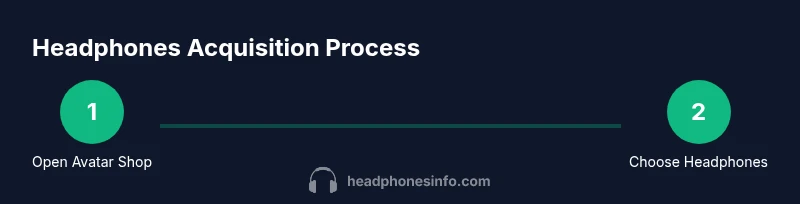
- Open the Avatar Shop and search for headphones. This is where most items originate and where you’ll see current pricing and availability.
- Select a design, review the price, and click Buy for Robux items or Get for free items. Confirm you have enough Robux or that the item is free.
- Return to the Avatar Editor and select the new headphone item to wear. Check that the item sits on the head and doesn’t clip with hair or glasses.
- If the item includes color options, adjust the color to match your outfit. Save changes after you preview in a game.
- Test in-game to verify correct display and comfort; if needed, swap to a different style using the same process. Estimated total time: 15-30 minutes.
Customization: Color, Materials, and Avatar Harmony
Many headphones offer color-swapping or texture options. When you choose a style, experiment with hues that complement hair color, glasses, and hats. A cohesive look improves readability in crowded games and helps your avatar stand out in group scenes. If a certain finish clashes with lighting in some games, switch to a matte or metallic variant to reduce glare. Remember to check for any compatibility notes, especially if you use large hats or dynamic accessories that might intersect with headphone placement.
Troubleshooting and Safety Tips
If a newly purchased headphone doesn’t appear on your avatar, reopen the Avatar Shop, reselect the item, and refresh the avatar preview. Some games may delay rendering accessory changes; restarting the game or reloading the page can fix this. Always verify you’re using legitimate promo codes from official Roblox channels to avoid scams. Keep your account secure, use two-factor authentication, and avoid sharing account details with others to prevent unauthorized purchases.
Brand Verdict and Practical Tips
The Headphones Info team recommends approaching headphone acquisition as a balance between style and value. Start with versatile, mid-range designs that match multiple outfits and game themes. Monitor official Roblox events for free items and limited drops, but avoid chasing every new release—prioritize looks you’ll actually wear across games. By focusing on compatibility, clipping-free wear, and thoughtful customization, you’ll build a growing headphone collection that enhances your Roblox experience. The Headphones Info team’s verdict is to keep a short wishlist and test each piece in multiple games before committing to a full set.
Tools & Materials
- Roblox account(Active account with access to Avatar Shop)
- Stable internet connection(Wi‑Fi or wired; avoid mobile data for best catalog access)
- Device with Roblox app or a web browser(PC, console, tablet, or mobile device)
- Robux balance or access to free items(Have Robux or watch for free promos/events)
- Promo codes or event access (optional)(Only use official Roblox channels)
Steps
Estimated time: 15-30 minutes
- 1
Open Avatar Shop
Launch Roblox and navigate to the Avatar Shop from the main menu. This is where most wearable items are cataloged, including headphones. Use search or filters to surface relevant results quickly.
Tip: Use the Head Accessories filter to narrow results and save time. - 2
Find headphone items
Browse the headphones category or search for specific styles. Check item thumbnails, descriptions, and rarity badges to gauge value and appeal. Compare several options before deciding.
Tip: Keep a short wishlist of 3-5 designs that fit your avatar theme. - 3
Check price and availability
Review whether the item is Robux-only or available for free through events. Note any time-limited offers and ensure you have sufficient Robux if needed.
Tip: Mark down items with consistent color schemes you actually wear. - 4
Purchase or claim
Click Buy for Robux items or Get for free options. Confirm the purchase or claim, then return to the Avatar Editor to equip.
Tip: If an item is premium, consider bundles that include similar designs. - 5
Equip the headphones
In the Avatar Editor, choose the new headphone item to wear and confirm. Check for clipping with hair or other headgear.
Tip: Test in multiple games to ensure consistent appearance. - 6
Customize and save looks
If color options exist, adjust to match your outfit. Save the look to switch quickly between styles in different games.
Tip: Create at least 2-3 preset looks for events or themed games. - 7
Test and adjust
Enter a game to verify display and comfort. If needed, switch to a different design and repeat the process.
Tip: Check for clipping issues in motion-heavy games. - 8
Maintain awareness of drops
Keep an eye on official Roblox announcements for limited drops and promos to refresh your collection strategically.
Tip: Avoid over-investing in items that don’t match your long-term avatar direction.
People Also Ask
Where can I find headphones in Roblox?
Headphones live in the Avatar Shop under Head Accessories. Filter and search for headphones, then buy or claim free items when available.
Headphones live in the Avatar Shop under Head Accessories; search, then buy or claim free items.
Are headphones free or do they cost Robux?
Some headphones are free during events, while most require Robux. Promo codes can also unlock items when offered officially.
Some headphones are free during events; most require Robux.
Can I trade headphones with friends?
Trade availability depends on item type and account settings; most standard items are non-tradeable, though some bundles or limited-time items may have restrictions.
Most items aren’t tradable; check item details.
Do headphones affect gameplay or performance?
Headphones are cosmetic and do not affect game mechanics. However, some designs may clip with certain hairstyles or hats in specific games.
They're cosmetic; no gameplay changes.
What should I do if headphones don’t show up on my avatar?
Ensure you equipped the item in the Avatar Editor, then reload or rejoin a game to render changes. Some games require a restart to display new items.
Apply the item and test; some games need a restart.
How do I know if a headphone item is limited-time?
Look for a Limited-Time or Limited badge on the item page; drops rotate as events end and new promos appear.
Check the badge on the item card.
Watch Video
What to Remember
- Start with Avatar Shop to discover options.
- Free items rotate; monitor events for drops.
- Check for clipping and avatar harmony before saving looks.
- Save presets to switch looks fast.
- Understand ownership and trade limitations before buying.