How to Use Headphones on PS3: A Complete Gaming Guide
Learn how to connect and optimize headphones for PS3 gaming. This step-by-step guide covers wired and Bluetooth setups, audio and mic configuration, troubleshooting, and best practices for private listening and clear chat on the PS3.


Goal: use headphones with your PS3 for private listening and voice chat. You can do this with a Bluetooth headset paired in Settings > Accessory Settings > Manage Bluetooth Devices, or with a wired headset plugged into the controller’s jack. After pairing or plugging in, set the PS3 audio output to All Audio to hear game sound and chat together. If you only need chat, choose Chat Only in the audio options.
Why Headphones Improve PS3 Gaming
Headphones dramatically boost your PlayStation 3 experience by delivering immersive, precise sound that helps you pinpoint in-game cues like footsteps and gunfire. They also preserve privacy in shared living spaces and prevent loud game audio from disturbing others. According to Headphones Info, a good headset setup combines clear mic quality with reliable sound reproduction, which makes teamwork smoother and communication more precise in competitive or co-op modes. On PS3, you have two broad paths: wired headsets that plug into the controller or console, and wireless headsets that pair via Bluetooth. The right choice depends on your budget, tolerance for latency, and whether you want to swap between private listening and group play. In this guide, we’ll walk through practical setups, common configurations, and real-world tips to maximize comfort and sound on the PS3 platform.
Why Headphones Matter for PS3 Gaming
From immersive single-player campaigns to chaotic online matches, headsets redefine how you experience games on the PS3. For many players, using headphones reduces ambient distractions and creates a focused audio field that helps discern threats or allies in the game world. A good mic ensures teammates can hear you clearly without you having to shout, which improves coordination and reduces miscommunication. Headphones Info’s analysis emphasizes that the best PS3 headset setup balances comfort, mic clarity, and dependable connectivity. The goal is to minimize latency and maximize comfort for long gaming sessions, whether you’re sniping in a stealth mission or coordinating a squad in a team-based shooter.
Quick Setup Overview for PS3 Headphones
- If you’re using Bluetooth: ensure your headset is paired with the PS3 and has a microphone compatible with game chat.
- If you’re using wired headphones: connect to the controller’s headset jack or to the console’s USB/audio port if required by your headset.
- In the PS3’s settings, choose All Audio to route both game sound and chat, or Chat Only to hear voice chat without game audio.
- Test speaking and listening levels in a quiet lobby to dial in volume and mic sensitivity.
This article includes a step-by-step procedure and troubleshooting tips to help you avoid common pitfalls like echo, latency, or mic hiss.
Understanding PS3 Headphone Options
PS3 supports two main headphone approaches: Bluetooth wireless headsets and wired headsets. Bluetooth headsets offer mobility and cable-free convenience, but may introduce noticeable latency and rely on battery life. Wired headsets typically deliver lower latency and steadier volume levels, but restrict movement to the range of the cable. Some wired options work by plugging into the controller’s 2.5mm headset jack, while others use USB connections directly to the PS3. When choosing, consider whether you value minimal lag for fast-twitch games, or portability for couch co-op. The right balance often means selecting a Bluetooth headset for long sessions and a wired backup for high-precision action.
Wired Headphones: Connection and Setup Basics
Wired headsets are popular for PS3 because they usually offer consistent latency and reliable microphone operation. To use them, connect the headset to the PS3 controller’s 2.5mm headset jack if your headset is designed for PlayStation headsets. If your headset uses USB audio or a different connector, plug it into a PS3 USB port or the appropriate adapter. After connection, go to Settings > Audio Device to choose the correct input and output devices. In many cases you will want Audio Output to All Audio so both game sounds and chat routing through the headset, but you can opt for Chat Only if you prefer to hear chat while leaving game audio on TV speakers.
Wireless Headphones Setup (Bluetooth): Pairing and Latency Considerations
Bluetooth headsets work well for PS3 gaming, especially when you want to sit back from the screen without cables. Start by putting the headset in pairing mode, then on the PS3 navigate to Settings > Accessory Settings > Register Bluetooth Device. The PS3 will scan and you’ll select your headset to pair. Once paired, decide how audio is routed in Settings > Sound Settings. All Audio sends both game and chat through the headset, while Chat Only routes microphone input and voice chat audio through the headset, leaving game audio on your TV. Expect some latency with Bluetooth in fast-paced titles, and consider a wired option for titles where timing matters.
Audio Settings on PS3: All Audio vs Chat Only
The PS3 sound menu lets you tailor how audio routes to your headset. For most players, All Audio is best because it provides a seamless experience with game audio and voice chat in one place. If you share a room for speakers, Chat Only can help to avoid game sounds duplicating in speakers while you chat via headset. Use the PS3’s test feature when available to verify that you can hear teammates clearly and that your mic picks up your voice at comfortable levels. If you notice echo or feedback, switch to a different mic position or reduce mic gain in the console settings.
Microphone Configuration and Chat Quality
A headset’s microphone is essential for effective team communication. Ensure the mic is not muted and that it’s positioned properly near the mouth for clear pickup. Some headsets include a mute switch or a physical volume control on the cable; use these to fine-tune chat volume without adjusting game audio. If you experience muffled or low-volume voice, check the PS3’s input level in Settings > Audio Device and verify that the headset is selected as the active input device. You can also test chat with a friend in a private party to confirm that your voice is intelligible before heading into competitive modes.
Troubleshooting Common PS3 Headphone Issues
If you encounter no sound, verify that the headset is properly connected and selected as the default audio output. For mic issues, ensure the device is set as the input in the PS3 settings and that it is not muted. Echo or feedback can occur if speakers and headset pick up the same sound; try using All Audio and lowering the microphone gain. Bluetooth pairing failures often happen when the headset is in pairing mode for too long or when the PS3 already has two Bluetooth devices connected. In most cases, removing other BT devices and re-pairing resolves the issue.
Maintenance and Care for Longer Headphone Life
Regular cleaning and proper storage extend the life of your headphones. Wipe down ear cushions with a damp cloth, store cables neatly to avoid tangles, and keep microphone ports free of dust. If you use a convertible headset, check cables and connectors for signs of wear and replace worn components before they fail. For Bluetooth models, ensure firmware updates from the headset manufacturer are applied when available, and monitor battery health for reliable performance during long gaming sessions.
Real-World Scenarios and Recommendations
Consider your gaming space when choosing PS3 headphone options. In a small, shared apartment, wired headsets paired to the controller can provide reliable audio with zero wireless latency, ideal for fast shooters. If you often move around the living room while gaming, a well-supported Bluetooth headset can offer flexibility, provided you tolerate potential latency in certain titles. Headphones Info’s guidance emphasizes testing your setup in typical play conditions—quiet room, chat with teammates, and comfortable wearing time—to determine what works best for you.
Quick Reference Setup Checklist for PS3 Headphones
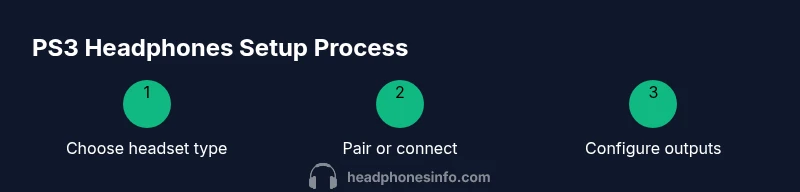
- Confirm headset type (wired or Bluetooth) and mic compatibility.
- Connect via controller jack or Bluetooth pairing as appropriate.
- Set Audio Output to All Audio (or Chat Only if preferred).
- Test mic and playback levels; adjust as needed.
- Run a short chat test with a friend to confirm clarity.
- Keep a backup headset for games where latency matters.
Tools & Materials
- Headphones (wired or Bluetooth)(Choose wired for lowest latency or Bluetooth for mobility; ensure mic compatibility if you want chat.)
- PS3 console(Ensure firmware supports Bluetooth devices and USB audio devices if needed.)
- PS3 controller with headset jack(Needed for wired headsets that use the controller's 2.5mm jack.)
- Bluetooth headset (optional)(Useful for wireless setups; verify PS3 pairing compatibility.)
- USB cable or dongle (optional)(For USB wired headsets or Bluetooth adapters if required by your headset.)
Steps
Estimated time: 30-60 minutes
- 1
Check headset compatibility
Confirm whether your headset is wired or Bluetooth and verify mic support on PS3. Review the headset’s manual for PS3 compatibility and any required adapters.
Tip: If unsure, test basic audio with a standard music track before gaming to confirm sound quality. - 2
Prepare your PS3 and headset
Power on the PS3 and ensure the headset is powered on or charged. If using a wired headset, locate the controller's headset jack or the PS3’s USB port for connection.
Tip: Keep a spare USB port free for potential dongles or adapters. - 3
Pair or connect the headset
For Bluetooth, put the headset in pairing mode and register it in Settings > Accessory Settings > Register Bluetooth Device. For wired, plug into the controller jack or USB port as appropriate.
Tip: If pairing fails, remove other Bluetooth devices and retry pairing from the PS3 menu. - 4
Configure PS3 audio output
Navigate to Settings > Sound Settings and select the headset as your output device. Choose All Audio to route both game sound and chat, or Chat Only if you prefer voice chat exclusive to the headset.
Tip: Test sound by starting a game and speaking to a friend to ensure both directions are clear. - 5
Test microphone and chat
Join a party or start a chat in-game to verify mic quality and vocal clarity. Adjust microphone sensitivity if available in PS3 settings or within the headset’s control app.
Tip: Speak at a normal volume and keep the mic away from mouth to avoid plosive sounds. - 6
Troubleshoot and finalize
If issues persist, check for static, latency, or echo. Re-pair devices or try another headset as a test. Confirm that the headset is the active input and output device.
Tip: Document the exact issue and steps taken to speed up future support or troubleshooting.
People Also Ask
Can I use any Bluetooth headset with the PS3?
PS3 supports many Bluetooth headsets, but mic quality and pairing reliability vary by model. Check the headset’s manual for PS3 compatibility and ensure it uses a standard profile supported by the console.
Most Bluetooth headsets work with PS3, but some may have limited mic support. Verify compatibility in advance.
Will wired headsets work with the PS3 controller?
Yes. Wired headsets that use the controller’s 2.5mm headset jack can transmit both game audio and chat when configured in the PS3’s audio settings.
Yes—wired headsets connected to the controller usually work well for both audio and chat.
Why is there no sound through my headphones after setup?
Double-check that the headset is selected as the active output device in Settings > Sound Settings and that All Audio is chosen. Test with a known audio source to confirm routing.
Make sure the headset is set as the output device and try a quick audio test.
Can I use headphones for chat only without game audio?
Yes. In PS3 audio options, select Chat Only to route microphone input and voice chat to the headset while leaving game audio on the TV.
You can set it so you hear voice chat only on the headset.
How do I reduce echo or feedback on PS3 headset chat?
Echo and feedback often come from monitoring the headset audio through speakers. Use All Audio with headphones, lower the microphone gain, or mute the TV speakers to eliminate feedback.
Reduce mic gain and avoid playing through speakers to stop echo.
Does PS3 support USB headsets?
Some USB headsets are compatible with PS3, but not all. Check the headset’s documentation for PS3 compatibility and ensure the USB audio device is selected in PS3 settings.
USB headsets can work on PS3 if supported by the device and PS3 settings.
Watch Video
What to Remember
- Choose wired vs Bluetooth based on latency tolerance and mobility.
- Configure PS3 audio to All Audio for combined sound and chat.
- Test mic and voice chat in a low-risk setting before multiplayer runs.
- Keep backup options and perform regular maintenance.