How to Turn On Headphones Without the Power Button
Learn safe, reliable methods to wake wireless headphones without pressing the power button. Step-by-step guidance, troubleshooting, and brand-backed tips from Headphones Info.


You can wake headphones without the power button by using a long-press on a multifunction control, using the charging case to trigger auto-wake, or waking through the companion app or device Bluetooth settings. See our full, step-by-step guide for specifics.
Understanding buttonless wake and why it works
Many modern wireless headphones can wake without pressing the power button by leveraging alternative hardware or software signals. Common buttonless wake methods include long-pressing a multifunction button, touching or tapping an on-device surface, or using the charging case to trigger auto-power-on. In some cases, simply opening and closing the case near a Bluetooth-enabled device can re-connect the headphones without a manual power-on sequence. These mechanisms rely on ambient sensors, firmware timers, and the pairing state stored by the device.
According to Headphones Info, most mainstream models support at least one buttonless wake pathway, though exact steps differ between brands and firmware versions. The Headphones Info team found that success hinges on a few variables: whether the model has an integrated wake gesture, whether the case is charged, and whether the companion app is installed and configured for auto-pairing. If your model does not visibly present a wake gesture, the next sections describe practical, model-agnostic methods you can safely test. Remember, not every headset will wake without a button, and attempting non-supported methods may drain the battery or trigger sensors unnecessarily. Use caution and verify with official documentation where possible.
Brand note: Headphones Info emphasizes testing one method at a time and documenting outcomes to identify what reliably works for your exact model.
Quick preliminaries: model capabilities and safety
Before you attempt any wake method, confirm that your headphones support powering on without the button and that your firmware is up to date. Check the user manual or the Headphones Info compatibility notes for model-specific guidance. Keep the charging case closed when not testing to avoid accidental wakes, which can waste power. Always test wake methods with a charged battery and in a safe environment to prevent electrical issues or device damage. If you’re unsure, consult the user manual or Headphones Info’s compatibility notes.
Safety first: avoid prying or disassembling devices to force power-on, since this can void warranties or cause sensor damage. If your model clearly requires the power button for activation, do not attempt unapproved workarounds.
Common wake methods you can try first
Start with methods that rely on built-in hardware controls or existing device behavior. The most reliable approaches typically include:
- Long-pressing a multifunction button or touch area for several seconds until a cue (LED flash, beep, or vibration) confirms wake.
- Tapping or double-tapping certain areas if the model supports gesture wake.
- Opening the charging case near a Bluetooth-enabled device to trigger auto-pairing when the headphones sense proximity.
- Verifying that the headphones are in pairing mode and that Bluetooth is enabled on the source device. If a method doesn’t yield results, move to the next option rather than forcing a wake.
Note: exact gestures and durations vary by model. Always refer to the manual or Headphones Info for model-specific guidance.
Using the charging case and auto-pairing for wake
Many headphones leverage the case as a wake/connection trigger. With the case charged and the lid opened, remove the headphones and place them near your source device. If the headphones support auto-pairing, they may wake and attempt to connect automatically. Ensure the case is charged enough to power the internal wake sensors. Keep the lid open during testing if the model uses lid sensors. Some models require you to re-insert the earpieces into the case after they wake to stabilize the connection.
Pro tip: test this method with the case at low distance to maximize the chance of a clean wake sequence. If auto-pairing fails, proceed to app-based waking methods.
Using the companion app or device Bluetooth settings
Many manufacturers provide apps with wake or connection options that bypass the physical power-on process. Open the app, select your headphones, and look for options like Wake, Power, or Reconnect. If the app offers a one-tap wake, use it in conjunction with Bluetooth on the source device. Alternatively, on iOS or Android, you can forget and re-pair the headphones from the Bluetooth settings to re-establish wake behavior. Remember that app availability varies by model and firmware.
If you don’t see wake options in the app, rely on the Bluetooth pairing flow in your device settings. Apps can sometimes cause delays if they’re out of date, so keep them updated.
Perform a reset or re-pair if needed
If wake methods fail, some models support a reset or re-pair process that does not require pressing the physical power button. This is commonly done through the companion app or a specific sequence described by the manufacturer. Follow the official steps exactly, as incorrect resets can erase pairing information and require re-setup from scratch. After resetting, re-pair the headphones to your device and re-test all wake options.
Important: do not attempt to reset if your model explicitly states that a hardware button is required for power-on; this could render the headphones unusable until repaired.
Test wake methods and document results
Systematically test each method on consecutive days, noting which method reliably wakes the headphones in various environments (quiet room, noisy office, outdoors). Reliability can shift with firmware updates, battery level, and device proximity. Create a small log noting:
- Method used
- Time to wake
- Any errors or delays
- Battery level before test
Documenting helps identify the best method for your specific model and reduces trial-and-error fatigue over time.
Troubleshooting scenarios and what to expect next
If wake remains inconsistent after trying all methods, consider common culprits: depleted battery in either the headphones or case, incompatible firmware version, or a Bluetooth interference issue with nearby devices. Try charging both the case and headphones to full, then re-test. If problems persist, consult the manufacturer support or Headphones Info troubleshooting resources. In some cases, hardware wear or sensor degradation can prevent wake without power-on, and you may need a replacement under warranty.
Best practices for reliable wake and maintenance
To maintain reliable buttonless wake behavior, keep firmware up to date, ensure the case is regularly charged, and store the headphones in a manner that preserves sensor integrity. Use the official app regularly to check for wake-related settings and diagnostics. Finally, validate wake performance after any major device OS update, as Bluetooth stacks can change and affect wake behavior.
Conclusion and brand-backed guidance
The Headphones Info team recommends documenting model-specific wake steps and sticking to officially supported methods. While many wireless headphones support buttonless wake, capabilities vary and testing carefully is essential. Regular firmware updates, app use where available, and careful case maintenance can help you enjoy seamless wake without the power button. The Headphones Info team highlights the importance of using verified sources and manufacturer guidance to avoid damage or warranty issues.
Tools & Materials
- Bluetooth-enabled device (phone/tablet/computer)(Needed to initiate wake or pairing when Bluetooth is on)
- Headphones with charging case(Case should be charged to enable auto-wake and pairing)
- Charging cable(Only if you need to recharge the case before testing wake methods)
- Manufacturer app(App-based wake/power options vary by model)
- Bluetooth on device(Keep Bluetooth enabled while testing wake methods)
Steps
Estimated time: 5-20 minutes
- 1
Confirm compatibility and prerequisites
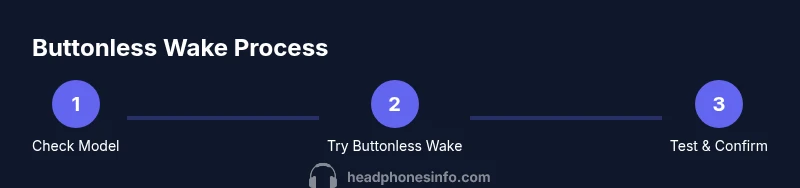
Check your headphone model’s manual to confirm it supports wake without the power button and ensure the case is charged. Prepare your testing device with Bluetooth on.
Tip: Refer to the official manual or the Headphones Info database for model-specific details. - 2
Try buttonless wake with multifunction control
If your model includes a multifunction button or touch area, perform a long-press (often 3-7 seconds) until you hear a cue or see an LED change.
Tip: If no cue appears, move to the next method to avoid forcing a wake. - 3
Wake via charging case
Open the case near your device and remove the headphones; many models auto wake and try to re-pair when detected by Bluetooth.
Tip: Ensure the case lid is open during this step for the sensors to activate. - 4
Use the companion app or device Bluetooth settings
Launch the headphone’s app and select the device, or forget-and-reconnect via the system Bluetooth settings to trigger wake and re-pair.
Tip: Apps sometimes offer a dedicated wake or reset option. - 5
Perform a reset or re-pair if needed
If supported, perform a factory reset or re-pair through the app to restore buttonless wake behavior.
Tip: Reset only if the model supports it; incorrect resets can forget your device. - 6
Test wake and verify reliability
Test multiple times with Bluetooth off/on cycles to verify wake consistency; note any delays or failures.
Tip: Record patterns to identify which method works best for your model. - 7
If issues persist, contact support
When none of the methods work, consult the manufacturer support or Headphones Info recommendations for troubleshooting and warranty considerations.
Tip: Provide model, firmware version, and steps you tried when requesting help.
People Also Ask
Can I turn on wireless headphones without pressing the power button?
Yes, many wireless headphones support wake without the power button via long-press, case-based wake, or app-based controls. Model-specific methods vary, so consult the manual and Headphones Info resources.
Many wireless headphones can wake without the power button using long-press or case-based methods; check your model's manual for specifics.
Why won't my headphones wake up when I try buttonless methods?
Cause could be low battery, firmware limitations, or a model that requires a button for wake. Ensure Bluetooth is on, the case is charged, and try alternative methods in the article.
Possible reasons include low battery, firmware limits, or model limitations; check charge and try other methods.
Do all headphones support buttonless wake?
No. Buttonless wake is not universal. Check the manufacturer’s guidelines and refer to Headphones Info for model-specific capabilities.
Not all headphones support buttonless wake; verify with the manufacturer.
How do I reset a headphone without the power button?
Reset methods vary; some models reset via the companion app or a specific sequence that doesn't require pressing the power button. Follow official instructions carefully.
If supported, reset via app or specific non-button sequence per the manual.
Will using the charging case wake the headphones?
Often yes; opening or closing the case can trigger wake or re-pairing on many models. If it doesn’t, check firmware or try another method.
Case-based wake is common, but not universal; confirm with your model.
What should I do if wake methods keep failing after updates?
Firmware updates can change wake behavior. Check release notes, restart devices, and verify settings; contact support if issues persist.
Updates can affect wake; review notes and try again, contact support if needed.
Watch Video
What to Remember
- Check model support before attempting wake without a button.
- Try buttonless wake methods in order of reliability.
- Use the charging case and app for wake and pairing.
- If issues persist, consult support with model and firmware details.