How to Use Headphones When Switch Is Docked
Learn practical, step-by-step methods to listen with headphones when the Nintendo Switch is docked, including Bluetooth and wired options, latency tips, and setup troubleshooting from Headphones Info.


You can listen through headphones while the Switch is docked by choosing a compatible wireless or wired route. Bluetooth headphones, a USB-C to 3.5mm adapter, or a TV-based output can all work, depending on your gear. This guide covers setup, latency considerations, and best practices to keep audio in sync with gameplay.
Why listening with headphones matters when the Switch is docked
If you’re looking for a quiet, immersive gaming session or need to avoid disturbing others, learning how to use headphones when switch is docked is essential. The Nintendo Switch in docked mode sends audio primarily to your TV, which can complicate headphone use—but it also opens flexible paths you can tailor to your setup. According to Headphones Info, many players want clean, low-latency audio without introducing extra hardware or compromising video quality. In this section, we’ll outline practical routes—Bluetooth, wired through the TV, and DAC-based wired options—so you can pick a method that aligns with your space, budget, and latency tolerance. By focusing on real-world constraints like how your TV handles audio passthrough and whether your headphones include a mic, you’ll be able to choose a solution that feels natural during fast-paced gaming. The Headphones Info team uses data-driven guidance to compare and evaluate headphone setups for consoles, and you’ll see that come through in the recommendations here.
Understanding the audio paths when the Switch is docked
When the Switch is docked, audio is routed through the TV or through peripherals connected to the dock. This means you won’t access the handheld headphone jack directly, so you’ll rely on one of these routes: (1) Bluetooth headphones paired with the Switch, (2) wired headphones via a TV audio output or an external DAC/DIF, or (3) a TV-based headphone connection. Each path has different latency, convenience, and fidelity implications. TV-made paths can introduce processing delays, while dedicated wired routes generally offer the most reliable lip-sync. In practice, your choice will hinge on how important ultra-low latency is for you (fast-paced action vs. narrative games) and how much extra hardware you’re willing to manage. Headphones Info’s guidance emphasizes testing your setup in the exact environment where you play to confirm comfort, soundstage, and mic usability.
Method A: Bluetooth headphones with the Switch in docked mode
Bluetooth headphones can be used while the Switch is docked in many setups. The key caveat is latency: wireless audio can lag behind the video, which is noticeable in fast games. To try this method, ensure your Switch firmware supports Bluetooth audio and that your headset is in pairing mode. On the Switch, go to System Settings > Bluetooth Audio and pair your headset. Keep in mind you may experience a slight delay between on-screen actions and audio, particularly in competitive games. For casual play, this method can be perfectly adequate, and it offers the convenience of removing wires entirely. If your headset supports low-latency codecs, select those when available and keep the devices close to reduce interference. Headphones Info notes that latency varies by headset model and environment, so testing before critical sessions is essential.
Method B: Wired headset via TV or external DAC
A wired route tends to give you the most consistent lip-sync when docked. You can connect standard 3.5mm headphones to your TV’s headphone jack if the TV offers one, or use a USB-C DAC/USB DAC to route audio through the Switch’s dock or directly to a connected speaker system. This path minimizes latency and preserves audio fidelity, especially helpful for action games or rhythm games where timing matters. If you use a DAC, ensure it’s compatible with your Switch and TV setup, and select a listening profile that favors low latency. If your TV supports audio passthrough, enabling game mode or latency-friendly settings can further reduce delay. Headphones Info suggests pairing with a high-quality wired headset for the most predictable performance.
Choosing a method based on your setup and latency tolerance
No single solution fits every player. If you demand near-zero latency for competitive play, wired options are usually best. Bluetooth can work well for story-driven games or co-op sessions where a small delay isn’t noticeable. Your choice should consider room layout, how you watch TV, and whether you need microphone use during play. In some homes, the TV’s built-in Bluetooth may be easiest, while others benefit from a dedicated DAC with a wired headset. Budget, comfort, and mic quality all factor into the decision. The Headphones Info approach is to present options, let you test them in your environment, and pick the setup that delivers reliable lip-sync and clear audio without draining the battery quickly.
Setting up Bluetooth headphones on the Switch (dock mode)
To enable Bluetooth headphones while docked, put your headset in pairing mode and navigate to the Switch’s settings. Expect to see a short pairing window; confirm the connection and test audio with a game or video. If audio lags, reduce wireless interference by keeping devices within close range and avoiding obstacles. Some games or apps may route audio differently; if you experience issues, try disconnecting and reconnecting the headset, or temporarily switch to a wired route for critical moments. Battery life for wireless headphones will influence how long you can game without recharging, so plan accordingly.
Setting up a wired route through the TV or DAC
If you prefer a wired setup, connect your headphones to a TV headphone jack or to a DAC through a USB-C port on the Switch dock. Make sure the TV prints audio to the correct output (headphones or external speakers). If using a DAC, install any required drivers (on compatible devices) and choose a low-latency listening profile. In some configurations, you may need to adjust the TV’s sound settings such as reducing post-processing or enabling game mode to minimize latency. This path is usually the most stable for gaming, with fewer instances of sync drift during intense moments.
Latency, sync, and gaming considerations
Latency is the primary concern when listening through headphones while the Switch is docked. Wired setups typically offer the most consistent lip-sync, followed by TV-based routes, with Bluetooth as the most variable. If you notice audio desync, try different methods or move closer to the audio source. Some TVs support low-latency codecs or game mode that improve sync with wireless headsets. In fast-paced games, consider using a wired connection for the most reliable timing, and use Bluetooth only when latency is acceptable for your style of play.
Practical examples and walkthroughs
Imagine you’re playing a cooperative action game late at night. A wired headset connected to the TV can deliver stable audio with minimal delay, letting you coordinate with teammates. For a long RPG session in a shared living space, Bluetooth headphones provide a clean, wireless experience, though you may tolerate a small lag in fast moments. If you’re watching a cutscene or streaming a video, Bluetooth or TV-based audio can keep you from disturbing others while preserving synchronization. The best approach is to test multiple methods in your actual gaming room and record which method meets your latency and comfort standards. Headphones Info emphasizes that the optimal choice is the one you can rely on consistently across different games and sessions.
Quick-start checklist for different scenarios
- Quiet late-night gaming: Bluetooth headphones in docked mode with proximity optimization
- Fast-paced multiplayer: Wired through TV or DAC for lowest latency
- Watching media: TV audio passthrough with headphones for silent viewing
- Traveling with Switch: Consider compact wireless headset or TV-based workaround when docked at a friend’s house
- Frequent mic use: Ensure microphone works with the headset and Switch profile
Tools & Materials
- Nintendo Switch (in docked mode)(Ensure HDMI is connected to a TV and you can access TV audio outputs)
- Bluetooth headphones(Low-latency support is helpful; proximity matters)
- USB-C to 3.5mm audio adapter(Use if you want to route wired audio through 3.5mm jack)
- USB DAC / USB-C DAC(Useful for higher fidelity wired audio and potential latency reduction)
- HDMI audio extractor(Separates TV audio from video if needed)
- TV with Bluetooth or audio-out(Optional path for routing audio to headphones)
- Optical audio cable(Use if your DAC or TV supports optical input)
Steps
Estimated time: 30-60 minutes
- 1
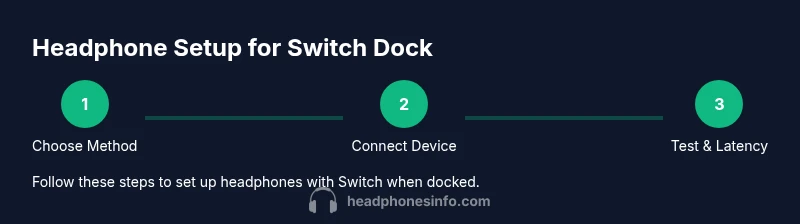
Choose listening method
Decide whether you will use Bluetooth, a wired TV route, or a DAC-based wired path. This choice sets up the rest of the steps and determines which devices you’ll connect first.
Tip: Start with the simplest option you own (e.g., Bluetooth or a basic TV output) to test compatibility before adding extra hardware. - 2
Pair Bluetooth headphones (dock mode)
Put your headphones in pairing mode and open the Switch Settings > Bluetooth Audio to pair. Confirm the connection in the device list and test by playing audio from a game.
Tip: Keep the headset as close as possible during pairing to avoid dropouts. - 3
Configure TV/audio path
If you’re routing audio through the TV, ensure the TV is set to output headphone or external speaker audio. Enable game mode if available to reduce processing latency.
Tip: Disable any TV sound enhancement features that add processing delay. - 4
Connect a wired DAC or adapter (optional)
Connect a DAC or USB-C to 3.5mm adapter between the Switch dock and your wired headphones. Verify the switch recognizes the audio device.
Tip: Test both DAC and standard 3.5mm paths to see which offers lower latency in your room. - 5
Test audio sync
Play a game with quick action and watch for lip-sync issues. If you notice lag, switch methods or adjust device placement.
Tip: Latency can vary by room, device, and firmware; testing is essential. - 6
Adjust in-game and system settings
Fine-tune volume balance, mic usage, and any in-game audio delay settings to optimize the listening experience.
Tip: If your headset has a mic, test voice chat for clippy or timing issues and calibrate accordingly. - 7
Create your preferred setup
Document your chosen method and store adapters in an accessible place for quick switching between sessions.
Tip: Label cables and keep a small bag with adapters to simplify travel.
People Also Ask
Can I use Bluetooth headphones with the Switch while it is docked?
Yes, Bluetooth headphones can work when the Switch is docked, but you may experience some audio latency. Compatibility varies by headset and firmware. Test to see if the delay is acceptable for your playing style.
Yes—Bluetooth can work when docked, but latency varies by device and environment.
What is the best way to listen with headphones when the Switch is docked?
Generally, a wired path through the TV or a USB DAC offers the most reliable lip-sync. Bluetooth is convenient but can introduce delay; choose based on your priority between convenience and latency.
Wired through TV or DAC is usually most reliable; Bluetooth is convenient but may lag.
Does the Nintendo Switch support 3.5 mm headphones in docked mode?
Not directly through the Switch dock; you’ll typically route audio via the TV or a DAC. You may need additional adapters or use TV-based audio outputs.
Not directly; use a TV or DAC route for wired headphones.
How can I reduce audio latency when gaming?
Use wired or TV-based paths when possible, keep devices close, and enable any game-mode audio settings on your TV. Test different methods to find what works best for you.
Prefer wired or TV-based routes and enable game mode for lower latency.
Will using the TV’s Bluetooth affect video quality?
It can, depending on the TV's Bluetooth implementation and codec support. Some setups offer good audio quality with minimal delay; others may introduce noticeable latency. Testing is advised.
TV Bluetooth can work well, but latency depends on the TV; test your setup.
What are common issues and how do I fix them?
If there’s no audio or it’s out of sync, re-pair devices, check that the correct output is selected, and restart the Switch or TV. Update firmware on headphones and Switch if available.
If audio is off, re-pair and check output; update firmware if needed.
Watch Video
What to Remember
- Choose a method based on latency tolerance and setup simplicity
- Wired paths offer the most stable lip-sync for docked play
- Bluetooth is convenient but may introduce noticeable latency
- Test your setup in real-game environments to confirm performance
- Document and label your setup for quick switching