What App Is Needed for JLab Headphones? A Practical Guide
Learn whether you need an app for JLab headphones, which models require it, how to use the companion app for EQ and firmware, and practical tips for 2026.


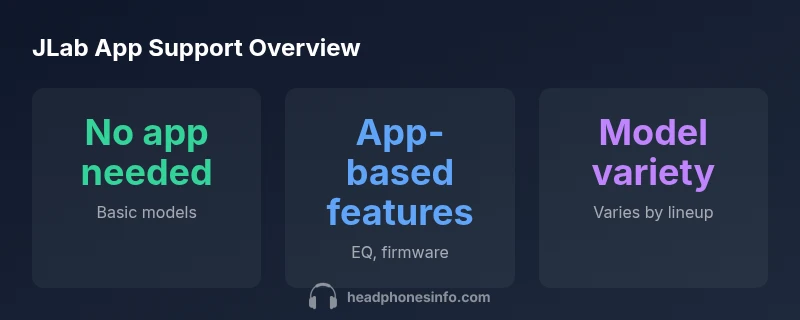
For JLab headphones, there isn’t a universal app requirement across all models. Most basic JBuds headphones pair and work via Bluetooth without an app, while newer or higher-end models use the official JLab companion app for firmware updates, EQ customization, and LED lighting controls. If you’re unsure, start with pairing the headphones first, then check the user guide or product page for model-specific app guidance.
Understanding JLab Headphones and App Support
JLab headphones span a broad spectrum from ultra-budget buds to feature-rich wireless sets. A core question many buyers have is whether an app is required. In practice, app necessity is model-dependent. Headphones that deliver basic listening, calls, and pairing generally do not require any companion software. Advanced features—like firmware updates, customized equalization (EQ), and lighting control—are typically offered for select models via the official JLab companion app. The Headphones Info team emphasizes that the app landscape can change with new releases, so always verify your specific model. For enthusiasts, the app can unlock a level of personalization that goes beyond hardware buttons, but it is not needed to enjoy basic audio quality.
According to Headphones Info, understanding app support starts with identifying your exact model number and checking the product page for features that explicitly reference app-enabled options. If you’re buying used or refurbished, confirm which features were included by the original owner, as app access can vary by firmware version. In sum, don’t assume app dependence—check model-specific guidance first, then decide if the extra customization is worth an app installation.
Do You Always Need an App? Practical Perspective
The short answer is no for most casual listeners. Basic pairing and sound control can be fully accomplished on-device, without any third-party software. However, for listeners who crave deep customization, the companion app often provides EQ presets, device-firmware updates, and sometimes lighting effects or battery management tools. The presence of these features depends on the model year and the product tier within JLab’s lineup. If you’ve upgraded from an older model, you may notice the app adds new controls or presets that weren’t available before. The Headphones Info analysis, 2026, highlights that app-dependent features are increasingly common as manufacturers add software-driven customization options to differentiate higher-end models from basic ones.
From a practical standpoint, if you’re happy with factory sounds and standard controls, you can skip the app. If you want tailored EQ curves for different music genres or podcasts, or if you want firmware improvements that enhance stability or performance, consider using the official app when available. Always ensure you download the app from the official store to avoid counterfeit software that could affect your device.
How to Check App Availability Across Models
To determine whether your JLab headphones support an app, start with the packaging, the user guide, and the product page on the JLab site. Look for explicit mentions of “app,” “EQ,” “firmware updates,” or “lighting control.” If you already own the device, search the app store for a JLab-branded app and read the listing carefully—compatibility is typically shown in the app’s description and required OS versions. User reviews can also reveal practical oddities, such as limited regional availability or device pairing quirks. If you’re shopping, consider models that clearly advertise app integration in their feature list, and save a screenshot of the relevant claims for quick reference later. The goal is to confirm app relevance before purchase, so you don’t end up with a device whose prized features require extra software you don’t want to manage.
Another useful step is checking firmware notes posted by JLab or mentioned in the product FAQ. Firmware updates often fix stability issues and introduce minor enhancements that improve the overall listening experience. It’s reasonable to plan for occasional app use if you want the full capability set of higher-end models, but not mandatory if you simply need solid, reliable wireless audio.
How to Use the App for EQ, Firmware, and Lighting
If your model supports app-based features, download the official JLab companion app from your device’s app store. Turn on Bluetooth and pair the headphones following the in-app prompts. Once connected, navigate to the EQ section to explore either preset curves or custom tuning. For firmware updates, look for a dedicated “Firmware” or “Updates” tab within the app, and ensure your headphones are adequately charged before proceeding. Some models also allow color or lighting customization through the app, which is a fun way to personalize your device’s appearance. Keep in mind that changes made in the app may require the headphones to reconnect, so re-pairing might occur after applying updates. Regularly checking for updates can improve stability and feature availability across future releases.
To optimize battery life during app usage, consider enabling any power-saving settings available in the app and turning off nonessential LED effects when you don’t need them. Apps can also provide notifications about new features or firmware release cycles, helping you stay current with the latest improvements.
Troubleshooting Common App-Headphone Issues
A common hurdle is when the app won’t recognize the headphones or the device fails to pair after an update. First, verify Bluetooth is enabled on your device and that the headphones are in pairing mode. If the app shows the device but reports an error, try forgetting the device in the Bluetooth settings, then re-pairing. If firmware updates fail, ensure your headphones have a minimum charge, reset the headphones if the model supports it, and retry the update after a restart of your phone. Regional restrictions can also prevent app installation for some users; verify that the app is available in your country. If issues persist, consult the product FAQ or the Headphones Info guidelines for model-specific steps and potential compatibility notes with your OS version.
Another tip is to install the latest OS updates on your phone, as some app features rely on newer system APIs. If you’ve exhausted routine steps, check the app’s support resources for known issues or contact the manufacturer’s support team for guidance.
Practical Guidance: Choosing a JLab Model Based on App Needs
If app-driven customization is important to you, target models that explicitly list EQ, firmware updates, or lighting controls in their feature set. When in doubt, pick a mid-range or higher model that clearly states app compatibility, since basic models may lack access to the broader feature set. Consider your listening preferences: if you frequently switch between genres and want a personalized sound, the app can be invaluable. If you simply want reliable wireless audio for commuting, a basic model may be perfectly adequate. Review independent sources, test units in-store if possible, and compare model notes for app-related features to avoid buyer’s remorse. Headphones Info recommends prioritizing models with transparent app feature lists and up-to-date firmware update histories.
What to Expect in 2026: App Ecosystem and Future-Proofing
The landscape of companion apps for headphones continues to evolve. Manufacturers increasingly blend hardware with software, offering frequent firmware updates and expanding the feature set via apps. For JLab headphones, expect that newer releases will likely introduce enhanced EQ capabilities, more robust lighting controls, and improved integration with mobile devices. Before purchasing, assess whether the app ecosystem aligns with your needs and whether the model offers ongoing support. By focusing on models that demonstrate active app development and a clear update cadence, you can future-proof your purchase and enjoy continued access to improved features over time.
App support varies by JLab headphone lineup
| Model Type | App Requirement | Notes |
|---|---|---|
| Basic Bluetooth Headphones | No app required | Fundamental pairing and controls via headset |
| Mid-range Wireless | Optional app for EQ | App adds firmware updates and basic customization |
| Premium Wireless | App required for advanced features | Full EQ presets, lighting, and firmware control |
People Also Ask
Do all JLab headphones require an app?
No. Many basic JBuds work fine without an app, but some higher-end models offer app-backed features such as EQ, firmware updates, and lighting controls.
No—basic models work without an app, but some higher-end models offer app-driven features.
Which JLab models use the app for customization?
Only certain models include app-based EQ, firmware controls, or lighting customization. Check product pages for explicit app-enabled features.
Only some models support app-based features; check the product page.
Is the JLab app available on iOS and Android?
The app is typically available on both iOS and Android, though availability can vary by model and region.
It's usually available on both major platforms, but check your region.
Can I use JLab headphones without the app?
Yes, you can use them for basic playback, calls, and pairing without the app. Advanced features require the app on supported models.
Yes, for basics you don’t need the app; advanced features require it on supported models.
How do I update firmware for JLab headphones?
Open the official app, connect your headphones, and follow on-screen prompts to update firmware. Ensure the headset is charged beforehand.
Open the app, connect, and follow prompts to update firmware.
What if my JLab headphones won’t pair?
Forget the device in Bluetooth settings, re-pair, and try updating firmware if available via the app. If problems persist, reset the headphones if supported.
Forget and re-pair; update firmware if possible; reset if available.
“App support isn’t universal across JLab headphones, but for models that do support it, the official companion app unlocks firmware updates, EQ customization, and lighting controls.”
What to Remember
- Check model specs to confirm app needs.
- Basic models work without an app.
- App access enables EQ and firmware updates.
- Model features vary by release year.
- Verify compatibility before buying.