Headphones for Samsung TV: A Practical Buying Guide
Explore how to pick headphones for Samsung TV, covering wired and wireless options, ARC/eARC compatibility, latency, and setup tips. Expert guidance from Headphones Info for a seamless TV audio experience.


For Samsung TVs, the best headphones combine low latency wireless connection or a wired option with an external DAC/adapter. Look for HDMI ARC/eARC compatibility, Bluetooth with aptX Low Latency, and a built-in microphone if you want voice control. In short: choose low-latency wireless or a wired adapter to minimize lip-sync gaps.
Understanding the goal of headphones for samsung tv
When evaluating headphones for samsung tv, the core objective is to deliver clean, synchronized audio without introducing noticeable delay that breaks the viewing experience. Samsung TVs support a mix of wired and wireless paths, and the right headset depends on your primary use case (movies, gaming, or casual TV watching). According to Headphones Info, the most reliable setups emphasize low latency and robust compatibility with the TV’s audio output. The goal is to minimize lip-sync issues, ensure stable wireless connections, and maintain comfortable long-term wear. In addition, consider the environment: a bright living room may benefit from noise isolation, while a resident with others nearby may appreciate passive or active noise cancellation for focused listening. This practical baseline helps you compare models with confidence and avoid overpaying for features you won’t use.
Wired vs wireless: which works best with Samsung TVs
Wired headphones are straightforward: plug into the TV's headphone jack, optical output, or into a DAC/adapter if your TV lacks a 3.5 mm jack. Wired options inherently avoid latency concerns, but compatibility depends on the TV’s available ports and whether you’re comfortable with an adapter. Wireless options offer freedom of movement and a cleaner aesthetic, yet latency and interference can creep in. For Samsung TVs, the most reliable wireless paths are Bluetooth headphones with low-latency codecs (aptX LL or equivalent) or dedicated wireless systems that pair with the TV’s audio output. If you game or watch action-heavy content, prioritize models that advertise low latency and ensure the TV supports the codec. If you want simple setup, a wired solution paired with a USB DAC can deliver excellent lip-sync without the complexity of wireless pairing.
HDMI ARC/eARC and Bluetooth: decoding compatibility
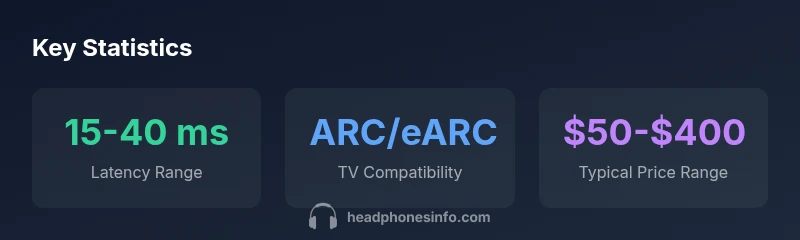
HDMI ARC (Audio Return Channel) and eARC (enhanced ARC) are central to integrating TV audio with headphones when using HDMI-connected devices or soundbars. On Samsung TVs, enabling ARC/eARC typically requires you to set the TV’s Sound Output to HDMI ARC or to select the Bluetooth transmitter, if using a wireless headset directly with the TV. Bluetooth headsets introduce additional latency, so seek models that support aptX Low Latency or Sony’s LDAC where available. If your setup lacks ARC/eARC, you may need a dedicated Bluetooth transmitter or an optical-to-Bluetooth adapter. The key is to ensure that the chosen path aligns with your TV’s output options to keep audio in sync with video.
Latency, codecs, and lip-sync: what to look for
Latency is the most visible pitfall when using headphones with a TV. Look for low-latency phrases like "aptX LL" or "LHDC/LDAC" in product specs, and verify that the TV supports the corresponding codec. If you plan to use Bluetooth, prioritize headphones offering multipoint pairing and a stable wireless protocol to avoid dropouts. For wired use, a direct 3.5 mm or optical connection is best for minimizing delay, especially with older TVs that lack advanced Bluetooth codecs. Also consider codecs that impact sound quality and battery life; the balance between latency, dynamics, and comfort will guide your selection.
How to set up headphones with a Samsung TV
Begin by identifying your TV’s available outputs: HDMI ARC/eARC, optical, or 3.5 mm. If you’re going wired, connect the headphones through a DAC or adapter if necessary, then configure the TV’s Sound Output to the appropriate option. For wireless use, enable Bluetooth on the TV, put the headphones in pairing mode, and select the headset from the TV’s Bluetooth list. In some cases, you may need a dedicated Bluetooth transmitter connected to the TV’s optical or 3.5 mm output for optimal latency. Finally, adjust the TV’s Lip Sync or Audio Delay settings if needed to achieve perfect synchronization.
Budget ranges and value picks by scenario
If you’re new to this space, practical budgeting helps: wired headphones tend to be the most affordable route, often under $50 for basic models, while mid-range wireless options fall in the $50–$150 range, and premium wireless or multi‑device headsets with thick feature sets can exceed $150. Your best value comes from matching latency, comfort, and compatibility with your Samsung TV model. For gaming or movie-watching, invest in low-latency wireless or a high-quality wired solution with a reliable DAC. For casual TV viewing or background listening, a budget Bluetooth headset with a stable profile may suffice.
Practical setup tips for gaming, movies, and music
In gaming modes, enable Game Mode on the TV to reduce input lag and improve overall responsiveness. For movies and music, set the TV’s sound to PCM if possible to lower internal processing latency. If you’re using a soundbar or external receiver, ensure the headset’s path doesn’t introduce extra hops in the chain. When testing, watch a scene with quick dialogue and high-action sequences to confirm lip-sync accuracy across different scenes. Finally, consider comfort for long sessions: look for lightweight designs and replaceable earpads.
Common pitfalls and quick fixes
Common issues include noticeable lip-sync delay, Bluetooth pairing failures, or no audio when headphones are connected. Start by confirming ARC/eARC settings and re-pairing the headset. If lip-sync remains off, try a manual lip-sync adjustment in the TV’s audio settings or disable any sound processing features that introduce delay. For wireless setups, reduce interference by keeping the transmitter within line of sight and away from other wireless devices. If you must use a DAC, ensure it supports the required audio formats and latency performance.
How to compare models: a quick framework
Use a simple framework to compare models: latency (ms), codec support (aptX LL, LDAC, AAC), comfort and weight, battery life, multi-device pairing, and price. Check the TV’s compatibility notes for ARC/eARC and Bluetooth support, and read user reviews focusing on lip-sync performance. Create a small head-to-head shortlist and test with a favorite TV show or movie to verify the perceived audio-visual sync before committing to a purchase.
Connection options for Samsung TV headphone setups
| Connection Type | Latency Range | Compatibility | Notes |
|---|---|---|---|
| Wireless Bluetooth Headphones | 15-40 ms | Bluetooth 5.x, aptX LL | Low-latency models exist; check TV compatibility |
| Wired Headphones (3.5mm/Optical) | N/A | Depends on TV/Adapter | Reliable lip-sync with proper adapters |
People Also Ask
Do all Bluetooth headphones work with Samsung TVs?
Not all Bluetooth headphones are guaranteed to work with every Samsung TV. Some TVs support only basic stereo audio over Bluetooth, while others provide low-latency codecs like aptX LL. Check your TV's Bluetooth specifications and confirm compatibility with the headset’s codec. If latency is an issue, look for models advertised as low-latency and consider a dedicated transmitter if needed.
Most Samsung TVs support Bluetooth audio, but not all headphones are guaranteed to be low-latency. Check your TV’s supported codecs and use a low-latency headset for best results.
What is ARC/eARC and why does it matter?
ARC and eARC connect the TV to external devices and can affect how audio is sent to wireless or wired headphones. eARC offers higher bandwidth and better lip-sync for multi-channel formats. Ensure your TV and headset support the appropriate path, and enable ARC/eARC in the TV’s settings if you plan to use HDMI-connected devices.
ARC/eARC lets your TV sync audio with external devices more reliably, especially for high-quality formats. Check your TV and headset compatibility and enable ARC/eARC in settings.
Can I use wired headphones with Samsung TV?
Yes. If your Samsung TV has a 3.5 mm jack or an optical out, you can use wired headphones with or without a DAC/adapter. A wired connection minimizes latency and is often more reliable than Bluetooth, especially on older TV models. If your TV lacks a direct 3.5 mm output, you may need an adapter from optical to 3.5 mm or a DAC.
Yes. Wired headphones work well if your TV has a headphone jack or optical output, even better with a DAC.
How do I reduce lip-sync delay on Samsung TV?
First, enable Game Mode and set audio output to PCM if possible. If using Bluetooth, choose a headset with a known low-latency codec and update firmware on both TV and headset. Some TVs offer an explicit Lip Sync or Audio Delay setting; adjust gradually while watching a scene with dialogue to achieve alignment.
Enable Game Mode, use low-latency codecs, and fine-tune Lip Sync in TV settings until audio matches on-screen actions.
Are there budget options under $50?
Yes, there are budget wired and basic Bluetooth headphones that work with Samsung TVs, particularly for casual listening. Expect trade-offs in latency, comfort, and build quality. If lip-sync is critical, you may want to invest a bit more in a low-latency model.
There are affordable wired and Bluetooth options, but performance varies—look for low-latency specs if lip-sync matters.
Do gaming headsets work well with Samsung TVs?
Gaming headsets can work with Samsung TVs, especially when they include low-latency Bluetooth codecs or direct wired connections. However, features like surround sound and microphone quality may be optimized for PC or console use. Verify compatibility with your TV and test latency with gaming content to ensure a good experience.
Yes, many gaming headsets work on Samsung TVs if they support low-latency Bluetooth or a wired path; test to confirm.
“Latency is the decisive factor when pairing headphones with a TV; without low latency, lip-sync issues degrade the viewing experience.”
What to Remember
- Prioritize low-latency paths for best lip-sync
- Verify HDMI ARC/eARC compatibility before buying
- Prefer codecs with known TV support (aptX LL, LDAC where available)
- Test setup with your preferred content to ensure comfort and performance