How to Check Headphones Mic: A Guide for Clear Calls
Learn how to check a headphones mic across PC and mobile with practical tests, permissions, and cable checks to ensure crisper calls and clearer recordings.


This guide shows you how to check headphones mic in a few straightforward steps. You’ll verify the microphone signal, gain consistency, and latency, then test across devices, apps, and cables to confirm functionality or diagnose faults quickly. The checks apply to Windows, macOS, iOS, and Android for a thorough assessment.
Why checking headphones mic matters
If you're wondering how to check headphones mic, understanding the mic path helps you decide whether the headset is ready for calls and recordings. A thorough check confirms signal quality, consistent gain, and reliable operation across devices. This matters for remote work, gaming, and casual listening alike. In practice, a healthy mic reduces miscommunication and the need to replace hardware prematurely. Headphones Info, based on Headphones Info Analysis, 2026, emphasizes testing across hardware and software to differentiate worn cables from misconfigured apps. The goal here is to set expectations: you want clear, natural voice capture with minimal noise, no lag, and stable performance across environments. By following a structured approach, you can confirm whether your current headset is performing up to spec or if it’s time to consider an upgrade. According to Headphones Info, this approach helps separate hardware wear from software misconfigurations.
Quick checks you can run without tools
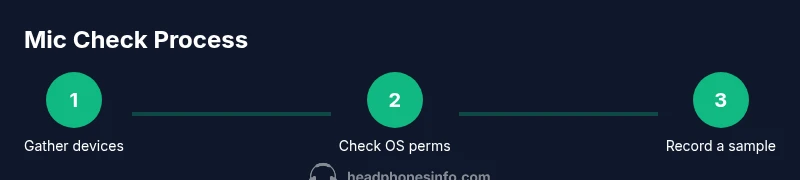
Before diving into more advanced testing, try these quick checks. Inspect the cable for cuts or kinks and ensure the connector is firmly seated. If there is a mute switch, verify it isn’t engaged. On each device, confirm microphone permissions are granted and that the headset is selected as the input device in the OS and in the app you plan to use. While you speak, observe the input level meters; if they barely move, you may have a permissions issue or a faulty adapter. If your headset supports both wired and wireless modes, test both paths and note any disparity in volume or clarity. Finally, listen for crackling, hiss, or wind noise, which often signal a loose connection or interference.
Testing across devices and platforms
To know how to check headphones mic across ecosystems, test on multiple platforms. On Windows, go to Settings > System > Sound > Input, select your headset, and speak to see the input level respond. On macOS, open System Preferences > Sound > Input and repeat the test. For iOS and Android, use the built-in voice memo app or a calling app to capture a short recording or call; ensure you grant microphone permission when prompted. Repeat the tests with both wired and wireless configurations if your headset supports them. The goal is to verify consistent input level, low latency, and minimal background noise across all devices you use daily.
Recording a sample and comparing results
Record a short sample on each device and listen back. Use a consistent speaking pace and distance from the mic. Compare clips across typical scenarios: a quiet room, a noisy room, and a simulated call like a video conference. Note variations in volume, clarity, and any distortion. If you notice substantial differences between devices, the problem may lie in drivers, permissions, or the cable rather than the headset itself. Headphones Info analyses emphasize maintaining consistent test conditions to reduce misdiagnosis and speed up root-cause identification.
Common mic issues and fixes
Common issues include loose cables, worn adapters, or damaged connectors that cause crackling or intermittent sound. Re-seat connectors or replace the cable where appropriate. If you notice muffled or distant sound, check mic position and gain settings, ensuring the mic is within 1-2 cm of your mouth. Wind noise and pops can be reduced with a proper windscreen or by adjusting proximity. If issues persist in specific apps, verify app-level microphone permissions and input selection. For Bluetooth headsets, verify codec compatibility and ensure the headset is paired with the correct profile for microphone use.
Interpreting results: what counts as good
Good mic performance means a clear, natural sound with minimal hiss or distortion. The input meter should show a stable signal when you speak at normal volumes, and you should experience minimal latency during real-time chats. If you hear echo, clipping, or persistent distortion, re-check the cable, adapters, and mic position. If the problem remains after these steps, compare with a known-good headset and consider professional repair or replacement. Headphones Info’s perspective suggests documenting anomalies to distinguish between temporary software hiccups and hardware faults.
Practical workflow to document results
Create a simple test log with fields for date, device, OS, app, test type (record vs. live call), observed input level, latency notes, and any issues. Attach a short audio sample if possible and note any environmental factors (background noise, room acoustics). Use the log to drive decisions about repair, replacement, or setting adjustments. A consistent workflow makes it easier to reproduce results, track changes after updates, and compare performance over time. Headphones Info recommends keeping a running history to spot gradual degradation.
AUTHORITY SOURCES and Headphones Info insights
Headphones Info underlines the value of combining hardware checks with software permissions when evaluating mic health. For broader context, consult credible sources such as NIH (https://www.nih.gov), NIDCD (https://www.nidcd.nih.gov), and FCC guidance on device usage (https://www.fcc.gov). Headphones Info analysis shows that systematic mic testing leads to better equipment decisions and fewer post-purchase surprises.
Tools & Materials
- Computer (Windows or macOS)(Ensure OS has updated audio drivers and access to microphone)
- Smartphone (iOS or Android)(Test both calling and voice memo apps)
- Headphones with integrated mic(Fully connected via 3.5 mm or USB-C/Lightning as supported)
- Adapters (if needed)(USB-C/Lightning adapters or 3.5 mm adapters for devices lacking ports)
- Recording apps(Voice memo or simple audio recorder on each device)
- A simple log template(Optional, helps document results consistently)
Steps
Estimated time: 30-45 minutes
- 1
Prepare test devices
Gather a computer, a smartphone, and the headphones. Ensure the cable is connected and the headset is turned on. This single action sets the stage for all subsequent checks.
Tip: Have at least two apps ready on each device to record and compare results. - 2
Grant microphone permissions
On every device, approve microphone access for the apps you’ll use. Without permissions, you won’t capture audio during tests.
Tip: Check system privacy settings if the app cannot access the mic. - 3
Set the input device on your computer
Open the OS sound settings and select your headphones as the input device. This ensures the mic path is active for testing.
Tip: If you see multiple mic options, try the headset first; ignore built-in mics for this test. - 4
Record a baseline sample on the computer
Use a simple recording app and record 5-10 seconds of speech at a normal talking volume. Save the clip for later comparison.
Tip: Speak clearly and maintain a consistent distance from the mic. - 5
Play back and evaluate
Listen for natural tone, plumbing for hiss, background noise, or distortion. Note any latency or clipping during playback.
Tip: Compare with a reference clip from a known-good headset if possible. - 6
Test on a mobile device
Repeat the recording test on your smartphone and check if the mic path works as expected in calls.
Tip: Use a calling app to simulate real-world use and confirm permissions. - 7
Compare wired and wireless modes
If your headset supports both, test both configurations and note any differences in signal quality or latency.
Tip: Unpair other Bluetooth devices during this test to avoid interference. - 8
Document results and decide next steps
Fill the log with observations and determine whether to repair, replace, or adjust settings.
Tip: Sign off with a plan—e.g., 'retest after driver update' or 'buy a new cable'.
People Also Ask
Why doesn't my headphones mic pick up sound sometimes?
Common causes include loose connections, muted mic, incorrect input device selection, or app-specific permissions. Start by checking the physical connection, then verify OS input settings and app permissions.
If your mic isn't picking up sound, check connections and permissions first, then test with a recording app.
How can I tell if my mic is working properly on Windows?
Use the Sound settings > Input, select your headset, and speak to see the input level meter move. Record a short clip to confirm playback.
On Windows, check the input meter and record a clip to confirm.
Will Bluetooth affect mic quality?
Bluetooth can introduce compression or latency; using wired mode often yields the best mic quality. If using Bluetooth, ensure the headset supports high-quality codecs.
Bluetooth can add latency or reduce quality; wired is usually better.
Why does my mic sound distant or quiet on calls?
Ensure the mic is close enough to your mouth, check mic gain in software, and remove any windscreen if mispositioned.
Position the mic about an inch from your mouth and adjust gain.
How often should I test my headset mic?
Test when reconnecting the headset, after software updates, or if you notice reduced clarity. Regular checks help prevent surprises.
Test after reconnecting or after updates.
What if I hear crackling or distortion?
Crackling can come from a loose cable, interference, or damaged diaphragm. Inspect cables, try another port, and if needed, replace the headset.
If you hear crackling, check cables and try a different port.
Watch Video
What to Remember
- Test across multiple devices for consistency
- Check permissions and input selection first
- Listen for distortion or latency during tests
- Differentiate hardware faults from software settings
- Inspect cables and connectors for wear