How to Get Headphones Mic to Work on PC
A comprehensive, practical guide to getting your headphones microphone to work on a PC. Learn setup, OS-specific steps, troubleshooting, and testing tips from Headphones Info.


To get your headphones microphone working on a PC, connect using the correct port (USB, USB-C, or 3.5mm TRRS), set the headset as the default input, and install any needed drivers. Test with a recording app and verify mic permissions in your OS. If privacy settings block access, enable microphone permissions and re-test.
Understanding the problem and common causes
Headphones mic issues on a PC are usually a mix of hardware, software, and setting problems rather than a mysterious fault. Before you dive into configurations, classify the symptom: is the device not detected at all, or is it detected but muted or inaudible? The common culprits fall into a few buckets: hardware compatibility (USB, USB-C, or 3.5mm TRRS), incorrect input selection in the OS, missing or outdated drivers, and software/privacy settings that block mic access. By mapping the symptom to a likely cause, you can target your troubleshooting efficiently. For instance, if your headset shows up in Device Manager but produces no sound, the fix is usually OS settings and permissions rather than hardware replacement. Don’t overlook the headset’s own mute switch or inline controls, which many users accidentally ignore. Throughout this guide, we’ll provide practical checks and OS dialogs to confirm a working path. The Headphones Info approach emphasizes simple, verifiable steps—port checks and permissions—before considering adapters or new hardware.
Check hardware and connections
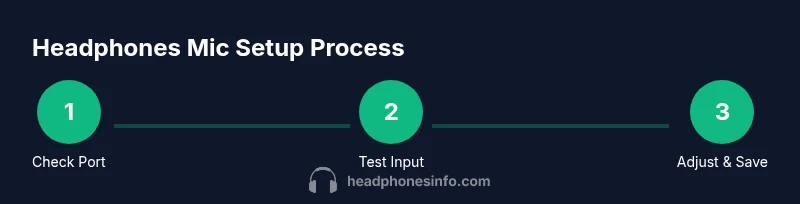
Start with the obvious: verify the headset is properly connected to the PC. Try different ports (front vs. rear on desktops, USB-A vs USB-C on laptops) and confirm the plug isn’t loose. Inspect connectors for bent pins or damage. If you’re using a 3.5mm jack, confirm you’re plugging into the microphone input, not just the headphone jack. Some PCs share a single combo jack for both mic and audio; in that case, you may need a TRRS adapter or a splitter. For Bluetooth headsets, ensure pairing is complete and that the microphone is not muted on the device. If the device shows as connected but you still hear nothing, perform a quick test with a built-in app like Windows Voice Recorder or macOS QuickTime to confirm the mic path. A simple hardware reset—unplug, wait 10 seconds, reconnect—solves many stubborn issues.
Compatibility and microphone types: 3.5mm vs USB vs USB-C
Headphones with microphones come in several interface types, and each affects detection and configuration differently. USB mics include their own digital processing and are often plug-and-play, requiring little or no driver tinkering. USB-C mics are common on newer laptops, but some USB-C hubs lack audio pass-through, so test directly on the laptop port if possible. Wired 3.5mm mics may rely on a motherboard’s mic input or a combo jack; if your PC has a single jack, you may need a TRRS adapter to separate mic and audio signals. Bluetooth mics add convenience but introduce latency and sometimes require extra pairing or firmware updates. In all cases, verify the OS input device matches the headset and confirm the mic is active and not muted.
Windows vs macOS: driver and input settings
Windows and macOS expose audio settings differently, but the goal remains the same: ensure the mic is recognized and permitted. Windows relies on the Sound control panel and Privacy settings, while macOS uses System Settings > Sound and per-app permissions. In Windows, open Settings > System > Sound, pick your headset under Input, and test with the built-in mic strength meter. In macOS, go to System Settings > Sound > Input, select the device, and watch the input level. If you’re using Bluetooth, ensure the device stays connected after testing and that it’s selected as the input device in all apps you use. Headphones Info recommends verifying that Discord, Zoom, or Teams aren’t overriding system input with a separate device.
Windows: configure input device and privacy settings
With Windows, you’ll want to lock in the mic as the default input and allow apps to access it. Open Settings > System > Sound, then under Input select your headset and speak to test the level. If you don’t see activity, click Device Properties, adjust the volume, and be sure the mute switch on the headset isn’t engaged. Next, check Privacy Settings > Microphone and ensure that access for devices and apps is enabled. Finally, re-test in a recording app. If an app uses a different input, you may need to set that app’s input device manually in its own settings.
macOS: configure input device and permissions
On macOS, ensure the headset is selected in System Settings > Sound > Input and that the input level shows movement when you speak. Grant microphone access to apps that request it under System Settings > Privacy & Security > Microphone. Some apps require you to select the mic within the app’s own settings as well. Bluetooth headsets may need a quick disconnect/reconnect after permissions are granted. After adjusting, run a quick test in QuickTime or Voice Memos to confirm the mic path.
Testing and validating with apps
Testing the mic across multiple apps helps confirm consistency. Start with a built-in recorder (Windows Voice Recorder or macOS QuickTime) to verify the input level responds to your voice. Then test in common communication apps (Zoom, Discord, Teams) and in any software you plan to use for calls or voice chat. If a specific app won’t pick up sound, check its audio input settings to ensure it’s using the headset mic instead of another device. Consistent results across multiple apps indicate the mic path is solid; inconsistent results point to app-specific settings or permissions that need adjustment.
Troubleshooting advanced issues and when to upgrade
If the mic remains inaudible after all basic checks, consider more advanced steps. Update the headset’s firmware or the PC’s audio drivers from the manufacturer or the OS vendor. Disable exclusive mode in Windows Sound settings to prevent apps from monopolizing the mic. Check privacy/per-app permissions again, and test with a different PC or a different headset to determine if the problem is hardware-related. If you’ve exhausted all software fixes and the microphone still fails to perform reliably, it may be time to consider a replacement or warranty service. The goal is a reliable mic path, not endless debugging.
Maintaining your headset mic and future-proofing
Regular maintenance helps prevent mic problems. Keep connectors clean and free of dust, store the headset in a safe place, and avoid bending the cable near the plug. Keep drivers and firmware updated and periodically re-test the mic path to catch drift in performance. If you rely on the mic professionally, consider keeping a backup headset for contingency and verifying compatibility when you upgrade your PC or OS. By following a routine maintenance and testing cadence, you’ll reduce future mic issues and sustain high audio quality.
Tools & Materials
- Headphones with built-in microphone(USB, USB-C, or 3.5mm TRRS compatibility depending on model)
- PC or laptop with working USB port or 3.5mm mic input(Check port specs before starting)
- Adapter or hub (if needed)(For USB-C to USB-A or TRRS adapters)
- Microphone testing app(Voice Recorder (Windows) or QuickTime (macOS))
- Documentation/manual(To confirm compatibility and mute/volume controls)
Steps
Estimated time: 25-40 minutes
- 1
Identify connection type
Inspect the headset plug and PC ports to determine if you’ll use USB, USB-C, or 3.5mm. If the headset uses separate mic/audio plugs, plan to use a splitter or TRRS adapter. For Bluetooth, ensure the device is paired and the mic is active.
Tip: Check the headset manual for port specifics and supported interfaces. - 2
Plug in securely and verify physical indicators
Firmly connect the headset to the chosen port and look for a visible indicator (LED or sound cue). If available, test multiple ports (front/back on desktops) to rule out a faulty jack.
Tip: Avoid using long daisy-chained USB hubs for mic devices. - 3
Set headset as default input in OS
Open your OS sound settings and select the headset as the default input device. Adjust the input level and perform a quick mic test with the system’s test tool or a simple recording app.
Tip: Disable other microphones temporarily to avoid confusion during testing. - 4
Update drivers or firmware
Use Windows Update or the headset vendor’s site to install latest drivers or firmware. For Bluetooth devices, ensure firmware is up to date and the device is re-paired after updates.
Tip: Restart the computer after updating to apply changes. - 5
Test with multiple apps
Test the mic with Voice Recorder (Windows) or QuickTime (macOS), then check apps like Zoom or Discord. Confirm each app’s input device is set to your headset.
Tip: If an app insists on using a different mic, adjust the app’s own audio settings. - 6
Troubleshoot persistent issues
If issues persist, try a different headset or PC to determine if the problem is hardware-related. Consider microphone privacy settings, exclusive mode, and potential hardware damage.
Tip: A clean hardware reset (unplug, wait, reconnect) can reset many stuck states.
People Also Ask
Why isn’t my headset mic detected by Windows?
There could be several causes, including loose connections, an incorrect input device, outdated drivers, or privacy settings blocking mic access. Start with basic checks: reseat the plug, verify the input device, and review app permissions.
If your mic isn’t detected, begin with the easy checks like reconnecting, selecting the right input, and ensuring mic permissions are enabled.
Do USB mics require special drivers?
Most USB microphones are plug-and-play, but some models need vendor software. Windows may install generic drivers automatically, while certain features require the manufacturer’s software.
USB mics usually work without extra drivers, but some models need vendor software for full features.
Can I use a Bluetooth headset mic on PC?
Yes, but Bluetooth mic performance can vary due to latency and connection stability. Ensure the device stays connected and is selected as the input in both OS and apps.
Bluetooth mics work, but you may experience a bit of delay and need to confirm the mic is active in each app.
How do I test my mic quickly?
Use the built-in recorder (Windows Voice Recorder or macOS QuickTime) to check the input level, then verify in the app you plan to use. If you hear nothing, re-check permissions and input selection.
Open a quick test app, speak, and watch the input level move to confirm the mic path.
What about app-specific mic settings?
Some apps override system input. Check each app’s audio settings to ensure they’re using the headset mic rather than another device.
If an app won’t pick up your mic, inspect its own audio input settings and set it to your headset.
When should I replace the headphones?
If you exhaust troubleshooting and the mic still fails, consider warranty options or trying another headset to determine if the problem is hardware-related.
If persistent after testing, you may need a replacement or warranty service.
Watch Video
What to Remember
- Identify the correct headset port and connection type
- Set the headset as the default input device in OS
- Test with multiple applications to confirm reliability
- Update drivers/firmware if issues persist