How to Check Headphones on Teams
Learn how to check headphones on Teams with a clear, data-driven approach. Verify OS and Teams audio settings, test playback and mic, and troubleshoot common issues for reliable meeting sound.


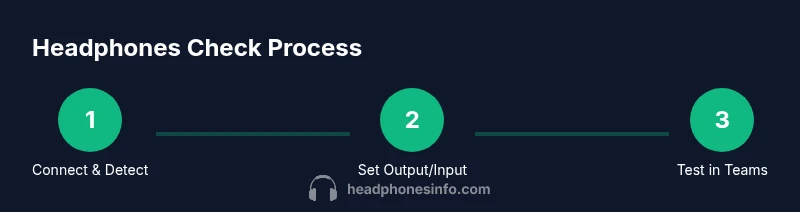
On Teams, check headphones by confirming OS audio settings, selecting the headset as both output and input in Teams, and running a quick device test. Test playback and mic in a short call, adjust volume, and confirm consistent routing across apps. According to Headphones Info, isolating hardware, drivers, and app settings is key to reliable sound in meetings.
Why Checking Headphones on Teams Matters
Sound quality and reliable microphone input are essential for productive meetings. If audio routes through the wrong device or the OS defaults to another headset, participants may experience muffled sound, missing voices, or feedback. This guide walks you through a data-driven process to verify both hardware and software paths, with practical tests you can run in real time. The Headphones Info team emphasizes isolating variables—hardware, drivers, and software settings—to achieve consistent results in Teams calls.
How Teams routes audio: OS vs app settings
Teams relies on two main audio paths: the operating system (OS) and the Teams app itself. If the OS default differs from the Teams selection, audio can unpredictably swap between devices. In many cases, users forget to set the headset as both the system default output and input, causing you to hear through the wrong device or fail to be heard. Headphones Info analysis shows that aligning OS defaults with Teams settings reduces most common issues.
Choosing the Right Headset: Wired vs Wireless
Wired headsets typically deliver the lowest latency and most stable connections, which helps in professional chats and meetings. Wireless options offer flexibility but can introduce interference, battery concerns, and occasional latency spikes. When checking headphones on Teams, weigh your priority—minimal setup friction and consistent performance usually favors wired connections for daily meetings, while wireless can be perfectly adequate for casual calls if properly paired and charged.
Step-by-Step: Verify Teams Audio Settings
Begin by confirming the headset is connected and recognized by your OS. Then open Teams and navigate to Settings > Devices. Select your headset as both the Speaker (Output) and Microphone (Input). If you use a dongle or USB-C adapter, ensure it’s selected and not a built-in device. Finally, perform a device test and adjust volume levels to comfortable listening thresholds.
In-Call Tests: Running the Teams Device Test
Use Teams’ built-in device test feature to validate both listening and speaking paths. Start a test call, play a sample audio clip, and observe playback quality, channel balance, and any clipping. Speak into the mic and watch for consistent pickup. If you notice imbalance, toggle between headset modes or unplug-replug the device to reset the audio pipeline.
Troubleshooting Common Hardware Issues
A frequent culprit is a loose USB connection or a worn audio jack. Re-seat connectors, try a different USB port, and test with a known-good cable. Firmware updates for the headset can also improve compatibility with Teams. If you’re on Bluetooth, ensure the headset is paired with the PC or Mac and that power-saving features aren’t muting the device.
Microphone Quality and Push-to-Talk considerations
Poor mic quality often stems from poor mic gain or noise suppression settings in Teams. In Settings > Devices, adjust the Microphone volume to a comfortable level and test with Push-to-Talk if your workflow benefits from quieter environments or noisy backgrounds. External pop filters or foam windscreens can reduce plosive sounds, improving overall clarity.
Latency, Bluetooth, and Connection Stability
Bluetooth headsets can introduce noticeable latency, especially on older hardware or crowded 2.4 GHz environments. If latency is an issue, try a wired connection for critical meetings or update Bluetooth drivers and firmware. Also ensure there’s minimal interference from other wireless devices and keep the headset charged for stable operation.
Best Practices for Consistent Meeting Audio
Create a routine: (1) verify OS defaults, (2) set Teams devices, (3) run a quick test call, (4) check both playback and mic, (5) keep firmware up to date, and (6) test before important meetings. This discipline reduces last-minute audio failures and supports smoother collaboration.
What to Do if Problems Persist
If issues persist after all checks, try a different headset to determine whether the problem lies with the device or the Teams environment. Update Teams to the latest version, restart the computer, and consider reaching out to your IT team if company-wide policies affect device access. The Headphones Info team recommends documenting your test results to speed up support.
Tools & Materials
- Headphones (wired or wireless)(Primary test device; ensure it’s compatible with your computer)
- Computer or laptop(With access to OS sound settings and Teams app)
- Teams app (latest version)(Installed and signed in)
- USB DAC or adapter (optional)(Useful for high-fidelity testing or troubleshooting low-quality DACs)
- Additional microphone (optional)(For cross-checking mic performance on different devices)
Steps
Estimated time: 15-25 minutes
- 1
Connect and verify device visibility
Connect the headset and check that the OS recognizes it in the sound control panel. If the device is not shown, try a different port or restart the computer. This ensures the hardware is functional before testing in Teams.
Tip: Use a direct USB port rather than a hub to avoid power or polling issues. - 2
Set OS defaults for output and input
Open the OS sound settings and set your headset as the default Output and Input device. This reduces routing conflicts when Teams accesses the audio path.
Tip: If you use multiple devices, disable other devices temporarily during testing. - 3
Open Teams and adjust device settings
In Teams, go to Settings > Devices. Choose the headset for Speaker and Microphone. Save changes and exit settings to ensure the selection sticks.
Tip: If you don’t see the device, reconnect and reopen Teams. - 4
Run a device test in Teams
Use the built-in device test to verify playback and mic. Listen for clear audio and check mic pickup, noting any hissing, clipping, or inconsistent levels.
Tip: Record a short sample to compare later if you test across devices. - 5
Perform a quick live test with a colleague
Join a short call and confirm your audio is clear to the other participant. Pay attention to feedback or echoes.
Tip: Ask the other person to confirm if your voice sounds natural and not artificial. - 6
Check for latency and interference
If you’re using Bluetooth, test for noticeable delay. Move closer to the computer or switch to a wired connection if latency is unacceptable.
Tip: Turn off nearby Bluetooth devices that might cause interference. - 7
Update drivers and firmware
Ensure headset drivers and firmware are up to date, as outdated software can cause compatibility issues with Teams.
Tip: Check the manufacturer site for the latest releases. - 8
Re-test across apps
Open other apps (music player, voice chat) to confirm audio routing remains stable. If inconsistencies arise, repeat steps 1–3 with a fresh restart.
Tip: Document any persistent issues for IT support.
People Also Ask
How can I tell if Teams is using my headset?
Open Teams Settings > Devices during a test call and confirm the Output and Input devices. You can also verify in the OS sound control panel.
Check the Devices panel in a Teams test call to confirm your headset is selected.
Why is my microphone not picking up sound in Teams?
Sometimes Teams overrides default device settings or uses an incorrect audio path. Reselect the headset in Teams and OS settings, then restart Teams.
This usually comes from Teams not using the right device; reselecting often fixes it.
Should I set the headset as default in both OS and Teams?
Yes. Align the OS default with Teams device settings to ensure consistent routing across apps.
Make sure both OS and Teams are pointing to the same headset.
What if my headset works in other apps but not Teams?
This often means Teams is using a different device path. Revisit Settings > Devices and reselect the headset, then test again.
Resetting Teams device choices usually fixes this.
Can Bluetooth headsets cause issues in Teams?
Bluetooth can introduce latency and dropouts. If you rely on Teams for important meetings, consider a wired headset or ensure a strong Bluetooth connection.
Bluetooth can lag; use wired for critical calls if possible.
How do OS settings affect Teams?
OS sound routing determines what Teams will receive. Setting the headset as the default Output and Input helps ensure Teams uses the right device.
Your OS defaults largely set Teams' audio path.
Watch Video
What to Remember
- Verify OS defaults before Teams changes
- Test playback and mic in a real call
- Keep firmware up to date to avoid compatibility issues
- Use wired connections for time-critical meetings
- Document results to support troubleshooting