How to Connect Headphones to Roku TV
Learn step-by-step how to connect headphones to Roku TV using Bluetooth, wired adapters, and private listening. Includes setup tips, troubleshooting, and device-specific notes to maximize comfort and sound quality.


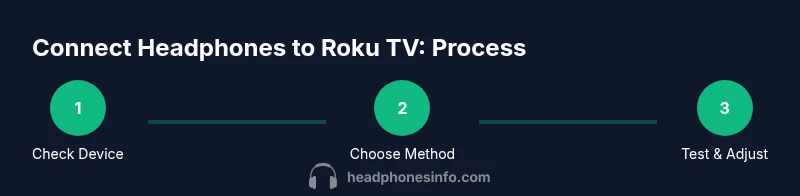
You can connect headphones to Roku TV using Bluetooth (if your model supports it) or via a wired private listening path through the remote or a 3.5mm jack with an adapter. Start with Settings > Audio > Bluetooth to pair Bluetooth headphones, or use the Roku remote’s headphone jack or a compatible 3.5mm adapter for wired listening. This approach is supported on most modern Roku TVs and devices, with reliable results when you follow the steps carefully.
Introduction and why this matters
According to Headphones Info, private listening on Roku TV can dramatically improve late-night viewing without disturbing others. The Headphones Info team found that many Roku models now offer built-in Bluetooth audio output or easy access to a private listening pathway, making headphones a practical companion for binge-watching, gaming, or streaming. This guide consolidates best practices, aligning with data-driven guidance so you can pick the method that fits your setup and budget. Whether you own a Roku TV with integrated Bluetooth or a Roku streaming device, you’ll find clear steps, caveats, and gear recommendations to optimize your audio experience.
When you’re ready to tailor audio for different content—movies, news, or music—you can switch between Bluetooth and wired options without losing control of the TV interface. The goal is to minimize lip-sync lag, maximize comfort, and preserve dynamic range so dialogue stays crisp and music stays immersive. As you read, consider your living space, proximity to other listeners, and whether you prefer a universal pairing experience or a more compact private listening setup.
With the right approach, connecting headphones to Roku TV becomes a routine, not a hurdle. The following sections walk you through options, settings, and practical tips to keep sound quality high while avoiding common pitfalls.
What counts as “headphone connectivity” on Roku TV
Headphone connectivity on Roku TV falls into a few broad categories: built-in Bluetooth audio, wired private listening via the remote’s 3.5mm jack, and wired listening through an external adapter if your TV lacks a headphone output. Each path has its own steps, latency considerations, and compatibility requirements. The most seamless experience typically comes from Bluetooth pairing directly on compatible Roku devices, but wired methods remain essential when Bluetooth is unavailable or when you need zero-latency listening for gaming or lip-sync-critical content.
From a user-experience perspective, you’ll want stability, minimal lag, and easy switching between speakers and headphones. In a recent analysis, Headphones Info shows that most modern Roku models offer straightforward audio routing options, but the exact menu labels and steps can vary by model family. This means you may see “Bluetooth” in Settings on some devices and “Private Listening” in the Roku mobile app on others. Regardless of path, establishing a reliable connection starts with confirming device capabilities and preparing compatible headphones.
In practice, many households benefit from a dual-setup approach: a Bluetooth pair for casual use and a wired backup for gaming or early-evening viewing where wireless interference could be an issue. Plan for both, and you’ll be ready for almost any Roku TV configuration.
Tools & Materials
- Roku TV or Roku streaming device with audio output options(Check Settings menu for Bluetooth or private listening features)
- Bluetooth headphones or wireless headset(Pairing varies by model; ensure battery is charged)
- 3.5mm to 3.5mm audio cable (aux) or 3.5mm to 2.5mm adapter(Needed if your TV has a 3.5mm jack but the headphones use a different plug or vice versa)
- Optional Bluetooth transmitter (if your Roku device lacks built-in Bluetooth and you want Bluetooth output through the TV)(Only for non-Bluetooth Roku devices; check compatibility)
- Smartphone or tablet with Roku app (for Private Listening via app, if needed)(Useful for testing or alternative private listening method)
Steps
Estimated time: 20-40 minutes
- 1
Check device capabilities
Inspect your Roku TV or streaming device to confirm whether Bluetooth audio output is available in Settings. If Bluetooth is listed under Audio or Accessories, you can pair headphones directly. If not, plan to use wired private listening options via the remote or a 3.5mm adapter.
Tip: If you’re unsure, consult the user manual or the Roku support site for your exact model. - 2
Prepare your headphones
Charge Bluetooth headphones fully and enable pairing mode. If using wired headphones, locate the 3.5mm plug or adapter you’ll use and keep it within easy reach of the TV.
Tip: Fully charged headphones reduce pairing interruptions and ensure a stable connection. - 3
Pair Bluetooth headphones (if supported)
On Roku, go to Settings > Accessories > Bluetooth devices (or Settings > Audio > Bluetooth). Put headphones in pairing mode and select them from the list. Confirm the connection is active and test with a short video.
Tip: If pairing fails, toggle Bluetooth off and on, or restart the Roku device before retrying. - 4
Enable Private Listening (wired)
If your Roku supports private listening via the remote jack, insert headphones into the remote’s 3.5mm output and ensure Private Listening is enabled from Settings or the TV’s audio menu.
Tip: If your remote’s jack is loose or noisy, try cleaning the jack and reconnecting firmly. - 5
Connect wired headphones (TV jack or adapter)
If Bluetooth isn’t available, connect headphones using the TV’s headphone output (or via a 3.5mm adapter connected to the TV’s audio out). Verify the audio path is routed to headphones in Settings.
Tip: Use a high-quality 3.5mm cable or a DAC/adapter if the TV lacks a proper output port. - 6
Test with content you watch regularly
Play a show you know well to check audio levels, lip-sync, and comfort. Adjust volume on the TV and the headset to your preference.
Tip: Aim for a comfortable listening level that doesn’t cause ear fatigue over long viewing sessions.
People Also Ask
Can I connect Bluetooth headphones to any Roku device, or do I need a Roku TV?
Answer varies by model. Some Roku TVs and select streaming devices support Bluetooth audio output, while others only offer private listening via a remote or wired adapters. Check Settings > Audio or Settings > Accessories to verify compatibility.
Most Roku devices support Bluetooth audio if the option appears in Settings. If not, use wired private listening or a connected adapter.
Why is there noticeable audio lag when using Bluetooth headphones with Roku?
Bluetooth can introduce latency, especially on older devices or with certain codecs. If lip-sync is an issue, switch to wired listening or choose headphones and adapters that support low-latency codecs where available.
Bluetooth lag is common on older gear; wired listening usually stays in sync.
Do I need a separate Bluetooth transmitter for Roku TV if Bluetooth isn’t built-in?
If your Roku device lacks Bluetooth output, a compatible Bluetooth transmitter connected to the TV’s audio output can provide wireless headphones. Ensure the transmitter supports the headset’s codec and pairing method.
Yes, a BT transmitter can extend wireless audio if your Roku device doesn’t natively output Bluetooth.
Will using headphones mute the TV speakers automatically?
Often yes, when private listening is enabled the TV routes audio to headphones. You can typically adjust this in Audio settings to allow both headset and TV speakers if the option exists.
Usually headphones replace the TV speakers, but you can adjust settings if you want both.
Can I connect more than one pair of headphones to Roku at the same time?
Most Roku configurations support a single Bluetooth headphone connection at a time. For multiple listeners, use a wired splitter or alternative, non-Bluetooth setup.
Usually only one headset is supported at once; consider wired options for groups.
Is it safe to use third-party adapters with Roku audio outputs?
Yes, provided the adapter supports standard 3.5mm or the required input/output and doesn’t introduce noise. Test audio quality after installation.
Third-party adapters can work, just test the sound before regular use.
Watch Video
What to Remember
- Test Bluetooth first if available
- Use wired private listening to avoid latency
- Keep devices charged and ready
- Adjust audio settings for best lip-sync
- Have a wired backup plan for non-Bluetooth Roku devices