How to EQ Headphones on PC: A Practical Guide
Learn how to EQ headphones on PC with Windows and popular third‑party tools. This step-by-step guide covers methods, testing, and tuning to achieve balanced, accurate sound across genres.


how to eq headphones on pc is a practical skill that lets you tailor sound without buying new gear. You can, using built-in OS tools or third‑party apps, shape a balanced tone. Start with a gentle curve, test with familiar tracks, and adjust for your headphone model and listening room. This guide shows practical steps, safe ranges, and testing methods to get reliable results.
How to eq headphones on pc: Why it matters
Sound quality is highly subjective, but a well-applied EQ can bring out balance and clarity without changing hardware. According to Headphones Info, getting the EQ right on PC is a quick, practical way to unlock more accurate sound from most headphones. Different models have distinct frequency responses; a small adjustment in the right region can tame harsh highs, lift bass that sits too low, and smooth midrange awkwardness. Headphones Info analysis shows that most listeners benefit from subtle, musical curves rather than aggressive boosts. The goal is a natural, cohesive listening balance that translates across tracks and genres. Start with a broad, gentle shelf or bell that touches the 80 Hz bass region and around 2–4 kHz for clarity, then refine with test material. Remember: the environment, source quality, and headphone impedance all influence the final result. The phrase how to eq headphones on pc should guide your approach as you tune for your setup.
How to approach EQ on PC: three practical paths to choose from
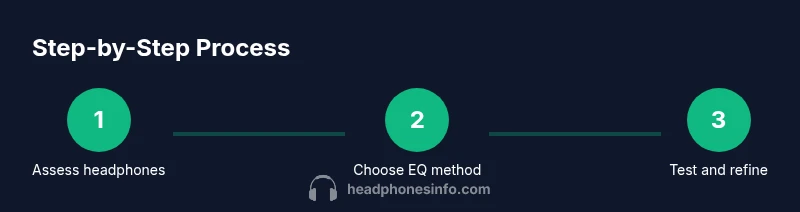
There are three common paths to implementing EQ on a PC: (1) OS-level EQ built into Windows or macOS; (2) a dedicated system-wide EQ app such as Equalizer APO combined with a front-end like Peace; (3) per-application EQ within a music player or DAW if you only want to adjust one program. Each method has trade-offs in complexity, latency, and scope. The OS-level option is fastest for quick adjustments but may be limited in filter types. A system-wide solution like Equalizer APO can offer more precise filters and freedom, but requires a one-time configuration. A per-app approach lets you tailor sound for specific software, which is useful for gaming or streaming. If you’re just starting out, experiment with a small, fixed curve across all methods and compare results. No matter which path you choose, follow a plan that ties changes to tangible listening tests. how to eq headphones on pc remains the guiding phrase as you decide your preferred route.
Step-by-step: Windows built-in EQ (where available)
Windows users can access a basic EQ pathway through the Sound settings or via device-specific drivers. Steps commonly include:
- Open the Sound control panel and select your playback device.
- Look for an Enhancements or Graphic EQ tab and enable it.
- Apply a gentle, linear curve: reduce peaks around 3–6 kHz if sibilant, boost 60–120 Hz for warmth, and lightly lift ~8–12 kHz for air (adjust to taste).
- Save the preset and label it clearly (e.g., “PC EQ - Bass Warmth”).
- Test with a range of tracks and switch presets to compare.
Notes: Not all drivers expose a built-in EQ; if you don’t see an EQ tab, skip to a third-party solution. Tailor the curve to your headphones and environment. how to eq headphones on pc can be explored further with alternate tools.
Step-by-step: Equalizer APO (system-wide) and Peace interface
Equalizer APO provides a powerful, transparent system-wide EQ for Windows. Peace is a GUI that makes APO easier to manage. A typical setup:
- Download and install Equalizer APO, choosing the correct audio device during setup.
- Install Peace to gain a friendlier control panel.
- In Peace, add a global 10–20 band EQ and begin with a conservative curve: drop harshness around 2–4 kHz if needed, gently boost low end around 60–120 Hz, and avoid extreme boosts.
- Save presets for different listening scenarios (e.g., gaming, movies, music).
- Test with diverse genres and adjust incrementally.
Pro tip: small, repeatable adjustments yield better reliability than large, sweeping changes. Once you settle on a curve, re-test on both quiet and busy audio sources. how to eq headphones on pc benefits from a robust APO-based workflow.
Step-by-step: macOS EQ options (eqMac and other tools)
macOS users often turn to third-party solutions like eqMac or AU Lab for a flexible EQ. Steps:
- Download and install an EQ app compatible with macOS (e.g., eqMac).
- Open the app and select your output device (headphones or built-in output).
- Apply a gentle baseline: reduce peakiness in the high region and balance bass without overpowering mids.
- Save multiple presets for different listening contexts (walk-around, desk, or laptop use).
- Test with a cross-section of tracks including vocals, drums, and synths.
Tip: macOS’s own Audio MIDI Setup can set multi-output devices, but a dedicated EQ app typically provides more intuitive per-device control. how to eq headphones on pc remains applicable when you switch between platforms.
Measuring and testing your EQ (without expensive gear)
After applying an initial curve, test with familiar music and reference tracks that cover bass, mids, and treble. Listen for balance, detail, and absence of harshness. Use a simple approach: compare the EQ’d sound to the original, ensuring changes feel musical rather than surgical. If possible, use a measurement app or a calibrated file to verify that your curve remains consistent across volume levels. Headphones Info analysis suggests that practical testing across multiple tracks yields more reliable results than relying on a single song. Document the curve you settle on and revisit it if you change headphones or listening environments.
Genre-aware tuning: tailoring the curve for different music styles
Different genres benefit from different emphasis. For pop and EDM, a touch more sub-bass can add impact without overpowering mids. For acoustic or jazz, smooth upper mids and reduced brightness provide warmth and realism. For classical, aim for neutrality with a slight lift in the low-mid region to preserve body without booming. Treat the EQ like a living profile: keep a default reference and adapt when switching listening contexts. how to eq headphones on pc should be treated as a flexible, user-driven process rather than a fixed recipe.
Common pitfalls and troubleshooting
Avoid extreme boosts or cuts; they distort more easily and can reveal artifacts in cheaper headphones. Always test at moderate listening levels to prevent fatigue or listener burnout. If you hear distortion, back off the gain in the affected bands and re-check tracks with different masterings. If the EQ seems to drift when volume changes, your source gear or driver may be interacting with the EQ in a way that requires re-tuning. When in doubt, revert to a neutral baseline and rebuild gradually. The Headphones Info team recommends a conservative approach to avoid over-processing.
Maintaining your EQ presets across devices and headphones
Presets don’t survive device swaps without adaptation. If you change headphones or move to a different DAC/amp, re-test and adjust. Keep a master document listing the curve values and the reasons for the adjustments, so you can replicate results later. Periodically revisit your profiles as software and drivers update, since improvements may shift the optimal curves. This ongoing maintenance is part of achieving consistent sound quality, especially when you upgrade hardware. The Headphones Info team’s verdict is that disciplined, repeatable testing beats casual tweaks every time.
Quick-start preset templates and example curves
If you’re unsure where to begin, start with a modest baseline across all bands, then tailor based on listening tests:
- Bass: +2 to +4 dB around 60–120 Hz (gentle lift, avoid mud)
- Low-mid: -1 to +1 dB around 200–400 Hz (neutral body)
- Mid: -1 to +1 dB around 1–2 kHz (avoid shout)
- Treble: 0 to +2 dB around 6–8 kHz (air, without glare)
- Highs: -1 to +1 dB around 12–16 kHz (smoothing)
Save as “Baseline,” then create “Music,” “Gaming,” and “Movies” presets by small per‑genre tweaks. how to eq headphones on pc is easiest to master with a few go-to presets and an iterative testing mindset.
Tools & Materials
- PC with Windows 10/11 or macOS(Ensure you can access sound settings and install apps.)
- Headphones(Any model; ideal for accurate measurement and testing.)
- DAC/amp (optional for high-impedance headphones)(Use if your headphones require more power or cleaner headroom.)
- EQ software (Windows: built-in or Equalizer APO with Peace; macOS: eqMac or similar)(Choose system-wide or per-app depending on needs.)
- Reference tracks and test tones(A mix of genres helps verify balance across the spectrum.)
- Measurement tool (optional)(Room-calibration mic or smartphone app can help verify response.)
- Quiet listening environment(Minimize reflections and background noise during testing.)
Steps
Estimated time: 60-90 minutes
- 1
Identify goals and baseline
Define what you want to improve (bass fullness, treble smoothness, vocal clarity) and establish a neutral baseline. Use a familiar track and note current imbalances before changing anything.
Tip: Write down target adjustments (in dB) to guide future tweaks. - 2
Choose your EQ method
Decide between OS-level EQ, APO with Peace, or per-app EQ. Each method has different scope and complexity, so pick the one that matches your needs.
Tip: If new to EQ, start with a system-wide method to get a full picture first. - 3
Set a conservative baseline curve
Apply small, gradual changes across bands—avoid large boosts or cuts. A gentle curve is easier to verify across tracks and devices.
Tip: Aim for less than ±3 dB on most bands initially. - 4
Test with diverse material
Play tracks from several genres and masterings to evaluate consistency. Listen for balance, articulation, and fatigue.
Tip: Pause between tracks to re-evaluate with fresh ears. - 5
Refine and save presets
Tweak based on testing results, then save presets for different listening contexts (music, games, movies).
Tip: Label presets clearly for quick selection later. - 6
Document changes
Keep notes of what you changed and why, including the exact frequencies and gain values.
Tip: This helps you reproduce results after hardware or software updates. - 7
Re-test on alternative devices
If possible, try your EQ on another PC, laptop, or DAC to confirm consistency.
Tip: If results differ, re-tune for the new chain.
People Also Ask
Do I need a DAC to EQ headphones effectively on PC?
Not always. Built-in audio can work for casual use, but high-impedance headphones will benefit from a DAC/amp for headroom and cleaner control over the signal.
You might not need a DAC for basics, but if you have high-impedance cans, a DAC can help.
Can EQ damage headphones?
Software-based EQ cannot physically damage drivers, but aggressive boosts can cause distortion or clipping. Keep boosts modest and test at comfortable levels.
EQ won’t break headphones, but aggressive boosts can distort the sound if you push it too far.
Which software should I start with on Windows?
Equalizer APO with Peace is a popular, flexible option for system-wide EQ on Windows. Start with a conservative curve and adjust per your headphone model.
APO with Peace is a strong starting point on Windows; keep changes small and test across tracks.
Is there a universal 'flat' EQ setting?
There isn’t a universal flat setting. Flat depends on headphone response, music genre, and listening level. Use a neutral baseline and adapt as needed.
There’s no one-size-fits-all flat curve; start neutral and tune to your cans.
How do I know if my EQ is working?
Compare the original and EQ’d output with a range of tracks at similar loudness. Listen for balance, clarity, and absence of harshness. Use measurement tools if available.
Test with a variety of tracks and listen for balance; measurements help verify the results.
Should I EQ differently for different genres?
Yes. Different genres emphasize different frequency ranges. Create separate presets for music, gaming, and movies to keep listening natural.
Yes—genre-aware presets keep sound natural across contexts.
Can EQ persist across devices?
Presets often need re-tuning when you switch headphones, DACs, or PCs due to different outputs and room acoustics.
Presets may require re-tuning when hardware changes.
Watch Video
What to Remember
- Start with a gentle baseline and test broadly.
- Choose one robust EQ method and stick with it while learning.
- Save presets for different headphones and environments.
- Test across multiple tracks to ensure balance holds.
- The Headphones Info team emphasizes methodical, test-driven tuning.