How to Install Headphones on PC: A Complete Guide
Learn how to install headphones on PC — wired, USB, or Bluetooth — with driver checks, Windows settings, testing, and troubleshooting. A complete guide from Headphones Info for reliable audio on 2026 systems.


Goal: learn how to install headphones on pc, whether wired, USB, or Bluetooth. By following this guide you’ll identify the correct connection, verify drivers, adjust Windows sound settings, and run a quick test to confirm output and mic input. The process works with most PCs, laptops, and common headset models, using standard drivers and built-in tools.
Why proper headphone setup on PC matters
A clean, correctly configured audio path matters for both listening and communicating. If you skip steps, you may experience low volume, distortion, or mic misbehavior during calls, recordings, or gaming. For casual listening, a stable setup ensures consistent sound across apps. For creators and streamers, reliable headsets reduce latency and improve mic clarity, which affects call quality and audience perception. In this guide we cover wired, USB, and Bluetooth connections, plus practical checks to run before testing. According to Headphones Info analysis, most issues stem from misconfigured playback devices or missing drivers rather than faulty hardware. By following the steps here, you’ll have a repeatable setup that works with Zoom, Discord, music players, and games on Windows PCs and Macs with standard drivers and tools available built into the OS. This guidance reflects 2026 hardware and software expectations and is designed to minimize troubleshooting time for both casual listeners and power users alike.
Understanding connection types for PC headsets
Most headsets connect through three main methods: 3.5 mm analog, USB, and Bluetooth wireless. 3.5 mm jacks are universal and simple but require the PC to route audio and mic through the same port. USB headsets are plug and play and can deliver separate audio and mic streams, and are often better for gaming headsets with integrated DACs. Bluetooth headsets remove cables entirely but can introduce latency and compression. USB C adapters can convert USB C into a standard USB A port if your PC lacks older ports. Consider your use case, such as gaming, calls, or music production, to choose the method that best fits your setup. For most desktops and laptops, a headset with USB or 3.5 mm is sufficient, but Bluetooth is ideal for multi device usage, mobility, and travel. Note that some PCs may require enabling Bluetooth in firmware or BIOS before pairing. As you decide, ensure your operating system has updated drivers and that your headset is fully charged if it is wireless.
Check compatibility and prepare your hardware
Start by identifying the ports on your PC. If you have a dedicated desk, use the front panel 3.5 mm when possible. Windows and macOS handle audio differently, but the setup steps are similar. Confirm that the headset is compatible with your OS version and your PC hardware. Headphones Info analysis shows that many users fix issues simply by updating the drivers and setting the correct default device. Before plugging in, read the headset documentation for recommended drivers or companion software. If you plan to use a mic, make sure the headset supports input and check privacy settings in your OS that control microphone access for apps. This preparation saves time and reduces backtracking during testing. Remember to keep a note of your device model for future updates.
Wired 3.5mm headset setup from plug to test
First connect the headset to the PC using the appropriate 3.5 mm jack. If your headset uses separate mic and headphone plugs, ensure you connect the mic to the pink port and the headphones to the green port as marked. After hardware connection, open the Sound settings and verify that the headset appears as both playback and recording devices. Set it as default for both outputs and mic input, then test with a short audio clip. If you hear sound but the mic is silent, adjust the mic level and check the Windows input devices. If the jack is loose or you hear crackling, try a different port or inspect the cable for damage. Reboot if necessary to complete the driver handshake.
USB headset setup and configuring drivers
Plug the USB headset into a free USB port. Windows should recognize the device and install drivers automatically. If not, use the Device Manager to locate the headset and update drivers manually. Then open the Sound control panel and verify that the USB headset is selected for playback and recording. Many USB headsets include a software suite for mic boost, ambient noise suppression, and EQ; install and configure only the features you will use to avoid conflicts with other audio devices. Test with a music track and a voice recording to confirm both output and input.
Bluetooth and wireless headsets on PC
Put the headset in pairing mode and select Add Bluetooth device in Windows Settings. Follow prompts to complete pairing; verify that the device appears as both playback and recording if supported. Because wireless headsets rely on Bluetooth, you may experience higher latency; disable any exclusive mode in the sound settings to improve responsiveness. Keep the headset charged and in range of the PC. If you cannot pair, try removing old Bluetooth devices and re pairing. Some desktops require a Bluetooth adapter if you do not have built in radio. Once connected, adjust game chat and voice app settings to use the headset as the default device.
Verifying playback and recording: test methods
Play a variety of audio tracks to test tone balance and volume. Use system sounds, video, and games to assess how the headset handles highs mids and bass. Use a quick mic test within Windows to confirm the mic picks up voice and suppresses background noise. Record a sample in your preferred app such as Voice Recorder or a DAW to confirm audio capture. Check that the mic direction matches your headset design and monitor for any latency or echo. If settings do not apply, revisit the default device and sample rate options in the Sound panel.
Troubleshooting common issues and advanced tips
Most issues fall into a few categories no sound, no mic, or unstable connection. If there is no sound, confirm default playback device, volume, and mute status. Reconnect or re pair Bluetooth devices and check the cable. For mic issues, verify that the headset is selected as default recording device and that app permissions are granted. If the problem persists, run the Windows audio troubleshooter and check for driver updates. Advanced users can test the headset on another PC to isolate hardware from software. Regularly check for OS and driver updates to maintain compatibility. Remember to avoid cheap third party cables and adapters that degrade audio quality and to keep track of what you changed so you can undo it if needed.
Tools & Materials
- Headphones or headset(The device you intend to install and test)
- PC with working audio ports(A functioning 3.5 mm jack or USB port with audio support)
- Cables/adapters as needed(3.5 mm extension or USB C/USB A adapters for your headset)
- Bluetooth adapter (optional)(Needed if your PC lacks built in Bluetooth and you plan to use a wireless headset)
- Speakers for test (optional)(Useful for quick A B comparisons during testing)
Steps
Estimated time: 20-30 minutes
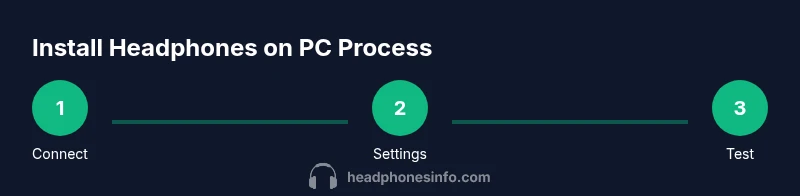
- 1
Connect the headset to the PC
Plug the headset into the correct port. For Bluetooth, begin pairing with the PC so the device appears in the list of available Bluetooth devices.
Tip: If you have multiple ports, try the front panel for easier access and better mic pickup. - 2
Open Windows sound settings
Open the system sound settings to view playback and recording devices and prepare to assign defaults.
Tip: Keep this window open during the setup so you can switch between devices easily. - 3
Set headset as default playback and configure mic
In the Playback tab select the headset and click Set Default. Do the same in the Recording tab if you plan to use the mic.
Tip: If you have multiple devices, mute the others to avoid conflicts during testing. - 4
Update or install drivers
Windows may install generic drivers automatically; check for manufacturer updates if available and restart after installation.
Tip: Avoid mixing drivers from different vendors to reduce conflicts. - 5
Test audio and mic in apps
Play a sample and record a quick voice clip to verify output and input across common apps like Zoom or Discord.
Tip: Test at multiple volume levels to ensure comfortable listening without distortion. - 6
Run Windows audio troubleshooter
If issues persist, run the built in troubleshooter to detect common configuration problems and fix them automatically.
Tip: If the tool cannot fix it, note the device name and driver version for further help.
People Also Ask
Do I need dedicated drivers to use wired headphones on Windows 11?
Most wired headphones work with generic Windows drivers; vendor software is optional for extra features.
Most wired headphones work with Windows by default. If you want extra features, check the headset vendor software.
Why is no sound coming from my headset after connecting?
Check that the headset is set as the default playback device, verify volume levels, and ensure the mic is not muted. Reconnect if needed.
First confirm the headset is the default playback device and the volume is up. Reconnect if sound is missing.
My mic isn't picking up sound
Ensure the headset is the default recording device, check privacy permissions, and test with a short voice recording.
Make sure the mic is selected and apps have permission to use it.
Can I use Bluetooth headsets on a PC without Bluetooth?
Yes, with a Bluetooth adapter or USB dongle. Then pair in Windows and verify playback and recording as available devices.
You will need a Bluetooth adapter to use wireless headsets on a PC.
How can I test headset latency and mic quality quickly?
Use system tests and quick recordings to assess latency and mic clarity, then adjust settings as needed.
Record a quick clip and listen for any delay or muffling to adjust.
Watch Video
What to Remember
- Connect the headset using the correct port
- Set the right playback and mic devices in Windows
- Test audio and mic across apps to verify behavior
- Use Windows tools to troubleshoot and update drivers