How to Use 2 Headphones on PC: A Practical Guide
Learn practical methods to use two headphones on a PC, including splitters, USB adapters, and software routing. This guide covers setup, testing, and common pitfalls with guidance from Headphones Info.


By design, Windows lets you route audio to multiple devices with a splitter or a software mixer, and some PCs have dual-output jacks. This guide shows how to use two headphones on PC through hardware splitters, separate USB sound cards, and VoiceMeeter for flexible routing. You'll get concrete steps, pitfalls to avoid, and how to test your setup.
how to use 2 headphones on pc: The Essentials
Using two headphones on a single PC can be a practical solution for shared viewing, collaboration, or quiet monitoring. The idea is to either duplicate the audio signal to two jacks or route different streams to each headset, depending on your goals. According to Headphones Info, dual-headphone setups are increasingly common among gamers and professionals who want to compare audio in real time. Start by deciding whether you want identical sound for both listeners or independent control, and then choose a routing method that fits your hardware and software environment. In this guide we cover hardware splitters, USB adapters, and software routing options, plus practical setup steps and common mistakes to avoid. A simple, shared listening setup is ideal for watching content together, while independent routing is valuable for testing audio tracks or monitoring in real time.
For many enthusiasts, this topic is about balance: ease of use versus control. Headphones Info's analysis emphasizes that the best solution depends on your use case and budget. This article lays out practical routes, so you can pick the one that feels most natural and scalable as your setup evolves.
What you'll need to get started
Before you start, gather a few essentials that cover the most common methods. You’ll want options for both a quick shared listen and a more flexible, future-proof setup. The goal is to have a plan that minimizes frustration while keeping sound quality high and latency low.
- A 3.5mm stereo splitter (Y-splitter) for simple sharing. This is the fastest way to feed two headphones from one PC jack.
- A second pair of wired headphones. Any standard headphones will work; the important part is testing with the actual devices you’ll use.
- A USB sound card or external DAC if you want independent audio paths or higher quality routing. These devices add a separate hardware channel that you can control separately from the motherboard audio.
- VoiceMeeter Banana or a similar virtual mixer if you want per-app routing or more advanced control. This software can route different apps to different outputs and balance levels precisely.
- Updated Windows audio drivers to ensure compatibility and proper device recognition. Good drivers reduce latency, improve stability, and help with device enumeration when you plug in new hardware.
Hardware routes: splitter vs dual-output adapters
There are two main hardware routes to power two headphones from a PC. The simplest is a passive 3.5mm splitter, which duplicates the same audio signal to both headphones. This is ideal for shared watching or quick collaborative tasks, but you’ll have limited control over individual volume and no truly independent audio streams. The alternative is to use a USB sound card or external DAC with two outputs (often labeled as front and rear or as two separate outputs). This setup gives you two separate playback devices, allowing independent volume control and better separation between listeners. If your PC has dual 3.5mm jacks or a dedicated line-out plus front-panel headphone jack, you may already have improved routing without extra hardware. In most cases, a USB DAC provides the simplest path to true dual-audio capability with reasonable latency and reliability. Headphones Info’s guidance suggests starting with the splitter for quick wins and moving to USB or software routing when your use case requires independent audio streams.
Software routing with VoiceMeeter and Windows Settings
Software routing unlocks significant flexibility beyond a passive splitter. VoiceMeeter Banana (free) acts as a virtual mixer that can route audio to multiple outputs (A1, A2) and allows per-app routing. To set up, install VoiceMeeter Banana, set your default playback device in Windows to VoiceMeeter, and configure A1 to your primary headset and A2 to the secondary device (splitter or USB DAC). In Windows, you can also enable “Listen to this device” on a secondary playback device, but this is less flexible and can introduce latency if you’re not careful. VoiceMeeter lets you apply EQ, compression, and balance, which is especially helpful if you’re comparing two headphones or isolating specific channels for testing. If you don’t want to install software, a USB DAC with two outputs plus Windows’ per-app volume options can achieve similar results, albeit with fewer routing features. The key is to map each app’s audio to the correct output and adjust your monitoring levels to avoid clipping or distortion. As you configure, test with different apps (games, music, video players) to ensure consistent behavior across scenarios. The Headphones Info team recommends documenting your final routing scheme so you can reproduce it quickly in future sessions and avoid reconfiguring every time you reboot.
Step-by-step setup scenarios
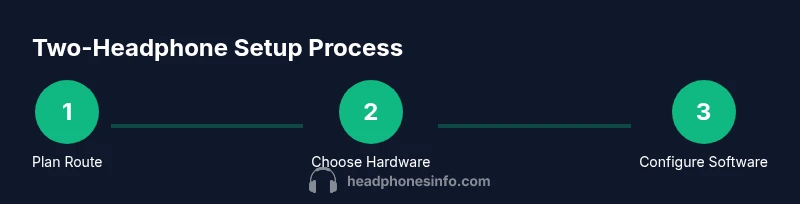
If you prefer a straightforward path with minimal software, use a hardware splitter and configure Windows to share sound through both headphones. If you want distinct audio streams (for example, game audio on one headset and chat on the other), add a USB sound card or VoiceMeeter Banana and route accordingly. In this section, you’ll see a practical, 6-step plan that covers both approaches and helps you prepare for a reliable, repeatable setup. The steps emphasize concrete actions, expected timings, and practical tips to avoid common mistakes. Expect to spend about 25–40 minutes for a complete setup and testing cycle. The exact time will depend on whether you’re only sharing audio or enabling independent streams with software routing. By the end, you’ll have a working two-headphone configuration that matches your needs and keeps audio quality high. If you rely on critical audio work, consider investing in a dual-output USB DAC for best results and a more predictable workflow, particularly when latency matters.
Testing and maintenance: common issues and quick fixes
After you set up, test the system with multiple apps and content types. Check that volume levels stay consistent when you switch between apps and that there’s no noticeable delay between the two headphones. If you experience crackling, imbalance, or missing channels, re-seat cables, test with different headphones, and try a different splitter or USB DAC. Regular driver updates and occasional reboots can help avoid driver conflicts. When you’re confident in the result, label your audio routing profile and back up your configuration files or notes. With a clear routine for testing and tuning, you’ll save time on future sessions and reduce the likelihood of user error during critical tasks.
Optional infographic and testing checklist
For quick reference, you can use a visual checklist to validate each stage of your setup. This can include verifying hardware connections, confirming device recognition in Windows, testing with VoiceMeeter, and logging app-specific routing decisions. Keeping a simple checklist helps ensure you don’t overlook a step during live sessions or when you install software updates.
Final notes on practical outcomes
Two-headphone setups can be adapted to many use cases, from casual movie watching to precise audio comparison tasks. The simplest path is a splitter for shared listening; the most flexible path is a USB DAC or software mixer for independent control. The Headphones Info team suggests starting simple and gradually introducing software-based routing to minimize complexity while you gain comfort with the features.
Conclusion and next steps
As you wrap up, review your routing choices to ensure you’ve chosen the method that best fits your listening goals and hardware. If you’re often switching between shared and independent modes, a modular setup with a USB sound card plus VoiceMeeter offers the cleanest long-term path. Remember to test regularly, keep drivers up to date, and document your configuration so future setups go smoothly.
Tools & Materials
- 3.5mm stereo splitter (Y-splitter)(Choose a high-quality splitter with gold-plated contacts and low impedance.)
- Second headphones(Any standard wired headphones you plan to use.)
- USB sound card or external DAC(Useful for independent channels and higher fidelity; adds a separate playback path.)
- VoiceMeeter Banana (software)(Optional virtual mixer for advanced routing and per-app control.)
- Updated Windows audio drivers(Ensures device recognition and stable routing after hardware changes.)
Steps
Estimated time: 25-40 minutes
- 1
Decide routing method
Choose between identical audio on both headphones via splitter or independent streams via USB DAC/VoiceMeeter. The choice will guide the rest of your setup.
Tip: If simplicity is priority, start with a splitter; for independence, plan software routing. - 2
Connect hardware splitter
Plug the splitter into the PC's headphone jack and connect both headphones to the splitter. Ensure a snug connection and test for sound in both ears.
Tip: Use a higher-quality splitter to minimize impedance issues. - 3
Set default playback device
Open Windows Sound settings and confirm the splitter is recognized as a playback device. Set it as default if you intend to mirror audio.
Tip: If the splitter isn’t visible, reinsert the plug or try a different port. - 4
Install VoiceMeeter Banana (optional)
Install the software, set VoiceMeeter as the default playback device, and route hardware outs A1/A2 to your headset devices.
Tip: Follow the app's helper guide for a quick start; you can always adjust later. - 5
Route apps or test with two devices (optional)
In VoiceMeeter, assign different apps to A1 or A2 if you want separate audio paths; otherwise keep both on the same path for mirroring.
Tip: Test with a game and a video to ensure proper routing and volume balance. - 6
Final test and adjust
Play content and adjust volumes for both outputs to comfortable levels. Check for latency or distortion and tweak settings as needed.
Tip: If you’re using a USB DAC, verify latency settings and driver versions.
People Also Ask
Can I use two wired headphones at the same time on Windows?
Yes. You can share one output with a hardware splitter for identical audio, or use software routing and a USB audio device for separate audio streams. Windows may require manual routing or third-party tools for full flexibility.
Yes—two wired headphones can work together using either a splitter or a software mixer for more control.
Will a splitter degrade audio quality?
A good-quality splitter typically preserves stereo sound with minimal loss. Low-cost splitters can introduce impedance mismatch or crosstalk; test your setup with your headphones.
Quality matters; cheap splitters may affect clarity and volume balance.
Is it possible to listen to different audio on each headphone?
Yes, with software like VoiceMeeter Banana or a USB audio interface. Windows alone does not reliably duplicate independent streams to two jacks without extra software.
You can route different audio to each headset using a virtual mixer or separate USB DAC.
Can I use Bluetooth headphones for both outputs at once?
Bluetooth generally cannot duplicate audio to two devices from the same PC using standard profiles. You’d need specialized hardware or software, or one device wired.
Two Bluetooth headphones at once isn’t practical for most setups.
Do I need special drivers for dual-headphone setups?
Most splitters work with built-in audio drivers in Windows. If you use USB DACs or virtual mixers, install the provided drivers.
Usually not, unless you’re using a USB device that requires drivers.
Watch Video
What to Remember
- Plan routing method before wiring
- Splitters are easiest for shared listening
- USB DACs or VoiceMeeter offer flexible control
- Test thoroughly across apps and volumes
- Keep drivers up to date and document your setup