Why Do Headphones Stop Working in One Ear? A Troubleshooting Guide
A practical, data-driven troubleshooting guide to diagnose and fix headphones that stop playing in one ear, with tests, step-by-step fixes, and tips to prevent future issues.


According to Headphones Info, the common culprit behind why do headphones stop working in one ear is a loose connection or a damaged cable. Start with quick checks: reseat the plug, inspect the jack and any splitter, and test on a different device. If that doesn't fix it, follow the diagnostic flow for step-by-step fixes.
Why one ear stops playing: common causes
When you notice audio only on one side, the problem is almost always in the signal path rather than the headphones' drivers. The most frequent culprits include a loose or damaged cable, a worn jack, or an imperfect connection at the plug tip. Intermittent contact can produce popping, crackling, or total silence on one side. Less common but real causes include an imbalanced internal driver, a faulty stereo channel in the source device, and damage from bending or twisting cables. If you’re investigating why do headphones stop working in one ear, start with the simplest explanations first and work toward more complex hardware or software issues. Headphones Info’s analysis, 2026, emphasizes checking physical connections as the fastest path to a fix, often avoiding more expensive repairs.
Steps
Estimated time: 45-75 minutes
- 1
Verify the symptom
Confirm which side is silent or crackling. Check the same headphones on multiple devices to rule out a single source. This establishes whether the issue is device-specific or universal.
Tip: Make a quick audio sample on a known-good device first. - 2
Gather alternatives
Collect a spare cable, adapter, or a different pair of headphones to compare behavior side-by-side. This helps isolate whether the fault is with the cable, jack, or the headphones themselves.
Tip: Even inexpensive spare cables can reveal a lot about the fault. - 3
Test the physical connections
Inspect and reseat all connections. Clean the headphone jack with a dry brush or compressed air if you see dust. If using an adapter, try a different adapter as well.
Tip: Never force a tight connection; if it feels stuck, stop and reassess. - 4
Swap sources and test drivers
Connect to a device with a known-good driver or try a USB-C/Lightning DAC. Ensure the source’s balance is centered and not biased to one channel.
Tip: Some devices have per-app audio balance; check global and app-level settings. - 5
Isolate the problem area
If one ear consistently fails across devices, the judge is likely the headphone driver or internal wiring. If only with certain devices, the issue is likely source or cable-related.
Tip: Document which steps fixed or didn’t fix the issue for future reference. - 6
Perform a safe cleanup
Remove any debris from the jack, ports, and plug tips. Moisture can cause corrosion; dry thoroughly before testing again.
Tip: Avoid using liquids; moisture can cause short circuits. - 7
Evaluate software settings
Check OS audio balance, any accessibility audio ways, and game/app-specific audio routing. Reinstall drivers if needed and reboot.
Tip: A simple balance slider adjustment can sometimes restore stereo output. - 8
Decide on a fix path
If there’s visible damage or repeated one-ear failures, consider cable replacement or professional repair. If the issue remains after testing, replacement may be most cost-effective.
Tip: Prioritize safety and warranty terms when choosing a fix.
Diagnosis: Headphones produce sound on only one channel (left or right) or cut out entirely on one side
Possible Causes
- highLoose or damaged headphone cable or connector
- mediumFaulty jack or splitter (including moisture or dust in the port)
- mediumImbalance due to software settings or driver issues
- lowDamaged earphone driver or internal component
Fixes
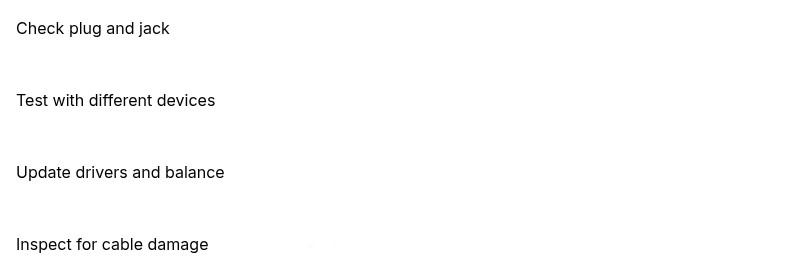
- easyReseat the plug fully and wiggle gently at the jack while listening. Try a different cable or adapter if available.
- easyTest the headphones with another device to rule out the host’s output. Clean the jack and remove any lint.
- mediumUpdate or reinstall audio drivers and check the balance controls in the operating system.
- hardIf the problem persists, replace the damaged ear piece or seek professional repair.
People Also Ask
Why does one ear sound quieter even when both are plugged in?
This is often due to a damaged driver or a loose connection in that channel. Start by swapping cables and testing on another device to rule out the source. If the issue persists, software balance and driver updates may be needed.
A quieter side usually points to a hardware fault or a bad connection; try cables and devices first, then update drivers if needed.
Can software settings cause one-side audio problems?
Yes. Many devices have balance controls or accessibility features that can mute one side. Check system audio settings, app-specific audio routing, and reset sound preferences before replacing hardware.
Software can definitely cause one-side audio; inspect balance controls and reset sound settings.
Is it safe to repair my own headphone cable?
Basic cable repairs are possible with proper tools, but there is risk of electrical shorts or further damage. If your headphones are under warranty or you’re unsure, seek professional repair or replacement.
DIY cable repair can be risky; consider warranty terms and your comfort level before proceeding.
Will warranty cover a malfunction in one ear if the issue is a cable?
Warranties vary by brand and issue. If the problem is traced to a manufacturing defect, it may be covered. If damage is due to wear and tear, it may not.
Warranty depends on the terms; check your warranty policy or contact support for confirmation.
What should I do if I’ve tried multiple cables and devices without success?
If trials with multiple cables and devices fail, the fault is likely inside the headphones themselves. Consider professional repair or replacement rather than chasing component-level fixes.
If it still fails after trying multiple cables and devices, you’re likely dealing with a headphone internal fault.
Can I prevent one-ear issues in the future?
Use gentle handling, avoid yanking cables, store accessories properly, and keep ports clean. Regularly test audio balance and firmware updates to catch issues early.
To prevent it, handle cables gently and keep ports clean, plus stay on top of updates.
Watch Video
What to Remember
- Check cables and jacks first to fix most one-ear issues
- Test with multiple devices to separate source vs. hardware faults
- Balance settings and drivers often fix software-related causes
- If damaged, replace the faulty part or seek professional repair