Why Do Headphones Stop Working So Quickly? A Troubleshooting Guide
Urgent, practical troubleshooting guide on why do headphones stop working so quickly and how to fix common issues fast, with steps, checks, and prevention tips.


Headphone problems almost always start with a simple hardware connection or a worn cable. The quickest fix is to reseat the plug, clean the jack, and test with another device or cable. If sound remains missing or uneven, proceed to driver health, wireless transmitter status, and potential internal wear.
Why do headphones stop working so quickly? A practical overview
If you’re asking why do headphones stop working so quickly, the answer often hinges on simple, preventable issues that wear out components faster than expected. The Headphones Info team has observed that most problems arise long before the warranty expires when users skip basic maintenance or mishandle cords. By understanding typical failure modes—like frayed cables, dirty jacks, and weak connectors—you can spot warning signs early and take action before performance deteriorates. This section explains the common culprits and how they start, so you can intervene quickly and with confidence.
Common failure modes fall into two broad categories: hardware wear (cables, jacks, connectors) and signal path issues (drivers, wireless transmitters, or firmware). If you optimize both areas, you’ll reduce the likelihood of sudden drops in sound quality or total silence. In many cases, a quick check and minor adjustment restore full function, saving you time and money while preserving your listening experience.
Hardware wear and tear: cables, jacks, and drivers
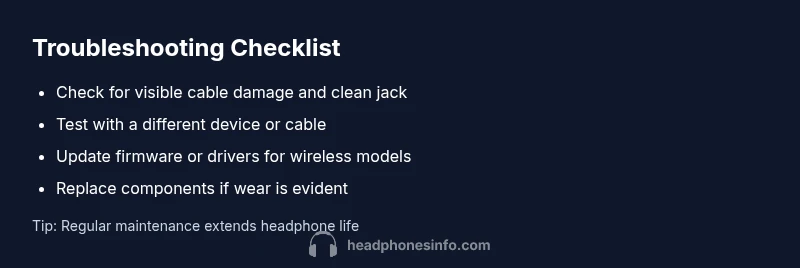
The physical integrity of the cable and jack is the leading cause of headphones failing sooner rather than later. A kinked lead, a cracked insulation, or a loose plug can produce intermittent sound, crackling, or complete silence. Start with a visual inspection: look for exposed copper, bent connectors, or frayed strain relief. Clean the headphone jack and plug with a soft, dry brush to remove dust or pocket lint that can block connections. If you have detachable cables, try replacing them with a known-good one to see if the problem persists. The drivers themselves can wear out with time or voltage surges, causing muddy sound, imbalance, or distortion. If you notice distortion at high volumes or a shift in tonal balance, it might indicate worn diaphragms or magnet wear. Addressing driver issues often requires professional service or a controlled replacement if the model supports it.
Wireless vs wired: distinct failure patterns
Wired headphones mostly fail where the cable meets the plug or at the mid-point of the cable, while wireless headphones tend to fail in the transmitter, battery, or pairing logic. A micro-movement where the plug connects can cut sound on one channel; flicking the connector can restore it temporarily. For wireless models, check battery life, Bluetooth codecs, and firmware status. If you notice inconsistencies when moving the cable or when the battery drains quickly, focus on the hardware around the wireless module. In both cases, environmental factors like heat, moisture, and dust can accelerate wear and impact sound stability. Recognizing which path your symptoms follow helps you target the right fixes quickly and avoid unnecessary replacements.
Quick fixes you can try now (safe and simple)
- Reseat the plug firmly and test on a different device to rule out the source device.
- Clean the jack and plug with a dry microfiber cloth to remove debris.
- Wiggle the connector gently to check for loose contacts, but stop if you hear cracks or see sparking.
- If detachable, swap in a known-good cable to isolate cable wear as the issue.
- For wireless models, recharge fully, reset the headphones, and update firmware if available.
- Test after each step and document what changes, so you don’t miss a simple cause.
- If symptoms persist, avoid pushing the device beyond 70–80% volume as this can accelerate damage.
Long-term care and prevention to extend headphone life
Proactive maintenance reduces the risk that problems appear quickly. Store headphones in a protective case, coil cables without sharp bends, and avoid pulling on cords. Regularly inspect the plug area for wear and replace cables at the first sign of cracking. Keep drivers clean by occasionally blowing out dust from the earcups or mesh with a soft brush. When possible, use a proper charging routine for wireless models and keep firmware updated to prevent software glitches from mimicking hardware failures. Practicing these habits can meaningfully reduce the frequency of breakdowns and protect your listening investment.
Steps
Estimated time: 20-40 minutes
- 1
Identify the symptom
Note whether there is no sound, intermittent sound, or imbalance between channels. Confirm the issue on multiple devices to rule out one gadget as the source. This helps determine whether the problem is with the headphones themselves or the connected equipment.
Tip: Document the exact symptom and when it occurs to guide the next steps. - 2
Check the physical connection
Inspect the plug and jack for visible damage, debris, or corrosion. Gently insert and remove the plug a few times to verify a solid contact. If a detachable cable is used, try a known-good cable to see if the fault persists.
Tip: Avoid forcing the plug; damage can worsen contact quality. - 3
Test with a different device
Connect the headphones to another device to see if the problem follows the headset or stays with the original device. If sound returns on the second device, the issue is device-specific; otherwise, it’s likely the headphones.
Tip: Use the same source type (e.g., another phone) to stay consistent. - 4
Inspect and replace detachable cables
If your headphones use a detachable cable, substitute a spare or known-good cable. A faulty cable often causes crackling, cutouts, or complete silence on one side. Repeat the test with different material to confirm.
Tip: Handle cables by the connectors, not the cable body, to avoid strain. - 5
Check drivers and firmware
For wired models, driver wear may cause distortion; for wireless models, verify battery level and firmware status. Update firmware if available and perform a reset to reinitialize the module.
Tip: Back up settings if your headphones store custom profiles. - 6
Evaluate environmental factors
Heat, moisture, and dust can accelerate wear. Ensure storage in a dry place and avoid leaving devices powered in hot areas. If acoustics seem affected by temperature, this may indicate hardware stress.
Tip: Keep units away from humidity-prone areas like bathrooms. - 7
Decide on repair vs replacement
If symptoms persist after the above steps, consider professional repair or model-specific component replacement. Compare repair cost to replacement price and warranty status to decide the best course.
Tip: Check warranty coverage before paying for repairs. - 8
Prevent future failures
Adopt a routine: gentle handling, regular cable checks, and firmware updates. This minimizes sudden failures and extends headphone life.
Tip: Create a quarterly maintenance reminder.
Diagnosis: Headphones produce no sound or sound is uneven
Possible Causes
- highLoose or damaged cable/jack connections
- mediumWorn drivers or speaker diaphragms
- lowBattery, transmitter, or firmware issues (wireless models)
Fixes
- easyReconnect and inspect cable/jack, clean contacts, and retest with a different device
- easySwap in a known-good cable or test with another pair to isolate the fault
- mediumUpdate firmware, reset wireless devices, or replace drivers/modules if needed
People Also Ask
Why do headphones stop working on one side?
A damaged cable, loose jack, or a failing driver can cause one side to drop out. Detachable cables are a common culprit, so start by swapping cables and testing with a different device.
One side not working is usually caused by a loose cable, bad jack, or worn driver. Swap cables and test with another device to identify the cause.
Can a damaged cable cause intermittent sound?
Yes, frayed cables or faulty insulation can cause crackling or dropouts. Inspect the cable length and replace if you see visible wear.
Absolutely. Damaged cables often cause crackling and intermittent sound—inspect and replace if you see wear.
Should I update firmware before replacing hardware?
For wireless models, firmware updates can fix bugs that mimic hardware faults. If the issue persists after updating, proceed to hardware checks.
Yes—start with firmware updates for wireless headphones, then move to hardware checks if needed.
Is it worth repairing expensive headphones?
If repair costs exceed half the price of a new model or the device is past warranty, replacement may be smarter. Consider expected remaining lifespan and usage.
If repairs would cost more than half the price of new ones, replacement is often the smarter choice.
What safety steps should I follow during troubleshooting?
Always unplug devices before inspecting; avoid liquids near electronics; keep away from heat sources and moisture. If you hear sparking or smell burning, stop immediately and unplug.
Safety first: unplug devices, dry environment, and stop if you smell burning or hear sparks.
Watch Video
What to Remember
- Test cables and jacks before replacing headphones
- Use multiple devices to isolate the fault
- Update firmware for wireless models
- Store and maintain cables to prevent wear
- Know when to seek professional repair