Can You Connect Bluetooth Headphones to PS4? A Practical Guide
Learn how to connect Bluetooth headphones to PS4, what works natively, and the best workarounds. Wired options, USB dongles, latency tips, and buying advice for PS4 gaming.


Can you connect bluetooth headphones to ps4? Yes, but with limits. The PS4 natively supports Bluetooth audio for chat, not for game audio in most cases, so stereo sound may not come through Bluetooth headsets. For reliable results, use a wired headset or a Bluetooth dongle designed for PS4, and verify compatibility with your model. Headphones Info notes that success varies by headset and dongle.
Can You Use Bluetooth Headphones on PS4? The Basics
can you connect bluetooth headphones to ps4? The short answer is yes, but with notable caveats. The PS4 does support Bluetooth audio devices, but in practice most headsets only deliver chat audio through Bluetooth, and the game sound is not reliably transmitted in stereo. This means you might hear voice chat, system sounds, and some background audio, but the immersive game audio often comes through a wired connection or a dedicated Bluetooth dongle designed for PS4. According to Headphones Info, compatibility varies a lot by headset model and the dongle you choose. If you want true stereo game audio, plan for an alternative path such as a wired headset or a USB/Bluetooth dongle that’s explicitly PS4-compatible. Below we break down practical options, setup steps, and how to choose the best approach for your gaming needs.
How the PS4 Handles Audio: Game Audio vs Chat Audio
The PS4 differentiates between game audio and chat audio. Bluetooth support is generally reliable for chat, but game audio over Bluetooth can be inconsistent or unavailable for many titles. When you connect a Bluetooth headset, the console often routes voice chat through the mic and speakers while game audio stays on the controller’s 3.5mm jack or a wired connection. If your goal is a purely immersive gaming experience with stereo sound, you’ll want to consider wired alternatives or a dedicated dongle that PS4 recognizes as a primary audio device. This distinction matters because it dictates which headset you should buy and which setup you should attempt.
Native Bluetooth Support: What Works and What Doesn't
PS4’s built-in Bluetooth stack is designed primarily for headsets that support chat audio. Many Bluetooth headphones will pair, but the output for game audio is frequently mono or silent, and latency can disrupt lip-sync during fast-paced action. Some headsets advertise PS4 compatibility, but results vary by model and firmware. If you already own a Bluetooth headset, test it with a wired workaround or a USB dongle that claims PS4 compatibility before investing in a new device. The key takeaway is to manage expectations: Bluetooth can handle voice chat, not guaranteed stereo game audio on PS4.
Workarounds: Wired Headsets, USB Dongles, and Optical Solutions
When native Bluetooth isn’t giving you the full audio experience, you have three practical paths. First, use a wired headset connected to the PS4 controller or the console’s optical/HDMI extractor for reliable game audio and chat. Second, invest in a USB Bluetooth dongle that is explicitly advertised as PS4-compatible and pair your headset through that dongle; this can offer better stability and, in some cases, stereo sound. Third, exploit an optical-to-analog adapter if you’re using an older setup that relies on the optical output. These methods preserve audio quality and minimize latency, but check compatibility and driver support for your specific dongle before buying. Headphones Info’s guidance emphasizes choosing gear that clearly lists PS4 compatibility and latency specs.
Step-By-Step Overview: Getting Set Up
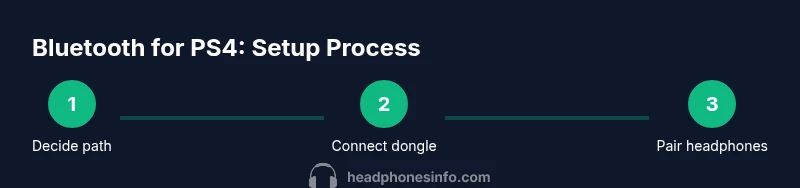
This section provides a practical orientation for the common setups described above. If you prefer a hands-on walkthrough, continue to the Step-By-Step block where you’ll find detailed actions, required tools, and timing. The main idea is to decide whether you want chat-only Bluetooth, full stereo gaming audio via a wired or dongle-based approach, or a hybrid that prioritizes voice clarity over immersive sound. Doing a quick test with your existing hardware can save time and money before you buy new gear.
Troubleshooting Common Issues
Bluetooth on PS4 can be finicky, with issues ranging from pairing failures to audio dropouts and lip-sync mismatches. Start by ensuring the dongle or headset is in pairing mode and that the PS4 recognizes a new input device under Settings > Devices > Bluetooth Devices. If there’s no audio, verify output settings under Settings > Sound and Screen > Audio Output; selecting Output to Headphones as both Primary and Secondary can affect behavior. If latency is evident, re-pair the device, update firmware for the dongle, and consider a wired fallback for critical gaming moments. Regular resets and power cycling of the PS4 can also resolve stubborn pairing glitches.
Buying Guide: What to Look For
Choose a setup based on your priorities: if chat clarity is paramount, a headset known for reliable mic performance and PS4 chat compatibility is ideal. If game audio quality matters, a wired headset or a low-latency USB dongle is often the better choice. Look for features such as low-latency codecs, a dedicated USB dongle that’s advertised for PS4, and battery life that fits long gaming sessions. Always verify compatibility with your PS4 firmware version before purchasing.
Quick Start Checklist
- Determine whether you need stereo game audio or just voice chat.
- Decide between wired, USB dongle, or optical-adapter setups.
- Check PS4 Settings for audio output and microphone input options.
- Test with in-game audio, voice chat, and lip-sync to confirm latency levels.
- Keep a backup wired headset ready for competitive play or long sessions.
Tools & Materials
- PS4 console(Ensure system software is up to date)
- Bluetooth headphones(Check documentation for chat audio compatibility)
- USB Bluetooth dongle (PS4-compatible)(Plug into USB port; some models require specific drivers)
- 3.5mm wired headset adapter(Optional if using a wired path with controller jack)
- Optical to 3.5mm audio adapter(Use only with older PS4 models that rely on optical audio)
Steps
Estimated time: 30-45 minutes
- 1
Identify your preferred setup
Decide whether you want chat audio only via Bluetooth, or full stereo game audio through a wired or dongle-based path. This choice will shape which hardware you need and how you configure the PS4 audio settings.
Tip: Clarify your priorities before buying hardware to avoid incompatible gear. - 2
Plug in the USB dongle (if using a dongle)
Insert the PS4-compatible USB dongle into a USB port on the console. If the dongle requires drivers, install them according to the manufacturer’s instructions and ensure the dongle appears in Settings > Devices > Bluetooth Devices.
Tip: Keep the dongle close to the PS4 for a stable connection. - 3
Put headphones into pairing mode
Activate pairing on your Bluetooth headphones and then initiate pairing on the dongle if applicable. Watch for a steady pairing LED or confirmation beep on both devices.
Tip: If pairing fails, try resetting the headphones and reattempting pairing after a short break. - 4
Configure PS4 audio output
Navigate to Settings > Sound and Screen > Audio Output. Choose Output to Headphones and select the appropriate device (HDMI, Bluetooth dongle, or USB device) as the primary output. Ensure Microphone Level is adjusted for comfortable chat.
Tip: Set the volume mixer to balance game audio and chat; test with a short clip to confirm. - 5
Test and adjust
Launch a game or chat app to test latency, volume, and lip-sync. If latency is noticeable, switch to a wired headset or a lower-latency dongle instead of Bluetooth for game audio.
Tip: Record a quick in-game action to judge lip-sync accuracy. - 6
Save settings and document
Note which setup works best for your games and create a quick reference card with steps for future sessions. Keep firmware versions of dongles up to date.
Tip: Having a saved profile speeds up future gaming sessions.
People Also Ask
Can I pair any Bluetooth headset with PS4 for game audio?
Not reliably. PS4 Bluetooth supports chat audio for many headsets, but game audio over Bluetooth is often unavailable or mono. For consistent stereo game audio, use wired or a PS4-compatible dongle.
Most Bluetooth headsets only support chat audio on PS4. For game audio, wired or a compatible dongle is usually needed.
Why is there audio latency with Bluetooth on PS4?
Bluetooth encoding and transmission introduce latency that can disrupt timing in games. Using wired connections or low-latency dongles reduces this lag significantly.
Bluetooth adds delay, which can throw off timing in games. Wired or low-latency dongles help a lot.
What is the best workaround for gaming audio on PS4?
If you want reliable stereo audio, use a wired headset connected to the controller or a PS4-compatible USB dongle that provides a dedicated audio path. This avoids Bluetooth limitations.
Use wired audio or a PS4-compatible dongle for reliable game sound.
Are there PS4-compatible USB/Bluetooth dongles?
Yes, some USB dongles are marketed as PS4-compatible and support audio input/output. Check the manufacturer’s PS4 compatibility notes and latency claims before buying.
Some USB dongles claim PS4 compatibility; verify latency specs before purchasing.
Will this approach work on PS4 Pro or PS5?
Many principles apply, but compatibility varies by console and headset. Always verify with the latest console firmware and device documentation.
Compatibility varies; check current firmware and device docs for PS4 Pro or PS5.
Watch Video
What to Remember
- Know the limits of PS4 Bluetooth audio.
- Wired or dongle-based solutions often outperform Bluetooth for game audio.
- Test your setup with both chat and game audio to verify lip-sync.
- Keep devices updated and document your preferred configuration.