How to Get Rid of Static in Headphones: A Practical Guide
Learn proven steps to eliminate headphone static, from cables and grounding to firmware updates. A data-driven, structured guide for wired and wireless setups.


With this guide, you'll learn how to get rid of static in headphones by checking cable integrity, updating drivers, and testing sources. You'll follow a step-by-step method to diagnose ground loops, interference, and faulty connectors, and apply practical fixes for both wired and wireless setups. By the end, you should enjoy clearer audio with minimal crackle.
Understanding static in headphones
Static in headphones is an audible crackle, hiss, or popping that interrupts the intended audio signal. It can appear in wired or wireless setups and is often caused by electrical interference, grounding issues, or worn components. According to Headphones Info, most static originates from EMI and grounding problems in the chain from your source to the driver. The headphone driver is supposed to translate electrical signals into sound, but if the signal is corrupted at any point, you’ll hear crackles instead of clean audio. Environmental factors such as nearby routers, power cables, or even fluorescent lights can inject noise. A structured, methodical approach makes it easier to identify the culprit and apply a fix that lasts. This article lays out a practical diagnostic flow you can follow step by step to reduce or eliminate static across common headphone types.
Common causes of static in headphones
Static is rarely caused by a single problem. In many setups, several factors combine to create crackling or hiss. Common culprits include damaged or frayed cables, loose or corroded connectors, dirty jacks, EMI from nearby devices (routers, microwaves, wireless peripherals), grounding issues in the source or DAC, and worn driver components in older headphones. Headphones Info analysis shows that environmental interference and low-quality cables account for a large share of static cases. Understanding these causes helps you prioritize fixes and avoid unnecessary replacements. Keep a small checklist handy as you test different theories.
Quick checks before diving in
Before disassembling anything, perform quick, non-invasive checks:
- Confirm the problem occurs with multiple sources and cables to rule out a single faulty device.
- Inspect cables and connectors for visible damage, kinks, or corrosion.
- Clean the headphone jack and plug with a dry microfiber cloth; avoid liquids near electronics.
- Move to a different location or away from EMI sources like routers to see if the static changes. These rapid checks can save time and point you toward the real culprit.
Diagnostic workflow: isolate source vs device
The goal is to isolate whether the issue lives in the headphones, the cable, or the source. Start by swapping cables and testing with another device. If static persists with a different source, the headphones or their cabling are likely at fault. If the problem disappears with a different source, focus on the original device or its output. This logical triage reduces guesswork and ensures you apply fixes where they’ll do the most good.
Fixes for wired headphones
Wired headphones are sensitive to cable quality and connector cleanliness. Start by cleaning the connectors with a microfiber cloth and isopropyl alcohol if needed. If the crackle remains, replace the cable with a shielded, quality variant and re-test. Check for loose plug-in connections or damaged adapters. Clean the jack on both the headphone side and the source side, and reseat firmly. For stubborn static, consider a ferrite bead or shielded extension to reduce EMI exposure. These steps address the most common wired issues without specialized tools.
Fixes for wireless headphones
Wireless headphones introduce additional variables like Bluetooth versions, firmware, and radio interference. Ensure firmware is up to date and re-pair the headphones with the device. Test in a room free from dense Wi‑Fi equipment, and try different Bluetooth profiles if your device supports them. If static occurs only when the USB DAC or USB-C dongle is in use, remove or replace that intermediary adapter. In some cases, temporarily switching to a wired connection can confirm whether the issue is radio-related or intrinsic to the headphones.
When to repair or replace
If you’ve exhausted diagnostic steps without a lasting fix, it may be time to assess cost versus benefit. Warranty coverage is a key factor; check if the issue qualifies for repair or replacement. Consider the headphone age, the likelihood of recurring problems, and the cost of a professional repair versus purchasing a new pair. In many cases, investing in a higher-quality cable or a newer model with robust shielding provides a longer-term, lower-risk solution.
Testing audio after fixes
After applying a fix, test with a variety of sources and content to confirm stability. Use clean audio files and different apps or players to ensure the crackle doesn’t reappear with specific streams. Listen for subtle hiss or crackle across the full frequency spectrum. If possible, have a friend verify with their setup to avoid subjective bias. Document what worked and what didn’t so you can repeat successful steps in the future.
Preventing static in the future
Prevention is easier than repeated fixes. Use high-quality, shielded cables, and store them properly to avoid kinks. Keep headphones away from EMI hotspots (router racks, power supplies) and ensure connectors are seated fully. Regularly clean jacks and tips and update firmware when available. If you consistently travel with multiple devices, consider a pair with strong shielding and a design known for low susceptibility to interference.
Tools & Materials
- Removable audio cable (3.5mm, USB-C, or Lightning, depending on your headphones)(Use a shielded replacement cable if available; ensure compatibility with your headphones)
- Soft microfiber cloth(For gentle cleaning of connectors and jacks)
- Isopropyl alcohol (70% or higher) and cotton swabs(Use sparingly; avoid driver openings and moisture near electronics)
- Testing devices (smartphone, computer, DAC)(Test across multiple sources to isolate the issue)
- Grounded power outlet or shielded extension cord(Reduces EMI in some setups)
- Small screwdriver (if applicable per manufacturer)(Only if the headphones allow user-accessible components per manual)
Steps
Estimated time: Total time: 30-60 minutes
- 1
Identify symptoms and set up a test
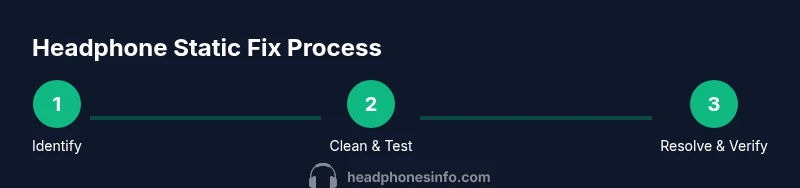
Note when static occurs (source, location, device) and gather the cables and devices you'll compare. Create a controlled baseline by using a known-good source and a spare cable.
Tip: Label cables and sources to avoid mixing test cases. - 2
Inspect cables and connectors
Check for visible wear, kinks, or fraying. Wiggle the plug gently while listening for crackling to see if movement triggers noise.
Tip: Do not force connectors; replace if you see damage. - 3
Clean ports and plugs
Use a microfiber cloth and a touch of isopropyl alcohol to clean the headphone jack and cable plugs. Let dry before testing again.
Tip: Avoid excessive liquid; moisture can cause short circuits. - 4
Test with alternate cables and sources
Swap in a different cable and a different audio source to see if static persists. If the crackle disappears with a new cable, the old one is at fault.
Tip: Document which combinations work and which don’t. - 5
Try wired versus wireless modes
If your headphones support both, compare performance in wired and wireless modes to identify whether the issue is RF interference or a hardware fault.
Tip: If wireless shows more noise near routers, this hints at EMI sensitivity. - 6
Reset firmware and pairing
Reset the headphones’ firmware if available, and re-pair with the source device. This can clear corrupted Bluetooth profiles that produce static.
Tip: Back up any user settings if possible before reset. - 7
Evaluate the driver and components
If symptoms persist across multiple cables and sources, the headphone driver or internal components may be failing and require service.
Tip: Consult the manufacturer’s support resources before attempting internal repairs. - 8
Decide on repair or replacement
Estimate costs and benefits of professional repair versus replacement, especially for older models or out-of-warranty devices.
Tip: Keep receipts and warranty information handy for a quick decision.
People Also Ask
What causes static in wired headphones?
Static in wired headphones is usually caused by damaged cables, dirty jacks, EMI, or grounding issues. Start by inspecting cables and ports, then test with another source.
Static in wired headphones is usually from cables, jacks, or interference. Inspect cables and ports and test with another source.
How can I tell if the source or headphones cause static?
Swap in a different cable and test with another device. If static remains with all sources, the issue is likely in the headphones or their cable; if it only occurs with one source, the problem is upstream.
Test with different cables and devices. If the crackle stays, it’s likely the headphones; if it disappears with another source, the issue is upstream.
Do wireless headphones experience static differently?
Yes. Wireless models can suffer from RF interference, Bluetooth version quirks, or firmware glitches. Update firmware, re-pair, and test away from dense Wi‑Fi equipment.
Wireless static can come from interference or firmware; update and re-pair, and move away from other wireless devices.
Is it safe to open headphones to fix static?
Only if the manufacturer explicitly permits user-serviceable repairs. Opening sealed units can void warranties and create safety hazards.
Don’t open sealed headphones yourself unless the maker says it’s safe; it can void warranties and be dangerous.
When should I contact support?
If the issue persists after tested fixes, or if the product is under warranty, contact the manufacturer or a qualified repair service. Keep notes of what you tried.
If the crackle remains after tests or if under warranty, reach out to support with your test results.
Can static cause long-term hearing damage?
Static itself is unlikely to cause hearing damage, but listening at high volumes to masked crackling can harm your ears. Keep volume in a safe range while testing.
Crackling can be annoying, but listening safely is the priority; avoid very loud volumes while testing.
Watch Video
What to Remember
- Test with multiple sources and cables to isolate the cause
- Clean and inspect connectors before replacing parts
- Differentiate between wired and wireless interference to pinpoint root cause
- Follow a step-by-step diagnostic flow for reliable fixes
- Plan for maintenance to prevent future static