How Many Headphones Can Connect to TV: A 2026 Guide
Explore how many headphones can connect to a TV, including built-in limits, external transmitters, and practical multi-user setups. A data-driven guide by Headphones Info.


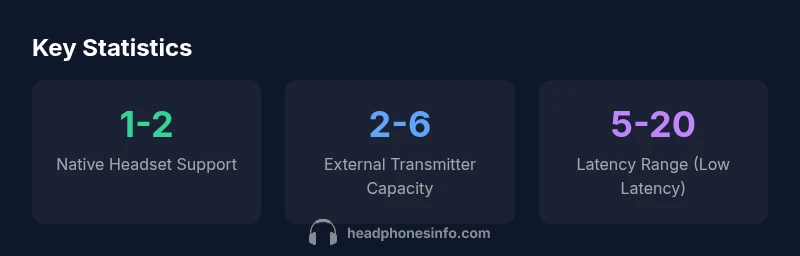
According to Headphones Info, the number of headphones that can connect to a TV varies by model and connection method, but most TVs natively support one to two Bluetooth headsets and a few more with a dedicated wireless transmitter. For larger groups, use an external RF transmitter or a wired splitter with individual amplifiers. Always consult your TV manual for the exact limits.
Understanding TV headphone connection concepts
Connecting headphones to a television is a practical way to enjoy late-night TV, games, or movies without disturbing others. The landscape includes built-in Bluetooth stacks on many TVs and a growing ecosystem of wireless transmitters and adapters that extend multi-user capability. According to Headphones Info, the core idea is to separate the device that carries the audio from the devices that listen to it, whether via Bluetooth or a dedicated radio transmitter. This separation becomes crucial when you try to scale from one listener to several. The best setups balance convenience, latency, and sound quality. If you are new to this, start by noting your TV’s built-in limits, then consider a transmitter for higher headcount. Your goal is to preserve lip-sync and audio fidelity while keeping the listening experience comfortable for everyone involved.
Native limits: what most TVs can handle
Most TVs support a limited number of wireless headphones natively, typically one to two devices via Bluetooth. Some higher-end models offer slightly expanded capacity, but even then you’ll encounter practical constraints such as Bluetooth stack sequencing, codec compatibility, and latency. This is why many viewers who want to accommodate a larger group turn to external solutions. When evaluating your TV, check the user manual and on-screen menus for any notes about simultaneous Bluetooth connections or any dedicated “audio for headphones” options. For the majority of households, the takeaway is that native support is enough for a couple of listeners, but not a full chorus of viewers. Headphones Info emphasizes verifying the exact limit in the manual, as firmware updates can occasionally affect performance.
Expanding headcount with external transmitters and adapters
To move beyond native limits, the most reliable approach is an external wireless transmitter that connects to the TV’s audio output (optical, HDMI ARC/eARC, or 3.5mm). These transmitters operate in the 2.4 GHz or 5 GHz bands and can support multiple headphones depending on the model. When choosing a transmitter, look for features like low-latency codecs (e.g., aptX Low Latency), multipoint support, and compatibility with the headphones you already own. Some systems even allow pairing multiple headsets to a single base unit, then distributing sound to each listener with minimal delay. Remember that the louder your environment or the more devices in use, the more you’ll want to lean on a dedicated transmitter rather than the TV’s built-in stack.
Latency, lip-sync, and audio quality considerations
Latency is the critical factor when sharing audio between several listeners. Even small delays can make dialogue feel out of sync with on-screen lip movements, which is especially noticeable in movies or during fast-paced action scenes. Built-in Bluetooth often sacrifices latency to save power, whereas purpose-built wireless transmitters can deliver sub-50 ms performance with low-latency codecs. If lip-sync is a concern, prioritize hardware that explicitly supports Low Latency modes and verify with a quick test before a movie night. In practice, a well-matched transmitter and headset pair typically deliver a smoother experience than trying to squeeze multiple Bluetooth devices directly from the TV.
Wired options and mixed setups in a living room
Wired approaches provide a straightforward path to multi-headphone listening without the wireless latency headache. A common solution is a wired splitter or a headphone splitter connected to the TV’s 3.5 mm or RTL-suitable analog output, paired with a compact amplifier to drive multiple headphones. While this method reduces latency concerns, it can introduce impedance challenges if headphones have very different sensitivity or impedance specs. In mixed setups, you can balance convenience and audio quality by using a dedicated wireless transmitter for most listeners and reserving wired connections for a few headphones with known impedance compatibility. This hybrid approach often yields a reliable, flexible experience without requiring expensive equipment.
Step-by-step: how to check your TV and expand capacity
- Locate the audio output options on your TV (optical, HDMI ARC/eARC, 3.5 mm).2) Review the manual or manufacturer’s support pages for the stated number of simultaneous Bluetooth connections.3) If you need more listeners, select an external transmitter with clear specifications for multi-headphone support and Low Latency mode.4) Pair your headphones to the transmitter (or TV, if it supports it) following the documented pairing sequence.5) Run a quick lip-sync test with the on-screen content and adjust volume profiles to minimize ear fatigue.6) Consider a wired splitter for additional listeners if you want a no-luss experience without extra latency.
Real-world setups: example configurations and checklists
- Small living room, two listeners: Use the TV’s built-in Bluetooth for one pair and an optional wired splitter for a second listener. This minimizes latency while keeping things simple.
- Movie nights with a group: Invest in a dedicated RF transmitter that can handle four to six headsets and enable Low Latency codecs. This ensures minimal lip-sync issues and a comfortable listening level for everyone.
- Gaming sessions: A low-latency wireless system paired to the TV is ideal, as it preserves quick reaction times and precise positional audio. Test with the game’s audio profile and adjust settings to avoid echo or cross-talk.
Comparison of connection methods for multiple headphones on TVs
| Connection Type | Max Active Headphones | Latency Range (ms) | Notes |
|---|---|---|---|
| Bluetooth (built-in TV) | varies by TV | 40-120 | Usually 1-2 devices; limited multi-user support |
| External transmitter capacity (RF/BT) | 2-6 | 5-50 | Better for multi-user listening; verify transmitter supports low-latency codecs |
| Wired splitter via 3.5mm | 2-4 | N/A | Impedance and source mismatch can affect sound; practical for short distances |
| Wireless RF transmitter (2.4 GHz) | 4-8 | 5-20 | Best for multi-headphone setups; requires compatible headphones |
People Also Ask
Can I connect more than two headphones to a TV using Bluetooth?
Generally, most TVs support one to two Bluetooth headsets natively. For more listeners, you need an external transmitter designed for multi-user use. Always check the manual for model-specific limits.
Most TVs can handle one or two Bluetooth headsets by default; for more, use an external transmitter. Check your manual for exact limits.
Do all TVs support multiple Bluetooth headsets natively?
No. Native multi-headset support varies by model, and many TVs cap at two devices. Using an external transmitter is the common workaround for larger groups.
Not all TVs support many Bluetooth headsets natively; many cap at two. An external transmitter is the typical fix.
What is the best way to connect several headphones to a TV for a movie night?
A dedicated wireless transmitter connected to the TV, paired with multiple compatible headphones, offers the most reliable lip-sync and audio quality. Consider a wired splitter for a few additional listeners as a backup.
For movie nights, use a dedicated wireless transmitter with several headphones for best lip-sync and sound. A wired splitter can add a few more if needed.
Is latency a concern when using Bluetooth headsets on TV?
Yes, latency can disrupt lip-sync, especially with multiple devices. Low-latency codecs and properly matched transmitters help minimize delay.
Latency can be an issue; choose low-latency devices and test to keep audio in sync.
Can I mix wired and wireless headphones in the same setup?
Yes, a hybrid approach is common: use a wireless transmitter for most listeners and add wired options via a splitter for a few more. Balance impedance and volume.
You can mix, usually with a wireless transmitter plus wired splitters for extras. Keep impedance in mind.
How do I determine the maximum number of headphones supported by my TV?
Check the TV’s manual or support page for the stated limit on simultaneous headphone connections. Firmware updates can alter capabilities.
Look up the manual or support page for your model’s headphone limit.
“Multi-headphone setups on a TV largely hinge on the TV's Bluetooth stack and the quality of the external transmitter. The Headphones Info Team recommends opting for low-latency codecs and a dedicated transmitter for reliable lip-sync.”
What to Remember
- Check your TV's native limits first.
- Use an external transmitter for more listeners.
- Prioritize low-latency codecs to avoid lip-sync issues.
- Wired splitters offer a simple multi-headphone option.
- Verify limits via the TV manual and Headphones Info.