Roku with Headphones: A Practical Guide to Wireless TV Audio
Discover how to pair Roku with wireless headphones for immersive TV viewing. Headphones Info covers setup tips, latency and audio quality comparisons clearly.


Roku with headphones means using wireless headphones to listen to TV audio through Roku’s private listening feature or a Bluetooth transmitter setup. It lets you enjoy immersive sound without waking others. For best results, choose low-latency headphones and a reliable wireless transmitter, and expect minor lip-sync adjustments in some rooms.
Why Roku with Headphones Is a Smart TV Audio Move
For many households, late-night viewing or quiet daytime scenes are a challenge when others are nearby. The combination of Roku devices and wireless headphones substitutes a loud living room with a flexible, private audio experience. According to Headphones Info, pairing Roku with headphones can significantly improve enjoyment without disturbing others. In this section we explore why this setup makes sense, how it compares to built-in TV speakers, and what to expect in terms of audio latency and compatibility.
Understanding Roku Audio Output Options
Roku offers several pathways to headphone audio, but the right choice depends on your TV model and how you watch. Private Listening via the Roku mobile app streams audio to your smartphone, so you can plug in wired headphones there or use the phone's Bluetooth with wireless earbuds. Some Roku TVs support direct Bluetooth audio, but many non-TV Roku devices require an external transmitter connected to the TV's audio outputs (3.5mm, optical, or RCA). External transmitters provide broader compatibility, especially for older TVs. Always check model notes and firmware versions to confirm supported methods.
How to Connect Roku to Wireless Headphones: Step-by-Step
- Decide which path you will use: private listening via the phone app, direct Bluetooth on a supported Roku TV, or an external Bluetooth transmitter. 2) If using private listening, install the Roku mobile app, pair it with your Roku device, and connect your headphones to the phone. 3) If using Bluetooth headphones directly, enable pairing on the headphones, then on the Roku TV go to Settings > Remotes & Devices > Bluetooth and pair. 4) If using a transmitter, connect the transmitter to the TV's audio output, pair your headphones with the transmitter, and test lip-sync. 5) Adjust volume and test in scenes with dialogue. 6) If lip-sync drift occurs, try lowering distance or enabling any low-latency mode on the transmitter.
Latency, Sync, and Lip-Sync: Getting Audio in Sync
Latency is most noticeable during fast dialogue or on action scenes. Ideal setups use low-latency codecs or dedicated transmitters that minimize delay. Keep a clear line of sight between transmitter and headphones, minimize RF interference, and avoid stretching the Bluetooth range beyond 30 meters in typical living spaces. If lip-sync drift occurs, try adjusting the TV's audio delay or switching to a low-latency profile on the transmitter.
Choosing the Right Wireless Headphones for Roku
When selecting headphones for Roku viewing, prioritize latency, battery life, comfort, and range. Look for models that advertise low-latency operation and pairs with a Bluetooth transmitter. Comfort matters for long sessions, especially with over-ear designs. Check battery life specs to cover your typical viewing window, and choose a headset with a robust build for living room use. Remember that not all Bluetooth headsets support the same codecs, so verify compatibility with your transmitter or Roku model.
Practical Setups for Different Rooms and Scenarios
In a shared living room, a compact over-ear pair paired to a dedicated transmitter can reduce disturbances. In a bedroom, a compact wireless earbud-style headset may feel less intrusive. For multi-room setups, consider a transmitter system with multiple headphones, or use the Roku Private Listening feature for devices that support it. Always test in the actual viewing environment to assess any acoustic delays and adjust accordingly.
Troubleshooting Common Issues
If you don’t hear audio, verify the chosen headphone path (Private Listening vs Bluetooth vs transmitter) and confirm the TV/roku audio outputs are configured correctly. If lip-sync drifts, try a low-latency mode, reduce distance, or swap to a different transmitter. Firmware updates on Roku devices and transmitters can also fix compatibility issues. Finally, ensure headsets are charged and within effective range.
Data-Backed Recommendations and What Headphones Info Suggests
Based on Headphones Info analysis, the most reliable Roku headphone experience balances a dedicated wireless transmitter with low-latency headphones. This combination minimizes lag and maximizes stability in standard living rooms. Avoid relying solely on built-in TV Bluetooth when the TV or transmitter has known latency spikes. Pairing to a single source with a robust transmitter often yields the cleanest result.
Common Mistakes to Avoid When Using Roku with Headphones
Don’t assume every Bluetooth headset will work with Roku’s audio path. Don’t skip testing lip-sync in real scenes, and avoid using a long, flimsy cable-run to attach a transmitter. Finally, don’t neglect updating firmware on Roku devices and transmitters, as compatibility and latency improvements are common in updates.
Common Roku headphone connection options and expected latency
| Connection Method | Latency | Notes |
|---|---|---|
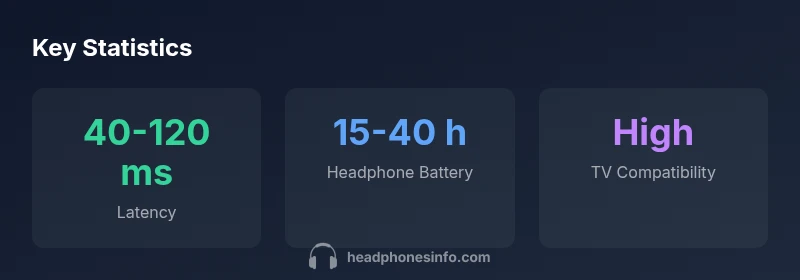
| Bluetooth Transmitter Linked to TV | 40-120 ms | High reliability in living rooms with clear line-of-sight |
| Roku Private Listening (Mobile App) | N/A | Requires wired headphones on the phone or a connected BT device |
| Wired Headphones to TV Audio Out | 0-20 ms | Most reliable for lip-sync; needs TV outputs |
People Also Ask
Can Roku stream audio to Bluetooth headphones directly?
Direct Bluetooth audio is only available on some Roku TVs; many devices require an external transmitter or the Private Listening feature via the Roku app. Check your model's capabilities and firmware.
Some Roku TVs support Bluetooth audio directly; otherwise use Private Listening via the app or a separate Bluetooth transmitter.
What is Roku Private Listening and how does it work with headphones?
Private Listening streams audio to your smartphone through the Roku app, where you can plug in wired headphones or use your phone's Bluetooth with wireless earbuds. It’s a convenient option when native TV Bluetooth isn’t available.
Roku Private Listening sends sound to your phone; plug in wired headphones or use your phone's Bluetooth.
Will using a Bluetooth transmitter introduce lip-sync delay?
Yes, potential delay can occur depending on transmitter, headphones, and codec. Choose low-latency transmitters and verify settings to minimize lag.
Some delay can happen; pick low-latency gear and test in real viewing.
Do I need a new TV or Roku device to get better wireless audio?
Not always. A quality Bluetooth transmitter or headphones with a supported codec can improve performance without a new device. Check compatibility with your TV outputs.
Often you can upgrade audio with a transmitter or compatible headphones rather than a new TV.
What should I do if there’s no audio after setup?
Double-check the selected audio path (Private Listening, Bluetooth, or transmitter) and verify volume levels on both the TV and headphones. Power cycle devices if needed.
Verify the audio path and power-cycle devices if audio is missing.
“Low-latency audio is the secret to a seamless Roku headphone experience, especially when streaming dialogue-heavy scenes.”
What to Remember
- Choose a low-latency path for Roku headphone listening
- Test lip-sync in real viewing scenarios
- Private Listening is convenient, but external transmitters offer broader compatibility
- Battery life and comfort matter for long sessions
- Keep firmware up to date to minimize compatibility issues