What Causes Headphones to Lose Sound: A Troubleshooting Guide
Learn why headphones lose sound and how to fix wired and wireless models fast with a clear diagnostic flow, practical steps, and prevention tips.


Headphones lose sound most often due to loose connections, damaged cables, Bluetooth glitches, or firmware issues. Start with the simplest checks: reseat the jack or USB/3.5mm plug, re-pair Bluetooth devices, and reboot the source. Then update firmware and test with a different device. If it still fails, move to more advanced steps or seek professional help.
What causes headphones to lose sound
When listeners ask what causes headphones to lose sound, the answer spans hardware wear, software faults, and user setup. In many cases, the problem isn't a dramatic failure but a cascade of small issues that degrade signal quality over time. The Headphones Info team found that in real-world use, loose connections and damaged cables top the list of culprits for both wired and wireless models. A frayed jacket or a kinked wire can introduce intermittent crackling or total silence if the contact is broken. For wireless headphones, the issue can be as simple as a drained battery or a dropped Bluetooth link caused by interference from nearby devices or congested airwaves. In addition to hardware, software plays a critical role: corrupted drivers, outdated firmware, or misconfigured audio settings can mute or cut out channels. Because headphones are a closed system, even small software glitches can manifest as sudden loss of sound. Run through a brief diagnostic: inspect the plug or USB-C/Lightning port, check you are on a supported codec, reboot the source device, and confirm the issue replicates with another headset. Clear, repeated testing helps you distinguish between a bad cable and an incompatible source.
Wired vs wireless: different failure modes
Wired headphones most often fail due to physical wear on the cable, a loose or dirty jack contact, or a damaged connector. Even subtle wear can lead to crackling, intermittent sound, or complete silence when the conductor loses contact. Detachable cables are particularly prone to wear at the plug end. Wireless headphones, by contrast, contend with battery health, Bluetooth version compatibility, encoder/decoder (codec) mismatches, and interference from other devices. A dying battery can reduce volume or drop the connection entirely, while codec issues can create stutters or complete silence on certain players or apps. In both cases, ensuring the device is inside its supported operating range, updating firmware, and re-pairing can resolve many issues. Always test with a second device to isolate whether the problem is with the headphones or the source.
Software and firmware matter too
Firmware updates often fix stability problems, improve compatibility with particular codecs, and resolve rare bugs that affect sound delivery. Driver updates on PCs or companion apps on mobiles can change how audio is routed to your headphones. If you notice loss of sound after a recent update, try rolling back or applying the latest patch. Misconfigured equalizers or enhancements can also mute or distort audio quality, especially with active noise cancellation engaged. When you adjust settings, don’t assume louder equals clearer; instead, check balance and mono/stereo modes. Headphones Info analysis shows that many users fix issues by restoring default settings, then re-applying preferred customizations. Finally, ensure your source device supports the headset’s codec and sampling rate to avoid compatibility problems.
A systematic diagnostic approach
Adopt a stepwise method to identify the root cause. Start with the simplest possibility—cable, port, and battery status—and then move to software and firmware checks. Isolate by testing with an alternate device and a different headset to compare behavior. If the problem persists across devices, the headphones themselves are likely the culprit. If it only occurs with one device, focus on that source: app settings, driver status, or Bluetooth configuration. Maintain a log of symptoms (when it happens, which apps, and whether it’s left/right channel) to help narrow down the issue. This approach reduces unnecessary repairs and helps you decide when professional service is needed.
Step-by-step fixes for common causes
Below are actionable fixes for the most frequent problems. Start with the easy fixes and escalate only as needed. If you’re uncomfortable with any step, seek professional assistance rather than forcing hardware manipulation. Always unplug devices before inspecting cables and avoid moisture around electronics. When in doubt, revert to factory defaults and reconfigure gradually.
Prevention and maintenance to keep sound stable
Prevention matters as much as fixes. Regularly inspect cables for wear and replace damaged parts promptly. Keep firmware up to date and avoid exposing headphones to extreme temperatures or moisture. Store detachable cables in protective sleeves and use a case to prevent internal cable stress. Periodically reset Bluetooth pairings and test across multiple sources to ensure cross-compatibility. By building these habits, you’ll reduce the odds of sudden sound loss and extend the life of your headphones.
Quick troubleshooting cheat sheet
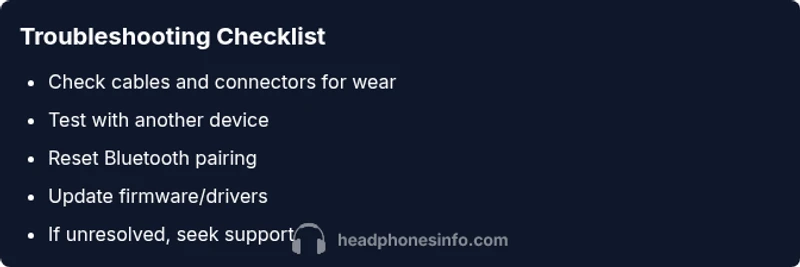
- Check power and battery levels for wireless models.
- Reseat connections and inspect for bent pins or frayed cables.
- Re-pair Bluetooth and restart the source device.
- Update firmware and driver software.
- Test with another device to isolate the issue.
- If all else fails, consult the manufacturer or a qualified technician.
Steps
Estimated time: 30-60 minutes
- 1
Inspect cables and connectors
Power off the devices, then unplug and inspect the cable for visible wear, kinks, or loose connectors. Wiggle the plug gently to see if the sound returns or cuts out. If you see damage, replace the cable or headset if covered by warranty.
Tip: Use a bright light and look for hairline cracks near the plug or jack. - 2
Test with a different device
Connect the headphones to a second source (phone, laptop, or audio player) to determine if the issue follows the headset or the original source. If the problem remains on multiple devices, the headset is likely at fault.
Tip: Ensure the test devices are set to a similar volume and playback format. - 3
Reset and re-pair Bluetooth
For wireless models, fully reset Bluetooth pairing on both headphones and the source device, then re-pair. Check battery health and confirm both ends have stable connections.
Tip: Avoid pairing in crowded wireless environments to reduce interference. - 4
Update firmware and drivers
Install the latest firmware for the headphones and update the source device drivers or audio apps. Reboot all devices after updates to ensure changes take effect.
Tip: If a rollback option exists, test briefly to compare stability with the new firmware. - 5
Perform a factory reset if available
If the headset offers a factory reset, use it as a last resort before service. Restore default settings, then reconfigure gradually.
Tip: Back up preferred settings before resetting.
Diagnosis: Headphones lose sound intermittently or completely
Possible Causes
- highLoose/damaged cable or poor headset jack contact
- mediumBluetooth interference, weak battery, or codec mismatch
- highOutdated firmware or corrupted drivers
- lowSource device settings (EQ, mono/stereo, enhancements)
- lowWater damage or internal component wear
Fixes
- easyInspect and reseat wired connections; replace damaged cables or adapters
- easyReset Bluetooth pairing and pair to a different device to test connection stability
- easyUpdate headphone firmware and source drivers; reboot all devices
- easyReset audio settings to default and reconfigure cautiously
- mediumIf the problem persists, seek professional service or warranty support
People Also Ask
Why do headphones sometimes stop playing in one ear?
Intermittent one-ear loss is commonly caused by a loose connection, a frayed cable, or a failing driver. Check the headphone cable and jack contact first, then test with a different device to see if the issue persists.
One-ear issues usually come from a loose cable or worn driver. Start with the plug and test with another device.
Can a bad cable cause complete silence?
Yes. A damaged or poorly seated cable can disconnect the signal entirely. Inspect for kinks, tears, or bent pins and replace the cable if needed.
Absolutely. A faulty cable can cut off sound completely.
Do EQ settings or apps affect sound loss?
Yes, overly aggressive EQ or adaptive enhancements can mute or distort sound. Reset to default and test, then re-apply gradual tweaks if desired.
Yes—sound settings can mute channels if misconfigured.
Is it safe to open headphones to repair inside components?
Opening premium headphones can be dangerous and voids warranty. If you’re not trained, seek professional service.
It’s best to avoid opening them yourself unless you have proper training.
When should I replace headphones instead of repairing them?
If multiple fixes fail or repair costs approach the price of a new model, replacement is often the best option. Consider warranty and resale value as well.
If fixes don’t fix it and costs are high, consider replacement.
How can I prevent sound loss in the future?
Regular cable inspections, firmware updates, and careful storage reduce failure risk. Test on multiple devices occasionally to catch issues early.
Regular checks and updates help prevent future issues.
Watch Video
What to Remember
- Inspect hardware first: cables and connectors matter most
- Test across multiple devices to isolate the issue
- Keep firmware and drivers up to date for stability
- Know when to seek warranty-supported service