Headphones Not Working: Fast Troubleshooting Guide
Learn fast steps to diagnose and fix headphones that won't work. From quick checks to a structured diagnostic flow, get practical fixes for wired, wireless, and mic issues.


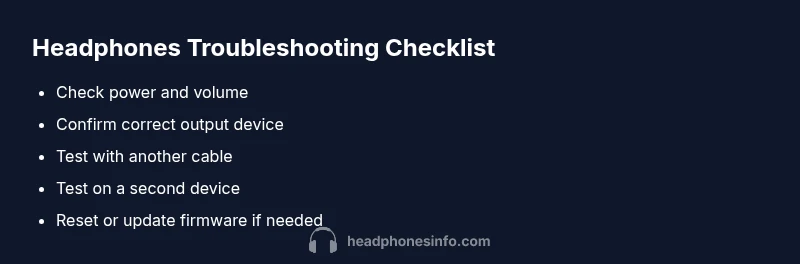
If your headphones is not working, start with the simplest checks: confirm the device is awake, volume is up, and the correct output is selected. Try a different cable or Bluetooth source, then test with another device. If the issue persists, proceed through the diagnostic flow below. These quick fixes cover common problems, including loose connections, mis-set output, and pairing errors.
Common headphone problems and quick context
If you’ve ever seen the message 'headphones is not working' on your device, you’re not alone. According to Headphones Info, most issues fall into a few broad categories: connection problems (wired or wireless), audio-path faults (no sound or imbalanced channels), microphone failures, and charging or battery-related faults for wireless models. The Headphones Info team found that the root cause is almost always either a setup mistake or a hardware quirk that can be fixed with a few deliberate steps. By recognizing these categories, you can avoid random fixes and approach the problem systematically. This article offers a practical, data‑driven workflow designed for audiophiles and everyday listeners alike, with clear progress cues, safe procedures, and recommendations you can trust. Whether you’re at home, in the office, or on the move, the goal is to get you back to enjoying your music, calls, or gaming audio as quickly as possible.
Quick checks to rule out obvious causes
Before diving into cables or firmware, perform these quick checks. Ensure the headphones are powered or charged; check the device's volume and mute settings; verify the correct audio output is selected (headphones vs. speaker). If it's a Bluetooth headset, make sure it is within pairing range and not connected to another device. If the headphones show as connected but no sound comes through, try disconnecting and reconnecting. If you are using a wired connection, inspect the 3.5mm jack and any adapters for dirt or damage. Clean the jack gently with a soft brush; avoid using metal objects. If using USB-C, try an alternate port. For mic issues, check that the mic is not muted and that app permissions are granted. These quick checks are designed to rule out common setup issues and get you moving toward a fix.
How to test with multiple devices and cables
Testing across devices helps isolate the problem. Connect the headphones to a second phone, laptop, or tablet to see if sound appears there. Swap to a different cable or dongle if you’re using a wired or USB-C connection. If you have wireless models, try pairing with a different source device and observe whether the issue persists. Ensure firmware or driver updates are applied when available, as software mismatches can cause audio malfunctions. Document any changes you make so you can revert if needed. If the problem follows the headphones to every device, the issue is more likely hardware related and may require service.
Advanced troubleshooting by symptom
No sound on both channels: check balance settings, mute status, and the output device in your operating system. If possible, test with a wired and a wireless configuration to see if one mode works. Sound on one side only: inspect the balance, cable condition, and earcup integrity; rotate the plug gently to detect intermittent contacts. Distorted or crackling sound: clean connectors, change cables, and try a different source; investigate interference from nearby electronics. Mic not working: verify mic mute, app permissions, and whether the mic works in another app. Bluetooth connects but audio cuts out: re-pair, update firmware, and consider removing other Bluetooth devices to reduce interference. In all cases, a factory reset of the headphones or reinstallation of drivers may help for stubborn issues. The Headphones Info team emphasizes documenting steps and testing after each change to avoid backtracking.
When to seek service and long-term reliability
If basic checks and software updates don’t restore function, your unit may need professional service or replacement under warranty. Begin by confirming the warranty status and collecting purchase details, serial number, and model information before contacting support. For wireless models, consider battery health as a prime factor if charging times have lengthened. Regular maintenance—keeping jacks clean, avoiding harsh tugs on cables, and updating firmware—helps prevent future failures. The goal is to extend the life of your headphones while preserving audio quality and mic performance. The Headphones Info team recommends using official support channels and keeping records of diagnostics to speed up repairs if needed.
Steps
Estimated time: 20-45 minutes
- 1
Check power, volume, and output
Power on the headphones (or ensure charging). Verify the device volume is up and not muted, and confirm the audio output is set to the headphones. Wiggle the jack or connector slightly to detect loose contacts without forcing movement.
Tip: Take a quick photo of your current settings so you can restore them later. - 2
Test with alternate device/cable
Connect the headphones to a different device using a known-good cable or dongle. If sound returns, the problem likely lies with the original device or cable. If no sound on the second device, continue with deeper diagnostics.
Tip: Label cables with a color tag to remember which one you tested. - 3
Reset and update
For wireless headphones, perform a factory reset if available, then re-pair with your devices. Check for firmware updates and install them. Re-test after each step to track what helps.
Tip: Back up custom EQ or settings if your model allows it, before resetting. - 4
Decide on service or replacement
If the issue persists after resets and firmware updates, check warranty coverage and contact support. Decide whether repair is cost-effective versus replacement based on model value and age.
Tip: Keep records of diagnostics, serial numbers, and purchase receipts to speed service.
Diagnosis: Headphones is not working
Possible Causes
- highLoose connection or damaged cable/adapter
- highIncorrect output setting or mute/volume misconfiguration
- mediumBluetooth pairing issue or device compatibility
- lowHardware fault in drivers or internal components
Fixes
- easyReconnect all cables firmly; try a different port or connector/adapter
- easyCheck system audio output selection and mute/volume levels; test with another app
- mediumFor Bluetooth, remove and re-pair the headset; update firmware if available; test with another device
- hardIf none of the above works, contact support for warranty service or professional repair
People Also Ask
Why won't my headphones connect via Bluetooth?
Bluetooth connection can fail due to stale pairings, software glitches, or interference. Remove the device from the Bluetooth list, re-pair, and ensure the headphones are the active audio output. If issues persist, update firmware and test with another device.
Bluetooth can fail from stale pairings or updates. Remove and re-pair, then check for firmware updates and test with another device.
What if only one earbud is producing sound?
Imbalanced sound is often caused by a loose connection, damaged cable, or a fault in the earcup wiring. Try switching to another cable or dongle, reseat the plug, and test both channels with multiple devices.
If only one side works, check connections and try a different cable to rule out a faulty wire.
My wired headphones make no sound. Where do I start?
Start with the simplest checks: verify the plug is fully inserted, inspect the jack for debris, and confirm the device’s output is set to headphones. Try another device or cable to determine if the issue is with the cord or the source.
Check the plug, jack, and device output. Test with another device to find the faulty part.
How do I know if my headphones mic is working?
Ensure the mic is not muted and the app has microphone permissions. Test with a voice recorder or a call app to confirm input is detected. If not, update drivers or firmware and re-pair if wireless.
Check mute and permissions, then test with a voice recorder to verify input.
Should I update firmware to fix issues?
Firmware updates can resolve compatibility and stability problems. Check the manufacturer’s site or app for the latest version and follow official instructions carefully. If you’re unsure, contact support before updating.
Firmware updates can fix problems; stay on the official version and follow instructions.
When should I replace instead of repair?
If the headphones are old, out of warranty, or have extensive damage, repair may not be cost-effective. Compare repair estimates with the price of a new model that meets your needs, and consider resale value.
If repairs cost more than a replacement, consider buying new.
Watch Video
What to Remember
- Start with quick, setup-focused checks
- Isolate issues by testing with different devices and cables
- Follow a symptom-driven diagnostic flow for efficiency
- Document steps and seek official support when needed
- Regular maintenance prevents future faults