How to Check Headphones Latency
Learn how to measure headphone latency across wireless and wired setups. Step-by-step methods, practical tests, and tips to minimize delay for gaming, video, and music listening.


By the end of this guide you will know how to check headphone latency on wireless and wired setups, compare codecs, and interpret results for gaming, video, and music. You’ll perform at-home tests with common devices and use software tools to measure perceived delay. A clear, repeatable process helps you choose headphones with low latency.
Why latency matters for headphones
Latency is the delay between the moment your device sends audio and the moment you actually hear it. In everyday listening, this delay can be barely perceptible, but in tasks that require precise timing—lip-sync in video, real-time gaming, or music production—latency becomes noticeable and can break immersion. The Headphones Info team emphasizes that perceived latency is not just a single figure; it depends on the entire chain from encoding and transmission to decoding and playback. In practical terms, wireless headphones using older codecs or streaming over busy wireless networks tend to introduce more delay, while wired connections or modern low-latency codecs offer smoother lip-sync and faster response. For enthusiasts and professionals who depend on timing, measuring latency with repeatable tests helps distinguish real performance from marketing claims. The goal is to identify latency that meets your needs and use-case, rather than chasing an abstract ideal. With the right approach, you can compare models on a level field and make smarter buying decisions.
Latency fundamentals: codecs, Bluetooth versions, and digital paths
Latency originates in several parts of the signal path. Encoding and decoding introduce delay, as does the wireless transmission and the processing done by the device and headphones. Different Bluetooth codecs add varying amounts of delay; SBC and AAC are common, while codecs such as aptX Low Latency are designed to reduce delay. Bluetooth version also matters: newer stacks can improve stability and reduce re-buffering, which indirectly affects perceived latency. Wired connections bypass the wireless path entirely, yielding the lowest possible delay, assuming there is minimal processing on the headphones themselves. The Headphones Info analysis shows that the codec choice, device compatibility, and firmware quality collectively determine the end-user experience. When you assess latency for buying decisions, consider how you will use the headphones most often—gaming, watching videos, or editing audio—as these use cases demand different latency tolerances.
Methods to measure latency: in-device tests and external tools
There are practical, accessible methods to gauge latency without specialized lab gear. Start with simple at-home tests using a video featuring on-screen action paired with sound, then compare results with dedicated apps that measure audio-visual sync. You can also test latency by recording yourself watching content on a camera or smartphone while listening to the headphones and checking lip-sync alignment frame-by-frame. External tools can provide more structured data by logging the perceived delay over repeated trials and across codecs. In all cases, ensure your test video and display refresh rate are constant and that your sources (phone, computer, headphones) are fully charged and updated. Headphones Info’s guidance is to perform multiple trials to account for variation and to document which codec and connection were used for each result.
Quick at-home tests you can perform
- Prep a test video with a clear on-screen action (e.g., a person speaking with visible lip movement) and a short, dialog-heavy clip. Play it first with direct wired connection, then with Bluetooth in the same environment.
- Use a straightforward clap test: start a video with a visible clap in the scene, then observe whether the clap sound and its visual cue align on your screen. Do this for several trials.
- Try a fast-paced game scene or a music video with quick lip movements and transient sounds. Note any noticeable delay between mouth movement and audio.
- If you have access to a latency app, run the audio-visual sync test multiple times for each connection (wired vs wireless) and record the results. Repeat for different codecs supported by your device.
- Document your setup (devices, OS version, codec, and environment) so you can reproduce tests later or compare against other headphone models.
Interpreting results: what latency means for different use cases
Latency matters differently depending on how you use your headphones. In gaming, even small delays can affect timing-sensitive actions and hand-eye coordination, especially in fast games. For watching video, lip-sync is the key metric; a perceptible misalignment can be distracting but not always game-changing. In music listening or production contexts, latency can affect synchronization with external gear or software timelines. The goal is to identify whether the measured latency is acceptable for your primary use case. Use a consistent test method and compare across multiple head-to-head options to separate intrinsic latency from incidental delays caused by a single device or app.
How to reduce latency: practical steps
Reducing latency involves choosing hardware and settings that minimize the delay along the signal path. Start by preferring wired connections where possible; a direct path typically yields the smallest delay. If you must go wireless, select headphones and source devices that support low-latency codecs such as aptX Low Latency or a similarly optimized path, and ensure both devices are updated to the latest firmware. Disable any sound processing or equalization features that add extra processing time. Keep the range reasonable and remove interference sources (like other Bluetooth devices or Wi-Fi routers) from the immediate area. For gaming or professional work, some users find it helpful to switch off enhancements such as virtual surround processing on the headphone or device side, as these can introduce additional buffering. In short, your latency can be managed by codec choice, connection type, software settings, and firmware updates, and by testing across common use scenarios to validate improvements.
Common pitfalls and troubleshooting tips
- Don’t rely on a single measurement. Latency can vary with battery level, processing load, or background tasks; run multiple trials.
- Avoid testing in an unstable environment (high interference, crowded wireless spectrum) which can exaggerate delays.
- Distinguish latency from jitter. A stable average latency is good, but jitter (variance in delay) can still be problematic in real-time use.
- If you notice persistent lip-sync issues only in one app, check app-specific audio latency settings and any built-in processing.
- Always verify that firmware and drivers are up to date; outdated software can worsen latency or cause inconsistent results.
A quick check before you buy: latency considerations
When evaluating headphones for latency, review both official specifications and independent tests. Look for notes about supported codecs, wireless protocols, and whether the headphone supports low-latency modes. If possible, test the model with a representative device (phone, PC, or gaming console) and scenario you care about most. Vendor marketing can exaggerate performance; rely on reproducible tests and real-use case simulations. A practical approach is to compare models under the same test conditions and document your results, so your purchase aligns with your primary activities. Headphones Info suggests focusing on codec support, firmware responsiveness, and real-world testing rather than a single specification alone.
Tools and apps overview
A robust latency assessment uses a combination of at-home tests and lightweight tools. Start with a test video that clearly demonstrates lip-sync, then augment with a simple audio-visual sync app that logs delay over several trials. If you test across multiple devices, note the differences in how each platform handles buffering and processing. Keep a running log showing: device model, connection type, codec, firmware version, and observed latency in your own terms (perceived delay and any absolute misalignment). This practical toolkit helps you compare headphones on a level field and build a data-driven recommendation for future purchases. The Headphones Info team emphasizes that consistency in testing conditions is key to trustworthy results.
Tools & Materials
- Smartphone or tablet with camera(Used to capture test video or run latency apps.)
- Laptop or desktop computer(Needed for desktop-based tests and software tools.)
- Test video file or streaming source(Choose content with clear lip-sync cues.)
- Latency measurement app or software(App should log timing and provide repeatable results.)
- USB-C or 3.5mm audio cable (optional)(For wired tests if your devices support it.)
Steps
Estimated time: 30-45 minutes
- 1
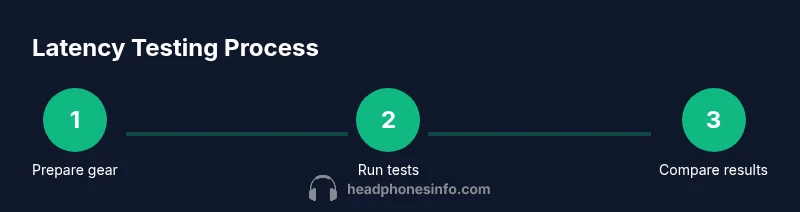
Gather and organize gear
Collect your headphones, testing devices, and the test video. Ensure all devices are charged and running the latest firmware. Create a quiet, distraction-free environment for consistent measurements.
Tip: Prepare a single, repeatable scene you’ll test against each headphone pair. - 2
Set up a stable test environment
Place the screen at a consistent distance and angle, enable airplane mode or disable background tasks, and set the video to play at a fixed frame rate. This reduces variability in display latency that could skew results.
Tip: Use a tripod or stable stand for repeatable video framing. - 3
Choose your connection paths
Decide whether you’ll test wired, Bluetooth with a given codec, and any other wireless options. If possible, test multiple codecs to see how latency changes with each path.
Tip: Record the exact codec and connection used for each trial. - 4
Run audio-visual sync tests
Play the test video and observe lip-sync with real-time playback. Pair with a latency app to log delay and repeat for consistency across trials.
Tip: Do at least three trials per pathway and average the results. - 5
Compare results across devices
Organize results in a simple table: device, connection, codec, observed latency, and perceived impact. Look for trends such as consistently lower latency in wired or specific codecs.
Tip: Highlight the setup that best matches your primary use case. - 6
Apply improvements and re-test
Apply the recommended steps (e.g., enabling a low-latency codec or switching to wired) and re-run tests to verify improvements.
Tip: If improvements are not seen, re-check firmware and settings for conflicts.
People Also Ask
What is headphone latency?
Headphone latency is the delay between when audio is produced by your source and when you hear it through the headphones. It affects lip-sync, gaming response, and overall timing in multimedia tasks. Latency can vary by connection type, codec, device processing, and firmware.
Latency is the delay from sound being produced to you hearing it. It matters most for lip-sync and fast-paced activities.
How do you measure latency without specialized gear?
You can estimate latency with simple at-home tests using a clear lip-sync video or clap-sync method, and by using latency apps to log delay over several trials. While not lab-perfect, these methods give actionable comparisons between headphones and setups.
Use a video with visible lip-sync or a clap-test, and log the delay with a basic latency app for several trials.
Does latency affect wired headphones?
Wired headphones typically have lower latency than wireless ones because there’s no wireless transmission. However, latency can still occur due to headphone DSP, source processing, or cable quality. Testing still helps ensure your setup meets your needs.
Yes, wired can be lower latency, but processing in headphones and software can still add delay.
Can latency be eliminated completely?
In most consumer setups, some latency remains due to processing and buffering. Even so, choosing wired connections and low-latency codecs can reduce delay to a level that is often imperceptible for many users.
No setup is perfectly instant, but you can minimize latency with the right codec and connection.
Which use cases are most affected by latency?
Gaming and real-time communication are most sensitive to latency because timing matters for actions and responses. Watching video and listening to music are less sensitive but lip-sync accuracy still improves with lower latency.
Gaming and lip-sync-heavy tasks need the lowest latency, but all activities benefit from smoother timing.
Watch Video
What to Remember
- Test latency with repeatable, controlled setups.
- Compare wired vs wireless paths to identify delays.
- Choose low-latency codecs and update firmware.
- Use real-world scenarios for interpretation (gaming, video).
- Document results to guide buying decisions.