How to Get Rid of Delay on Bluetooth Headphones
Discover practical, step-by-step methods to minimize and eliminate Bluetooth latency. Learn about codecs, device compatibility, firmware updates, testing techniques, and smart workarounds to achieve near real-time audio syncing.


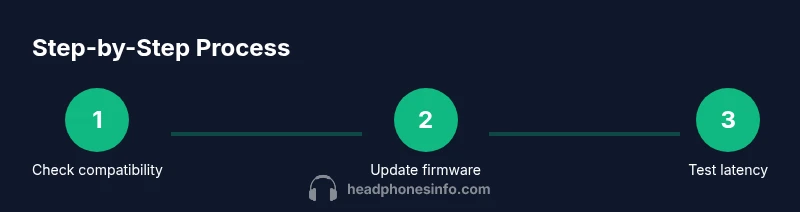
By updating devices, selecting low-latency codecs, and adjusting settings, you can drastically reduce Bluetooth headphone delay. Start by checking compatibility, updating firmware and OS, and testing with latency tools. Then try codec changes (aptX LL or LDAC where available), recalibrate, and verify lip-sync with videos. This quick guide previews the exact steps below.
Understanding Bluetooth Latency and Why It Happens
Bluetooth latency is the delay between the audio signal being sent from your source (phone, PC, TV) and it reaching your ears. If you’re wondering how to get rid of delay on bluetooth headphones, this guide explains the core causes and pragmatic fixes. In practical terms, it’s the gap that makes dialogue look out of sync with the video, or gaming feel laggy. Several factors contribute to latency: codec choice, Bluetooth version, processing delay in headphones, interference from Wi‑Fi or other devices, and the distance between transmitter and receiver. According to Headphones Info, the codec you select is often the largest driver of latency. If your headphones and source support a low-latency profile, you’ll see noticeably better lip-sync and audio-visual syncing. The general rule is simple: the closer you are to real-time, the smaller the delay. Keep in mind that some codecs prioritize sound quality over latency, and some devices disable low-latency modes when battery is critical. The takeaway is that understanding the bottleneck helps you pick the right tweaks rather than applying random fixes.
Understanding Bluetooth Latency and Why It Happens
Bluetooth latency is the delay between the audio signal being sent from your source (phone, PC, TV) and it reaching your ears. If you’re wondering how to get rid of delay on bluetooth headphones, this guide explains the core causes and pragmatic fixes. In practical terms, it’s the gap that makes dialogue look out of sync with the video, or gaming feel laggy. Several factors contribute to latency: codec choice, Bluetooth version, processing delay in headphones, interference from Wi‑Fi or other devices, and the distance between transmitter and receiver. According to Headphones Info, the codec you select is often the largest driver of latency. If your headphones and source support a low-latency profile, you’ll see noticeably better lip-sync and audio-visual syncing. The general rule is simple: the closer you are to real-time, the smaller the delay. Keep in mind that some codecs prioritize sound quality over latency, and some devices disable low-latency modes when battery is critical. The takeaway is that understanding the bottleneck helps you pick the right tweaks rather than applying random fixes.
Tools & Materials
- Source device (phone, tablet, or computer)(Ensure OS and Bluetooth drivers are updated)
- Bluetooth headphones or speakers(Firmware updates available from manufacturer when possible)
- Updated firmware/OS on both devices(Check for the latest releases before testing latency)
- Latency testing method(Use built-in tools or a dedicated app to measure lip-sync latency)
- Optional: low-latency USB transmitter(Useful for TVs or desktops with stubborn Bluetooth latency)
- Quiet, interference-minimized environment(Keep Wi-Fi/cordless phones away from the listening area)
Steps
Estimated time: 30-60 minutes
- 1
Check compatibility and update firmware
Begin by confirming both the source device and headphones support a low-latency codec (e.g., aptX LL/Adaptive, LDAC). Update firmware on the headphones and OS/drivers on the source. After updating, re-pair the devices to ensure the new settings take effect.
Tip: If updates aren’t available, note the current codec and move to the next steps to test alternatives. - 2
Identify available codecs on both ends
Inspect the audio settings on your source to see which codecs are active. On Android, you may switch to aptX LL or Adaptive; on Windows/macOS, check Bluetooth settings or driver software. Confirm the headset accepts the same low-latency profile for best results.
Tip: If your device only supports SBC/AAC, you may not achieve the lowest latency—note this constraint. - 3
Switch to a low-latency codec when possible
Change the codec to a low-latency option if both devices support it. This reduces buffering and speeds up the end-to-end path. Re-test synchronization after the change.
Tip: Some apps may reset to default; re-check codec selection after each test. - 4
Re-pair devices and reset audio settings
Forget the Bluetooth connection on both ends, then re-pair and re-enable any enhanced audio features. This eliminates stale pairing data that can hinder low-latency modes.
Tip: Pairing in a clean environment helps ensure the new profile sticks. - 5
Minimize distance and interference
Move closer (within 1–2 meters) and reduce obstacles between devices. Turn off nearby cordless phones, de-prioritize 2.4 GHz Wi‑Fi channels if possible, and keep the listening area free of dense walls.
Tip: A clear line of sight often yields noticeable latency improvements. - 6
Test lip-sync with real content
Play a video or game with a known lip-sync benchmark. Use a latency tool or count frames to gauge alignment. If you still notice delay, revert to the previous codec and test again.
Tip: Test across multiple apps to ensure consistency across media types. - 7
Consider an external transmitter for TVs or PCs
If you primarily watch TV or game on a PC and still see lag, a dedicated low-latency transmitter can provide a cleaner path than standard Bluetooth. Verify transmitter compatibility with your headphones.
Tip: Choose a transmitter that explicitly supports aptX LL or LDAC and has good range. - 8
Establish a maintenance routine
Regularly update firmware, keep drivers current, and test latency periodically. Document which combinations work best for your devices to streamline future testing.
Tip: Keep notes for quick future reference when new updates are released.
People Also Ask
What causes Bluetooth latency in headphones?
Latency can stem from codec choice, device processing, interference, and distance. Understanding these factors helps you target fixes rather than guessing.
Latency comes from codecs, processing, interference, and distance. Target the bottlenecks to fix it.
Does using a wired connection fix latency?
Yes, a wired connection bypasses Bluetooth entirely and typically offers near-zero latency. Use this when timing is critical (gaming or lip-sync-heavy watching).
Wired is the most reliable way to remove Bluetooth latency for timing-critical uses.
Which codecs minimize delay the most?
Low-latency codecs like aptX LL/Adaptive and LDAC generally minimize delay when both devices support them.
Low-latency codecs like aptX LL or LDAC help, provided both devices support them.
How can I test latency accurately?
Use built-in latency tools on your OS or a third‑party app, then compare lip-sync with real content across apps.
Use a latency tool or app and verify lip-sync with real videos.
Will software updates reduce delay?
Updates can improve codec support and stability, which may reduce delay over time. However, hardware limits still matter.
Software updates can help, but hardware limits also set a floor on latency.
Can low-latency adapters help with TVs?
Yes, a dedicated low-latency Bluetooth transmitter for TV can significantly reduce delay compared to built-in TV Bluetooth.
A low-latency transmitter for TV can cut lag considerably.
Watch Video
What to Remember
- Check codec compatibility first to reduce latency fast.
- Keep firmware and OS up to date on both ends.
- Test with real content to verify lip-sync accuracy.
- Consider a dedicated low-latency transmitter for TV/gaming if needed.
- Maintain a clean environment to minimize interference.