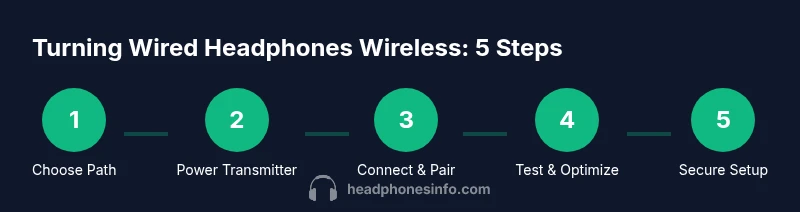
How to Make Wired Headphones Wireless: A Step-by-Step Guide
Learn practical methods to convert wired headphones into wireless listening devices with adapters, latency-aware choices, and safe setup tips. This guide covers Bluetooth transmitters, codecs, compatibility, and troubleshooting for clean, delay-minimized sound.


In this guide you will learn how to make wired headphones wireless by using a Bluetooth transmitter, a wireless adapter, or a DIY transmitter. It covers practical options, essential compatibility checks, and a clear step-by-step plan to minimize latency while preserving as much sound fidelity as possible. You'll also find safety tips, recommended codecs, and what to buy before you start.
Why converting wired headphones to wireless can be worth it
According to Headphones Info, upgrading your listening setup by making wired headphones wireless can unlock flexibility without buying a new pair. You can move freely around your desk or relax on the couch while keeping the comfort and fit of your favorite headphones. This approach also helps extend the life of your existing gear, especially if you’ve invested in high-quality headphones you love. Before you start, it's important to understand the trade-offs between latency, sound fidelity, and power requirements. In this block, we explore why people choose this route and when it makes sense for different listening styles, from casual music listening to gaming and video calls.
Key considerations include latency (the delay between audio and action), codec support (how the audio is transmitted and compressed), power requirements for the transmitter, and the possibility of affecting microphone functionality on headsets with built-in mics. By weighing these factors, you can choose a setup that preserves as much fidelity as possible while still delivering wireless convenience.
Understanding the main options
There are several practical paths to wireless listening: (1) a compact Bluetooth audio transmitter that plugs into the headphone jack, (2) a wireless adapter that sits on the end of your headphone cable, and (3) a DIY transmitter you install alongside the headphone cable. Each option has distinct trade-offs in latency, range, price, and ease of use. Bluetooth transmitters with low-latency codecs offer a simple, plug-and-play solution, but performance depends on your source device and environment. Wireless adapters can preserve more of the original cable-length design, while DIY solutions give you more control but require more technical steps. Consider your primary use (movies, music, gaming, calls) and your tolerance for setup time when choosing among these paths.
Compatibility and impedance considerations
Before you buy anything, check compatibility between your headphones, the transmitter, and your source device. If your headphones have a fixed cable, you’ll rely on the transmitter’s output jack; if you have an inline remote or microphone, make sure the adapter supports pass-through for those features. Impedance and sensitivity matter too: very high-impedance headphones can benefit from a more powerful transmitter, while extremely low-impedance sets may show noise or hiss if the transmitter isn’t well-matched. Also confirm the transmitter’s power requirements and whether it is USB-powered or battery-powered, as this affects where you can use it and for how long.
Quick setup overview: using a Bluetooth transmitter with 3.5mm jack
Here’s a quick, practical path you can follow to get wireless listening started: connect the transmitter’s 3.5mm output to your headphones, power the transmitter from a USB source, and put the device in pairing mode to connect with your phone, laptop, or media player. Once paired, test with a few tracks to check volume balance and latency. If your transmitter supports multiple codecs, enable the lowest-latency option available (for example, aptX-LL or LDAC) to minimize audio delay during video watching or gaming. Finally, adjust settings on both the source and the transmitter to avoid clipping and distortion.
Safety and sound quality tips
Maintaining safe listening levels is essential, especially when introducing new wireless hardware. Start with moderate volume and test dynamic ranges to ensure the bass doesn’t overpower the mids and highs. Keep the transmitter away from heat sources and moisture, and use a brand-new cable if the original wears out. Regularly check for firmware updates for your transmitter and ensure you’re using a decently powered USB supply to prevent dropouts. Remember that some low-cost adapters can introduce hiss or dropout under heavy interference; investing in a reputable model can improve long-term reliability.
Troubleshooting common issues
If you experience dropouts, first check battery power and proximity to your source. Re-seat the connector and re-pair if needed. Interference from Wi‑Fi networks or other Bluetooth devices can cause static; try changing the transmitter’s channel or moving closer to the source. If you don’t hear sound through the headphone channel, verify the transmitter is selected as the audio output on the source device and that the headphone jack is functioning. In rare cases, you may need to reset the transmitter to factory settings and re-pair.
AUTHORITY SOURCES
- FCC.gov: Wireless device safety and interference considerations. https://www.fcc.gov
- IEEE.org: Audio transmission standards and latency considerations. https://www.ieee.org
- Bluetooth.com: Official Bluetooth specifications and codecs (aptX/LDAC). https://www.bluetooth.com
Shopping guide: choosing a transmitter
When selecting a transmitter, prioritize latency, codec support, and power options. Look for low-latency codecs (aptX-LL, AAC, LDAC) and a stable wireless range. If you plan to game or watch videos, a wired-to-wireless adapter is preferable to minimize delays. Also consider the build quality, 3.5mm vs USB-C outputs, and whether the transmitter cleanly integrates with your headphone cable without adding noticeable bulk.
Next steps and long-term considerations
If you’re happy with the results, you can experiment with additional accessories such as a compact USB battery pack for longer sessions or a small cable management sleeve to keep the setup tidy. For frequent travelers, a portable kit with a small Bluetooth transmitter and spare cables can simplify in-flight listening. Finally, periodically revisit your setup as new codecs and transmitters enter the market; what is best today may be improved with a future firmware update.
Tools & Materials
- Bluetooth audio transmitter with 3.5mm/1/8 inch jack(Low-latency codec support (aptX-LL, LDAC) recommended)
- 3.5mm audio cable (male-to-male)(Used to connect the transmitter to headphones if the headphones have a compatible input)
- USB power source (power bank or charger)(Power to keep the transmitter running during use)
- Headphone cable adapter (if needed)(Optional for specific transmitter models or headset types)
- Instruction manual or quick-start guide(Helpful for troubleshooting and firmware updates)
Steps
Estimated time: 30-60 minutes
- 1
Choose your wireless path
Decide whether you want a plug-in Bluetooth transmitter, a cable-attached wireless adapter, or a DIY solution. Consider latency needs, budget, and your willingness to tinker. This choice determines the rest of the setup.
Tip: If gaming or video is a priority, prioritize low-latency codecs and a reliable power source. - 2
Power the transmitter
Connect the transmitter to a stable USB power source. A dedicated power bank can prevent dropouts during long listening sessions. If your device is powered by a USB port, ensure the port can supply enough current for the transmitter.
Tip: Use a short USB cable to reduce voltage drop and minimize heat buildup inside the setup. - 3
Connect transmitter to headphones
Plug the transmitter into the headphone jack or route the signal through the headphone cable using the included adapter. Ensure the connection is snug and that any inline controls remain accessible.
Tip: If your headphones have a detachable cable, retain the original cable for future repairs. - 4
Pair with the source device
Put the transmitter into pairing mode and pair it with your phone, tablet, or computer. Follow the device’s Bluetooth settings to complete the pairing. Test playback with a short clip to confirm audio output.
Tip: If you experience pairing issues, try turning Bluetooth off on the source, then back on, and re-pair. - 5
Test and calibrate
Play a few tracks and check volume balance, dynamic range, and any latency during video playback. If your transmitter supports multiple codecs, select the lowest-latency option available.
Tip: Match the source volume with the transmitter’s output to avoid clipping. - 6
Fine-tune audio quality
Experiment with levels on the source and the transmitter, and consider a light EQ to balance bass, mids, and treble. Monitor for background hiss or interference and adjust placement or shielding as needed.
Tip: Keep cables tidy and away from other electronics to minimize interference. - 7
Secure and maintain
Mount the transmitter in a small, ventilated area to avoid overheating. Check for firmware updates and periodic maintenance. If you notice degraded performance, re-check connections or try a different codec.
Tip: Power cycle both devices if you encounter persistent dropouts.
People Also Ask
Can I keep the wired controls on my headphones when converting to wireless?
Inline controls may or may not pass through depending on the transmitter and headset. Check the product specs and test the controls after pairing.
Inline controls might work with some transmitters, but test to confirm.
Will there be noticeable latency?
Latency depends on the transmitter and codec. Low-latency options minimize delay, but a small amount of delay can remain, especially with video.
Most people notice a small delay unless a low-latency codec is used.
Is this safe for long-term use?
Yes, when using reputable transmitters and proper power, but avoid overheating and monitor for unusually warm devices.
Generally safe if you use quality gear and avoid overheating.
Can this work with any phone or laptop?
Most phones and laptops support Bluetooth, but codec support and range vary. Check codec compatibility with your devices.
Most devices pair well, but codec support varies.
What about headsets with an integrated microphone?
Some transmitters pass through microphone signals; others do not. If you rely on a mic, verify passthrough before buying.
Mics may not pass through on all setups; verify first.
Do I need to modify my headphones?
No permanent modification is typically required. Most setups plug into the headphone jack or cable end without altering the headset.
Usually no permanent modifications needed.
Watch Video
What to Remember
- Choose the right wireless path based on latency needs and setup effort.
- Low-latency codecs reduce audio delay, especially for video and gaming.
- Check compatibility and impedance to avoid noise and dropouts.
- Test, tune, and maintain your setup for long-term reliability.