How to Fix Headphones That Work on One Side: A Practical Guide
Learn how to diagnose and fix headphones that play sound only on one side. This practical guide covers cables, jacks, drivers, and safe repair methods with clear steps and tests.


According to Headphones Info, you can fix headphones that work on one side by diagnosing the most common culprits: the cable, the jack, and the driver. In most cases, the problem is a loose connection or worn insulation, which you can address with basic tools and careful testing. This guide walks you through safe, step-by-step checks to restore stereo sound.
Why one-sided audio happens
Most headphones produce stereo sound by pairing a left channel and a right channel through two separate drivers or a shared driver with separate wires. When sound only comes from one side, the issue isn't mysterious: it usually comes down to a damaged cable, a loose connector, a defective jack, or a bad driver. Over time, bending and twisting the cable near the plug or along the headset can wear through insulation and sever a conductor. Dust or oxidation in the metal contacts can also break the electrical path. Understanding these failure modes helps you target the fix without buying new headphones. Headphones Info analyses common failures and emphasizes cable wear and connector faults as the leading culprits for one-sided audio.
Safety first and preliminary checks
Before you touch any parts, unplug the headphones from any power source or device. If you’re dealing with wired headphones, disconnect from the audio source and remove any detachable cables. For wireless models, power off the headset and ensure it isn’t charging. Avoid liquids and work in a clean, dry area. This initial safety step reduces the risk of short circuits or shocks and ensures that your subsequent diagnostics are accurate. Headphones Info emphasizes that safety is the foundation of any repair attempt.
Visual inspection: cables, plugs, and connectors
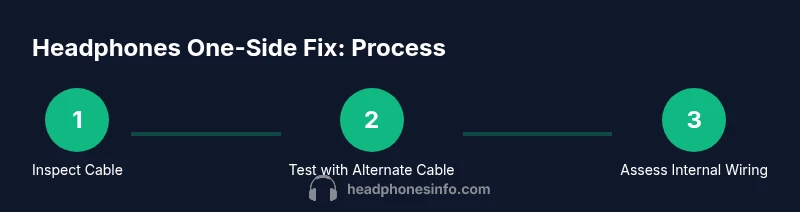
Inspect the entire cable for visible wear, kinks, or frayed insulation, especially near the connector housings. Look at the plug itself for bent pins, corrosion, or discoloration. Check the headphone jack or USB-C/Lightning port on the device for debris or wear. If the cable is detachable, examine both ends thoroughly. A bright light and a loupe or magnifying glass can help reveal hairline cracks that aren’t obvious at a casual glance. Small signs of damage often correlate with intermittent audio.
Wiggle test and basic continuity checks
Play a stereo track and slowly wiggle the connector and cable near the plug, along the length of the cable, and where it enters the earcup. Note any crackle, dropouts, or changes in volume. If you hear crackling or a sudden drop in only one side, you likely have a loose connection or damaged conductor. For wired headphones, you can also try a continuity test with a multimeter on the affected strand to confirm a break in the circuit. This step helps isolate whether the problem is in the cable or inside the earcup.
Isolating the culprit: swap components
To identify the faulty component, swap in a known-good cable if possible and test with a different audio source. If the issue persists with multiple sources, the problem may be inside the earcup or with the driver. Conversely, if a different cable resolves the issue, the original cable is faulty. If you have a detachable cable, this is the easiest way to confirm cable faults without opening the headset. If the problem moves when you touch the connector, you’re dealing with a mechanical fault that often requires replacement.
Internal fixes: when to open the housing and reseat cables
Only attempt internal fixes if you’re comfortable with small electronic repairs. Use a plastic prying tool to avoid shorts, and work on an anti-static mat. Reseat any loose internal wires in the earcup connector, and inspect solder joints for cracks. If a conductor is broken, you may need to replace a cable assembly or solder a new lead. Do not force components; if something resists, stop and re-evaluate. For many people, a replacement cable or driver module is more cost-effective than a full repair.
When to replace vs repair and cost considerations
Repairing a headset can be cost-effective for older models with valuable drivers, but newer or budget models may be more economical to replace. Compare the cost of a new cable assembly or driver versus a replacement headset. If there’s water damage, significant wear, or unreliable reassembly, replacement is usually the better option. Headphones Info recommends weighing long-term reliability and total cost of ownership when deciding between repair and replacement.
Testing and verification after fixes
After each fix, test the headset with multiple audio sources and tracks across a range of frequencies. Listen for balanced left and right channels, consistent volume, and no crackling. Check both with music and spoken-word tracks, and verify the headset’s microphone if applicable. Perform a final 5–10 minute test session to confirm stability. Keeping a short log of what you tested and what you changed can help you track what resolved the issue and prevent regressions.
Tools & Materials
- Small Phillips screwdriver (e.g., #0 or #1)(Needed for detachable housings or screws on some models)
- Plastic opening tool / spudger(Use to avoid shorting or damaging plastic shells)
- Replacement cable or spare parts(Have a compatible cable or driver assembly on hand)
- Electrical tape or heat-shrink tubing(Secure splices and insulate exposed conductors)
- Alcohol swabs or isopropyl alcohol(Clean contacts and prevent corrosion)
- Microfiber cloth(Wipe surfaces and avoid scratches)
- Multimeter (optional)(Useful for continuity tests on individual conductors)
Steps
Estimated time: 60-90 minutes
- 1
Identify headphone type
Determine whether your headphones are wired or wireless and whether the cable is detachable. This helps you choose the most efficient diagnostic path and decide if open-housing work is necessary.
Tip: If detachable, start with the cable swap first to avoid opening the housing. - 2
Disconnect and power down
Unplug from any device and power off wireless units. This minimizes the risk of short circuits and protects you during handling.
Tip: Never work on live circuits; ensure devices are asleep or off. - 3
Inspect the cable and plug
Look for visible wear, kinks, or frayed insulation along the length of the cable, especially near the plug and the earcups. Check the plug for bent pins or corrosion and clean gently if needed.
Tip: Use a bright light and magnification for best results. - 4
Test with a different cable/devices
If you have a detachable cable, connect a known-good cable and test across multiple devices. If the issue persists with a bad cable, the fault is likely in the housing or driver.
Tip: Keep track of which cable produced which result for accuracy. - 5
Wiggle the connector to pinpoint faults
Gently move the connector and the cable near critical joints to identify intermittent contacts. A crackle or dropout that follows a movement indicates a loose connection or broken conductor.
Tip: Stop if the connector becomes loose or the plug starts to wobble excessively. - 6
Open the housing if comfortable
Carefully pry open the earcup to examine internal wires. Look for loose solder joints, split insulation, or detached cables. Re-seat wires and re-solder only if you have experience; otherwise seek professional help.
Tip: Take photos during disassembly to aid reassembly. - 7
Repair or replace faulty components
If a conductor is damaged, replace with a matching cable assembly or re-solder a broken lead. Use electrical tape or heat-shrink to insulate exposed conductors and prevent shorts.
Tip: If the cost of repair exceeds replacement, consider buying a new headset. - 8
Final test and seal
Reassemble the headset, reconnect to devices, and perform thorough testing across content types. Confirm both channels are balanced and stable before final use.
Tip: Document the steps you took and keep spare parts handy for future issues.
People Also Ask
What causes headphones to play sound on only one side?
Typically a faulty cable, a loose connector, a damaged jack, or a defective driver. Repeated bending or poor-quality solder can sever a conductor, causing mono sound.
Common causes are cable wear, a loose connector, or a damaged driver. Start with the cable and jack to locate the fault.
Are wired headphones easier to fix than wireless?
In many cases, wired models are easier to fix since you can swap cables and access the drivers more readily. Wireless models add complexity with internal antennas and battery circuits.
Wired fixes are usually simpler because you can swap cables; wireless models can be more involved.
Can I fix this without soldering?
Yes, many fixes involve replacing a detachable cable or reseating a connector. Soldering is only required for internal wiring repair, which should be done by experienced individuals.
Often you can fix it by swapping cables or reseating connectors. Soldering is only for trained repairers.
How long does a typical fix take?
Simple cable swaps or plug cleanings can take under an hour. More involved repairs, like reseating internal wires, may take 1–2 hours and require careful testing.
Most fixes take under an hour, while internal repairs can take longer depending on the model.
Should I replace the cable or the whole headset?
If the headset is otherwise functioning and repair parts are affordable, replacing the cable is often cost-effective. For older models or extensive wear, replacement could be the better value.
If the headset works well otherwise, swap the cable; otherwise consider replacement for reliability.
Is it worth taking to a repair shop?
For complex internal faults or high-end headphones, a professional repair can be worthwhile. For basic cable or connector issues, DIY fixes are usually sufficient.
Consider a repair shop for complex internal faults or pricey models; for simple issues, DIY is fine.
Watch Video
What to Remember
- Identify whether the fault is in the cable, jack, or driver
- Use safe testing, swapping, and visual checks to isolate the issue
- Choose repair or replacement based on cost and reliability
- Document steps and test thoroughly after each fix
- Seek professional help when internal wiring or solder joints are involved