How to Get Out Headphone Mode: A Practical Troubleshooting Guide
A practical, step-by-step guide to exiting headphone mode across devices. Learn power cycles, output checks, platform-specific tweaks, and safe maintenance to restore speakers and headphones without data loss.


If your device is stuck in headphone mode, this guide shows how to exit it across Windows, macOS, Android, and iOS. Start with simple power cycles and output checks, then apply platform-specific fixes. Most issues resolve with a few quick resets and clean checks. According to Headphones Info, misdetection is often software-driven and reversible.
What headphone mode is and why you might want to exit it
If you’re wondering how to get out headphone mode, you’re not alone. Headphone mode is a detection state where a device consistently routes audio to a connected headset even when none are intended to be used. In practice, this can mute speakers, prevent you from tilting audio to Bluetooth devices, and frustrate everyday listening. According to Headphones Info, misdetection often stems from software glitches, port debris, or a stale Bluetooth pairing. The goal of this section is to help you identify whether you truly have an active headphone mode condition and outline safe, reversible steps to restore normal sound behavior. By following a structured approach, you can determine if the issue is device-related, accessory-related, or a simple setting that needs adjustment. Keep in mind that different platforms treat outputs differently, so a universal fix may require trying several methods. The rest of this article provides a practical, tested path for Windows, macOS, Android, and iOS users, plus hardware checks and prevention tips.
In many households, users expect headphones only when they choose them. If you’re hearing sound through your speakers again after unplugging, you’ve likely escaped headphone mode. If not, continue with the checks below. This content aligns with Headphones Info analyses and recommendations for common consumer electronics scenarios in 2026.
Common causes of stuck headphone mode
There are several common culprits behind headphone mode sticking around. First, a faulty jack detection circuit or a loose connection can fool the system into thinking headphones are present. Second, outdated or corrupted audio drivers and firmware can misreport the output device. Third, a stubborn Bluetooth pairing, nearby wireless devices, or a glitch in the Bluetooth stack can force audio routing to a headset profile even when not selected. Fourth, dirt, lint, or moisture in the 3.5mm jack or USB-C/Lightning port can physically block contacts. Fifth, a defective cable or headset with a damaged microphone switch might trigger false detection. Finally, rare software bugs after OS updates may temporarily bias the system toward headphone output. Recognize these patterns to decide which fixes to attempt first. Headphones Info analysis shows most cases resolve with targeted resets and port cleaning rather than expensive hardware replacement.
Quick checks you can perform before deeper troubleshooting
Before diving into platform-specific fixes, run through a set of quick checks to rule out obvious causes. Power down your device, unplug any wired adapters, and reinsert them firmly. Test with a different headset or a known good source to see if the problem follows the headset or the device. Gently clean the port with a microfiber cloth and inspect for lint or moisture under a bright light; if needed, use a soft brush to dislodge debris. On mobile devices, toggle Bluetooth off and back on, then forget and re-pair trusted headphones. If the issue persists, proceed to more targeted steps. These checks save time and reduce unnecessary resets.
Platform-agnostic fixes you can try first
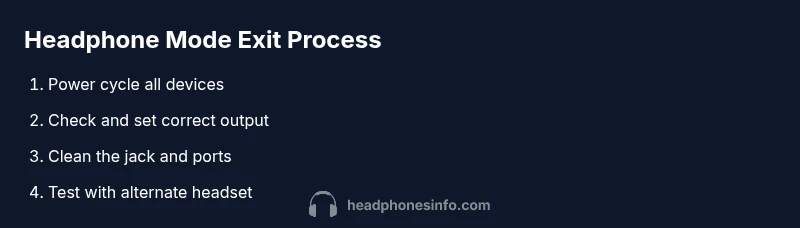
Platform-agnostic fixes cover most quick failures. Start with a full power cycle of all involved devices to clear transient software states. Then verify the active audio output: ensure the device shows Speakers or Headphones as the current output option. Reset any custom sound profiles to default, and re-test with both wired and wireless headphones. Cleaning the jack and trying a different headset are often enough to restore normal output. Finally, ensure there are no pending OS updates that might influence the audio path. These steps should feel approachable and low-risk for everyday users.
Windows and macOS remedies for exiting headphone mode
Windows users should start by right-clicking the speaker icon > Open Sound settings. Under Output, set a standard playback device (e.g., Speakers) and disable any phantom headset devices listed. On macOS, open System Settings > Sound > Output and select Speakers, then test with both wired and Bluetooth headphones. If the problem persists, update drivers via Device Manager (Windows) or perform a macOS software update. In both ecosystems, a clean restart after updates helps finalize the changes. Headphones Info recommends documenting any driver versions so you can seek targeted support if needed.
Android and iOS fixes for exiting headphone mode
For Android, go to Settings > Bluetooth and forget the problematic device, then re-pair. Resetting network settings can also clear stale Bluetooth state, but this won’t erase your apps or data. On iOS, toggle Bluetooth, reset network settings, and ensure your device isn’t muting system sounds. If you’re using USB-C or Lightning dongles, try the wired path again after re-plugging. These platform-specific checks address most mobile-edge cases that keep headphone mode active.
Advanced troubleshooting: hardware signals and testing with alternate devices
If basic fixes fail, inspect for hardware factors. Look for visible debris, moisture, or worn connectors around the jack or USB-C port. Use a known-good headset and an alternate source to isolate whether the issue is with the device, the port, or the headset itself. A soft visual inspection under a bright light can reveal bent pins or corrosion. If you notice surge-like feedback or consistent misbehavior across devices, this may indicate a hardware fault requiring service.
Prevention tips to avoid headphone mode from sticking in the future
Keep ports clean, avoid jamming jacks, and store headsets in their cases when not in use. Regular software updates can prevent regression bugs; enable automatic updates where possible. If you frequently switch devices, use consistent audio output naming and avoid creating overlapping Bluetooth profiles. By adopting these habits, you reduce the likelihood of headphone mode sticking and improve long-term reliability. Remember to document any changes you make so future troubleshooting is faster.
When to seek professional help and warranty considerations
If none of the fixes work after a reasonable time, it’s time to reach out for professional support. A hardware fault in the jack, port, or driver hardware often requires service or replacement under warranty. The Headphones Info Team recommends checking your device’s warranty status and seeking manufacturer support for persistent issues. When you contact support, share the steps you’ve taken and the exact symptoms to help technicians diagnose quickly.
Tools & Materials
- Smartphone, tablet, or computer(Source device for testing and applying fixes)
- Bluetooth headphones for testing(Verify wireless path independent of wired port)
- Wired headphones (aux)(Test if the wired path works when port is engaged)
- Soft microfiber cloth(Gently clean ports and contacts)
- Isopropyl alcohol wipes (70%)(Use only if safe for the port; avoid delicate plastics)
- Toothpick or plastic prying tool(Only for gently removing loose debris; never metal)
- Owner's manual or device support page(Helpful for platform-specific path names)
Steps
Estimated time: 20-35 minutes
- 1
Power cycle devices
Power down all involved devices, unplug any cables, wait 15-30 seconds, and power them back on. This clears transient software states that can lock in headphone mode.
Tip: A full cycle often resolves misdetections without changing settings. - 2
Check the active audio output
Open the sound settings and confirm Speakers or a non-headphone option is active. If Headphones appear as the only option, disconnect and reconnect devices and test again.
Tip: Setting default output to Speakers first can help reset the path. - 3
Clean the jack and contacts
Power off the device and inspect the 3.5mm/USB-C port with a light. Gently remove debris with a microfiber cloth and a plastic prying tool if needed.
Tip: Never insert metal objects; pressure can bend contacts. - 4
Test with alternative headset
Plug in a different headset or connect via Bluetooth to see if the issue follows the headset or the device.
Tip: If the alternative works, the original headset likely needs replacement or repair. - 5
Reset Bluetooth and re-pair
For Bluetooth issues, forget the device, restart Bluetooth, and re-pair. Ensure firmware on the headset is up to date if available.
Tip: Pairing should complete within a minute; if not, reboot the source device again. - 6
Update software and drivers
Check for OS updates and, on PCs, update audio drivers. After updating, restart again and test output.
Tip: Keep a backup before major updates in case you need to revert. - 7
Try a network or reset path (as appropriate)
On mobile devices, reset network settings if Bluetooth remains stubborn. Avoid factory resets unless necessary, as those erase data.
Tip: Network resets fix stubborn Bluetooth routing without data loss. - 8
Verify results across devices
Test the functioning path with wired and wireless headphones on multiple devices to confirm the problem is resolved.
Tip: Document the steps you performed for future reference.
People Also Ask
What is headphone mode in simple terms?
Headphone mode is when a device consistently routes audio to a headset despite no headset being selected. It usually results from software glitches, misdetection, or port debris.
Headphone mode means the device thinks a headset is connected even when it isn’t.
Why does headphone mode get stuck after updates?
Software updates can alter audio routing logic or driver behavior, temporarily causing misdetection. A follow-up reboot or driver reinstallation often fixes it.
Updates can change how audio is routed, which may lock in headphone mode until you fix it.
Will resetting my device erase data?
Most fixes here avoid data loss, especially resets of network settings or simple re-pairing. A factory reset should be avoided unless explicitly needed by a device guide.
Most fixes won’t erase data, but factory resets will; back up first.
Can I fix this without professional help?
For many common cases, clean port checks, power cycles, and platform-specific tweaks fix headphone mode. If the problem persists across devices, professional service may be required.
Often you can fix it yourself, but persistent issues may need a pro.
What should I do if nothing works?
Document steps you’ve tried, consult the device support site, and consider hardware inspection or warranty service if the port or headset seems defective.
If nothing works, consult support and consider warranty service.
Watch Video
What to Remember
- Identify whether the issue follows the headset or device
- Use power cycles and output checks as first-line fixes
- Clean ports safely and test with multiple headsets
- Apply platform-specific steps for Windows, macOS, Android, and iOS
- Know when to seek professional help