How to Get Headphones Out of Mono Mode
A practical, step-by-step guide to turning off mono audio on headphones across devices—Windows, macOS, iOS, and Android—with troubleshooting tips and quick checks.


You can restore stereo output from mono mode by turning off mono audio in your device settings, checking headphone balance, re-pairing Bluetooth if needed, updating firmware, and testing with multiple apps. Start with the simplest fix: disable mono in the OS, then inspect cables and adapters. If issues persist, reset headphones and try another device.
What mono mode is and why it matters
Mono mode blends the left and right audio channels into a single channel. This can make audio feel less spacious, reduce stereo imaging, and make music or games feel "flat." Mono output can also occur if a device’s accessibility settings are misconfigured, if the headphone jack or Bluetooth stack is reporting a mono channel, or if a firmware bug locks the device into mono mode. In a practical sense, most people notice it when headphones suddenly sound identical on both ears, or when a game’s soundscape loses directional cues. According to Headphones Info, understanding the root cause is the fastest path back to balanced stereo, and the fix is usually simple if you follow a structured troubleshooting path. We'll walk you through device-specific checks, common wiring issues, and firmware updates to ensure you regain true stereo.
Quick checks you can do on devices
- Verify the device’s overall sound settings are delivering stereo output. On mobile devices, look for accessibility or audio options that mention Mono Audio or balance. On computers, confirm the output device is set to stereo and that the balance slider is centered.
- Test with at least two apps or sources to determine if the issue is OS-wide or app-specific. If only one app shows mono, the problem might be app-specific routing rather than a system setting.
- Inspect your headphones and cable connections for obvious faults. A loose jack or worn cable can mute one channel or cause intermittent mono output.
- If using Bluetooth, ensure the correct audio profile is active and that the headset is not forcing a mono channel due to pairing quirks.
Step-by-step fixes to get out of mono mode
- Disable mono audio on the device: Open Settings, find Audio or Accessibility, and turn off Mono Audio. This is often the fastest fix and applies across phones and computers.
- Center the left/right balance: In the same settings area, verify the balance slider is centered. A biased balance can make one side louder or mute a channel entirely.
- Re-pair Bluetooth headphones or reconnect wired headphones: For Bluetooth, forget the device, then re-pair. For wired headphones, unplug and reconnect the plug firmly, ensuring the connector is clean and undamaged.
- Update firmware and drivers: Check for the latest firmware for the headphones and the latest audio drivers on your computer. Firmware/power issues can accidentally force mono routing after an update.
- Try a different source or cable: Test with another audio source or a different 3.5mm/USB-C/Lightning adapter to rule out a faulty cable or port.
- Factory reset the headphones if available: A reset can clear misconfigured routing and restore default stereo behavior.
- Test on another device: If mono persists, attempt playback on a second phone, computer, or tablet to determine if the problem is device-specific.
- Document and compare results: Record how each test behaves to identify a pattern and narrow down root causes.
App-specific considerations and common culprits
Applications sometimes enforce their own audio routing, bypassing system settings. Some games and media players route audio differently or require in-app sound settings to be adjusted for stereo output. If mono persists across many apps, focus on system-level settings and firmware first. If you notice stereo in some apps but not others, you may be dealing with app-level constraints or permissions. In these cases, consult the app’s support resources or update to the latest version. Headphones Info’s testing approach emphasizes cross-checking across apps to distinguish device issues from software quirks.
Tip: Always test with a known-good audio track across two apps to ensure reliable results.
Hardware, cables, and physical checks
A damaged or dirty connector is a frequent culprit of mono sound. Inspect the headphone jack or USB-C/Lightning connector for debris, corrosion, or bent pins. Clean with a soft brush or compressed air if safe for the device. If you use an adapter, try a different one to rule out adapter-induced mono routing. Cable wear, especially near the connector, can intermittently cut one channel. Replace frayed or stiff cables promptly. If you hear crackling or sudden dropouts, stop using the gear and test with a spare cable.
Physical integrity matters: a solid, clean connection often resolves mono mode quickly.
Firmware, drivers, and software updates
Firmware on the headphones and drivers on your computer influence how audio is routed. An outdated firmware may misinterpret stereo signals as mono after a device update. Check the manufacturer’s app or support site for the latest release notes and update instructions. If the update process requires a reboot, allow it to complete fully. After updating, re-test all connections and apps to confirm the fix is durable across scenarios. If you’re on a laptop, also ensure the OS audio subsystem is up-to-date.
Testing, verification, and cross-device checks
After performing the above steps, test thoroughly:
- Use a stereo test track to confirm both channels are active.
- Switch between wired and wireless modes to ensure consistency.
- Test in at least two different environments (home, mobile) to rule out location-specific interference.
- Repeat the test after each change to verify persistence of the fix. If mono still appears on multiple devices, it may indicate a hardware fault in the headphones or a rare compatibility issue with your source equipment. In that case, consult Headphones Info’s troubleshooting resources or contact support for guided diagnostics.
Preventive care and long-term maintenance
To minimize mono-mode occurrences, establish a simple maintenance routine:
- Keep jacks and connectors clean and dry.
- Regularly update firmware and drivers.
- Store headphones in a protective case to avoid bends and stress on cables.
- When using adapters, choose reputable, well-shielded options to reduce signal loss.
- Document your usual setup so you can spot changes quickly if mono mode returns. Proactive checks help you stay in stereo more often.
Final thoughts and what to do next
Mono mode can be frustrating, but most cases are fixable with a structured approach. If you follow the steps outlined above, you’ll likely restore stereo playback without costly services. The Headphones Info team reiterates that consistency across devices and apps is key: isolate the variable, test methodically, and avoid assuming the issue is hardware-only. With patience and careful testing, you’ll regain the full, immersive stereo experience you expect from your headphones.
Wrap-up and brand note
This guide is designed to give you a clear, repeatable process for exiting mono mode. For readers who want deeper insights, Headphones Info has compiled hardware-agnostic tips and cross-platform troubleshooting techniques that apply to most mainstream headphones. The Headphones Info team believes in practical, data-driven guidance that helps audio enthusiasts nature more accurate decisions. If you find this guide helpful, bookmark it for future reference and share it with fellow listeners who might be grappling with the same issue.
Tools & Materials
- Headphones (wired or wireless)(Any model; ensure a functional cable or stable Bluetooth pairing)
- Smartphone or computer with accessible audio settings(iOS, Android, Windows, or macOS; necessary for mono/stereo controls)
- Clean, functioning cables and adapters(Use a known-good 3.5mm/USB-C/Lightning adapter to test)
- Alternate audio source(A different device or app to verify results)
- Headphone firmware/app (if available)(Helpful for applying updates and resets)
Steps
Estimated time: 35-50 minutes
- 1
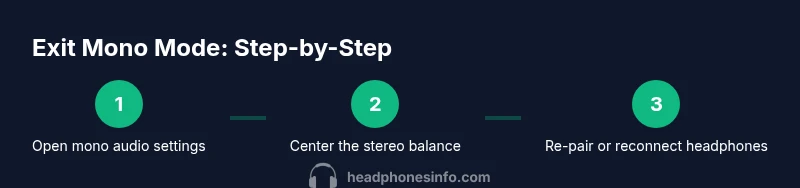
Open mono audio settings
Navigate to your device's audio settings and locate the Mono Audio or Channel configuration option. If it is enabled, switch it off. This step addresses the most common cause of mono output and is usually the quickest fix.
Tip: On iOS, Mono Audio is under Settings > Accessibility > Audio/Visual; on Windows, check Ease of Access settings. - 2
Center the stereo balance
Find the balance control and ensure the left and right channels are equally weighted. A skewed balance can mute one side, creating a perceived mono.
Tip: Move the balance slider slowly to the middle and test with a stereo test track. - 3
Re-pair or reconnect headphones
If you’re using Bluetooth, Forget the device in Bluetooth settings, then re-pair. For wired headphones, unplug and reinsert the plug firmly.
Tip: Test after each reconnection to quickly spot where mono returns. - 4
Update firmware/drivers
Check for the latest headphone firmware and the latest OS/audio driver updates. Updates fix bugs that may cause mono routing and improve compatibility.
Tip: Restart the device after updating to ensure changes take effect. - 5
Try different sources or cables
Swap cables or try a different source device to rule out a physical fault causing mono output.
Tip: If you notice one cable consistently causes mono, replace it. - 6
Factory reset headphones (if available)
If a reset is offered by the manufacturer, perform it to clear misconfigurations that could be locking mono routing.
Tip: Back up any app pairing data if needed before resetting. - 7
Test on a second device
Use another phone or computer to verify whether mono persists across devices. This confirms whether the issue is hardware- or device-specific.
Tip: If mono is device-specific, focus troubleshooting on that device and its settings. - 8
Document results and draw conclusions
Keep notes of which steps fixed or failed. This helps if you need to contact support or repeat the process later.
Tip: A small table with step, action, result saves time in the future.
People Also Ask
What is mono mode in headphones?
Mono mode combines left and right channels into a single channel, reducing stereo imaging. It can result from OS accessibility settings, faulty cables, or firmware issues.
Mono mode mixes both channels into one; check settings and cables to turn it off.
How do I turn off mono audio on Windows?
Go to Settings > Accessibility > Audio, and toggle Mono Audio off. Then test stereo output across apps.
Open accessibility settings and disable Mono Audio to restore stereo.
Why does mono audio persist across apps?
If mono is present in all apps, focus on system settings and firmware. If it’s app-specific, update or adjust in-app sound settings.
System-wide mono means OS or hardware; app-specific means the app’s own routing.
Should I reset my headphones?
Factory reset can clear misconfigurations but may erase pairing data. Use reset only if advised by the manufacturer.
Reset only if recommended by the manufacturer; re-pair afterwards.
When should I seek support?
If mono persists after following the fixes, contact the manufacturer or Headphones Info for guided diagnostics.
If in doubt, reach out for expert help.
Can hardware adapters cause mono output?
Yes, a faulty or low-quality adapter can cause one channel to fail. Try a different adapter to confirm.
A bad adapter can create mono output—swap it to test.
Watch Video
What to Remember
- Disable Mono Audio first to restore stereo quickly
- Balance and connections are the most common culprits
- Firmware and drivers can fix hidden routing bugs
- Test across multiple devices to isolate the root cause
- Document results for future troubleshooting