How to Make Headphones Louder on iPhone: A Practical Guide
Explore safe, practical steps to make headphones louder on iPhone, covering hardware checks, iOS settings, EQ presets, and portable DAC options for better perceived loudness.


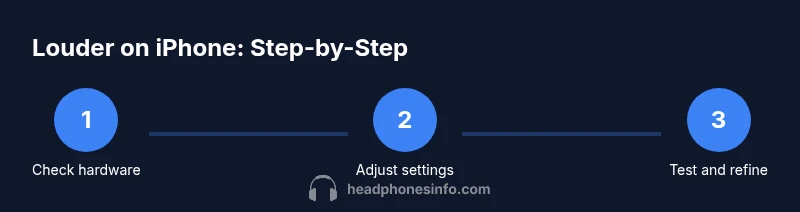
To increase loudness on iPhone with headphones, follow these steps: 1) Inspect headphones for damage and ensure they’re plugged in securely. 2) Turn off any volume limit in Settings > Screen Time > Content & Privacy. 3) Enable Headphone Accommodations (Settings > Accessibility) and boost. 4) Switch the Music EQ to Late Night. 5) Test with different apps and sources.
Why loudness matters and safety
When people ask how to make headphones louder on iphone, they often overlook how easily loudness can damage hearing or distort audio. In practice, true loudness is a balance between amplitude and clarity. Pushing volume beyond what your ears can safely handle doesn't always improve how music sounds; it can simply make it harsher or cause clipping. In this section we explore why loudness matters, how the
Check hardware and source quality
The first step in boosting perceived loudness is often the simplest: verify the hardware chain. Damaged cables, worn adapters, or loose connections can cap effective volume by introducing noise, channel imbalance, or intermittent signal. Inspect the headphone plug, the cable, and the jack or Lightning/USB-C adapter for wear. Test the same headphones with another device to confirm whether the issue is the
tip":"Check all connectors and try a different app or source to rule out software limits before adjusting hardware or system settings."
Remove software limits on
tip":"If you’re unsure about which setting is active, disable restrictions temporarily to test louder output, then re-enable with a higher but safe ceiling."
Enable Headphone Accommodations and boost
Headphone Accommodations is an
tip":"Use the Customize option to tailor frequency response to your headphones and your hearing profile."
Optimize EQ and Music app settings
Many users notice a perceptual boost when the EQ is set to a preset that compresses dynamic range. In Settings > Music, select an EQ preset like Late Night which boosts quieter passages for greater perceived loudness without increasing peak volume. Also check the app’s own volume limiter or normalization settings; some apps normalize loudness differently and can mute peaks. After selecting Late Night, test with a few tracks across genres to confirm the change improves perceived loudness while preserving detail.
tip":"Test with both vocal-forward and bass-forward tracks to ensure the preset benefits a broad range of content."
App-specific tips and workflows
Apps differ in how they handle volume. Spotify and YouTube often provide their own volume sliders separate from
tip":"Always check an app’s internal volume after adjusting
External options: DACs, amps, cables
If software optimizations aren’t delivering the headroom you want, external hardware can help. A portable DAC/amp can provide more drive to wired headphones, increasing headroom and reducing distortion at higher listening levels. Look for a compact, battery-powered unit with a neutral sound signature and a cable that matches your headphone plug type. When using a DAC/amp, ensure compatibility with your
tip":"Read reviews focusing on linearity and noise floor to avoid introducing new artifacts at higher volumes."
Safe listening practices and environment
Loud listening is not risk-free. Even with louder output, maintain safe listening habits: limit prolonged exposure to high volumes, take regular breaks, and stay aware of your environment. If you notice ringing, muffled hearing after sessions, or fatigue, lower the volume and revert to safer levels. Practicing safe habits helps preserve hearing health while you enjoy improved loudness.
tip":"Follow the 60/60 rule where possible: listen at no more than 60% of maximum volume for no more than 60 minutes at a time."
How to compare results and finalize setup
To decide which combination works best, compare across multiple listening scenarios—speech, instrumental, and bass-heavy tracks—across different apps and content types. Document the changes you made and their impact on clarity, distortion, and perceived loudness. If a solution provides consistent improvement without introducing hiss or crackle, consider assigning it as a default profile. Finally, re-check safety after each major adjustment to ensure you’re still within comfortable listening ranges.
tip":"Keep a short, repeatable test playlist to quickly evaluate the impact of each change."
Troubleshooting and common mistakes to avoid
Even with a detailed plan, things can go awry. Common mistakes include over-reliance on a single knob (volume) without addressing distortion, ignoring app-specific limits, or assuming louder automatically equals better quality. If you still experience quiet output, revisit hardware integrity and ensure you’re not using a faulty adapter. Distortion is a signal that you’ve pushed beyond the system’s comfortable limits. In such cases, reduce boost slightly and instead focus on preserving clarity. The goal is comfortable, clean loudness, not raw numbers.
tip":"If distortion appears, revert the last adjustment and test incrementally to identify a safe, effective setting."
Tools & Materials
- iPhone with latest iOS version(Ensure iOS supports Headphone Accommodations (iOS 14+ commonly required))
- Headphones (wired or wireless)(Include any adapters needed to connect to iPhone (Lightning to 3.5mm/or Bluetooth pairing))
- Quality audio source app (Music, Spotify, YouTube, etc.)(Test across multiple apps to identify bottlenecks)
- Optional portable DAC/amp(For wired headphones needing more drive and headroom)
- Good quality cables/adapters(Replace wear-prone cables or low-quality adapters if needed)
- Personal safe listening plan(Set limits and take breaks to protect hearing)
Steps
Estimated time: 20-30 minutes
- 1
Check hardware and connections
Inspect headphones, cables, adapters, and ports for damage. Re-seat connections and test with a different device to determine whether the issue is with the iPhone, the cables, or the headphones. Small fixes here can unlock noticeable gains in loudness and clarity.
Tip: A loose connection is a common source of reduced loudness and distortion. - 2
Disable volume limit and restrictions
Open Settings and verify that any fixed volume limits are disabled or set high enough for your listening preferences. If Screen Time restrictions or other controls are active, temporarily adjust them to test higher output.
Tip: Only disable limits temporarily for testing; re-enable if needed for safety. - 3
Enable Headphone Accommodations and boost
Go to Settings > Accessibility > Audio/Visual > Headphone Accommodations. Turn on Customize and adjust the boost conservatively to improve perceived loudness without sacrificing detail.
Tip: Start with small boosts and listen for balance across frequencies. - 4
Apply EQ presets for perceived loudness
In Settings > Music, select an EQ preset like Late Night to increase quiet passages’ presence. Test across tracks with varying dynamics to gauge improvements in perceived loudness.
Tip: Avoid extreme boosts that introduce harshness or hiss. - 5
Test across apps and adjust per source
Play content from Music, YouTube, Spotify, and other apps to identify any app-specific volume behavior. Align their internal volume with iOS adjustments to maintain consistent loudness across sources.
Tip: Document which app needs the most adjustment for faster setup later. - 6
Consider external amplification if needed
If wired headphones still feel weak, a portable DAC/amp can provide more headroom and reduce distortion at higher volumes. Ensure compatibility with your iPhone’s input adapters.
Tip: Check for a neutral sound profile to avoid coloring the signal.
People Also Ask
Can I permanently increase iPhone volume beyond its max?
No. The iPhone’s hardware and software cap peak output. You can increase perceived loudness with safe, non-destructive adjustments like Headphone Accommodations and EQ, but you won’t bypass the physical limits.
You can’t permanently exceed the device’s maximum output, but you can improve perceived loudness with safe tweaks.
Does using Late Night EQ boost loudness?
Late Night is an EQ preset that compresses dynamics to raise quieter parts, which increases perceived loudness without sharply increasing peaks. Results vary by track.
Late Night helps quieter sections feel louder without hard clipping.
Will Headphone Accommodations make louder noises louder?
Headphone Accommodations adjusts frequency response to suit your ears and headphones, which can make sounds seem louder and clearer, especially in the bass and treble areas.
Yes, it can make certain frequencies feel louder, improving overall loudness perception.
Can a portable amplifier help loudness for wireless headphones?
A portable DAC/amp can provide more power to wired headphones, increasing usable loudness and reducing distortion at high volumes when wired.
An external amp can give you more usable volume on wired headphones.
Why is my volume still low in some apps?
Some apps apply their own loudness normalization. Check each app’s internal volume control and ensure iOS and app settings align.
Apps can limit volume on their own, so check both app and system settings.
Are there safety concerns with boosting loudness?
Yes. High volumes can damage hearing over time. Use breaks, keep levels moderate, and avoid sustained maximum output.
Yes—protect your hearing by listening at safe levels and taking breaks.
Watch Video
What to Remember
- Check hardware first to prevent distortion
- Use iPhone settings to raise loudness safely
- Leverage Headphone Accommodations and EQ for perceived loudness
- Test across apps and environments to find a reliable baseline
- Consider external amplification for additional headroom