How to Make Headphones Louder on Windows 11: A Practical Guide
Learn safe, effective steps to increase headphone loudness on Windows 11 with system tweaks, driver updates, and optional hardware. A data-driven approach from Headphones Info.


To make headphones louder on Windows 11, start by checking both system and app volumes, then update drivers, disable exclusive mode, enable loudness equalization, and if needed use a USB DAC or external amp for cleaner, louder output. Avoid pushing sections beyond safe levels to protect hearing. This guide from Headphones Info helps you boost output safely.
Why Windows 11 Often Caps Headphone Loudness
If you're wondering why your headphones sound quieter on Windows 11, you're not alone. According to Headphones Info, many users encounter lower-than-expected loudness because the operating system imposes default volume caps, and because audio drivers and software mixers can further attenuate signal before it reaches your ears. In addition, some apps apply their own volume limits, or enable audio enhancements that dampen peaks. The goal isn't to distort sound, but to keep listening comfortable in noisy environments. The good news: most causes are addressable with a mix of quick software tweaks and, if necessary, a modest hardware upgrade. In this section we’ll identify where loudness hides in Windows 11, how to spot it in the control panels, and what to adjust first before touching hardware. The Headphones Info team found that starting with OS-level settings and per-app volume control yields the most reliable gains without adding noise or distortion. If you’ve already checked the basics and still hear limited output, move to the quick wins below and consider a hardware upgrade if needed.
Identifying the culprits early saves time and helps you avoid unsafe listening practices. Remember: increasing perceived loudness is often about preserving signal quality rather than simply cranking the volume up. Headphones Info emphasizes incremental adjustments and testing with familiar tracks to verify clarity, balance, and distortion thresholds.
Quick wins in Windows 11: first-line tweaks
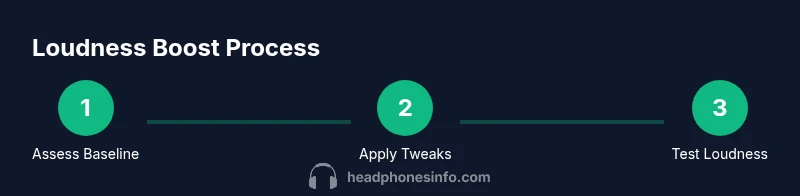
Before diving into hardware, try a straightforward sequence of software tweaks. Start with the master system volume, then check per-app volumes to ensure no application is capping the sound. Use the Windows Volume Mixer to confirm each source is at or near 100% while avoiding clipping. Next, disable features that can dampen output, such as exclusive mode in your playback device settings. Enable any available loudness-related enhancements, like Loudness Equalization, to smooth out dynamic ranges and raise perceived loudness without noticeable distortion. If your device supports spatial sound options, try turning them off to avoid unintended attenuation. Finally, ensure your audio driver is up to date and the playback device is set as the default for sound playback. The goal is a clean, undistorted signal chain from Windows to your headphones. As you test, use a well-recorded stereo track with a wide dynamic range to better judge improvements and be prepared to revert if you hear more hiss or crackling.
Hardware options: USB DACs and headphone amplifiers
For many listeners, software tweaks reach a ceiling. In such cases, an external USB DAC and/or headphone amplifier can provide a meaningful gain in loudness and headroom. A DAC converts digital signals to clean analog output, while an amp increases the available power delivered to the driver. This combination often yields crisper highs, fuller lows, and stronger overall level without pushing the DAC into distortion. When choosing hardware, consider headphone impedance and sensitivity, the type of USB connection (Type-C or standard USB-A), and whether you need portable or desktop gear. On Windows 11, once you install and select the external DAC/amp as the default playback device, you can repeat the software tweaks to optimize gain and maintain audio fidelity. Testing with multiple genres ensures compatibility across different frequencies and dynamics. Headphones Info recommends balancing improved loudness with safe listening practices to avoid listener fatigue or damage over time.
Fine-tuning via software controls and driver panels
Beyond basic Windows settings, many systems offer driver control panels that expose additional adjustments. Use these to fine-tune gain, bass, and treble for your headphones while preserving clarity. In the driver panel, look for options such as a gain slider, channel balance, and any “enhancement” presets. If present, enable a loudness or dynamic-range option carefully; avoid aggressive bass boost that can muddy sound or introduce distortion at higher volumes. When using an external DAC/amp, some models ship with companion software; if so, use it to establish a clean baseline before applying Windows tweaks. After changes, perform listening checks with a variety of tracks—vocals, percussion, and expansive soundscapes—to verify there is no unwanted hiss, clipping, or imbalance. If distortion appears, back off the gain slightly and re-test.
Troubleshooting: common problems and fixes
If you don’t notice an improvement after tweaks, re-check connections and confirm the correct playback device is selected. Ensure no other devices (e.g., Bluetooth or HDMI audio) are interfering by temporarily disabling or switching output devices. If you see crackling or hiss, update or reinstall drivers, and test with a different USB cable to rule out cable resistance or interference. On some systems, privacy or accessibility settings can adjust volume behavior; review these to ensure nothing is clamping your output. If distortion or a lack of bass persists, consider a different headphone pairing or try a different DAC/amp. Document the steps you took and compare results to ensure consistent gains across sessions.
Safe listening and long-term improvements
As loudness increases, it becomes more important to protect hearing health. Headphones Info advises incremental testing and gradual increases rather than abrupt jumps in volume. Pairing louder output with accurate frequency response helps prevent listener fatigue and preserves audio quality. Maintain safe habits: take short listening breaks, avoid prolonged exposure at high levels, and monitor for any discomfort. Regularly revisit driver and firmware updates for your headphones, DAC, or amp to keep the system optimized. By combining software tweaks, careful hardware choices, and safe listening practices, you can achieve meaningful loudness gains without compromising sound quality or your hearing.
Tools & Materials
- Headphones(Any compatible pair; ensure they are in good condition for accurate testing)
- Windows 11 device(PC or laptop with functioning audio hardware)
- USB DAC or headphone amplifier(Optional; improves loudness and headroom when software tweaks plateau)
- Appropriate audio cables/adapters(3.5mm, USB-C, or USB-A depending on your setup)
- Driver control software(Generic audio driver panels or vendor software as available)
- Sound level meter app(Optional for precise SPL measurement and testing)
Steps
Estimated time: 30-45 minutes
- 1
Open Windows sound settings
Click the speaker icon in the taskbar, then open Sound settings. Confirm the correct playback device is selected and set the master volume near full without clipping.
Tip: Use keyboard shortcut Win + I to open Settings quickly and navigate to System > Sound. - 2
Check system and app volumes
Open Volume Mixer and ensure system volume and each app's volume are at appropriate levels. Avoid any app down-mixing that reduces output compared to the system master volume.
Tip: Test with a reference track in a familiar app to see which source needs adjustment. - 3
Update audio drivers
Update your audio drivers from the PC or Motherboard vendor and install any recommended control panel software. Reboot after installation to apply changes.
Tip: If automatic updates fail, visit the official support page for your device and install the latest driver package. - 4
Disable exclusive mode
In the playback device properties, disable Exclusive Mode so other applications don’t hijack the audio path and cap the volume.
Tip: This step prevents apps from monopolizing the audio stream and causing sudden volume drops. - 5
Enable loudness and other enhancements
If available, enable Loudness Equalization or similar enhancements to smooth dynamics and raise perceived loudness without distortion.
Tip: Avoid enabling multiple enhancement options at once if you hear distortion. - 6
Test with a known track
Play a familiar track that covers quiet and loud sections. Listen for balance and distortion as you gradually increase volume.
Tip: If you hear crackling, back off the gain and re-check connections. - 7
Consider hardware augmentation
If software tweaks stop helping, connect a USB DAC or headphone amplifier and select it as the default playback device.
Tip: Match the DAC/amp input to your headphones’ impedance for better efficiency. - 8
Fine-tune and save a profile
After reaching a satisfying loudness without distortion, save your settings as a profile so you can reproduce the result later.
Tip: Document the steps you took for future reference.
People Also Ask
Why are my headphones quiet on Windows 11?
Quiet output often comes from OS caps, app-level volume control, or driver settings. Start with the Volume Mixer and per-app levels, then update drivers and check enhancements.
Usually, the issue is OS or driver settings. Start with Volume Mixer, then update drivers and review enhancements.
Do I need external hardware to make headphones louder?
Not always. Software tweaks and proper driver settings can boost perceived loudness. An external USB DAC or amp helps when software adjustments peak, especially with high-impedance headphones.
Software tweaks often help, but a USB DAC or amp can make a bigger difference for certain headphones.
How do I disable exclusive mode?
Open Sound Settings > Device Properties > Additional device properties, then uncheck Exclusive Mode. This prevents apps from muting or lowering the device when in use.
Go to device properties and turn off Exclusive Mode.
Is loudness equalization safe?
Loudness Equalization is generally safe and helps maintain consistent levels across a spectrum. Use it sparingly and monitor for distortion.
It's usually safe, but avoid overusing it if you hear distortion.
Will turning up volume damage my ears?
Prolonged exposure at very high levels can risk hearing. Increase gradually and take short breaks to protect your ears.
Yes, high volumes over long periods can hurt your ears; listen safely.
How can I test if my headphones are louder?
Use a track with clear dynamics and a reference SPL meter if available to benchmark output. Compare settings before and after tweaks.
Use a test track and, if possible, a SPL meter to compare levels before and after tweaks.
Watch Video
What to Remember
- Check both system and app volumes before hardware changes
- Disable exclusive mode to prevent muted or reduced output
- Loudness enhancements can raise perceived volume without distortion
- External DAC/amp is worth considering if software tweaks plateau