How to Make Headphones Louder on PC: Safe Tips and Tricks
Learn practical, safe steps to increase headphone loudness on PC—from software boosts to hardware upgrades. Includes tips, cautions, and expert guidance.


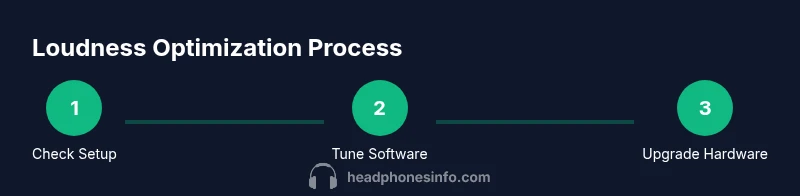
From software tweaks to hardware checks, this guide shows how to make headphones louder on pc safely. You’ll start with quick fixes, then adjust OS and application audio, and finally consider a DAC/amp if needed. Follow these steps to increase loudness without distortion or harming your hearing.
Why louder on PC isn't just turning up the volume
If you've ever cranked the master volume and still felt the sound level was insufficient, you’re not alone. According to Headphones Info, making headphones louder on PC is not simply a matter of turning the knob; it’s about optimizing the signal path from the source to your ears while preserving clarity and comfort. The perceived loudness depends on several factors: your headphones' impedance and sensitivity, the output stage of your PC, and how software processes the audio. In many cases, small, well-targeted adjustments beat aggressive volume increments. This section unpacks the core idea: louder does not automatically equal better sound. By understanding the chain of audio from the driver to the listener, you’ll learn where small gains come from and how to avoid common pitfalls like distortion, clipping, or listener fatigue. The goal is to increase usable loudness for everyday media and gaming without sacrificing detail or risking hearing damage. When done thoughtfully, you can enjoy more impactful sound across your favorite tracks and applications.
Understanding the audio chain: from driver to ears
To boost loudness effectively, you must understand the path audio takes from application to ear. The journey begins with the software engine and the output driver, passes through the OS mixer, any per-application EQ, then into the audio interface (built-in DAC, external DAC, or sound card), and finally through the headphone driver. Each stage can attenuate or boost certain signals. Some PCs route digital output to the speakers or headphones via HDMI or display audio, while others use a dedicated sound card. Impedance matching matters: high-impedance headphones generally need more drive current than low-impedance models. Perceptual loudness also depends on dynamic range and clipping thresholds. If your signal is compressed or heavily processed, you may hear loudness but lose clarity. The key is to ensure a clean, linear signal path and to calibrate gains gradually. This helps you achieve meaningful loudness gains without turning the music into a harsh or fatigued experience. Understanding the chain helps you target the right part of the chain for adjustment rather than blindly increasing volume.
Start with safe, quick checks you can do today
Before diving into software tweaks or hardware upgrades, perform quick, safe checks. Confirm physical connections are secure and that you are using the intended headphone port. Test with a few tracks across different genres to gauge baseline loudness and distortion. Update your operating system and audio drivers to the latest versions, since updates often fix bugs and improve audio handling. Disable any global enhancements that might cap loudness or degrade fidelity. Recheck the headphone impedance and verify compatibility with your PC's output stage. If your headphones have inline controls, test them separately to ensure they are not limiting the signal. Finally, if you rely on a laptop or a compact desktop with limited power, consider temporarily reducing system stability features to free up headroom for audio. These quick checks are free and non-destructive, and they set a reliable baseline for further experimentation.
Software-based boosts: OS and apps
Software adjustments are the safest and most accessible way to increase perceived loudness. Start with the OS volume mixer to ensure the application isn’t muted or limited by per-app volume caps. Some operating systems offer a built-in loudness equalization feature or a normalized loudness setting that can raise average output without clipping. For more control, install a per-app or system-wide equalizer. When applying EQ, boost bass or presence sparingly and avoid heavy boosts on multiple bands simultaneously, which can cause distortion. If you work with streaming services or video players, ensure the player’s own volume control is not at minimum. Some apps also include a “loudness enhancer” mode; use it judiciously and compare against a flat EQ to preserve microdetails. Remember that software boosts often introduce more noise if the signal-to-noise ratio is marginal, so monitor the result with varied content.
Hardware improvements: DACs, amps, and cables
Hardware upgrades can yield meaningful loudness gains, particularly for higher-impedance headphones. A dedicated DAC/amp can provide more clean power than the PC’s built-in output and improve headroom, resulting in higher perceived loudness at comfortable listening levels. When choosing a DAC/amp, consider your headphone impedance and sensitivity; lower-impedance cans typically pair well with compact dongles, while high-impedance models benefit from a desktop amp. Cables and connectors should be in good condition and of adequate gauge to avoid subtle losses or added resistance. If you have a modular setup, consider a headphone amplifier with output impedance closely matched to your headphones to minimize bass roll-off or swing. Cable length matters; longer cables can introduce capacitance that slightly dulls transients. For budget-conscious users, a basic USB DAC/amp can yield noticeable improvements, but premium units tend to deliver cleaner electrical signals and better control.
Per-app vs global volume: balancing loudness and distortion
Many users enable per-app boosts that apply only to certain software while leaving system-wide volume lower. This approach can make video, games, and music feel louder without pushing the overall output into distortion. However, be mindful that some apps apply normalization, limiting perceived loudness at the source. Global volume boosts are simpler but can lead to clipping if the signal is driven too hard downstream. A practical approach is to adjust global volume to a comfortable baseline, then use per-app EQ and boosts to tailor loudness for specific tasks. When testing, compare the same track across modes: with global boost only, with per-app boost, and with no boost. Listening for distortion or altered tonal balance will guide you toward the best configuration for your headphones and use cases.
Safe listening practices and headroom
Even when you’ve achieved higher perceived loudness, safe listening practices remain essential. Listening at high levels for long periods can cause fatigue or hearing damage. Use short listening sessions and take breaks; keep the volume at a level where you can still hear soft details in the music. If you start hearing crackling, hiss, or strain, back off the gain or remove boosts. Consider calibrating your setup with a reference track that you know well and that has a balanced dynamic range. Headphone comfort matters too: a loud but comfortable listen is often a better experience than a louder, fatiguing one. This section emphasizes a balanced approach to loudness that respects hearing health while delivering enjoyable sound.
When to upgrade: external DAC/amp and headphones
If you frequently crave louder output across diverse content, investing in an external DAC/amp can provide a noticeable uplift in headroom and clarity. For gaming, music, and movies, a desktop DAC/amp can maintain fidelity while delivering more loudness than an onboard solution. Evaluate whether your headphones’ impedance is the limiting factor; if so, a dedicated amp can unlock performance. If you primarily use portable devices, a compact USB-C DAC/amp may be enough. Consider your budget and space; a step-up from stock can be cost-effective if chosen to match your headphones. Finally, ensure compatibility with your PC’s OS and drivers, and verify the device’s ability to deliver sufficient current to your headphones under load.
Troubleshooting and common pitfalls
Common issues include distortion when boosting loudness beyond the signal’s headroom, increased noise with aggressive EQ, and drivers that fail to recognize boosted output. If you encounter distortion, back off the gain, switch to a linear EQ, or reset to the default configuration and reapply boosts gradually. Check for driver conflicts, audio enhancement software, or per-app settings that may override global gains. If your system uses HDMI audio, ensure you’re routing the correct audio device. Finally, beware of devices marketed as “loudness boosters” that actually degrade quality; prefer controlled boosts with transparent processing. By methodically testing each change, you’ll avoid chasing false gains and preserve sound quality.
Tools & Materials
- PC with up-to-date audio drivers(Ensure drivers from the manufacturer are installed)
- Headphones (wired preferred)(Wired connections give more predictable results)
- Line-out or headphone jack adaptor(Use proper connectors to avoid impedance mismatch)
- External DAC/amp (optional)(Significantly improves loudness and clarity when paired with high-impedance cans)
- Software-based EQ or gain booster(OS built-in EQ or third-party apps can boost perceived loudness)
- Sound level meter (optional)(Helps avoid listening at unsafe levels)
Steps
Estimated time: 25-40 minutes
- 1
Check connections and baseline
Inspect cables, verify secure connections, and confirm which port your headphones use. Play a familiar track at a moderate level and note the baseline loudness and any distortion. This establishes a reference to measure improvements against.
Tip: Test with both a wired and a different port if available to identify bottlenecks. - 2
Update drivers and OS
Install the latest audio drivers from the manufacturer and ensure your OS audio subsystem is current. Reboot if required and re-test loudness with the same track to confirm improvements from updates.
Tip: Check vendor forums for known issues with your specific hardware. - 3
Adjust global volume and per-app faders
Set a comfortable global baseline in the OS mixer, then tweak per-app faders to achieve desired loudness in your most-used apps. Avoid setting any single control to maximum to prevent clipping.
Tip: Use subtle, incremental increases and compare with the baseline after each change. - 4
Apply a careful EQ boost
Enable a system-wide or per-app EQ and boost only one or two bands at a time. Focus on presence and midrange clarity rather than broad boosts that can cause harshness.
Tip: Always test with several music genres to ensure balance across content. - 5
Test with a DAC/amp if needed
If loudness remains insufficient, consider a DAC/amp to provide more clean power. Ensure compatibility with your headphones' impedance and confirm the device is properly recognized by the OS.
Tip: Start with a mid-range DAC/amp to assess benefit before investing in premium gear. - 6
Validate safety and headroom
Play varied material to confirm no distortion or listener fatigue. If you notice crackling or increased fatigue, back off the gains and re-balance the setup.
Tip: Consider a quick listening break after every 20–30 minutes of high-volume playback.
People Also Ask
What is the safest way to make headphones louder on PC?
Start with software tweaks and safe listening practices, and avoid pushing any single component beyond its limits. Test with diverse content to ensure fidelity remains intact.
Start with software tweaks and safe listening practices, and test with diverse content.
Is it safe to use a software booster app?
Software boosts can help, but they may introduce noise if the signal is marginal. Use them sparingly and listen for distortion across different genres.
Software boosts can help, but use them sparingly and listen for distortion.
Will upgrading to a DAC/amp always make headphones louder?
Not always. It depends on headphone impedance and the current output of your PC. A DAC/amp can improve headroom and clarity, which often translates to perceived loudness.
A DAC/amp can improve headroom and clarity, often increasing perceived loudness depending on your headphones.
Can wireless headphones be louder on PC?
Yes, to an extent. Bluetooth versions and codecs affect loudness and fidelity. A wired connection or higher-quality Bluetooth setup typically yields the best results.
Yes, but wired or high-quality Bluetooth setups usually perform better for loudness.
Why does loudness vary between tracks?
Tracks vary in dynamic range and mastering. Loudness normalization and compression can make some tracks sound louder without adding actual power.
Tracks differ in dynamics and mastering; loudness varies with how they’re engineered.
Should I adjust per-app volume differently than system-wide?
Yes. Per-app adjustments enable targeted loudness for specific apps without affecting others. This helps preserve overall balance and reduces risk of clipping.
Yes, adjust per-app loudness to tailor sound per application.
Watch Video
What to Remember
- Increase loudness safely with balanced software and hardware tweaks.
- Begin with quick checks before investing in gear.
- A DAC/amp can unlock headroom for high-impedance headphones.
- Monitor listening levels to protect hearing while enjoying louder sound.