Why Do My Headphones Keep Cutting Out? Troubleshooting Guide
Practical, step-by-step guide to stop headphone cutouts. Learn common causes, quick diagnostics, and safe fixes for wired and wireless setups to restore reliable listening fast.


Most headphone cutouts come from a weak wireless link, a damaged cable, or a software issue. This quick guide shows the fastest 2-3 fixes you can try now: check the connection, reset Bluetooth or replace the cable, and test with another device to isolate the problem. If the issue persists, move to the diagnostic flow for deeper checks.
Why do my headphones keep cutting out? Causes at a glance
If you’re asking why do my headphones keep cutting out, the answer usually lands on one of a few common culprits. Whether you use wireless AirPods or a wired headset, intermittent silence points to signal reliability rather than pure hardware failure. The Headphones Info Team notes that most cutouts come from wireless interference, low battery, loose connections, or outdated firmware. A quick triage can often identify the culprit in minutes. In this section we’ll outline the most frequent causes, plus quick checks you can perform to confirm which category your issue falls into. By understanding whether the problem is communication (signal) or carriage (cable/port), you’ll know where to focus your effort. Headphones Info Analysis, 2026, supports the finding that many dropouts happen when multiple Bluetooth devices are active in the same room, or when a device is too far from the source. Being proactive with these checks can save time and reduce frustration.
Quick checks you can perform now
- Turn on airplane mode or disable other Bluetooth devices nearby to minimize interference; then re-pair your headset.
- Inspect the 3.5mm or USB-C cable for visible wear, bends, or loose connections; swap with a known-good cable if possible.
- Ensure the source device and headset aren’t in a power-saving mode that throttles audio output.
- For wireless headsets, test by connecting a wired cable (if supported) to confirm whether the issue is wireless or cable/port related.
- Try a different device (phone, laptop, or tablet) to determine if the problem is device-specific.
- Charge the headset fully and verify battery indicators; low power can cause audio dropouts or intermittent pauses.
If you still hear gaps after these checks, proceed to the diagnostic flow to isolate the root cause more precisely.
Wired vs wireless: where dropouts come from
Wired headsets typically drop out due to a damaged cable, a loose plug, or port debris. A failing jack can produce crackling or intermittent sound that disappears when you wiggle the connector. Wireless headsets, by contrast, face interference, competing Bluetooth signals, or an exhausted battery. In many cases, a single source device with multiple active Bluetooth connections compounds the problem. Headphones Info’s guidance emphasizes systematically separating signal integrity from carriage issues to identify whether the fault lies in the wireless link or the physical cable.
How to diagnose each potential cause
The diagnosis hinges on isolation: does the issue appear when you switch from wireless to wired, or when you test with another device? If the problem persists only in wireless mode, suspect interference, weak pairing, or firmware bugs. If it occurs with a wired connection, inspect the cable, port, and connector quality. Keep a log of when and where dropouts occur, which helps identify patterns, such as distance from the source, specific apps, or after a firmware update. Headphones Info’s data from 2026 supports correlating dropouts with distance from the transmitter and crowded RF environments.
Focused fixes for the most common scenario (Bluetooth interference)
In many homes and offices, Bluetooth interference is the top cause of dropouts. Begin with a quick reset of the headset and the source device, then re-pair. If interference persists, try a direct line-of-sight path between devices, switch to a less congest channel (where available), and reduce the number of paired devices in the vicinity. Updating firmware on both the headset and the source device often resolves known bugs that cause instability. If you still hear gaps, it’s time to escalate diagnostics with a factory reset or professional support.
Safety, maintenance, and best practices
Always use approved charging cables and avoid plugging headsets into non-standard adapters that could supply unstable power. Regularly inspect cables for wear and replace frayed or cracked parts promptly. Keep firmware and software up to date to prevent known bugs from triggering cutouts. When testing, keep the volume at a sane level to avoid hearing damage, and never attempt DIY repairs on internal components that could void warranty or pose safety risks. Headphones Info cautions against bypassing official support for complex hardware faults.
When to seek professional help and long-term prevention
If dropouts persist after following the diagnostic flow and step-by-step fixes, consider contacting the headset manufacturer’s support or a licensed technician. Document the troubleshooting steps you’ve performed and the devices involved; this helps speed up the process. For many users, investing in a tested, reliable headset with updated firmware ultimately saves time and headaches. The Headphones Info team recommends keeping a short maintenance checklist and having spare cables or adapters ready for quick swaps.
Steps
Estimated time: 25-40 minutes
- 1
Identify symptoms and reproduce
Note when dropouts occur (time, app, distance, environment) and try to reproduce with both wireless and wired modes to isolate the issue. Keep a short log for reference.
Tip: Document the context to spot patterns later. - 2
Test wired connection to isolate
If your headset supports a wired option, connect it directly to the source. If the issue disappears in wired mode, the problem is cable/port or wireless-related.
Tip: Wiggle the plug gently to reveal loose connections. - 3
Reset Bluetooth and re-pair
Remove the headset from the device's Bluetooth list, reboot both devices, and pair again. Check if the dropouts recur after re-pairing.
Tip: Pair with a single device first to simplify testing. - 4
Update firmware and drivers
Install the latest firmware on the headset and the latest drivers on the source device. Re-test after each update.
Tip: Backup settings if the headset supports them. - 5
Check battery and power settings
Ensure the headset battery is adequate and disable power-saving features that throttle audio streaming when battery is low.
Tip: Charge fully before retesting. - 6
Test with another device
Connect the headset to a different phone/computer to see if the issue is device-specific or headset-related.
Tip: If it works on one device but not another, the fault may lie with that device. - 7
Inspect cables and ports
Look for visible wear on cables, connectors, and the 3.5mm jack or USB-C port. Clean debris gently with a dry brush or compressed air.
Tip: Never bend cables sharply or pull on connectors. - 8
Escalate if unresolved
If problems persist, contact the manufacturer’s support or a qualified technician for diagnosis and possible replacement.
Tip: Document all steps taken for faster support.
Diagnosis: Headphones cut out intermittently during playback or calls
Possible Causes
- highBluetooth interference or weak pairing
- highDamaged cable or loose connectors (wired)
- mediumLow battery or power-saving mode (wireless)
- mediumSoftware/firmware bugs or outdated drivers
- lowPort debris or worn jack (wired)
Fixes
- easyToggle Bluetooth off, then back on; re-pair headset to source
- easyTest with a known-good cable or use wired mode to isolate cable/port
- easyCharge headset fully and verify battery indicators; disable aggressive power-saving
- mediumUpdate headset firmware and source device drivers; re-test after each update
- easyTry a different device to see if the issue is device-specific
- mediumInspect and clean ports; replace damaged cables/connectors as needed
- easyIf problems persist, contact manufacturer support for service or replacement
People Also Ask
Why do my wireless headphones cut out in crowded environments?
Crowded environments increase Bluetooth interference from neighboring devices and Wi-Fi. Move closer to the source, reduce the number of active Bluetooth devices, and test in a less congested area. Firmware updates can also improve resilience to interference.
Crowded areas cause interference. Move closer, limit other devices, and update firmware to boost stability.
Can a damaged cable cause Bluetooth cutouts?
Damaged cables don’t directly cause Bluetooth dropouts, but they can create false positives when you test switching between wired and wireless modes. If the cutouts vanish in wired mode, focus on the cable/port; if they persist only in Bluetooth, focus on wireless factors.
If it only happens in wireless mode, check wireless factors; a damaged cable matters mainly for wired mode.
Does updating firmware help with cutouts?
Yes. Firmware updates often include fixes for connectivity bugs and improved pairing stability. Update both the headset and the source device when possible, then re-test.
Firmware updates can fix known connectivity bugs; update and test again.
Why does my headset cut out near the end of a charge?
Low battery can throttle features or trigger power-saving modes that interrupt audio. Charge fully and see if performance stabilizes. If problems return at full charge, inspect battery health and consider replacement.
Low battery can cause dropouts; charge and test again.
Is resetting the Bluetooth cache useful?
Clearing the pairing cache and re-pairing often resolves stale connections. Ensure you remove the headset from all devices first, then re-pair with a single device to test.
Reset and re-pair; a fresh Bluetooth connection fixes many dropouts.
When should I replace my headphones for reliability?
If wear is visible, or you’ve exhausted fixes without lasting improvement, replacement is often more economical and reliable in the long run. Compare warranty options and cost of repair vs. replacement.
If fixes don’t last and wear is evident, replacement is sensible.
Watch Video
What to Remember
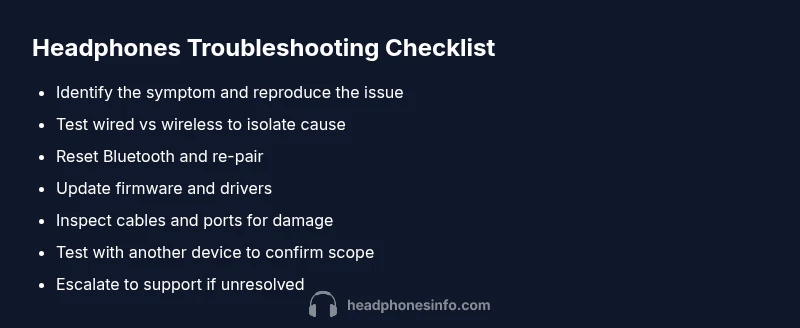
- Isolate signal vs hardware faults with wired vs wireless tests
- Always test with a second device to confirm scope
- Update firmware and drivers to fix known bugs
- Inspect and replace damaged cables or ports promptly
- Seek manufacturer support if the issue persists