What to do if your headphones are not working: Quick Troubleshooting Guide
Urgent, practical steps to diagnose and fix headphone issues. From wired jacks to wireless Bluetooth problems, learn fast checks, common culprits, and when to seek help. Headphones Info guides you to a durable fix in 2026.


Most headphone issues start with a simple connection or power glitch. Check that the audio source is not muted, the headphone jack or USB dongle is fully seated, and the cable isn’t damaged. If using wireless headphones, confirm Bluetooth pairing, battery level, and that the device isn’t sending audio to another output. Try replacing the cable or reconnecting to restore audio.
Why headphones stop working and quick checks
If you’re wondering what to do if your headphones are not working, you’re not alone. The vast majority of failures are caused by simple, repeatable issues that you can triage in minutes. Start with the basics: verify the power source, confirm volume and mute status, and ensure the connector is fully seated. For wired models, a dirty or loose jack can mute sound; for wireless ones, a weak battery or stale Bluetooth pairing is typically to blame. According to Headphones Info, most problems disappear when you reseat cables, unplug and replug USB dongles, or re-pair Bluetooth devices. In this section, you’ll learn fast checks you can perform before diving deeper. Gather the headphones, the source device, and a known-good cable or dongle. Stay calm and be systematic—many issues resolve with a few quick tweaks.
Common culprits by category
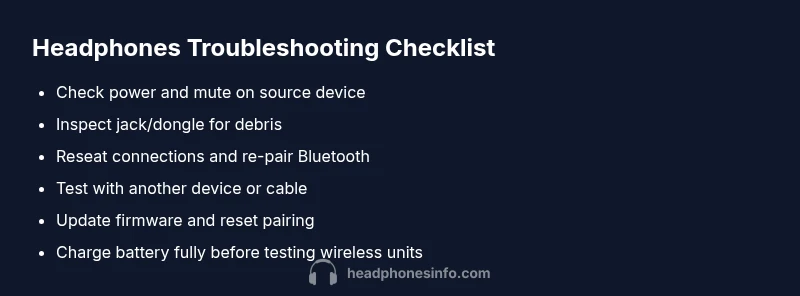
Different problems point to different root causes. For wired headphones, check the physical cable for wear, the plug for debris, and the device output jack for visible damage. A damaged cable or worn jacket can cause intermittent sound or complete silence on one or both channels. For wireless headphones, the pairing process, battery life, and proximity to the source are critical. A device might default to another audio output, or Bluetooth profiles may mismatch. In Headphones Info’s 2026 analysis, most fixes involve reseating connections or re-pairing the device. Use a simple checklist: inspect the cable, test with another device, reset Bluetooth, and recharge the headset. If it still doesn’t work, the issue may be deep in the driver or firmware.
How wireless vs wired differ in troubleshooting
Wired headphones rely on a physical path: a jack or USB-C/Lightning connection. If sound fades, try another cable or device port and test with a known-good source. Wireless models depend on pairing and battery status; always verify the headset is in pairing mode and the source isn’t muted. Wireless fixes include forgetting and re-adding the device, updating firmware, and recharging. If your headphones won’t connect at all, rule out the host device by testing with another phone or computer. The core principle remains: isolate whether the issue is hardware (cable/jack) or software (drivers/firmware/pairing).
Practical fixes you can try right now
Start with the simplest steps: re-seat the plug or USB dongle, then reboot the source device. If it’s wired, insert and remove the jack a few times to clear debris, and test both channels. For wireless models, toggle Bluetooth off and on, forget the device, and re-pair. Check for a firmware update from the manufacturer and perform a factory reset if recommended. Keep a spare cable, keep the headset charged, and avoid bending cables sharply. If you hear intermittent crackling or one side remains silent, switch cables or try another device to confirm whether the problem is with the headphones or the host device.
When to replace vs repair and cost considerations
Many headphone issues are economical to fix, but some require replacement. If the problem is a frayed cable or a damaged jack that's not repairable, replacing the cable or the entire headset is often cheapest. Battery degradation in wireless models is another common reason to replace—the cost of replacement batteries can vary, and some brands do not offer battery swaps. If the headset is under warranty, professionally serviced repairs can be cost-effective. Headphones Info recommends weighing the cost of parts and labor against a new purchase, especially when newer models offer improved performance and compatibility. If the unit fails repeatedly after multiple repairs, replacement is usually the smarter choice.
Safety and maintenance: preventing future failures
Preventing issues means routine care and mindful use. Store headphones in a protective case, avoid yanking cables, and keep ports clean from dust. Regularly clean jacks and plugs with a dry, soft brush and check for wear signs. Charge wireless headphones on approved chargers and never expose them to extreme heat. Periodic firmware updates can fix compatibility and stability issues. By following these maintenance habits, you reduce the chance of recurring faults and extend the life of your headphones.
Steps
Estimated time: 20-40 minutes
- 1
Identify the symptom and gather equipment
Clearly state what isn’t working (no sound, crackling, one side silent) and collect the headphones, source device, spare cable, and any dongles. This keeps you focused and avoids blindly swapping parts.
Tip: Label cables to avoid cross-testing issues. - 2
Check physical connections
For wired headphones, inspect the jack and plug for debris and gently reseat. For USB-C/Lightning, try a different port. If wireless, confirm device shows the headset in Bluetooth settings and is selected as the audio output.
Tip: Wiggle the plug gently to test for a loose connection. - 3
Test with alternative devices
Connect or pair the headphones with a second source (phone, laptop, or tablet) to see if the problem follows the headset or stays with one device.
Tip: If the issue vanishes on another device, the original host is the likely culprit. - 4
Update firmware and reset pairing
Check for firmware updates on the headset and perform a reset or re-pair to clear cached settings that might block audio output.
Tip: Back up any custom EQ or settings if possible. - 5
Final test and decision
Re-test after fixes. If sound returns, monitor for intermittency. If not, consider repair or replacement and check warranty.
Tip: Document failure times and steps taken for support.
Diagnosis: Headphones produce no sound or distorted audio.
Possible Causes
- highPower or pairing issue
- mediumDamaged or unplugged cable
- lowDriver, firmware, or Bluetooth stack issue
Fixes
- easyRe-seat the connector or re-plug the cable/USB dongle, and re-pair Bluetooth devices.
- easyTest headphones with another device to confirm if the problem is device-specific.
- mediumUpdate drivers/firmware or reset the headset’s pairing cache and re-pair.
People Also Ask
Why is there no sound when my wired headphones are plugged in?
Check that the volume is up and not muted, inspect the jack for debris, and verify the source device is set to the correct output. Test with another device to confirm whether the issue is with the headphones or the host.
Ensure the device isn’t muted, clean the jack, and test on another device to locate the fault.
Why is only one side of my wired headphones producing sound?
A common cause is a damaged cable or a loose connection at the jack. Wiggle the plug gently and try a different cable if available. If the problem continues, the headset may need replacement.
One side sound usually means a worn cable or loose jack contact.
Bluetooth headphones won’t pair with my phone. What should I do?
Turn Bluetooth off and on, forget the device, and re-pair. Ensure the headset is in pairing mode and has enough battery. If needed, reboot the phone.
Reset Bluetooth and re-pair after ensuring the headset is charged.
Is it safe to reset headphones to fix issues?
Yes. Resetting can clear glitches, but it also erases saved pairings and settings. Follow the manufacturer’s instructions carefully.
A reset can fix many problems, but you may lose pairings and custom settings.
How long should battery-powered headphones last before replacement?
Battery longevity varies by model and usage. If you notice significant drop in playback time, replacement may be more cost-effective than repairs.
Battery life fades with time; consider replacement if performance drops significantly.
When should I contact support or a technician?
If troubleshooting fails after multiple attempts, contact the brand’s support and check warranty status. Provide model, firmware, and steps you tried.
If it still doesn’t work after trying the steps, reach out to support.
Watch Video
What to Remember
- Start with the simplest checks to solve most issues
- Differentiate wired vs wireless troubleshooting paths
- Update firmware and reset pairings when needed
- Test with multiple devices to locate the fault
- If problems persist after steps, consider warranty or replacement