Why Are Headphones Not Working? An Urgent Troubleshooting Guide
Urgent, step-by-step troubleshooting for headphones not working, covering wired and wireless issues, driver updates, and prevention tips to get back to listening fast.


The most likely reason your headphones aren’t working is a simple hardware or connection issue—loose jack, dead battery, or Bluetooth pairing snag. Start with quick checks you can perform now: ensure the cable is fully seated, test with another device, and confirm Bluetooth is enabled and paired. If the issue persists, follow this structured, step-by-step guide to diagnose and fix the problem.
Why your headphones might not be working
When audio devices misbehave, the cause is rarely mysterious. In most cases, the problem falls into a few predictable camps: power or battery, a loose or damaged connection, a Bluetooth pairing snag, or a faulty jack. According to Headphones Info, the majority of headphone failures in 2026 arise from simple hardware connection issues or outdated software. This makes quick, structured troubleshooting possible for both wired and wireless models. In this section we’ll explore the most common failure modes, how to spot them quickly, and what to check first to avoid unnecessary replacements. The goal is to empower you to diagnose confidently and fix without unnecessary downtime, so you can get back to your music, calls, or gaming as soon as possible. Remember: treat safety seriously—unplug devices when inspecting cables, and avoid forcing connectors that feel stuck.
Whether you use a compact in-ear pair, over-ear cans, or a gaming headset, symptoms often map to the same culprits: no sound, intermittent crackling, or one side dead. Spotting the signposts—such as the same issue on multiple devices, or a different behavior when switching cables—helps narrow the path to a fix. Keep in mind that even premium headphones can fail due to a simple cause that is easy to fix with the right steps. In the following sections, you’ll find a practical flowchart that starts with the simplest checks and advances only as needed. If progress stalls, you’ll see when it’s appropriate to seek professional help.
Quick checks you can perform now
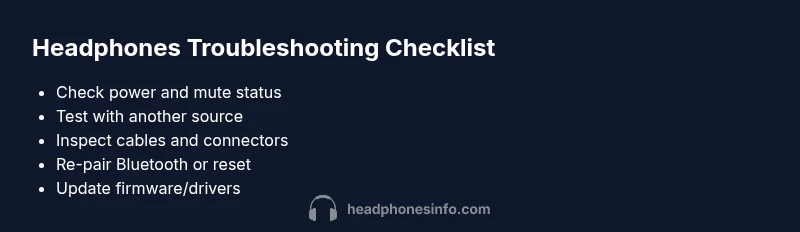
Before diving into advanced fixes, run through these fast checks:
- Verify the volume is up on both your headphones and the source device, and ensure no mute is active.
- Inspect the headphone jack or USB-C/Lightning connector for dust, lint, or damage; gently clean if needed.
- Try a different cable or adapter if you use wired headphones, and test the same headphones with another device.
- For wireless models, confirm the headphones are powered on, charged, and that Bluetooth is enabled on the source device. Remove and re-pair if needed.
- If you’re using a headset with a mic, check the mic mute switch and app permissions which can mute audio unintentionally.
If these checks don’t restore sound, move to device-level troubleshooting and device-specific fixes. This approach minimizes wasted time by isolating whether the issue is with the headphones, the source device, or the connection type.
Diagnosing by connection type
Headphones fail for different reasons depending on whether they’re wired or wireless. With wired headphones, the fault is often the cable, jack, or adapters, possibly worsened by wear or kinks. Wireless headphones most commonly suffer from Bluetooth pairing problems, outdated firmware, or interference from other devices. In both cases, a systematic approach helps. Start by using a known-good pair of headphones with the same source to confirm the issue is not the source device. If sound works with another pair, you’ve narrowed the fault to the original headphones. If nothing works across multiple headphones, concentrate on the source device or environment (e.g., Bluetooth interference, driver issues). Headphones Info’s guidance emphasizes isolating components step-by-step to avoid unnecessary replacements.
Wired headphones: quick fixes
Wired fixes typically involve jacks, cables, and connectors. First, reseat the plug firmly and try a different port if available. If you hear intermittent sound, wiggle the connector gently while listening to identify a loose contact. Inspect for visible damage on the cable or plug, and replace the cable if you see wear or fraying. Clean the jack with a soft, dry brush or compressed air to remove dust. If you’re using an adapter, test with another adapter or device to confirm compatibility. Finally, test the headphones with a different source to ensure the issue isn’t the original device. Safety note: avoid forcing connectors or applying excessive force.
Wireless headphones: pairing, firmware, and interference
For wireless models, begin by forgetting the device in the source’s Bluetooth settings and re-pairing from scratch. If pairing fails, check that the headphones show as discoverable and that there are no nearby devices competing for the connection. Update the headphones’ firmware if a newer version is available, and perform a reset if the manufacturer recommends it. Interference from Wi-Fi routers, microwaves, or multiple active Bluetooth devices can cause dropouts; try turning off other Bluetooth sources or moving closer to the host device. Verify codec compatibility, as mismatches can produce no sound or degraded audio quality. These steps often solve the majority of wireless issues without professional help.
Apps, drivers, and firmware updates
Software can be the unseen culprit behind headphone problems. Ensure the audio driver on your PC or the OS on your phone is up to date. On PCs, check the playback device settings to ensure the correct headset is selected and set as default. On phones, verify app-specific permissions for microphone and audio output when using headsets with mics. For gaming headsets or headsets with proprietary software, install any available firmware updates and use the vendor’s configuration tools to verify the device is configured correctly for your use case (music, calls, gaming). Regular firmware updates can fix compatibility issues and improve stability.
Safety tips and common mistakes
Always unplug headphones before inspecting cables to avoid electric shock or short circuits. Don’t pull on cables or yank plugs; use gentle, straight pulls and inspect for internal wire damage. Avoid cleaning jacks with liquids. Never attempt to disassemble internal components yourself unless you are trained, as this can void warranties and create safety risks. When testing, use known-good sources to isolate faults effectively. If you encounter a burning smell, heat, or visible damage, discontinue use and seek professional repair.
Prevention and care to minimize future issues
To reduce the likelihood of future failures, store headphones properly, avoid bending cables near the plug, and steeply coil cables for long-term storage without tight loops. Keep jacks and connectors clean with a dry brush and store in a cool, dry place. Regularly update firmware and drivers, and periodically reset Bluetooth devices to clear stale pairings. Protect wireless headphones from water exposure and sweat as described by the manufacturer. By following these preventive steps, you’ll extend headset life and reduce downtime.
When to seek professional help
If you’ve exhausted the above steps and still have no sound or persistent issues, it’s time to consult a professional. Look for authorized service centers or contact the headset manufacturer’s support line for guidance. If you notice physical damage, water exposure beyond normal use, or overheating, professional repair is recommended to prevent further harm. Headphones Info recommends prioritizing safety and avoiding DIY fixes that could worsen the problem.
Steps
Estimated time: 25-45 minutes
- 1
Verify basic power and connection
Ensure the headphones are powered on (if battery-powered) and that cables are fully seated in the source and device. Check mute switches and source volume. This initial check quickly rules out power and basic connectivity issues.
Tip: If it’s a wired model, gently unplug and reinsert the jack to confirm a solid connection. - 2
Test with a known-good source
Connect the headphones to a different device (another phone, computer, or audio player) to see if the issue persists. If sound works on one device but not another, the problem may lie with the original source settings or compatibility.
Tip: Use a different app or media file to rule out a file-specific issue. - 3
Inspect cables and adapters
Look for signs of wear, fraying, or kinks in the cable and inspect the connector for bent pins or corrosion. Replace any damaged cables or adapters and retry. This often fixes crackling or no-sound symptoms.
Tip: Avoid twisting or bending near the plug, which can induce intermittent contact. - 4
For wireless models, re-pair or reset
Remove the headphones from the host device’s Bluetooth list, then re-pair. If available, perform a factory reset according to the manufacturer’s instructions.
Tip: Place devices close together during pairing and ensure no strong interference from other wireless devices. - 5
Update firmware/drivers
Check for firmware updates on the headphones and drivers on the host device. Install any updates and reboot both devices to apply changes.
Tip: Keeping software current reduces compatibility issues and improves stability. - 6
Confirm audio routing and app permissions
On computers, ensure the headphones are set as the default playback device. On mobile devices, check app permissions for microphone and audio output if you use a headset with a mic.
Tip: Some apps override system audio routing—verify settings within the app too.
Diagnosis: Headphones no longer produce sound, crackling, or intermittent audio on wired or wireless models
Possible Causes
- highPower/charge issue (low battery or no power)
- highLoose or damaged cable, jack, or port
- mediumBluetooth pairing or codec issue (for wireless models)
- lowOutdated firmware or drivers
Fixes
- easyCheck battery level and recharge or replace batteries if applicable
- easyReseat or replace the cable/adapter and test on another device/port
- easyForget and re-pair Bluetooth device; perform a factory reset if recommended
- mediumUpdate firmware/drivers and reset the headphones and source devices
People Also Ask
Why won't my headphones connect via Bluetooth?
Make sure Bluetooth is enabled on the source, the headphones are in pairing mode, and the device isn’t already tied to another headset. Remove old pairings and re-pair. If problems persist, reset the headphones and try again.
Enable Bluetooth, remove old pairings, and re-pair. If it still fails, reset and retry.
Why do my wired headphones have no sound?
Check the cable and jack for damage, ensure the plug is fully seated, and verify volume and mute settings on both devices. Test with another source to confirm whether the issue is with the headphones or the source device.
Check the plug, volume, and mute, then test with another source to isolate the problem.
How do I reset wireless headphones?
Follow the manufacturer’s reset procedure, usually holding the power or a dedicated reset button for several seconds. After reset, re-pair with your source and test for sound.
Use the manufacturer’s reset steps, then re-pair and test.
Could a dead battery cause no sound?
Yes. A drained battery can prevent the headphones from powering on or producing sound. Charge fully and test again.
If the battery is drained, fully charge and try again.
My mic isn’t working on a headset with a mic. What should I do?
Check microphone mute, app permissions, and ensure the microphone is enabled in the app. Test with another app or device to confirm it’s not app-specific.
Check mute and permissions, and test with another app.
When should I seek professional help?
If you notice physical damage, burning smell, or persistent issues after basic troubleshooting, seek service from an authorized center.
If you see damage or the problem persists after troubleshooting, get professional help.
Watch Video
What to Remember
- Start with quick checks to rule out obvious faults
- Isolate the headset from the source to identify the faulty component
- Keep firmware and drivers updated for stability
- Seek professional help if you see physical damage or persistent faults