How to Connect Headphones That Are Already Connected: A Practical Guide
Learn how to switch headphones that are already connected to one device to another seamlessly. This educational guide covers multipoint basics, platform-specific steps, troubleshooting, and best practices for reliable audio handoffs.


To connect headphones that are already connected to one device, first ensure the current connection isn’t actively streaming. Put the headphones into pairing mode or enable multipoint if supported. On the new device, open Bluetooth settings and select the headphones from the available devices. If needed, disconnect from the original device or forget it, then re-pair to the new device. Some models support seamless switching with multipoint.
Understanding multipoint and Bluetooth basics
Bluetooth headphones have evolved to support multipoint pairing, a feature that allows a single pair of headphones to maintain connections with more than one source device simultaneously. This means you can listen on your phone while a laptop is playing music, then switch to your tablet or PC without re-pairing. According to Headphones Info, multipoint pairing lets you stay connected to two devices and switch between them without re-pairing. However, not all devices and headphones implement the feature in the same way, and some manufacturers limit the number of connected devices or skip automatic handoff entirely. The key is to understand how your specific headset handles multipoint, what versions of Bluetooth it supports, and whether it requires certain pairing modes or companion apps. In most cases, multipoint works best with devices using Bluetooth 4.0 or newer, and with headphones designed to maintain two active connections while maintaining audio latency and stability. If your headphones advertise multipoint but you notice gaps or stuttering when switching, that’s usually due to codec negotiation, driver support, or the Bluetooth stack on one of the devices. Headphones Info analysis shows that recent Bluetooth standards improve the reliability of multipoint connections and reduce the chance of stray dropouts. The rest of this guide walks through practical steps to switch sources quickly and reliably.
Quick checks before switching devices
Before attempting a switch, do a quick sanity check to minimize surprises. Make sure the headphones actually support multipoint; consult the manual or the manufacturer’s site. Confirm both devices you plan to use have Bluetooth enabled and are within easy range (about 10 meters, obstacles aside). If one device is actively streaming audio, pause or stop playback on that device to avoid latency or codec conflicts. If the headphones are currently connected to a device, you may need to disconnect or forget that device on the headphones’ Bluetooth menu so the new device can pair cleanly. Some headphones automatically prioritize the most recent connection, while others allow you to toggle a primary device in their companion app. If you’re switching between a phone and a computer, consider charging the headphones so there’s no power drop during the handoff. Headphones Info suggests testing the handoff with minimal interference from other Bluetooth devices nearby.
How to switch on popular platforms
Different devices handle switching a bit differently. Here are quick, platform-specific steps:
- iPhone / iPad (iOS): Open Settings > Bluetooth. With headphones in pairing mode, select them under Other Devices. If they connect automatically, you may need to first disconnect from the prior device.
- Android: Open Settings > Connected devices > Bluetooth. Choose the headphones from the list, or enable multipoint in the headset’s companion app if available. Some devices may require you to disconnect the prior device first for a clean handoff.
- Windows / macOS: On Windows, go to Settings > Bluetooth & devices and select the headphones. On macOS, click the Bluetooth icon in the menu bar and choose the headphones. Ensure the source device is discoverable and not actively streaming to avoid codec negotiation issues.
Step-by-step overview for switching devices
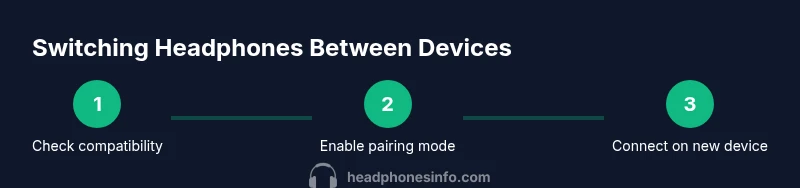
If you’re in a hurry, here’s a concise workflow you can follow: ensure multipoint is supported, put the headphones in pairing mode, connect to the new device from its Bluetooth settings, and verify playback on the new device before disconnecting the old one if necessary. This section expands on the previous notes by emphasizing how to sequence actions for a clean handoff and how to minimize latency during the switch. Practicing with two devices at a time helps you learn which device takes precedence and how to quickly re-pair if something goes wrong.
Troubleshooting common issues
If switching fails, start with the basics: confirm both devices support multipoint, ensure the headphones are in pairing mode, and verify that Bluetooth is enabled on the new device. Sometimes forgotten pairings on the headphones require re-adding them to the new device. If you see stuttering or sudden dropouts, this is often related to codec negotiation or interference from nearby devices. Keep Bluetooth on both devices updated, and consider temporarily turning off other Bluetooth peripherals to isolate the problem. Headphones Info analysis shows that devices with Bluetooth 5.x tend to maintain multipoint connections more reliably.
Best practices for seamless listening
To maximize reliability, always keep your headphones updated with the latest firmware, and use multipoint only when you intend to switch between two primary devices. Maintain a short distance between you, your headphones, and your devices to minimize interference. If you frequently switch between a phone and a laptop, consider enabling multipoint in the headphones’ app and setting a preferred primary device. Practice switching during non-critical moments (not during calls or live streams) to reduce the likelihood of dropouts. Headphones Info’s guidance emphasizes consistent firmware updates and disciplined switching for the best experience.
Advanced scenarios and caveats
Some older headphones or budget models may claim multipoint but support only one active device at a time or lack true handoff capabilities. In these cases, you may need to disconnect from one device before pairing with another, or you may experience brief audio cutouts during the transition. If you routinely work with three or more devices, look for devices that explicitly advertise multi-point support across Bluetooth 5.x and have a robust companion app for managing connections. Always verify battery levels before a long switching session to avoid unexpected power-downs mid-use.
Safety and privacy considerations
When switching between devices in public spaces, be mindful that nearby devices may attempt to pair if your headphones remain in pairing mode. Turn off pairing mode after you connect to your target device, and avoid leaving devices exposed in busy areas for extended periods. Keep firmware and apps from untrusted sources up to date to minimize potential security risks associated with wireless connections.
Tools & Materials
- Headphones with Bluetooth multipoint capability(Check model supports multipoint in the manual or product page)
- Source device (phone, tablet, or computer)(Ensure Bluetooth is enabled and the device is discoverable)
- Secondary device for switching(Optional if you only ever switch once; required for multiple-device workflow)
- A charged pair of headphones(Latency may increase if battery is low)
- Quiet environment or minimal interference(Helpful during testing to isolate issues)
Steps
Estimated time: 5-12 minutes
- 1
Check multipoint compatibility
Verify that your headphones support multipoint and that both devices can pair. Read the manual or manufacturer site to confirm supported Bluetooth versions and codecs. This upfront check saves time later.
Tip: If the feature isn’t listed, search for a firmware update or app that enables it. - 2
Put headphones into pairing/multipoint mode
With the headphones off, activate pairing mode according to the manual. If multipoint is supported, enable it so both devices can connect. Some models require a long press or a specific button sequence.
Tip: Remember the exact sequence for your model; incorrect steps may exit pairing mode. - 3
Connect the new device
On the new device, open Bluetooth settings and select the headphones from the available devices. If needed, choose 'Pair' and wait for confirmation. Some devices stream immediately once connected.
Tip: If the device won’t see the headphones, toggle Bluetooth off and on or reboot the device briefly. - 4
Manage the original connection
If the headphones remain connected to the old device, either disconnect it or forget it in the headphones’ pairing list. This prevents the old device from stealing the connection during handoff.
Tip: In some ecosystems, you can designate a primary device in the headphone app. - 5
Test playback on both devices
Play audio on the new device and verify stability. If you anticipate frequent switching, test latency and audio quality with different codecs and settings.
Tip: Choose a quiet environment while testing to hear subtle issues clearly.
People Also Ask
What is Bluetooth multipoint and how does it help switching between devices?
Bluetooth multipoint is a feature that lets headphones stay connected to two devices at once, enabling quicker handoffs without re-pairing. It’s most effective when both devices and headphones support compatible Bluetooth versions and codecs.
Multipoint lets you stay connected to two devices at once, so you can switch without re-pairing. Make sure both devices and your headphones support it.
Why won’t my headphones switch to a new device after pairing?
If switching fails, verify multipoint support, ensure both devices are visible, and disconnect from the old device if necessary. Some headsets require you to select the new device within the headphone’s app.
If switching fails, check support, make sure both devices are visible, and disconnect the old device if needed.
Do all headphones support multipoint?
No. Multipoint is common on mid-to-high-end models and newer versions, but not universal. Always check the product specs or manual.
Not all headphones support multipoint; check your model’s specs.
How do I reset or forget devices on iOS/Android?
On most devices, go to Bluetooth settings, locate the device, and choose Forget or Remove. If needed, reset the headphones to factory settings following the manual.
Forget the device in Bluetooth settings or reset the headphones per the manual.
Can I switch between a phone and a laptop without re-pairing?
Yes, if both devices and the headphones support multipoint. Activate pairing on the second device and select the headphones from its Bluetooth menu. If needed, disconnect from the first device first.
Yes, with multipoint; just pair the second device and switch as needed.
Watch Video
What to Remember
- Check multipoint support before attempting a switch
- Put headphones in pairing mode for the new device
- Use multipoint for seamless handoffs when possible
- If problems arise, reset Bluetooth on devices