How to Change from Headset to Headphones: A Practical Guide
Learn to switch from a headset to headphones across PC, Mac, and mobile. Step-by-step setup, testing, and troubleshooting from Headphones Info for improved audio quality.


To switch from a headset to headphones, unplug the headset, connect the headphones, and set your device’s default playback and recording devices to the headphones. Then test across apps and adjust volume and mic settings as needed. This guide covers Windows, macOS, and mobile setups. Expect minor differences in mic behavior and audio routing depending on your system.
Why You Might Want to Switch from Headset to Headphones
Switching from a headset to headphones can unlock clearer sound, more comfortable long sessions, and better mic control when you want to use a separate microphone or no mic at all. If you mainly listen to music or work with multiple apps (video calls, gaming, music streaming), separating input and output devices can reduce cross-talk and feedback. The Headphones Info team has found that many users switch to headphones to gain audiophile-level clarity, reduce fatigue from wearing a headset, and gain flexibility with mic choices. If you are using a gaming setup, you might prefer a separate microphone and a good pair of headphones with a robust DAC. In short, moving away from an all-in-one headset can improve both comfort and audio quality for daily tasks and long sessions.
Understanding the Difference Between Headset and Headphones
A headset combines a headphone pair with an integrated microphone built into the headband or a boom mic. Headphones, by contrast, are audio-only devices that focus on delivering sound quality, comfort, and frequency response. Key differences include mic quality, impedance, sensitivity, and comfort. Headset mics are convenient for calls but often sit closer to the mouth, which can cause plosives and background noise. High-end headphones with an external microphone or a separate USB/analog mic can offer cleaner voice capture and more flexible placement. If your goal is to improve music and movie immersion while keeping a voice channel separate, headphones with a quality mic or a detachable mic are ideal. The Headphones Info analysis shows that many users experience a noticeable drop in mic clarity when relying on headset mics in noisy environments.
Assess Your Setup: PC, Mac, or Mobile
Your platform determines where you adjust inputs and outputs. On Windows, you’ll choose Playback devices and Recording devices in the Sound settings. On macOS, use Sound preferences to set Output and Input. iOS and Android users should check system-wide audio routing in the Accessibility or Sound settings, and ensure any Bluetooth connections aren’t competing with wired devices. If you routinely switch between devices, consider storing a quick profile of preferred defaults for each platform. According to Headphones Info, consistency in default devices reduces surprises when you launch new apps or games.
Quick Overview of the Switching Process
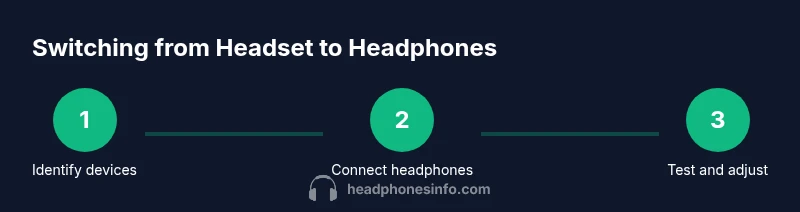
In most cases, the switch can be summarized in a handful of actions: identify your devices, physically swap cables, set the correct default devices in your OS, and verify in several apps. This section will give you a practical roadmap and help you anticipate common obstacles such as driver prompts or app-specific audio routing.
Verifying Audio Output and Input
After you switch to headphones, verify both playback and mic pathways work across at least three apps (a video call, a music player, and a game or browser tab with audio). Check headset mic as off (or unplugged) if you want pure headphone audio. Adjust volume levels so that music, videos, and calls are comfortable without distortion. If you notice mic pickup after the switch, ensure the recording device is set to the headphones’ mic or external mic and not a previously connected headset mic.
Troubleshooting Common Issues
If you don’t hear sound, recheck the headphone jack or USB connection for a secure fit. Ensure the headphones are selected as the default playback device and that the mic is set to off if not in use. Drivers can sometimes cause detection issues; a quick restart or a driver update can resolve most conflicts. If the device still doesn’t appear, test the headphones on another port or device to rule out a faulty port.
Best Practices for Headphone Usage and Maintenance
Keep your headphones clean and store them in a protective case when not in use. Regularly inspect cables for wear and avoid bending cables at the connector. If you use a detachable mic, consider a windscreen to reduce plosives and background noise. Periodically check software updates and audio driver versions to maintain compatibility with new applications and OS updates.
How to Optimize Voice and Music Quality
To maximize both voice and music quality, separate the microphone from the headphones when possible and invest in a dedicated mic if you do heavy voice work. In software, enable stereo sound if available and adjust EQ or bass boost to taste. Use the loudness normalization features where supported to maintain consistent output across content types. Headphones Info’s guidance emphasizes testing a few different profiles to find the one that suits your listening and communication style.
Brand Insights from Headphones Info
According to Headphones Info, switching from a headset to headphones often yields improved audio clarity for music and media playback while also offering better microphone options when a separate mic is used. Headphones Info analysis shows that users who set clear default devices and test across multiple apps report fewer issues with device routing. Overall, the approach that balances sound quality and microphone flexibility tends to deliver the most satisfying results for both casual listeners and enthusiasts.
Tools & Materials
- Headphones(Wired or wireless, depending on your setup)
- Device with audio output and optional mic input(PC, Mac, iOS, or Android device)
- USB-C/USB-A or 3.5mm adapter (if needed)(Only if your device lacks a compatible port)
- External microphone (optional)(Useful if you want to separate mic from headphones)
Steps
Estimated time: 15-25 minutes
- 1
Identify your devices
Confirm you have a headset currently connected, a pair of headphones ready, and the device you will use (PC, Mac, phone). Check the ports (3.5mm jack, USB, USB-C) and ensure you know which input/output they map to.
Tip: Have the model numbers handy and note which port each device uses. - 2
Disconnect headset and connect headphones
Unplug the headset from the device or dock, then plug in the headphones. If you’re using Bluetooth, disconnect the headset first and pair the headphones according to their manual.
Tip: Make sure connectors are firmly seated to avoid intermittent audio. - 3
Set default playback device
Open your OS sound settings and select the headphones as the primary Playback/Output device. On Windows, go to Sound settings > Output. On macOS, System Preferences > Sound > Output.
Tip: Label your device names in settings to avoid confusion later. - 4
Set default recording device
Choose the headphones’ mic (or an external mic) as the default Recording/Input device. Disable any previously active headset mic if you don’t want it to capture audio.
Tip: Test mic levels and disable boost or automatic gain if needed. - 5
Test across apps
Play audio in a video app, join a test call, and try a game with voice chat to confirm consistent routing and mic behavior. If something sounds off, revisit the input/output settings per app.
Tip: Test with at least three apps to catch routing issues. - 6
Update drivers and finalize
If detection issues persist, update your audio drivers or firmware for the headphones and device. Restart the system to apply changes and confirm devices appear correctly afterward.
Tip: Keep a small note of which driver version works best for your setup.
People Also Ask
What is the difference between a headset and headphones?
A headset includes a built-in microphone for voice chat, while headphones are audio-only devices. Switching typically involves using a separate mic or a new configuration for input devices. The result is usually clearer voice capture when you pair headphones with a dedicated mic.
A headset has a mic built in, while headphones do not. When switching, you may want a separate mic for better voice quality.
Do I need to uninstall drivers to switch to headphones?
Generally, you don’t need to uninstall drivers. You just select the headphones as the default playback and microphone in your OS and update if necessary.
Usually not. Just switch the default devices and update if needed.
Can I use a headset mic with headphones?
Yes. You can use a separate microphone with your headphones if you want higher mic quality. Ensure the mic is selected as the input device in your OS and in any applications you use.
Yes, you can use a separate mic with headphones for better quality.
How do I test audio quality after switching?
Play back media, run a quick voice chat test, and check both output and input levels. Adjust volume and mic gain as needed to prevent clipping or distortion.
Test playback and mic in a few apps to confirm everything sounds right.
What should I do if my device doesn’t show headphones as an option?
Try replugging, restarting the device, and checking for driver or OS updates. If still not visible, test the headphones on another device to isolate the issue.
Restart, check drivers, and test on another device to rule out a hardware problem.
Are wireless options easier to switch than wired?
Wireless can simplify switching in some cases, but Bluetooth may introduce latency or pairing prompts. Wired headsets/earphones typically offer quicker, more reliable switching once paired.
Wireless can be convenient, but sometimes less reliable than wired for quick switches.
Watch Video
What to Remember
- Identify devices and proper outputs before changing defaults.
- Set correct default playback and recording devices in the OS.
- Test across multiple apps to confirm routing and audio quality.
- Keep drivers and firmware up to date for stability.