How to Stop Headphones from Connecting to Other Devices
A practical, step-by-step guide to prevent headphones from automatically connecting to nearby devices. Learn to forget devices, disable auto-connect, perform firmware updates, and reset when needed for a reliable single-device listening experience.


According to Headphones Info, you can stop headphones from connecting to other devices by cleaning up pairings, turning off or forgetting devices, and disabling auto-connect. Then, reset or re-pair your headphones to a single device, and keep firmware updated. This minimizes unexpected cross-device connections.
Why cross-device connections happen\n\nBluetooth headphones are designed to remember multiple devices and automatically reconnect when in range. If several devices have been paired in the past, your headphones may attempt to reconnect to any of them when powered on. This behavior can be convenient, but it becomes annoying when the goal is to listen on a single device. In practice, most cross-device issues arise from lingering pairings, stale Bluetooth caches, or firmware that doesn’t properly prioritize the most recent connection. According to Headphones Info, understanding these triggers helps you apply targeted fixes rather than performing broad resets.\n\nKey takeaway: the problem is usually a software/user-management issue, not a hard hardware fault.
Bluetooth basics you should know\n\nMost wireless headphones use Bluetooth profiles to handle audio, control, and metadata. The important ones for pairing are the A2DP (audio streaming) and HFP/HSP (hands-free). Headphones can store multiple pairings and may try to connect to the last known device or the device with the strongest signal. Keeping this in mind helps you decide which steps to take first—forgetting a device vs. forcing a new connection. \n\nFor reference, Headphones Info recommends keeping your primary device first in line of priority and removing others you no longer use.
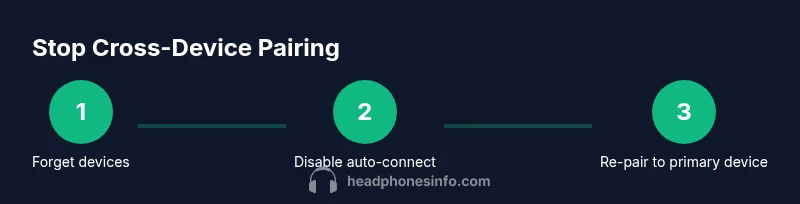
Practical strategies to stop cross-device connections\n\nThe most reliable way to stop cross-device connections is to clean up all existing pairings on both the headphones and each device you own. Start by forgetting or unpairing every device on your headphones, then do the same on your phone, tablet, or computer. If your devices support a “auto-connect” option, disable it so the headphones won’t re-establish a connection without your explicit consent. Finally, re-pair only the device you want to use going forward. This sequence minimizes accidental selection and keeps your listening experience consistent.
Firmware updates and resets: when to use them\n\nFirmware updates can fix driver-level quirks that cause cross-device behavior. If you still see cross-device connections after clearing pairings, check for updates for both your headphones and your smartphones or PCs. If problems persist, a factory reset of the headphones can erase all remembered devices and restore a clean state. Note that a reset will remove all saved preferences, so you’ll need to reconfigure basics after.\n\nHeadphones Info data indicates updates often resolve stubborn cross-device issues more effectively than repeated manual unpairing.
Personalizing and maintaining a clean connection going forward\n\nAfter you regain a single-device setup, create a simple routine: periodically review paired devices, update firmware, and avoid pairing with devices you rarely use. When you add a new device, forget the old pairing if it isn’t in use. Consider renaming devices so it’s clear which one is the primary source. With a little maintenance, cross-device connections will become a rare nuisance.
Verdict: keep control of your listening environment with disciplined pairing\n\nBy default, your headphones are capable of connecting to multiple devices. The secret to preventing cross-device connections is proactive management—forgetting unused devices, turning off auto-connect, updating firmware, and only re-pairing when you want a new primary device. Headphones Info's verdict is that consistent pairing discipline beats repeated resets and manual toggling every time you switch devices.
Tools & Materials
- Smartphone or computer(Need to manage paired devices and test connections)
- Headphones(With fresh firmware if available)
- USB/charging cable (for updates)(Use if the headphones support wired updates)
- Access to Bluetooth settings on each device(Important for forgetting/unpairing devices)
Steps
Estimated time: 15-25 minutes
- 1
Forget all devices on headphones
Put the headphones in pairing mode, then use the companion app or manual controls to disconnect and forget every previously paired device. This clears the memory and reduces re-connections to old devices.
Tip: If the headphones have a reset option, consider performing a full forget-all as a first step. - 2
Unpair or forget headphones on all your devices
On each phone, tablet, or computer, go to Bluetooth settings and choose 'Forget' or 'Unpair.' Do this for every device except the one you intend to use.
Tip: Be thorough—some devices keep a hidden pairing entry that can re-sync without warning. - 3
Disable auto-connect and prioritize current device
In Bluetooth settings, disable auto-connect where available and place your desired device as the last connected or preferred device. This helps ensure the headphones only reconnect to that device if you re-pair it.
Tip: Auto-connect settings vary by device; consult the user manual for exact paths. - 4
Update firmware on headphones and devices
Check the headphone's companion app or manufacturer site for firmware updates. Install any available updates on both the headphones and the connecting devices.
Tip: Firmware updates often fix cross-device quirks by improving device prioritization. - 5
Perform a factory reset if issues persist
If cross-device connections persist after steps above, perform a factory reset on the headphones to erase all memory. Re-pair only with your primary device afterward.
Tip: Note that a reset wipes all settings; plan to reconfigure essential preferences. - 6
Test across devices
Power cycle headphones and test by connecting to your primary device, then verify that other devices do not automatically reconnect.
Tip: Keep a log of which devices were paired to track reoccurrences.
People Also Ask
Why do my headphones keep connecting to other devices after I pair them?
Headphones may remember multiple devices and auto-connect to the strongest signal or last connected device. Lingering pairings or outdated firmware can also cause this behavior. Forgetting old devices and updating firmware often resolves it.
Your headphones remember devices and may reconnect to the strongest signal. Clearing old pairings and updating firmware usually fixes it.
How do I stop auto-connect on most headphones?
Disable auto-connect in the headphone's companion app or Bluetooth settings on your phone. If uncertain, consult the manual for exact steps, as menus vary by model.
Turn off auto-connect in the app or Bluetooth settings. Check your manual for model-specific steps.
Is a factory reset safe for headphones?
A factory reset erases all saved devices and settings. It is safe if you’re troubleshooting cross-device issues, but you will need to reconfigure from scratch.
A factory reset clears all memory; you’ll need to reconfigure afterward.
Will firmware updates help cross-device problems?
Yes. Updates can fix driver-level quirks that interfere with device prioritization and pairing stability.
Firmware updates can fix cross-device quirks.
Should I forget devices on all connected devices?
Yes. Forgetting devices on all paired devices prevents re-connecting to old options.
Forgetting devices on all your devices reduces cross-connections.
Watch Video
What to Remember
- Forget unused pairings to reduce cross-device connections.
- Auto-connect should be disabled to prioritize your primary device.
- Firmware updates can fix stubborn cross-device behavior.
- Factory reset is a last-resort but effective solution.
- Regular maintenance prevents future cross-device issues.