How to Connect Headphones to PS5: A Complete Guide
A comprehensive, step-by-step guide to connecting wired, USB, and Bluetooth headphones to PS5, with setup tips, latency considerations, mic options, and troubleshooting.


Goal: Learn how to connect headphones to PS5 for gaming with reliable sound and clear mic. You can use wired 3.5mm headphones through the DualSense controller, USB headsets via the console, or Bluetooth where supported. This guide covers setup steps, latency considerations, mic options, and common troubleshooting so you can choose the best method for your setup.
Understanding PS5 Audio Architecture
The PlayStation 5 handles audio through a combination of system-level output, controller passthrough, and hardware decoders. When you plug in headphones, the console decides whether to route game sound and chat to the headset, and it offers a few ways to do this: 3.5 mm wired through the DualSense controller, USB headsets that connect directly to the PS5, or (with caveats) Bluetooth headsets. The choice affects latency, mic quality, and compatibility with in-game chat. According to Headphones Info, most users achieve the best balance by starting with wired options and only moving to USB dongles or official Bluetooth adapters if needed for convenience or mobility. This section covers key concepts like latency, impedance, and output options so you can pick the method that matches your setup.
Wired vs. Wireless: Core Tradeoffs
Wired connections typically offer the lowest latency and simplest setup. If your primary goal is precise in-game audio and fast chat, a wired 3.5 mm headset connected through the DualSense controller is often the most reliable path. USB headsets bypass the controller and route audio directly through the PS5, which can improve mic quality and allow game/chat balance control in a single device. Wireless Bluetooth headsets can be convenient, but they may introduce noticeable latency and compression, which can affect both audio sync and conversational accuracy in fast-paced titles. If latency matters for your playstyle, prioritize wired or USB options first, then explore Bluetooth only for casual use or mobility.
Preparation: Know Your Headphones
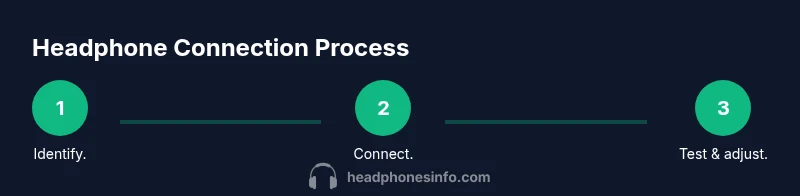
Before you start, identify how your headphones connect. Do you have a 3.5 mm TRRS plug, a USB dongle, or a Bluetooth radio? Each path uses different PS5 settings and potential adapters. If you own a headset with a USB dongle, confirm that the dongle is recognized by the PS5 and that the headset supports microphone input. For wired headphones, confirm the plug is CTIA-compatible (common for gaming headsets) and that the microphone is active when needed. Having the right cable length and adapters on hand can prevent timing delays and connectivity hiccups during a late-night session.
Step-by-Step Expectation: What You’ll Learn
In this guide, you’ll learn how to connect through the most common methods, adjust output and chat balance, troubleshoot mic issues, and optimize PS5 audio settings for various game genres. We also cover scenarios like playing with friends online, streaming, and using external DACs or USB hubs to expand compatibility. By the end, you’ll have a clear path for choosing a setup that matches your hardware and play style.
Quick Troubleshooting Framing
If sound is missing or your mic isn’t picking up, start with a clean cycle: unplug, replug, and ensure the headset is selected as the active output and input device in PS5 Settings. Check firmware on the headset, update the PS5 system software, and verify the headset works with another device to rule out hardware fault. This structured approach helps isolate whether the issue is with the headset, the console, or the connection path.
Accessibility and Convenience Considerations
Wired connections require fewer extra devices and typically outperform wireless alternatives in latency and stability. USB headsets offer plug-and-play convenience for chat and game audio in one device, while Bluetooth can remove cable clutter but may not be ideal for competitive play. If you rely on a mic for streaming or parties, ensure the headset supports clear voice capture and that the PS5 settings are tuned for optimal pickup and noise reduction.
Safety and Compatibility Notes
Always use reputable headsets and USB cables to avoid DC surges or power issues. Avoid using questionable adapters that claim to convert Bluetooth to PS5 compatibility, as these can degrade audio quality or cause instability. If you’re unsure about compatibility, consult the headset manufacturer’s guidelines or trusted tech publications for tested configurations and caveats.
What You’ll Do Next
With the concepts clarified, you’ll move into the next sections that give you explicit steps for wired, USB, and Bluetooth connections, plus tips for mic setup and PS5 audio tuning. You’ll also find a handy quick-checklist and a short FAQ to cover common edge cases. This guidance aims to empower you to choose the method that best fits your gaming setup and preferences.
Tools & Materials
- Headphones or gaming headset(Choose wired (3.5 mm) or USB headset for best PS5 compatibility)
- PS5 console and DualSense controller(Needed for wired 3.5 mm options through the controller)
- USB headset with dongle (if using USB connection)(Plug directly into PS5 USB port)
- USB DAC or headphone amplifier (optional)(For higher impedance headphones or better audio fidelity)
- Cable management items (optional)(Keep cables organized to avoid tugging during play)
Steps
Estimated time: 25-40 minutes
- 1
Verify headphone type and compatibility
Identify whether your headphones use a 3.5 mm TRRS plug, a USB dongle, or Bluetooth. Confirm compatibility with PS5 and whether a mic is supported for chat. This upfront check prevents wasted setup time.
Tip: If you’re unsure, start with the simplest wired option to establish baseline audio. - 2
Gather required hardware
Collect the headphones, PS5, and any adapters needed for your chosen connection. Have a short 6-8 inch extension handy if your console is far from your seating position.
Tip: Keep cables untangled by labeling each connector. - 3
Connect wired headphones via DualSense (3.5 mm)
Plug the 3.5 mm connector into the DualSense controller’s headphone jack. If the headset has a microphone, test push-to-talk or voice chat in a party or game to verify mic input.
Tip: If you hear no sound, check that the headset is selected as Output Device in PS5 Sound settings. - 4
Test USB headset on PS5
Plug the USB dongle or the USB headset directly into a PS5 USB port. Navigate to Settings > Sound > Audio Output to select the USB headset as the output device and adjust mic input separately.
Tip: Some USB headsets require driver-like firmware updates; check the manufacturer site if no audio is detected. - 5
Consider a USB DAC/amp for higher fidelity
If your headphones have high impedance, a USB DAC or portable amp can improve drive and clarity. Connect the DAC to the PS5 USB port and route audio through the DAC.
Tip: Verify the DAC supports PS5 compatibility and does not introduce excess latency. - 6
Pairing Bluetooth headphones (when applicable)
If using Bluetooth, enable pairing on the headset and use PS5 Settings > Accessories > Bluetooth Accessories to pair. Be aware of potential latency and compatibility limits with certain titles.
Tip: Use Bluetooth only if you don’t require ultra-low latency for competitive play. - 7
Configure PS5 audio and mic settings
In Settings > Sound, adjust Output to Headphones, and set Microphone Level and Input Device. Test in a party or game to confirm balance between game audio and chat.
Tip: Use the Test Audio function to verify that you can clearly hear both teammates and in-game sounds. - 8
Test across games and apps
Try different genres to confirm that the chosen connection maintains stable sound and comfortable mic levels. Some games have separate chat and audio balance settings.
Tip: If you notice lag in voice chat, reduce Bluetooth use or switch to a wired option. - 9
Troubleshoot if needed
If you encounter no sound or poor mic quality, verify firmware, try reconnecting, test the headset on another device, and ensure PS5 software is up to date. Reassign the output device and mic input as needed.
Tip: Document which step fixed the issue to speed up future troubleshooting.
People Also Ask
Can I use any Bluetooth headset with PS5 for game audio?
Not all Bluetooth headsets are compatible for native game audio on PS5. Latency and pairing limitations can prevent reliable voice chat or low-latency sound. If you need reliable performance, use wired or USB headsets and reserve Bluetooth for casual listening.
Most Bluetooth headsets aren’t reliable for game audio on PS5; use wired or USB options for best performance.
How do I connect wired headphones to PS5 via the DualSense controller?
Plug the 3.5 mm plug into the controller’s headphone jack. In PS5 Settings, set Output to Headphones and adjust the volume and mic as needed. This method minimizes latency and keeps mic input straightforward.
Plug into the controller, adjust settings in PS5, and test in a match.
Can I use a USB headset with PS5 without adapters?
Yes, many USB headsets work with the PS5 without extra adapters. Plug into a USB port and select the headset as Output and Input devices in Settings. Some models may require software updates or firmware checks.
Plug into USB and select it in PS5 audio settings.
Why is my microphone not picking up sound on PS5?
Verify that the headset is set as the Input Device in PS5 Settings, and ensure the mic is not muted on the headset or controller. Check game chat settings and adjust the Microphone Level for clear voice capture.
Make sure the mic is selected in settings and not muted, and adjust mic level.
Do I need a special Bluetooth dongle for PS5?
Typically not required, but some Bluetooth headsets perform better with an official adapter or dongle. Check the headset manufacturer’s guidance and PS5 compatibility notes.
Usually no dongle needed, but some setups perform better with adapters.
How can I maximize audio quality on PS5 with a headset?
Use wired connections when possible, keep Bluetooth for non-competitive play, and consider a USB DAC for high-impedance headphones. Also calibrate PS5 audio output and chat balance per game.
Prefer wired, use a DAC for high-end cans, and tune settings per game.
Watch Video
What to Remember
- Choose wired for lowest latency and simplest setup
- USB headsets offer integrated mic control and easy balance
- Bluetooth adds convenience but can introduce delay
- Test and adjust PS5 audio settings per game
- Keep firmware up to date to maximize compatibility