Beats Headphones on PS5: Connection Guide
A comprehensive guide from Headphones Info on connecting Beats headphones to PS5, including wired 3.5 mm, Bluetooth limitations, and setup tips for stable audio and clear voice chat.


Beats headphones can connect to a PS5 primarily via a wired 3.5 mm connection to the DualSense controller. Bluetooth support on PS5 is limited for gaming audio, so wired use is recommended when possible. If your Beats model lacks a 3.5 mm jack, use a USB BT dongle or a dedicated transmitter to enable wireless listening.
What to expect when pairing Beats with PS5
Beats headphones bring iconic style and solid comfort to gaming sessions, and many models can pair with the PS5 through several pathways. The Headphones Info team notes that for the vast majority of Beats headsets the most dependable method is a direct wired connection using the 3.5 mm jack. This avoids Bluetooth latency and mic capture quirks that can occur with wireless play. If you own a Beats model that relies on a Lightning or USB-C connector or lacks a 3.5 mm port, you will need an adapter or an alternate path. In practice, most console gamers reach for a simple wired setup or a dedicated Bluetooth transmitter to ensure stable audio and predictable mic behavior. This is especially important in fast-paced games where audio cues and chat timing matter. Keep in mind that PS5 firmware updates can adjust audio routing; staying current with system software helps maintain compatibility. Across models, the key takeaway is consistency: wired connections generally deliver lowest latency, reliable mic input, and straightforward volume control, while wireless setups introduce potential audio hiccups you will want to plan for.
Compatibility snapshot by model
Beats headphones vary in their wired and wireless capabilities. Some older Beats models include a 3.5 mm wired port, allowing direct connection to the PS5 DualSense controller. Newer Bluetooth-only Beats—such as some Studio and Solo lines—do not offer a native wired option, which means you must explore an indirect path such as a Bluetooth transmitter or a USB dongle on the PS5. Your best bet for a seamless gaming session is to confirm whether your specific Beats model provides a 3.5 mm port or relies solely on Bluetooth, then choose the corresponding method. Headphones Info analyses indicates that when a wired path is available, latency and mic stability are significantly improved compared to wireless play. When wired is not an option, plan for potential latency and chat limitations and prepare an appropriate wireless solution. Regardless of model, always verify that the driver and firmware are up to date, as this can influence compatibility with the PS5 system software.
Understanding PS5 audio connections and limitations
The PS5 handles audio routing through HDMI, USB audio devices, and the controller’s 3.5 mm jack. In practice, most Beats users will achieve the best results by using the controller jack for a direct wired connection. This bypasses some of the Bluetooth stack’s quirks and avoids interference from nearby wireless devices. If you opt for a wireless solution, you’ll typically rely on a Bluetooth transmitter connected via USB to the PS5 or a compatible dongle that pairs with the Beats headset. It’s important to note that the PS5’s built in Bluetooth support for headsets can be inconsistent with high-latency or buggy audio depending on the headset model and the game in use. To minimize issues, keep your PS5 firmware current and test audio in a non-competitive environment before extended multiplayer sessions.
Wired connection flow: what to expect and why
Connecting Beats via the 3.5 mm jack to the DualSense controller is a straightforward path that often yields the most predictable results. This method provides direct headphone output and microphone input routed through the controller, making it easier to control volume and chat. If you’re sharing a headset with another device, note that the PS5 may route audio differently when using features such as party chat or in-game voice. The main reason players choose wired connections is latency reduction; in competitive titles, even minor delays can be noticeable and disruptive. Existing setups show that a good-quality 3.5 mm cable, a comfortable headset fit, and proper cable management contribute to a smoother gaming session. If your Beats do not have a 3.5 mm port, move to the wireless path with a transmitter only after confirming compatibility. This ensures you avoid unnecessary adapters that could degrade audio quality.
Wireless connections: Bluetooth limitations and alternatives
Bluetooth on the PS5 is designed to support general audio devices, but gaming-focused headphones can face latency and stability issues. For Beats, the risk is greater if the headset relies on Bluetooth without a wired fallback. If you must go wireless, plan for a Bluetooth transmitter dongle or a dedicated PS5-compatible transmitter plugged into a USB port. These devices typically pair the Beats headset with the console, offering a more stable link than direct Bluetooth pairing. Always select a transmitter with low latency and verify that the mic route remains clear. When possible, keep other wireless devices away from the console during setup to minimize interference.
Mic and voice chat considerations
Voice chat quality on PS5 depends heavily on how the headset is connected. Wired Beats connections generally route mic input through the controller and to party chat, which is reliable for most players. Bluetooth-based setups may introduce mic lag or ensure the mic keeps a stable connection. If you rely on chat for teamwork, consider testing mic performance in a private party and adjusting the input limiter in PS5 settings to avoid clipping. If mic support is essential, a wired or USB-DAC based approach is often more dependable than trying to force Bluetooth mic behavior through the console. Headphones Info notes that mic compatibility varies by Beats model and configuration, so testing early is beneficial.
Practical setup guide with gear recommendations
The simplest setup for most Beats users is a wired 3.5 mm connection to the DualSense controller. Start by locating the 3.5 mm jack on your Beats headset and plugging the connector into the DualSense. If your model lacks a 3.5 mm port, you can use a USB Bluetooth transmitter plugged into the PS5 USB-A port or a small audio DAC with Bluetooth capability. In a console-first workflow, you may also consider a wired USB-C or USB-A dongle designed for gaming headsets. Keep the cable length reasonable to avoid tangling and ensure the headset is comfortably positioned for long sessions. For voice chat, test in a private party to confirm the mic path is active and clear.
Troubleshooting common issues
If there is no audio output from Beats headphones on PS5, first verify the physical connection and ensure the headset is not muted. Check the PS5 sound settings to select the correct output device, and confirm that the volume is up on both the headset and the console. For mic issues, ensure that the Beats mic is active and not disabled by system settings. If latency is noticeable in a wireless setup, try using a wired path or switch to a low-latency Bluetooth transmitter. If you still experience problems, resetting the PS5 audio settings and re-pairing the device can resolve many common issues. Remember that firmware updates on both the headset and the PS5 can influence compatibility, so keep both updated.
Final tips for optimal Beats on PS5
Aim for a stable wired connection whenever possible to minimize latency and maximize mic reliability. If you must go wireless, choose a reputable Bluetooth transmitter and test before important gaming sessions. Keep the headset charged and ensure there is a clear line of sight for wireless connections. Finally, maintain realistic expectations for mic performance and be prepared to switch to a wired setup during intense multiplayer moments. With careful setup and ongoing checks, Beats headphones can provide enjoyable audio for PS5 gaming, movies, and music alike.
Tools & Materials
- Beats headphones model(Ensure the headset has a 3.5 mm wired port, or plan to use a Bluetooth transmitter if not.)
- 3.5 mm male-to-male audio cable(Optional if your Beats uses a detachable cable and you want a longer reach.)
- PS5 DualSense controller(The controller’s 3.5 mm jack is the primary wired output.)
- USB Bluetooth transmitter (dongle)(Use if your Beats are Bluetooth-only and you want to connect wirelessly to PS5.)
- USB-A to USB-C charging cable(Useful for powering a USB Bluetooth dongle if needed.)
- Headphones stand or cable management(Helps avoid cable tugging during gameplay.)
Steps
Estimated time: 15-25 minutes
- 1
Identify your Beats model
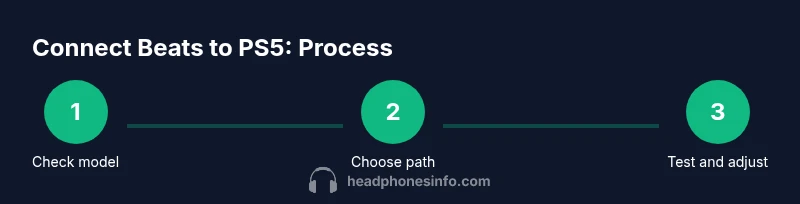
Check the model on the headset, the original packaging, or the device’s settings. Determine whether a 3.5 mm wired port is present or if the headset relies on Bluetooth for audio. This step is critical because it dictates whether you will use a wired or wireless path on PS5.
Tip: If you’re unsure, consult Beats support for model-specific connectivity options. - 2
Choose a connection method based on model
If a 3.5 mm port exists, plan for wired connection through the DualSense controller. If not, prepare a Bluetooth transmitter or USB dongle as your wireless option. The chosen method should minimize latency and ensure reliable mic input.
Tip: Wired is usually the simplest and most stable path for PS5 gaming. - 3
Connect via wired path (if applicable)
Plug the 3.5 mm audio cable into the Beats headset and the other end into the DualSense controller. Ensure the headset is detected by PS5 and that volume is controlled from the headset or the controller.
Tip: Check for a snug fit to avoid intermittent audio. - 4
Set up wireless path with transmitter (if needed)
Attach the Bluetooth transmitter to PS5 USB port or the console’s preferred input and pair the Beats headphones. Follow the transmitter’s pairing instructions until the headset is connected.
Tip: Place the transmitter away from other wireless devices to reduce interference. - 5
Configure PS5 audio settings
On PS5, go to Settings > Sound > Audio Output and select the appropriate device. Adjust the volume and balance so game audio and chat are comfortably audible.
Tip: Enable Quick Menu testing before long sessions to verify audio routing. - 6
Test mic and voice chat
Join a private party and verify the microphone is picking up your voice clearly. If it’s dim or noisy, check the headset’s mic settings and ensure PS5 party chat is configured to the headset as the input device.
Tip: If mic quality is poor, consider a wired path or a dedicated mic with a USB DAC.
People Also Ask
Can Beats Studio3 connect to PS5 without lag?
Lag is most likely with Bluetooth on PS5. A wired 3.5 mm connection provides the most reliable, lowest-latency audio for PS5 gaming. If wired isn’t an option, choose a low-latency Bluetooth transmitter and test before matches.
Lag can happen with Bluetooth. Use wired whenever possible and test before a game.
Do Beats headphones work for mic input on PS5?
Mic support depends on the connection method. Wired connections route mic through the controller, typically working with party chat. Bluetooth mics may not be supported consistently, so wired is safer for chat.
Beats mics often work best when wired; Bluetooth mic support can be inconsistent.
Is PS5's Bluetooth audio a good option for Beats?
PS5 Bluetooth audio is possible but can be unstable for gaming audio and voice chat. For best results with Beats, use a wired connection or a dedicated Bluetooth transmitter.
Bluetooth on PS5 can be unreliable for gaming audio; wired is usually better.
What if my Beats model lacks a 3.5 mm jack?
If there is no 3.5 mm port, you’ll need a Bluetooth transmitter or USB audio adapter to connect to PS5. Check compatibility and latency specs before purchasing.
If there’s no 3.5 mm port, get a Bluetooth transmitter compatible with PS5.
Can I use Beats headphones for voice chat while playing games?
Yes, but success depends on how you connect. Wired connections typically support in-game and party chat reliably. Bluetooth chat can vary in latency and quality.
Wired Beats usually handle chat reliably; Bluetooth chat quality depends on the setup.
Are there specific PS5 settings to improve Beats audio?
Set the PS5 output to headphones when connected, enable headset mic, and adjust the audio balance in Settings. Testing in a private party helps tailor the experience.
In PS5 settings, select the headphone output and test in a private party.
Watch Video
What to Remember
- Prioritize wired connections for reliability
- Bluetooth can cause latency; plan alternatives
- Mic behavior varies by Beats model
- Test audio and mic in a private party before online play