How to connect Xbox headphones: a complete setup guide
Learn step-by-step how to connect Xbox headphones across consoles, Windows, and mobile devices. Our Headphones Info guide covers wired and wireless options, latency tips, and troubleshooting.


You can connect Xbox headphones by selecting wired or wireless options based on your headset, then pairing on your console or PC. This guide covers Xbox consoles, Windows, and mobile devices, plus common troubleshooting steps. It assumes you are using a headset labeled 'Xbox compatible'. Follow the steps for reliable audio.
What 'Xbox headphones' covers today
If you’re trying to connect Xbox headphones, the first step is understanding what counts as "Xbox headphones" today. Some are designed to connect wirelessly using the Xbox Wireless protocol, others rely on a standard 3.5mm audio jack, and a few USB-based variants use a dongle or direct USB-C connection. According to Headphones Info, compatibility depends on the headset model and the console or device you intend to use it with. In practice, your setup choice will determine latency, microphone quality, and overall system integration. This block lays the groundwork for choosing the right path: wired, wireless, or Bluetooth where supported. Throughout this guide, we’ll tie decisions back to practical gaming scenarios, whether you’re playing on an Xbox console, a Windows PC, or a mobile device.
Core distinction: wired vs wireless vs Bluetooth
The most common split is wired (3.5mm or USB-C/USB-A), wireless Xbox-compatible headsets, and Bluetooth-capable devices. Wired connections offer near-zero latency and simplicity: just plug the headset into the controller jack or a compatible port on a PC. Wireless options remove cables but add pairing steps and potential latency or interference. Bluetooth is increasingly supported on PCs and mobile devices but can introduce noticeable latency and compression, which matters for competitive play. Headphones Info’s analysis highlights that matching the headset’s intended connection method with the device’s input/output configuration yields the best balance of latency, mic quality, and stability. As a rule, always verify your headset’s official documentation for supported connections.
Quick wins for compatibility checks
Before you attempt to pair anything, confirm three things: (1) the headset is labeled Xbox-compatible or specifically designed for the platform you plan to use; (2) your device supports the connection type (wired 3.5mm, USB dongle, or Bluetooth); (3) the firmware on both the headset and the host device is up-to-date. This proactive check can save troubleshooting time and prevent mismatched drivers or unsupported modes. Headphones Info recommends noting your device’s model and software version so you can quickly cross-check against the official compatibility matrix.
Tools & Materials
- Headset labeled Xbox-compatible(Check model notes for supported connection types (wired, wireless, Bluetooth).)
- Controller with 3.5mm headset jack(Essential for wired connections to Xbox consoles.)
- USB wireless dongle (if your headset uses proprietary wireless)(Only for models that ship with a dongle (e.g., some wireless headsets).)
- USB-C or USB-A cable (for charging or wired mode)(Useful if your headset is powered by USB and you need a wired bus for testing.)
- Bluetooth adapter (optional for PCs/phones)(Only if your device doesn’t have built-in Bluetooth that supports your headset.)
- Testing device (Xbox, PC, or mobile device)(Used to verify audio and microphone routing after setup.)
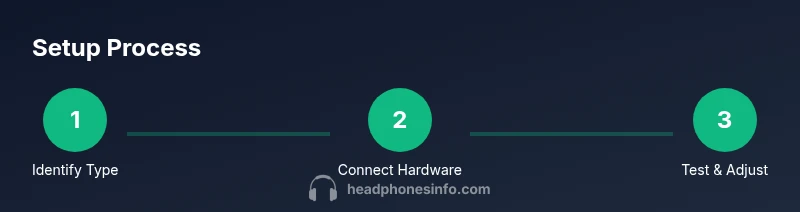
Steps
Estimated time: 20-45 minutes
- 1
Identify connection type
Review your headset’s package or manual to confirm the supported connection methods (wired 3.5mm, USB dongle, or Bluetooth). This prevents trying a non-supported mode and saves troubleshooting time. If your headset supports multiple options, decide based on latency needs and device compatibility.
Tip: If you’re unsure, start with the wired 3.5mm path for the simplest test. - 2
Prepare the host device
On your Xbox console or PC, ensure the device is powered on and that the latest system software or drivers are installed. For Bluetooth, enable pairing mode on the host device and make sure Bluetooth is active. For wired connections, confirm the controller jack or USB port is clean and unobstructed.
Tip: Update firmware on headset and console/PC before pairing to avoid compatibility glitches. - 3
Connect the headset (wired mode)
Plug the headset’s 3.5mm plug into the Xbox controller jack or the PC’s audio port. If your headset uses USB for wired mode, plug the USB cable into an available USB-A/C port. Confirm that the device recognizes the headset in the sound settings.
Tip: If you don’t hear sound, check that the headset is chosen as the default playback device in the operating system. - 4
Connect the headset (wireless mode with dongle)
Insert the USB dongle into the host (console/PC). Put the headset into pairing mode (usually hold the power button or a dedicated pairing button) until an LED indicates pairing is complete. The system should automatically route audio and mic to the headset.
Tip: If pairing fails, replug the dongle or restart the host device and retry. - 5
Connect the headset (Bluetooth mode)
Put the headset in Bluetooth pairing mode and select it from the host device’s Bluetooth settings. For PCs, you may need to install drivers or enable a specific Bluetooth profile. On consoles, Bluetooth is often limited to audio only and may require compatibility checks.
Tip: Expect slightly higher latency after Bluetooth pairing; use it only if wired or dongle options aren’t available. - 6
Configure audio and mic routing
Go to the host device’s audio settings and set the headset as the default output and input device. If your headset has a dedicated mic mute or mic boost controls, adjust for comfortable voice pickup. Test playback and voice chat with a friend or the capture test tool.
Tip: Disable any aggressive noise reduction on the host if it mutes your mic unexpectedly. - 7
Test across apps and games
Launch a game or app that uses background voice chat to verify mic capture and listen for in-game cues. Some apps route chat differently (e.g., party chat vs in-game chat); confirm routing matches your preference.
Tip: Test with a friend in a controlled environment to gauge latency and voice clarity. - 8
Tweak latency and preferences
If you notice audio delay, enable latency-reducing options in your headset’s companion app or use wired mode when possible. Adjust EQ or mic boost to taste and ensure there’s no excess echo or feedback.
Tip: For competitive play, wired or USB dongle setups generally yield the lowest latency. - 9
Document and troubleshoot
Keep notes of which method worked best for your devices and any recurring issues. If problems persist, consult the headset’s official support or Headphones Info’s troubleshooting resources.
Tip: Create a quick reference sheet with your device model, headset model, and connection type.
People Also Ask
Can I connect Xbox headphones to mobile devices or tablets?
Some Xbox-compatible headsets support Bluetooth pairing with mobile devices, but compatibility varies by model. Check the headset documentation and your device’s Bluetooth profiles. If Bluetooth is unsupported, use a wired option or the dongle when possible.
Some Xbox headsets work with phones via Bluetooth, but it depends on the model. Check your headset guide and phone capabilities.
Why is there no sound from my headset after pairing?
First, verify the headset is selected as the default output device in your host’s sound settings. Check the volume and mute controls on both the headset and host. If using Bluetooth, ensure the connection is stable and not limited to audio only.
Make sure your headset is set as the audio output device and not muted.
Do I always need a USB dongle for wireless Xbox headsets?
Not always. Some wireless Xbox headsets connect directly to the console via Xbox Wireless. Others require a USB dongle for PCs. Always check the headset’s setup guide to know the exact method for your device.
Only some wireless headsets use a dongle; many connect directly to the console.
Can I connect a wired headset without a controller?
Yes for most wired headsets that use a standard 3.5mm jack, but many consoles route headset audio through the controller. If your setup lacks a controller, you may need an HDMI audio extractor or a USB audio interface depending on the device.
Usually you still need a controller or compatible adapter for wired headsets on consoles.
How can I reduce audio latency when using Xbox headphones?
Stick to wired or official USB dongle connections where possible. Disable any software audio enhancements that add processing delays, and ensure the headset firmware is current. In competitive play, latency-focused settings can help.
Wired or dongle connections minimize delay; keep firmware updated.
Watch Video
What to Remember
- Verify headset compatibility before pairing.
- Prefer wired connections for zero-latency audio.
- Use the correct device settings to route audio and mic.
- Bluetooth works but may add latency; reserve for non-competitive use.
- Update firmware and keep notes for troubleshooting.