How to Connect Bluetooth Headphones to Xbox Series X
Learn how to connect Bluetooth headphones to Xbox Series X with practical options, latency considerations, and a step-by-step setup. Explore wired, Xbox Wireless, and transmitter methods with tips from Headphones Info for confident gaming.


You can’t pair Bluetooth headphones directly to Xbox Series X for game audio in the same way you would with a phone. Instead, use Xbox Wireless headsets, wired 3.5mm headsets via the controller, or a low-latency Bluetooth transmitter connected to the TV. This quick guide outlines the options and steps to minimize latency while keeping mic quality acceptable.
Understanding Bluetooth on Xbox Series X
If you’re wondering how to connect bluetooth headphones to xbox series x, you’re not alone. According to Headphones Info, native Bluetooth audio is not natively supported by Xbox Series X for gaming audio, so you can’t pair most Bluetooth headphones directly to the console for game sound. That doesn’t mean you’re out of luck, though. In practice, gamers rely on three workable paths: (1) Xbox Wireless headsets or dongles that establish a low-latency link; (2) wired headsets that plug into the controller’s 3.5mm jack; and (3) external Bluetooth transmitters connected to an audio output such as a TV or soundbar. Each path has trade-offs in latency, mic quality, and convenience. Headphones Info Analysis, 2026, notes that latency is the biggest pain point for gaming headsets using Bluetooth adapters. The takeaway: choose the method that aligns with how you play—competitive multiplayer benefits most from Xbox Wireless or wired options, while casual gaming can tolerate other arrangements. In the sections that follow, we’ll compare these options, outline exact steps, and share practical tips to optimize your setup.
Compatibility and Setup Paths
The Xbox Series X doesn’t provide universal Bluetooth audio support for games, so your headsets must work through specific, compatible routes. The most reliable setup is a headset that uses Xbox Wireless or a dedicated wireless dongle. These devices connect with low latency and support in-game chat, depending on the model. If your headset is only Bluetooth, you’ll typically rely on a Bluetooth transmitter connected to your TV or sound system. This path can work for non-gaming audio, but expect potential audio lag and lip-sync issues in fast-paced games. A second practical option is to connect a wired headset through the controller’s 3.5mm jack; this guarantees minimal latency and clear voice chat, assuming the headset is wired and compatible with the controller’s mic input.
Latency and Audio Quality Trade-offs
Latency is the single biggest factor affecting perceived audio quality on consoles. Headphones that rely on Bluetooth can introduce noticeable delay, which impacts timing in shooters and rhythm games. If your priority is competitive gaming, prioritize Xbox Wireless compatibility or a wired connection. For movie watching or casual listening, a TV-based Bluetooth transmitter can be acceptable, but you may notice slight desynchronization between on-screen action and audio. Headphones Info Analysis, 2026, emphasizes that users should assess both latency and mic quality when selecting a setup. This section helps you compare, and then guides you to realistic expectations depending on your chosen path.
Practical Configurations and Recommendations
To keep things simple, most players choose one of these practical paths: (a) Xbox Wireless headset or dongle for the lowest latency and best mic clarity, (b) a wired headset through the controller for rock-solid sync, or (c) a TV-based Bluetooth transmitter when gaming latency isn’t the top concern. If you decide to use a Bluetooth transmitter, look for low-latency codecs and ensure it’s compatible with your TV’s output options. Remember that even with a transmitter, the mic on a Bluetooth headset may not function as expected if the headset isn’t designed to pair with external transmitters. The Headphones Info Team recommends testing your setup in a controlled environment before committing to long gaming sessions.
Troubleshooting Common Issues and Final Considerations
If you encounter issues after pairing, start by confirming you’ve selected the correct audio output in the Xbox settings. Check the headset’s power, pairing status, and proximity to the console or transmitter. If you experience lip-sync problems, try a wired connection or a dedicated Xbox Wireless headset instead of a Bluetooth transmitter. If mic quality is poor, test with another device to isolate whether the problem is the headset or the console. Throughout this process, keep your firmware up to date and monitor latency with quick in-game tests. The Headphones Info Team’s verdict is that for gaming, the most reliable approach is an Xbox Wireless headset or a wired connection; Bluetooth remains a viable option mainly for non-gaming audio with a suitable transmitter.
Tools & Materials
- Bluetooth headphones(Pairing capability varies; ensure support for mic if needed)
- USB Bluetooth transmitter (optional)(Use for Bluetooth audio routed through TV or receiver)
- Controller with a 3.5mm jack(Needed for wired headset connections)
Steps
Estimated time: Estimated total time: 18-25 minutes
- 1
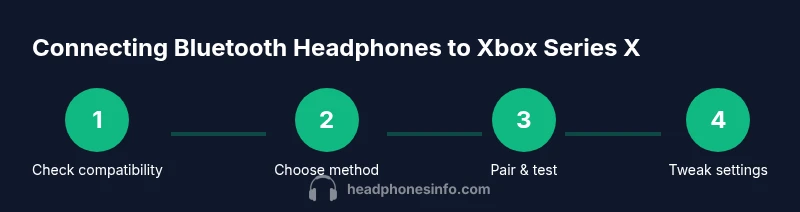
Verify headset compatibility
Confirm whether your headset supports Xbox Wireless or Bluetooth with a compatible transmitter. If you rely on Bluetooth alone, be prepared for possible latency and mic limitations. This step saves time by avoiding incompatible gear.
Tip: Check the headset’s packaging or manufacturer site for Xbox Wireless compatibility. - 2
Choose your connection path
Decide between Xbox Wireless (lowest latency), wired 3.5mm via the controller, or a Bluetooth transmitter connected to your TV. Your choice will determine the setup steps and potential latency.
Tip: For fast-paced games, prioritize Xbox Wireless or wired connections. - 3
Prepare hardware
Charge devices, update firmware if available, and ensure the controller is connected to the console. If using a transmitter, place it within a clear range of the TV and headset.
Tip: Keep a spare USB port free for the transmitter dongle. - 4
Pair the device
If using Xbox Wireless, put the headset into pairing mode and use the console’s Settings > Devices & connections to complete pairing. If using a transmitter, pair the headset to the transmitter per its manual.
Tip: Stay close during pairing to avoid dropouts. - 5
Test audio and mic
Play a short game clip or watch a video to test game audio latency and mic pickup. Adjust volume balance to ensure speech is clear over gameplay.
Tip: Test in a quiet room first to establish a baseline. - 6
Fine-tune settings
In Settings > General > Volume & audio output, adjust balance between game audio and chat. If using a transmitter, check lag settings if available on the device.
Tip: Experiment with different profiles or EQ to optimize comfort.
People Also Ask
Does Xbox Series X support Bluetooth audio for game sound natively?
No. Xbox Series X does not natively support Bluetooth audio for game sound. You’ll typically use Xbox Wireless headsets or wired connections, with Bluetooth as a secondary option via a transmitter for non-gaming audio.
No, Xbox Series X does not natively support Bluetooth audio for game sound. You’ll generally use Xbox Wireless or wired options, with Bluetooth mainly for non-gaming audio when using a transmitter.
Can I use Bluetooth headphones with my TV while gaming?
Yes, you can pair Bluetooth headphones to a TV that has Bluetooth output. Audio will come from the TV, not directly from the Xbox, and you may experience some latency depending on the transmitter.
Yes, you can pair Bluetooth headphones to your TV, but the audio routes through the TV and latency may vary depending on the setup.
Will Bluetooth adapters always have lag?
Latency varies by device. Some adapters offer very low latency, but many Bluetooth connections introduce noticeable delay in gaming. For competitive play, Xbox Wireless or wired connections are safer.
Latency depends on the adapter—some are low-latency, but many Bluetooth setups lag behind gaming action. For competitive play, use Xbox Wireless or wired options.
What should I do if my headset’s mic isn’t working on Xbox?
First, confirm the headset is selected as the chat device in Xbox settings and that the mic is enabled on the headset. If using a transmitter, mic support may vary, and wired headsets often provide the most reliable mic input.
First, check that the headset is set as the chat device in settings and that the mic is enabled. If you’re using a transmitter, mic support may be limited.
How do I maximize comfort during long sessions?
Choose a headset with breathable padding and adjust headband fit. Keep cables tidy and consider a lighter headset for extended use. Battery life matters, so keep charges ready.
Look for breathable padding, adjustable fit, and a light build. Have spare charges ready because battery life matters for long sessions.
Watch Video
What to Remember
- Prefer Xbox Wireless or wired for gaming latency.
- Bluetooth can work for non-game audio with a transmitter.
- Test audio, mic, and lip-sync before long sessions.
- Keep firmware up to date for best compatibility.
- Choose the setup that matches your play style and devices.