Fix Bose Headphones: Step-by-Step Troubleshooting Guide
A comprehensive, data-driven guide to fix Bose headphones. Learn safe home fixes, firmware updates, and when to seek professional repair, with practical steps and maintenance tips from Headphones Info.


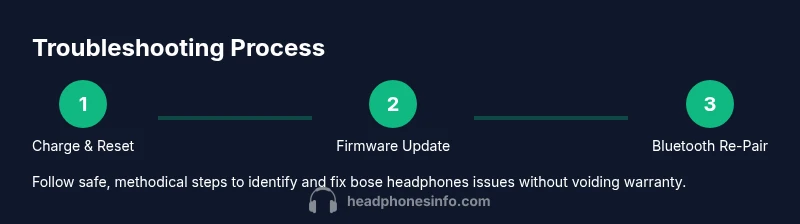
Goal: fix bose headphones by diagnosing common faults and applying safe, practical fixes. Begin with basic checks: verify charging, perform a reset, and update firmware. Re-pair Bluetooth, test with different devices, and inspect cables. If problems persist, progress to hardware checks or seek professional service. Carefully document symptoms for support.
Why fixing Bose headphones matters
Fix bose headphones is more than restoring sound; it’s about preserving your investment, maintaining comfort, and ensuring reliable daily use. Bose headphones combine wireless tech, active noise cancellation, and high-precision drivers, all of which can drift as components age or firmware becomes out of date. According to Headphones Info, most Bose headphone problems fall into software, battery, or connection categories rather than catastrophic hardware failures. This means a disciplined, safety-conscious approach can recover performance without expensive service. In this guide, you’ll learn a repeatable process to diagnose and fix bose headphones, powered by practical tests and safe handling practices. You’ll start with the simplest checks—charging status, visible damage, and resets—and then advance to firmware updates, cable inspections, and, if needed, professional help. By following these steps, you’ll reduce downtime and keep your Bose headphones delivering the immersive audio experience they’re known for. Throughout, we’ll separate home-friendly fixes from issues that should be handled by professionals, so you stay within warranty where possible.
Common Bose headphone problems and quick diagnostics
Bose headphones can fail for a few predictable reasons. Common symptoms include no power or slow charging, Bluetooth pairing failures, audio dropouts, crackling sound, or uneven channel output. According to Headphones Info analysis, software glitches and battery health account for a large share of these problems. Quick diagnostics help you isolate the issue: test with a wired cable if supported, try a different source device, and check for firmware updates. If you notice the noise-cancelling path not engaging, inspect the mic array and exterior seals for debris. Document symptoms as you test, so you have a clear narrative for support if needed.
Safe, repeatable fixes you can try at home
Many Bose headphone issues respond to simple, safe steps you can perform without disassembling the unit. Start with the basics: ensure a full charge, perform a power reset, and verify Bluetooth visibility. Then update the firmware via the Bose Connect app and re-pair with your devices. Cleaning ports and connectors with a soft microfiber cloth can remove grime that causes intermittent connections. If the model supports a wired mode, test with a known-good cable. Always dry the unit thoroughly before powering back on. These fixes address the majority of fix bose headphones problems without risking warranty.
Firmware and software: updating your Bose headphones
Firmware updates can resolve bugs, improve stability, and restore features like noise cancellation. Use the Bose Connect app or your device’s software updater to check for new firmware, preferably on a stable Wi‑Fi connection. Leave the headphones connected during the update and avoid interruptions. After updating, perform a quick reboot and re-pair to any previously connected devices. Regular updates—even if you don’t notice issues—often prevent future fix bose headphones problems by keeping software aligned with the latest compatibility specs.
Step-by-step diagnostic checklist
- Charge fully: Plug in and allow a complete charge before testing power behavior. 2) Reset the device: Use the standard reset sequence for your model and verify indicators. 3) Update firmware: Check for updates and install if available. 4) Re-pair Bluetooth: Remove the headset from known devices, then re-pair with one source. 5) Test wired path: If supported, connect with a cable and test audio. 6) Inspect ports and cables: Look for fraying, bent pins, or loose connections. 7) Clean exterior and sensors: Wipe with microfiber; avoid moisture. 8) Factory reset if needed: Restore to factory settings only after other steps fail. 9) Validate across devices: Try multiple phones, laptops, or players to confirm the issue scope. Time estimate: 60-120 minutes.
When to contact support or professional repair
If fix bose headphones steps don’t restore full function, there may be a hardware fault beyond routine troubleshooting. Contact Bose support or an authorized repair technician when you observe persistent audio imbalance, persistent charging failure, or non-recoverable error codes. If your device is under warranty, document your steps and consult support before any disassembly. For some users, a cost-effective option is a battery or driver replacement handled by professionals. The Headphones Info team emphasizes confirming warranty status first to avoid accidental coverage loss.
Maintenance to prevent future issues
Preventive care reduces the frequency of fix bose headphones issues. Regularly update firmware, store in a cool, dry place, and avoid exposure to moisture. Clean ports gently and store ear cushions properly to maintain a good seal. If you travel, use a protective case and avoid heavy pressure on drivers. Periodically test the battery health and perform a light recharge cycle to calibrate the battery gauge. Consistent care keeps Bose headphones performing at their best and minimizes the need for fix bose headphones interventions.
Troubleshooting by model family and common variations
Bose headphones span several families, including wireless and wired variants, each with distinct reset and update procedures. While the core principles of charging, resetting, updating firmware, and re-pairing apply broadly, some steps differ by model. Always consult the official Bose support page for your exact model before attempting hardware work. If a particular symptom—like a persistent crackling or loss of a channel—appears only on one model family, tailor your approach to that family’s guidance while maintaining safe handling practices. The goal is to narrow down whether the issue is software-driven or hardware-related before proceeding with fix bose headphones-specific repairs.
Data-driven tips and common mistakes
From a data-driven perspective, many fix bose headphones successes come from eliminating variables in a controlled sequence: charge, reset, update, re-pair, test, and observe results. Avoid using high-pressure cleaning tools, and don’t shortcut updates—omitting steps can obscure the root cause. Headphones Info analysis shows that customers who document symptoms and follow a methodical checklist tend to resolve issues faster and with fewer warranty concerns. If a fault persists after all steps, log the exact behavior and time of occurrence to share with support. The final takeaway is adherence to a disciplined process and clear communication with service teams.
Tools & Materials
- USB-C charging cable(Original or compatible; at least 1.5 m for flexibility)
- Power adapter (or USB port)(5V/2A recommended for stable charging)
- Smartphone or tablet with Bose Connect app(iOS or Android; used for firmware checks)
- Soft microfiber cloth(For gentle cleaning of connectors and surfaces)
- Isopropyl alcohol wipes (70%)(For stubborn grime on connectors; avoid liquid near electronics)
- Tiny screwdriver set(Optional; some models require careful opening (voids warranty))
- Replacement ear cushions (optional)(If cushions are worn, improves comfort and seal)
Steps
Estimated time: 60-120 minutes
- 1
Power cycle and reset
Power off completely, then hold the power button for 10–15 seconds to reset. If your model supports a reset combo, use that sequence. This clears minor software glitches that can mask fix bose headphones issues.
Tip: If the device doesn’t respond, ensure it has a charge before forcing a reset. - 2
Charge and calibrate battery
Connect to a charger and allow a full charge. Use the headphones until they report low power, then recharge again to help recalibrate the battery indicator. A poor battery can masquerade as other failures.
Tip: Avoid charging on heat-sensitive surfaces; keep away from liquids. - 3
Firmware update
Open the Bose Connect app and check for firmware updates. Install if available, ensuring a stable connection. Updates fix bugs and improve compatibility with sources.
Tip: Perform updates over a stable Wi‑Fi connection and keep the device near the phone during the process. - 4
Re-pair Bluetooth
Remove the headset from the list of paired devices on your source, then re-pair as a new device. Test streaming audio to confirm stability.
Tip: Forget the device on all other paired sources to avoid cross-connection issues. - 5
Test wired path (if supported)
If your model supports a wired connection, try a known-good cable to rule out wireless faults. Listen for consistent stereo output with no crackling.
Tip: Use the original or a high-quality replacement cable; avoid thin or damaged wires. - 6
Inspect ports and connectors
Check USB-C, 3.5 mm, and any tilt or hinge connectors for bent pins or debris. Clean gently with microfiber and avoid moisture near electronics.
Tip: Inspect both ends of cables for wear; damaged ends often cause intermittent failures. - 7
Factory reset (if needed)
If issues persist, perform a factory reset per model instructions. This clears user data and resets software to a known good state.
Tip: Backup pairings and settings if the model allows before a factory reset. - 8
Cross-check with multiple sources
Test with a different phone, laptop, or audio source to confirm the issue is not source-specific. This helps isolate fix bose headphones problems.
Tip: If the problem follows every source, there is likely a hardware fault.
People Also Ask
Why won't my Bose headphones turn on?
A common cause is a depleted battery or a faulty charging port. Start with charging fully, then perform a reset. If it still won’t power on, consider checking the charging cable and port for debris or damage.
If your Bose headphones won’t turn on, start with a full charge and a reset; if needed, check the charging port and cable for debris or damage.
How do I reset Bose headphones?
Reset procedures vary by model. Consult the user manual or Bose support for the exact sequence, then test power and Bluetooth after the reset.
Reset steps depend on your model; check the manual or support site and then test the device again.
Can I fix Bose headphones at home?
Many software and connectivity issues can be solved at home with safe steps like resets and firmware updates. For hardware faults or warranty-covered repairs, contact support or a authorized service.
Some fixes you can do at home, but hardware faults may need professional service.
Do Bose headphones require firmware updates?
Firmware updates can improve stability and features. Use the Bose Connect app or official updater to check regularly and install when available.
Yes, updates help with stability and features; check regularly.
What should I do if sound is only in one ear?
Check balance settings, reset, and inspect the drivers or cables. If using a wired connection, test with another cable to rule out a faulty lead.
Check balance and try another cable to isolate the issue.
Is opening the headset dangerous?
Opening may void the warranty and risk further damage. Only open if you have model-specific instructions and the proper tools.
Open only if you’re sure it won’t void the warranty; otherwise, avoid it.
Watch Video
What to Remember
- Diagnose issues methodically to identify root cause.
- Charge, reset, and update firmware first.
- Re-pair Bluetooth and test with multiple sources.
- Inspect cables and ports for physical damage.
- Know when to contact Bose support or professional repair.