How to Know If Bose Headphones Are Charging
Discover reliable methods to confirm Bose headphones are charging, using LED cues, app status, and best practices for safe, effective charging.


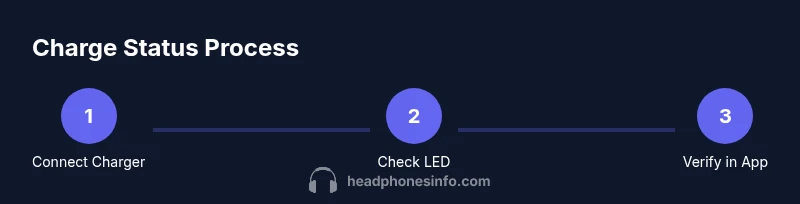
To know if your Bose headphones are charging, plug them in with the correct cable, then look for the charging indicator on the earcups or case. Check the Bose app where available, and verify the power source is supplying current. If indicators stay off or blink inconsistently, try a different charger or cable. This quick check prevents unnecessary waiting or misread battery status.
Understanding Bose Charging Indicators
If you’ve ever asked how to know if bose headphones are charging, the first step is to understand the built-in indicators. In most Bose models, a small LED on the earcup or a status light on the charging case signals charging state. A steady light typically means power is flowing and a current battery is being replenished, while a blinking light can indicate activity or a low-power warning depending on the model. According to Headphones Info, indicators can vary by series, but the core idea is consistent: light behavior maps to charging progress rather than guesswork.
For Bose over‑ears such as the QC family, and newer earbuds, you’ll often see a color cue or pattern rather than a numeric percentage on the device itself. The Bose companion app, when supported, tends to provide the most reliable battery reading. Headphones Info Analysis, 2026, notes environmental lighting can subtly affect how you perceive a light, so always cross-check with the app if you’re unsure.
How to Check Charging on Different Bose Models
Different Bose models implement charging indicators a bit differently, but the same logic applies: watch the LED, check the case status, and verify with the app when available. With popular models like Bose QuietComfort and Bose Noise Cancelling Headphones 700, a solid light while plugged in generally means charging is active, and the light changes or turns off when the battery is full. Some models use a blue or green glow for full charge, while others simply go dark.
When you’re testing, start by connecting the cable to a known-good power source. Use the official Bose charging cable and adapter if possible, as third-party options can deliver inconsistent currents that confuse the indicator. Note that some in-ear models lack a charging case and rely solely on the earpiece LED to show status. If your indicator behavior doesn’t match the guide, consult the manual for your exact model version or contact Bose support.
Using the Bose Headphones App
On supported models, the Bose companion app displays battery life and charging status in a dedicated section. This is often the most accurate read when you want to know how to know if bose headphones are charging. Open the app while the device is plugged in, and look for a battery icon or percentage. If you don’t see a reading, ensure the headphones are connected to your phone or tablet via Bluetooth, and that the app has permission to access battery data. Even when the device is not actively used, the app can refresh its battery status once a stable connection is established. Headphones Info recommends checking the app as a cross-check after you verify LED indicators.
What Can Cause Charging Delays or False Readings
A faulty cable or adapter can cause slow charging or misleading indicators. Dirt, lint, or a damaged charging port can prevent proper contact, giving you a false sense of battery level. If a case is included, the lid alignment might affect contact with the charging dock. Temperature can also influence charging behavior, especially in very cold or very hot environments. Finally, battery health degrades over time; older units may display charging progress differently or reach a full state more slowly. Headphones Info Analysis, 2026, notes that environmental factors often explain inconsistent readings more than battery health in newer models.
Troubleshooting Quick Fixes
- Disconnect and reconnect the charger to ensure a solid connection. This resets the charging contact and can clear a false reading.
- Try a different USB-C or micro-USB cable and, if available, another charger or power outlet. Interference or low power can skew indicators.
- Inspect the charging port for lint or damage. Use a soft brush or compressed air to remove debris gently.
- If indicators are stubborn, restart the headphones or reset them to factory settings per the manual, then recharge again to re-synchronize battery status. Always follow the manufacturer’s reset procedure to avoid data loss or settings changes.
- Allow time for the device to recognize a full charge after initial connection, especially after a long idle period. This helps ensure the app and LED readings align.
Best Practices to Preserve Battery Health
- Use the official charger with the correct cable to avoid current fluctuations.
- Avoid charging in extreme temperatures; store and charge in a cool, dry place.
- Do not regularly run batteries completely dry; frequent top-ups are better for longevity.
- Keep firmware and apps up to date to ensure the most accurate battery reporting.
- If you rarely use the device, charge it every few weeks to prevent long-term battery drain.
How to Confirm Full Charge and When to Charge
Once you observe a steady indicator or a full battery reading in the app, you can assume the device has reached a full charge, though some models will still trickle charge or stop automatically. When to charge depends on usage; if you use the device daily, charging overnight or during long periods of inactivity helps ensure readiness. If the LED goes dark after charging, this is often a normal signal that the device is complete, but verify with the app for the most precise status.
Tools & Materials
- Official Bose charging cable(Use the cable that came with the model; third-party cables can deliver inconsistent currents.)
- Power adapter or USB power source(Prefer a stable source and avoid extension cables when testing indicators.)
- Bose headphones model(Identify model to check specific LED behavior and app compatibility.)
- Alternative charger cable(Useful for cross-checks if the primary cable seems faulty.)
Steps
Estimated time: 10-15 minutes
- 1
Connect the charger
Plug the charging cable firmly into the headphone port and into a reliable power source. Ensure both ends are seated correctly to establish a solid charging contact.
Tip: If the LED doesn't light, try another cable or outlet to rule out power issues. - 2
Power on and wait
If the model requires turning on, power the headphones on and allow a short warm‑up period for the indicator to respond. Expect a brief delay before the charging signal stabilizes.
Tip: Wait at least a couple of minutes before drawing conclusions from the first LED blink. - 3
Check the LED indicator
Observe the earcup or case LED color and state. A steady light usually means charging is active; a blink or color change can indicate progress or full charge depending on model.
Tip: In bright light, rely on the app reading for confirmation when available. - 4
Open the Bose app (if available)
Launch the Bose companion app and navigate to the battery/charging section. Look for a battery percentage or charging status to corroborate the LED.
Tip: If the app doesn’t show status, ensure Bluetooth is active and permissions are granted. - 5
Test with a different charger
If readings disagree across indicators, swap in a different cable or charger to see if the behavior persists.
Tip: Persistent mismatch may indicate a port issue or degraded battery that needs service. - 6
Confirm full charge and unplug
When indicators and app reading agree a full charge is reached, unplug and monitor for any drop in status to ensure stability.
Tip: If in doubt, perform a quick re-check after a short interval to confirm consistency.
People Also Ask
Do all Bose models show charging status in the app?
Not all Bose models support battery status in the app. If the app doesn’t show a reading, rely on LED indicators and manual checks described above.
Not all Bose models show battery status in the app; use the LED indicators and the quick steps to confirm charging.
Can charging occur while the headphones are off?
In most cases, charging occurs when plugged in, even if the headphones are powered off. If you notice no progress, try a different cable or charger and recheck.
Usually yes, but if you don’t see progress, switch cables and recheck.
What does a blinking LED mean?
A blinking LED generally indicates activity or a charging state that’s not yet complete. Refer to your model’s manual for exact color codes.
Blinking often means charging is ongoing, but confirm with the manual for your model.
Why isn’t the charging indicator lighting up?
Possible causes include a faulty cable, a dirty port, or a degraded battery. Start with a different cable and clean the port carefully.
If the LED stays dark, try another cable and check the port for debris.
Is fast charging supported on Bose headphones?
Charging speed varies by model. Check the official specs for your Bose model; use the recommended charger to avoid risk of damage.
Check your model’s specs to know about charging speed and use the recommended charger.
Should I leave headphones plugged in after full charge?
Many devices stop charging automatically once full. If your model allows, you can unplug after verifying the status in the app, but avoid keeping it plugged in in extreme conditions.
Unplug once full; if unsure, verify status in the app.
Watch Video
What to Remember
- Identify charging indicators early to avoid guesswork.
- Cross-check LED signals with the Bose app when possible.
- Test with alternate cables to rule out accessory faults.
- Follow best practices to extend battery life and reliability.