How to Turn On Bose Headphones: A Step-by-Step Guide
Learn how to power on Bose headphones across models, connect quickly, and troubleshoot power issues with a clear, data-driven approach from Headphones Info.


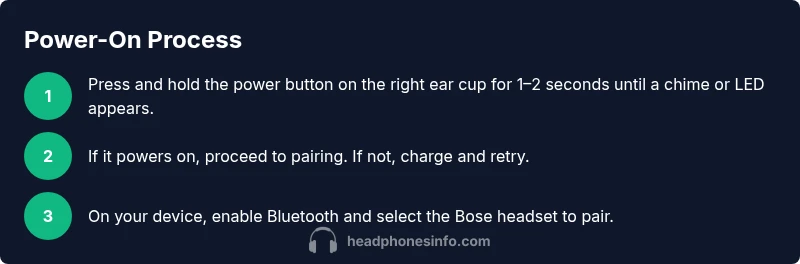
To turn on Bose headphones, locate the power button on the right ear cup and press and hold for 1–2 seconds until you hear a chime or see an LED indicator. If the headset doesn’t power on, ensure it is charged and try a full reset by holding the power button and Bluetooth button (or multifunction button) for several seconds. Then reattempt pairing on your device.
Understanding Bose power basics
Powering on Bose headphones is the essential first step to using them, and the exact action can vary slightly by model. According to Headphones Info, most Bose headphones rely on a dedicated power button located on the right ear cup, or a multifunction button that handles power as well as other controls. A successful power-on typically triggers a short chime and a visible LED indicator, signaling readiness for pairing or immediate use. If a headset is new or recently exhausted, charging beforehand helps ensure a smooth power-on sequence. Awareness of model-specific differences reduces frustration and speeds up setup for enthusiasts and casual listeners alike. The Headphones Info team emphasizes checking your model’s manual for any unique steps, especially if you own a lesser-known Bose headset or a travel variant with unusual power behavior.
Quick-start overview for powering on Bose headphones
Before you get into the day-to-day use, gather the basics: make sure the headset is charged, have a Bluetooth-enabled device nearby, and locate the power/multifunction button. In most cases, a short press will turn on the headset, while a longer press triggers pairing or a reset sequence. If you hear no chime or see no LED, you’ll want to move to a charging solution and review the model’s specific guidelines. This quick-start mindset keeps power-on frustration to a minimum and ensures you can start listening promptly after unboxing.
Power-on mechanics across Bose models
Bose headphones generally follow a few consistent patterns. The power button is most often on the right ear cup, sometimes sharing a multifunction role with playback or volume controls. For models with a dedicated power switch, press and hold briefly until a chime is heard and an LED indicator lights up. For models that blend functions, a longer press will typically initiate pairing or reset sequences. The exact LED color and blink pattern can indicate power status, battery level, or pairing mode. If you’re unsure, consult the model-specific guide. In all cases, aim to avoid power-on while the headset is physically obstructed by cases or wraps, which can impede the switches.
Troubleshooting: when power won’t turn on
If your Bose headphones fail to power on, start with the simplest checks. Ensure the charging cable is firmly connected to a known-good power source. Inspect the charging port for debris and gently clean if necessary. Try a full power cycle by holding the power button for a longer duration (often 3–5 seconds) to force a wake-up. If still unresponsive, perform a reset if your model supports it (this frequently involves holding the power and Bluetooth or multifunction button for several seconds). After a reset, re-enable pairing on your device. If problems persist, there may be a hardware fault requiring service.
Pairing after powering on: quick Bluetooth setup
Once powered, enable Bluetooth on your device and select the Bose headset from the list of available devices. If the headset doesn’t appear, confirm that it’s in pairing mode (indicated by a blinking LED) and retry the device scan. On many Bose models, the initial power-on plus pairing process is streamlined when you follow the on-screen prompts. If your device prompts for a code, it is usually not required for Bose headphones; simply select the headset. Keep track of previously paired devices so you can connect quickly in the future.
Battery care and charging habits for reliable power
Prolonging battery life starts with healthy charging habits. Avoid letting the battery fully discharge frequently; recharge when you can. Use the recommended charging cable and avoid third-party accessories that could deliver inconsistent power. When not in use, store the headset in a cool, dry place away from direct sunlight. Regularly inspecting the charging port and cable helps prevent power-on issues caused by connection faults. If you notice rapid battery drain, consider firmware updates or reaching out to Bose support for a diagnostic.
Model-specific notes and best practices
Bose has multiple models that share core power-on principles but differ in button layout and LED indicators. Always refer to the official user guide for your exact model to ensure you apply the correct sequence. In many cases, the power button on the right ear cup is the most reliable starting point, with a short press turning on and a longer hold entering pairing mode. If you own travel or sports variants, remember that environmental factors like temperature and moisture can affect performance, so coastal or humid environments may require more frequent charging checks.
Tools & Materials
- Charged Bose headphones(Ensure battery is not completely drained before attempting first power-on)
- Charging cable (USB-C or micro-USB, model-dependent)(Use the cable that came with your headset if possible)
- A Bluetooth-enabled device(Phone, tablet, or computer with Bluetooth enabled)
- User manual or Bose support page(Helpful for model-specific steps)
Steps
Estimated time: 5-12 minutes
- 1
Identify the power button location
Find the power button on the right ear cup. Familiarize yourself with whether it is a dedicated switch or a multifunction button that handles other controls as well.
Tip: If you’re unsure, hover the device in a well-lit area and check for a distinct button icon. - 2
Press and hold to wake/power on
Briefly press and hold the power button for 1–2 seconds until you hear a chime or see an LED indicator illuminate. If nothing happens, proceed to Step 3.
Tip: A short press may be enough on newer models; a longer hold is often needed to enter pairing mode. - 3
Charge if the headset is unresponsive
Connect the headset to a power source using the appropriate charging cable and let it charge for at least 15–20 minutes before attempting again.
Tip: Charge time varies by battery level; a completely drained battery may need more time to respond. - 4
Reset if unresponsive
If the device still won’t power on, perform a reset by holding the power button and the Bluetooth/multifunction button for 5–7 seconds until the LED pulses.
Tip: Resetting clears temporary software glitches but won’t erase pairing history. - 5
Enter pairing mode
With the headset powered on, enable pairing mode if it doesn’t appear on your device automatically. Look for a blinking LED indicating pairing readiness.
Tip: Keep devices close and remove other Bluetooth sources that might interfere during setup. - 6
Complete pairing on your device
Open Bluetooth settings on your device and select the Bose headset from the list. Wait for the confirmation sound or message.
Tip: If asked for a code, Bose devices typically don’t require one; simply connect.
People Also Ask
Why won’t my Bose headphones turn on?
Common causes include a dead battery, a mispressed button, or a fault in the charging cable. Start by charging the headset for at least 15–20 minutes, check the power button for proper contact, and try a reset if available.
If your Bose headphones won’t power up, try charging them and performing a reset; most issues resolve this way.
How do I reset Bose headphones?
Reset procedures vary by model, but typically involve holding the power and Bluetooth or multifunction button for several seconds until an LED pulse or chime indicates a reset.
Reset steps usually involve holding two buttons for a few seconds until you hear a notification sound.
Do all Bose headphones power on automatically after charging?
Some models may turn on automatically after charging completes, but most require a manual power-on. Check your model’s manual to confirm.
Some Bose models auto-power when charging ends, but most need a manual on switch.
Which Bose models use USB-C charging?
Many newer Bose models use USB-C for charging, but port type can vary by model. Verify with your manual or Bose support site for the exact port.
Most newer Bose headphones use USB-C, but check your specific model.
How can I tell if the headphones are in pairing mode?
Pairing mode is shown by a blinking LED on the headset. If it’s not blinking, you may need to press and hold the pairing sequence button longer.
Look for a blinking LED to show pairing mode, and retry if it isn’t blinking.
What should I do if the light stays solid and never blinks?
A solid light may indicate power-on state or a charge level issue. Try a full charge, and review whether the device responds to basic button presses.
If the light never blinks, try charging fully and testing again.
Watch Video
What to Remember
- Power on Bose headphones with the right ear cup button; hold briefly until a chime appears.
- If unresponsive, charge, then reset and retry pairing.
- Always follow model-specific guidance for best results.
- Keep firmware up to date to avoid power-related issues.
- Use official cables and avoid third-party accessories when possible.