Plug In Headphones: A Practical How-To Guide for Audio Lovers
Learn how to plug in headphones across devices with clear steps, essential checks, and practical tips to maximize sound quality, latency, and comfort. Includes adapters and setup tips for a reliable wired listening experience.


In this guide you will learn how to plug in headphones correctly across devices, test sound, and optimize comfort. You'll need a device with a 3.5 mm jack or an appropriate adapter, and a clean pair of headphones. We cover wired, wired-to-usb-C adapters, and latency considerations. Also consider replacement ear pads and cable management for long sessions.
Why plug in headphones matters
Plug in headphones remain the most reliable path to faithful sound when you’re dealing with varied consumer devices. Whether you’re on a laptop, a phone with a dedicated audio jack, or a DJ mixer, a physical connection minimizes latency and avoids the compression that often comes with wireless codecs. According to Headphones Info, this approach delivers the most predictable audio behavior across brands and platforms. In this guide, we’ll break down how a simple 3.5 mm plug interacts with impedance, why direct connections can outperform adapters in many scenarios, and what you should check before you plug in. You’ll learn practical steps, from compatibility checks to testing your sound, so you can plug in headphones with confidence and comfort. First, identify your source device's output type and whether it requires TRS or TRRS plugs. Then evaluate your headphones’ plug and impedance; a mismatch can cause low volume, imbalance, or distortion. Finally, consider comfort and cable management for long listening sessions. For audiophiles, the goal is consistency: the moment you plug in, the signal should be clean, the channel balance even, and the volume predictable. The remainder of this article is structured to help you achieve that quickly, regardless of device brand or operating system.
Brand note: According to Headphones Info, the reliability of a wired connection is a strong starting point for consistent results across devices.
Wired vs wireless: what 'plug in' means
When we say plug in headphones, we usually mean a direct, wired connection rather than Bluetooth. Wired connections provide lower latency, more stable impedance, and often richer detail, since there is no lossy codec between source and driver. Wireless options trade latency and potential compression for convenience, portability, and multi-device pairing. The right choice depends on use-case: competitive gaming or critical listening benefits from wired connections; casual listening on the go may favor wireless. Context matters: some devices automatically switch to the headset profile when a plug is inserted, increasing immediacy. The Headphones Info team notes that the user experience matters as much as the hardware: if your device won’t recognize your headphones or volume jumps unpredictably, you’ll want to verify output settings and consider a different plug-in approach.
Common connection types and adapters
A wide range of connection types can complicate a straightforward plug in headphones task. The most common is the 3.5 mm TRS plug found on many consumer devices, and the TRRS variant adds a microphone contact for headsets. Some professional gear uses larger 6.35 mm (1/4 inch) jacks, while laptops and newer devices may expose USB-C or Lightning outputs with DACs inside. Adapters can bridge gaps, but every adapter introduces potential impedance changes and latency. Here we outline practical pairings and pitfalls:
- 3.5 mm TRS (standard headphone) vs. TRRS (headset with mic): check your device’s jack type before insertion.
- 2.5 mm vs. 3.5 mm adapters: some portable players use 2.5 mm; you may need an adapter to fit 3.5 mm headphones.
- USB-C or Lightning DACs: for devices without a native analog jack, use an external DAC/amp that preserves audio fidelity.
Brand note: The practical reality is that adapters work well when they maintain proper impedance matching and a secure physical fit.
Compatibility checks for your device
Before you plug in, do a quick compatibility audit to avoid frustrating surprises. Start by identifying the jack type on your source device (TRS, TRRS, or USB-C with an analog passthrough). If your headphones use a 3.5 mm plug and your device has no analog out, you’ll need a USB-C or Lightning DAC with a dedicated 3.5 mm output. Ensure the headset sleeve matches the device’s detection system so volume controls and inline mics work as expected. If you use a desktop or AV receiver, verify the correct output selection in the system settings and test with a short, high-quality audio track. Finally, confirm the plug is clean and free of debris; dirt can cause crackling or intermittent audio.
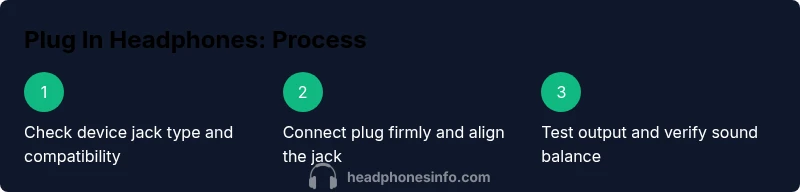
Step-by-step: how to plug in headphones across devices
Follow these practical steps to ensure a clean connection and reliable playback across devices. Each step is a single action with a clear purpose.
- Verify device output type and required connections. 2) Gather headphones and any necessary adapters. 3) Inspect the jack and plug for debris; clean with a soft brush if needed. 4) Align the plug with the jack and insert firmly, but do not force. 5) Switch the device’s audio output to headphones in the settings. 6) Play a short test track at a moderate level and listen for balance and clarity. 7) If using an adapter, confirm the adapter is seated and the impedance is appropriate. 8) Re-check channel balance and ensure no channel is quieter. 9) Manage the cable to prevent movement or tugging that could disconnect. 10) Store and protect the plug and cable when not in use.
Tip: If you hear crackling, remove and re-seat the plug; avoid wiggling while pressure is on the jack.
Testing and tuning your sound
Testing is where the practical gains show up. Use a familiar reference track with a wide dynamic range to check bass extension, mids, and highs. Listen for consistency across loudness levels to identify any imbalance that may indicate impedance mismatch or dirty contacts. If you notice hiss or crackle, re-seat the plug and clean the jack. For more advanced users, test with a spectrum analyzer or pink-noise track to verify flat response in your preferred listening position. Tuning can also involve adjusting EQ within your device or using a small DAC/amp with a slightly different impedance to suit your headphones. In all cases, maintain realistic listening levels and take breaks to protect your ears.
Common problems and how to fix them
Crackling, hiss, or intermittent sound often stems from dirty contacts, a loose connection, or a faulty adapter. If you experience one-sided audio, re-seat the plug, inspect for bent prongs, and try cleaning the jack with a dry microfiber. A tremor in bass response may indicate impedance mismatch; consider using a different adapter or dedicated DAC with matched impedance. If your headphones aren’t recognized by the device, check for firmware or OS updates that adjust audio routing. When a device defaults to internal speakers after plugging in, revisit the output settings and re-select headphones. Always test with multiple sources to rule out a device-specific issue.
Special cases: adapters, DACs, and latency concerns
Adapters can be a lifeline when your device lacks a native analog jack, but they are not a universal cure. Choose active DACs with the proper impedance and a stable plug connection to minimize latency. If gaming is a priority, wired solutions will provide the lowest latency and most reliable synchronization. For studio listening, a clean DAC/amp can offer noticeable improvements in dynamic range and headroom. When choosing an adapter or DAC, verify the reported impedance matches your headphones (commonly 32-600 ohms) and that the device supports your preferred sampling rate. Avoid inexpensive dongles that degrade signal quality or introduce jitter. If latency worries are persistent, consider checking buffer sizes in the audio settings of the device.
Maintenance and comfort tips
Comfort extends beyond the ear cushions. Regularly inspect the plug for wear, replace frayed cables, and clean connectors to prevent buildup that causes crackling. Store cables loosely coiled to avoid kinks, and use cable organizers for travel. Temperature and humidity can affect connectors; keep gear in a dry place. Ear pads can also influence perceived bass and clarity; if comfort is an issue, experiment with different headbands or pads. Finally, if you travel often, pack a compact adapter kit and a microfiber cloth for quick maintenance on the road.
Quick start checklist and next steps
A fast-reference checklist helps you move from unboxing to listening without guesswork. Make sure your device has an appropriate jack or DAC, your headphones are compatible, and you have any required adapters ready. Clean the contacts, plug in firmly, and adjust the device output to headphones. Test with a familiar track and note any hum, crackle, or imbalance. If all sounds good, save your preferred setup as a quick profile. The Headphones Info team recommends keeping a small travel kit with spare adapters and a microfiber cloth so you’re ready for any venue or device. For ongoing improvements, compare headphones with a data-driven approach and consider your primary use-case (work, gaming, music, travel) to guide future choices.
Tools & Materials
- Device with a 3.5 mm headphone jack(Phone, laptop, or desktop with analog output)
- Headphones with 3.5 mm plug (TRS/TRRS)(Check whether inline mic is supported by the device)
- 3.5 mm to 6.35 mm adapter(Only if your amp or mixer uses a larger jack)
- USB-C or Lightning DAC/adapter(Needed when device has no native analog output)
- Cleaning cloth(Use microfiber to clean jack and plug)
- Test audio source (high-quality track)(For reliable sound tests)
Steps
Estimated time: 20-30 minutes
- 1
Verify device output type
Identify whether your source device uses a TRS, TRRS, 2.5 mm, 3.5 mm, or USB-C output. This determines the required plug type and any adapters. Doing this first prevents mismatches later.
Tip: Check the device manual or on-screen settings for audio output options. - 2
Gather headphones and adapters
Collect the headphones, any needed adapters, and a clean surface to work on. Having everything in one place minimizes back-and-forth and helps you stay organized during setup.
Tip: Lay out components in the order they will be used to reduce mistakes. - 3
Inspect connectors for debris
Look at the headphone plug and jack for lint, dust, or corrosion. Dirt can cause crackling or intermittent sound. If dirty, gently clean with a dry microfiber cloth.
Tip: Avoid liquids near electronics; use compressed air if available. - 4
Insert plug firmly
Align the plug with the jack and insert straight. Do not force a misaligned plug, as this can bend pins or damage the jack. A snug fit ensures stable contact.
Tip: If you feel resistance, pull back slightly and re-align before retrying. - 5
Set device output to headphones
Open your device’s audio settings and select headphones as the output device. This step ensures the signal is routed correctly and avoids playing through internal speakers.
Tip: On some devices, there is a quick toggle in the Quick Settings panel. - 6
Test with a familiar track
Play a track you know well to evaluate balance, bass, and treble. Listen for even channel response and absence of hiss or crackle.
Tip: Start at moderate volume and avoid excessive loudness during testing. - 7
Check adapters if used
If you’re using an adapter, ensure it’s seated securely and that impedance remains compatible with your headphones. A loose adapter can cause intermittent audio.
Tip: If audio drops, re-seat both connector ends and try a different adapter if available. - 8
Validate latency and mic (if applicable)
If using TRRS or a headset, verify microphone functionality and any latency differences compared with wireless options. Latency should be minimal in normal listening mode.
Tip: Test mic recording or in-game chat if relevant. - 9
Cable management
Arrange the cable to avoid tension on the plug. Use cable ties or clips to prevent accidental unplugging during use.
Tip: Keep cables away from heat sources and devices that can pull on them. - 10
Store properly after use
When finished, unplug safely, wind the cable gently, and store in a protective case or pouch. Regular maintenance extends life.
Tip: Do a quick check for wear on the plug and cable before next use.
People Also Ask
What is the main benefit of plugging in headphones?
Plugging in headphones minimizes latency and preserves audio fidelity by avoiding wireless codecs. It also provides a consistent listening experience across devices.
Plugging in headphones gives you faster, more predictable sound thanks to a direct connection.
What if my device has no headphone jack?
Use a USB-C or Lightning DAC/adapter that provides a dedicated 3.5 mm output, or switch to a USB-C/Lightning headphones solution. Ensure the DAC supports your device’s sampling rate.
If your device lacks a jack, add a DAC/adapter that gives you a 3.5 mm output.
Can I use USB-C or Lightning DACs for plugging in headphones?
Yes. USB-C or Lightning DACs provide analog output when the device has no native jack. Choose a DAC with compatible impedance and a stable build to minimize latency.
USB-C or Lightning DACs can be great when you don’t have an analog jack, just pick a compatible one.
Why do I hear static or crackling sometimes?
Crackling usually comes from dirty contacts, a loose connection, or a faulty adapter. Re-seat plugs, clean connectors, and replace adapters if needed.
Static often means a dirty or loose connection—re-seat and clean the contacts.
Are wireless headphones always better for convenience?
Wireless offers convenience but can introduce latency and codec-dependent sound. For critical listening or gaming, wired connections are typically preferred.
Wireless is convenient, but wired tends to be more reliable for sound quality and latency.
Watch Video
What to Remember
- Plug in headphones with a direct wired connection for lowest latency and best fidelity
- Check device output type first to choose the right plug or adapter
- Test with a familiar track to confirm balance and dynamics
- Use adapters sparingly and ensure impedance matches to avoid sound quality loss
- Keep connectors clean and cables organized to prevent issues