How to Use Headphones on This Phone: A Complete Guide
A detailed, step-by-step guide to using wired and wireless headphones on any phone, with troubleshooting, testing, and setup tips from Headphones Info.


With most phones, you can listen through wired headphones via a 3.5mm jack or USB-C adapter, or choose Bluetooth for wire-free listening. This quick guide helps you identify port types, select the right connection, and ensure audio routes to your headphones reliably, whether you’re at home, commuting, or gaming. Headphones Info provides this practical, data-informed approach to easy, consistent listening on your device.
What this guide covers and why it matters
Smartphones today offer multiple ways to listen to audio, but not all options are equally simple. If you’re asking how do you use headphones on this phone, the answer depends on the port type, the operating system, and your priorities (latency, battery life, convenience). This guide clarifies wired, USB-C, Lightning, and Bluetooth paths, and it shows how to pick and switch methods without fumbling with settings every time. By the end, you’ll know which approach fits your routine—commuting, workouts, gaming, calls—and how to verify sound is routed correctly. According to Headphones Info, aligning your method with your phone’s outputs reduces frustration and improves reliability across apps. The goal is practical, testable steps you can follow today, regardless of your device model, so you can enjoy clear audio and stable microphone input when you need it.
Identify output options on modern phones
Most phones offer three broad routes for headphones: wired 3.5 mm via a jack or USB-C/Lightning adapter, USB-C or Lightning digital audio, and wireless Bluetooth. Some devices retain a dedicated headphone jack, while others require an adapter or a dedicated DAC to achieve best sound quality. In practice, the route you choose shapes latency, battery impact, and compatibility with your favorite apps. Headphones Info analysis shows that users value simplicity and reliability, so start with the method that minimizes extra adapters and potential failure points. If you switch devices often, Bluetooth provides a consistent experience across models, but wired connections remain the gold standard for low latency and maximum compatibility across apps.
Wired headphones: using a port you have
If your phone still includes a 3.5 mm jack, simply insert the plug fully until it seats with a slight click. Use the volume rocker to adjust playback, and test a few seconds of audio from a video or song you know well. If your phone uses USB-C for audio, insert the USB-C connector firmly and listen for a clean channel. When the jack or USB-C path is uncertain, try a short, common audio clip to confirm both sound output and mic input (if you’re using a headset with a mic). In this scenario, you avoid power drain on wireless earbuds and you preserve maximum sound fidelity. The Headphones Info team notes that a snug, properly seated connection is critical for consistent audio performance.
Using adapters when there's no jack
Phones without a built-in 3.5 mm jack require adapters to connect traditional headphones. Choose a certified USB-C to 3.5 mm adapter or a Lightning to 3.5 mm adapter from a reputable brand. Connect the adapter to the phone, then attach your headphones. If you notice crackling, crackling or intermittent sound, re-seat the connector and test again with a short track. If latency or muted microphone occurs, check that the adapter supports both output and input (for headsets with a mic). Headphones Info recommends verifying compatibility on the manufacturer’s site before purchasing.
Bluetooth headphones: pairing, latency, and controls
Pairing Bluetooth headphones is usually as simple as enabling Bluetooth in the quick settings and selecting the device from the list. After pairing, test a short audio clip and then a call to evaluate latency and mic performance. Some devices support low-latency codecs that reduce sync issues in games or video, but not all accessories offer them. To manage playback, use on-device controls or the headphone’s own control button; remember to adjust system volume to avoid clipping. The advantage of Bluetooth is mobility and absence of cables, but you may trade off tiny latency and occasional dropouts in crowded wireless environments.
Audio routing and testing
Sound routing can be automatic or manual depending on OS and app. Start by connecting your chosen headphones, then play audio from a known source (music, video, or podcast) and listen for balance, channel separation, and mic input if applicable. If you notice one side louder, re-seat the connector or try another port or adapter. On Android, you might find a dedicated output option in Settings; on iOS, routing is often automatic but can be forced via Control Center in some apps. Always test across at least two apps to confirm reliability.
Common issues and troubleshooting
The most frequent problems are no sound, crackling, or Bluetooth dropouts. Begin by checking physical connections: ensure the plug is fully seated, adapters are compatible, and there is no lint or debris in the jack. For Bluetooth, re-pair the device, check battery levels, and ensure the headset supports the needed codec. If you still see issues, try another pair of headphones or another phone to identify whether the problem is the device or the accessory. Remember that third-party adapters may not deliver stable sound or consistent mic quality.
Real-world setups and best practices
In everyday life you may combine methods: wired for work at your desk, Bluetooth for commuting, and adapters for friends’ devices. Charge wireless headphones ahead of time and store adapters in a protective case to prevent damage. Keep cables untangled and avoid coiling them tightly to reduce wear. For gaming or video calls, prefer wired or low-latency Bluetooth when possible to minimize delay. Finally, document your preferred method for each scenario so you can reproduce the same setup quickly.
Accessibility considerations and mic usage
If you rely on a headset mic for calls, check whether your phone correctly routes the mic input through the connected device. Some phones treat the headset mic as a separate input, while others route it to the internal mic. In conference calls or assistive listening scenarios, test the mic quality and background noise suppression. Headphones Info highlights that consistent audio routing improves accessibility and communication clarity, especially when switching between devices or locations.
Maintenance and care of headphones and adapters
Regularly inspect cables for wear, keep connectors clean, and store adapters in a protective pouch. Avoid bending cables at sharp angles and unplug carefully to prevent connector wear. When not in use, keep headphones and adapters at moderate temperatures away from moisture. If you notice corrosion or loose connections, replacing components promptly can prevent intermittent failures and improve long-term reliability. The more you maintain your gear, the less often you will experience unexpected audio dropouts.
Tools & Materials
- Headphones (wired or wireless)(Choose based on your phone's outputs)
- Phone with compatible port(3.5 mm jack, USB-C, or Lightning)
- USB-C to 3.5 mm adapter(Needed if your phone lacks a 3.5 mm jack)
- Certified USB-C or Lightning DAC/adapter(For best analog sound with non-traditional headphones)
- Bluetooth headphones or earbuds(Useful for wireless listening)
Steps
Estimated time: 25-40 minutes
- 1
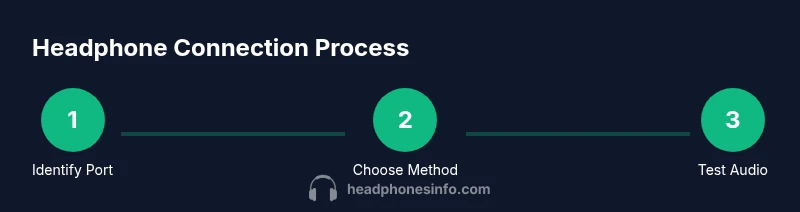
Identify port type
Inspect the phone to determine whether it has a 3.5 mm jack, USB-C, or Lightning port. This decision drives your connection method and which accessories you’ll need.
Tip: If unsure, check the official specs or user manual for your model. - 2
Choose your connection method
Decide wired versus wireless based on latency needs, battery concerns, and how you plan to use the headphones.
Tip: Wired generally offers the lowest latency and no battery drain in the headphone. - 3
Connect wired headphones
If a 3.5 mm jack exists, insert the plug firmly until seated. If USB-C is used for audio, plug in the USB-C connector completely.
Tip: Ensure a snug fit to avoid intermittent playback. - 4
Use adapters when needed
For jackless phones, connect a certified USB-C or Lightning adapter before attaching the headphones. Test with a short clip.
Tip: Prefer official or certified adapters to reduce risk of noise or dropouts. - 5
Pair Bluetooth headphones
Enable Bluetooth on the phone and select the device from the list to pair. Test playback and mic after pairing.
Tip: If latency matters, look for devices that support low-latency codecs. - 6
Test audio and adjust routing
Play audio from multiple apps to confirm consistent output. Adjust volume using hardware buttons and in-app controls as needed.
Tip: Check both output and mic routing if using a headset with a mic. - 7
Troubleshoot common issues
If there’s no sound or crackling, re-seat connectors and try another accessory. If Bluetooth drops out, re-pair and ensure battery is healthy.
Tip: Rule out a faulty cable or adapter before replacing components. - 8
Optimize for apps
Some apps route audio differently; test music, videos, and calls to confirm a consistent experience across contexts.
Tip: Use the app’s audio settings to ensure proper output. - 9
Maintain your setup
Store accessories properly, avoid tight bends, and keep connectors clean for reliable long-term use.
Tip: Regular checks prevent unexpected failures.
People Also Ask
Do all phones support wired headphone jacks?
No. Many newer devices lack a 3.5mm jack and require adapters or Bluetooth.
Most new phones don’t have a 3.5mm jack; you’ll likely use an adapter or Bluetooth.
Can I use Bluetooth headphones for calls and gaming?
Yes, but expect some latency in certain apps; use low-latency codecs if supported.
Yes, Bluetooth works for calls and games, but there can be occasional delay.
What should I do if no sound is coming from wired headphones?
Check the connector seating, try another device to confirm adapter, and inspect for debris.
First check the connector and try another device; debris or a loose fit can cause no sound.
How do I route audio to my preferred device on Android vs iOS?
Android offers a direct output setting in settings; iOS routes audio automatically in most apps.
Android gives you a manual routing option; iPhone usually routes automatically, with options in Control Center.
Are third-party adapters safe to use?
Prefer certified adapters to avoid compatibility or safety issues.
Stick with certified adapters to ensure safety and compatibility.
Watch Video
What to Remember
- Identify port first to choose the right method.
- Wired offers lower latency; Bluetooth adds mobility.
- Test audio across multiple apps after connecting.
- Prefer certified adapters for best reliability.
- Maintain cables and adapters to extend life.