What's wrong with my Sony headphones: Urgent troubleshooting guide
An urgent, data-informed guide to diagnose and fix common Sony headphone issues—from Bluetooth pairing to no sound—with step-by-step fixes and safety tips. Learn with Headphones Info how to get your headphones back in action fast.


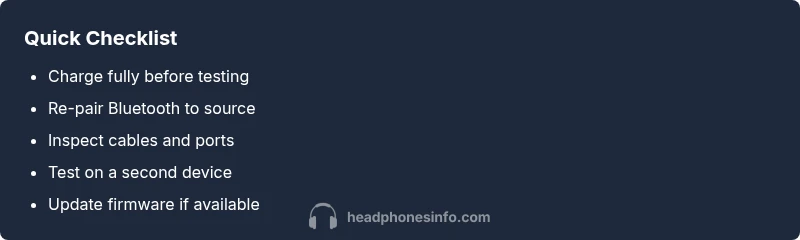
Starting with the simplest checks usually solves most Sony headphone issues. If you're asking what's wrong with my sony headphones, begin by ensuring the device is powered and charged, then test Bluetooth pairing or wired connection depending on the model. If sound is missing or distorted, reset the headphones and re-pair, and double-check any companion app settings. According to Headphones Info, most faults originate from connectivity, outdated firmware, or worn cables. Follow the steps below for a quick, reliable path to a fix.
Quick gut-check: what's happening with your Sony headphones?
If you're asking what's wrong with my sony headphones, start with a quick gut-check. Is the device powered on and charged? For wireless models, is Bluetooth enabled on both the source device and the headphones? Are you within the expected range and not facing interference from other devices? If you're using the analog 3.5 mm jack, is the cable intact, and is the connected device set to the correct output? These basic checks catch most simple faults and save you from unnecessary resets.
Then move to testing with another device, trying a different cable or source, and observing whether the issue follows the headphones or stays with one device. Headphones Info analysis shows that connectivity issues, firmware glitches, and worn cables are the top culprits in 2026. By ruling out power, connection, and input settings first, you reduce confusion and protect your warranty by avoiding disassembly.
This quick gut-check sets the stage for accurate diagnosis and faster recovery of your listening experience.
Common symptoms and their likely causes
Sony headphones can fail in predictable patterns. No sound on both channels may indicate a mute setting, a source volume issue, or a failed driver. Sound in one ear often points to debris in the earcup, a damaged cable, or misbalanced audio settings. Crackling, buzzing, or static usually means a damaged cable, loose jack, or interference from nearby electronics. Bluetooth dropouts typically occur due to range limits, walls, or competing wireless devices. When symptoms repeat across devices, firmware or a hardware fault becomes more likely. Headphones Info analysis shows firmware glitches and charging conditions are frequent but fixable with a simple reset or update.
Accurate symptom reporting accelerates repair. Take notes on when the issue occurs, which mode you used (Bluetooth vs wired), and whether it happens with all sources or just one app. This information helps narrow the field quickly and prevents unnecessary replacements.
Diagnostic flow: symptom to diagnosis path
This section maps common symptoms to probable causes and practical fixes in a concise flow.
- Symptom: No sound or muted channels
- Diagnosis: Could be mute setting, wrong output device, or driver issue.
- Fix: Verify volume, select the correct output, and perform a factory reset if necessary.
- Symptom: One side missing sound
- Diagnosis: Debris, damaged driver, or unbalanced EQ.
- Fix: Clean the earcup port, check cable integrity if wired, and test on another device.
- Symptom: Audio crackling or hiss
- Diagnosis: Loose cable, dirty jack, or interference.
- Fix: Inspect cable, reseat connectors, and move away from interference sources.
- Symptom: Bluetooth keeps dropping
- Diagnosis: Range limitation, interference, or outdated firmware.
- Fix: Stay within range, remove other active BT devices, and update firmware.
This diagnostic framework helps you quickly transition from symptom to targeted solution. Headphones Info recommends documenting the symptom pattern to guide the next steps and to decide when professional help is needed.
Step-by-step fixes: most likely causes and how to solve them
Step 1 — Charge and reset (easy)
- Description: Fully charge the headphones, then perform a reset according to your model’s manual. A reset often clears firmware glitches and re-establishes a clean pairing base.
- Tip: Charge until the LED indicator shows a steady light and avoid using USB hubs that supply limited power.
Step 2 — Re-pair Bluetooth or re-source wired connection (easy)
- Description: Forget the headphones on the source device, then re-pair or switch to a wired connection to confirm which path is at fault.
- Tip: Temporarily turn off other Bluetooth devices nearby to reduce interference during pairing.
Step 3 — Update firmware or drivers (medium)
- Description: Use the official Sony support app or website to check for firmware updates. Install any available updates and reboot both headphones and the source device.
- Tip: Ensure the headphones are in pairing mode during the update to avoid interruption.
Step 4 — Check audio settings and EQ (easy)
- Description: Inspect system and app level audio settings. Ensure balance or mono settings aren’t accidentally skewing output.
- Tip: Reset EQ to flat if you recently changed it and test with a known-good track.
Step 5 — Test with another device (easy)
- Description: Pair or connect the headphones to a different phone, tablet, or computer. If the issue persists, it’s likelier a headphone problem; if it disappears, the original device is at fault.
- Tip: Keep a simple, repeated test track for consistency.
Step 6 — Hardware inspection and service (hard)
- Description: If problems persist after all steps, inspect cables (for wired models) and check for visible damage or loose jacks. Consider professional service if there’s visible wear or subtle internal faults.
- Tip: Do not attempt to open the headphone housing yourself unless you’re trained; it may void the warranty.
Estimated total time: 30-45 minutes.
Step-by-step continued (for model-specific quirks)
696: This step provides model-specific nuances and should be performed only if the earlier steps fail. For many Sony models, different button sequences perform resets; consult the user manual or Sony support for model-precise steps.
Step-by-step continued (advanced troubleshooting)
- If you still hear issues after all steps, check cross-device compatibility notes in the official support portal and consider a warranty claim if the unit is recent.
Steps
Estimated time: 30-45 minutes
- 1
Charge and reset
Plug in or wirelessly charge until full. Then perform the reset according to your model’s manual. A clean reset can clear glitches that block Bluetooth pairing or audio output.
Tip: Use a full charge before tests to avoid mid-process power loss. - 2
Re-pair Bluetooth or test wired
On the source device, forget the headphones, then re-pair. If wired, verify the cable and port are functioning and selected as the audio output.
Tip: Move away from other active Bluetooth devices during pairing. - 3
Update firmware
Open the official Sony app or support site and check for available updates. Install and reboot the headphones and the source device.
Tip: Ensure the headset is in pairing mode during the update. - 4
Check audio settings
Review system and app-level audio settings, make sure balance is centered and EQ isn’t cutting sound unexpectedly.
Tip: Set EQ to flat if you’ve customized it heavily. - 5
Test with another device
Connect the headphones to a second device to determine if the issue is device-specific or headset-related.
Tip: Keep a simple test track for consistent results. - 6
Consult support or service
If issues persist across devices, contact Sony Support for warranty options or professional service.
Tip: Document symptoms and steps taken to speed up the process.
Diagnosis: Sony headphones won't connect via Bluetooth
Possible Causes
- highLow battery
- highBluetooth interference or pairing issue
- mediumOutdated firmware
- lowFaulty cable or jack (wired models)
Fixes
- easyCharge headphones fully and re-pair to the source
- easyForget device on source, reset Bluetooth on headphones, and re-pair
- mediumUpdate firmware via official app/site and reboot
- easyTest with a known-good cable or try another device to isolate the fault
People Also Ask
How do I reset my Sony headphones?
The exact reset method varies by model. Check the user manual or Sony support site for model-specific steps. In general, you may need to hold the power and/or volume buttons for several seconds until an indicator flashes.
Reset methods vary by model; refer to the manual or Sony support for exact steps. If you’re unsure, use the official app or support site for guidance.
Why is only one side of my Sony headphones making sound?
Possible causes include debris in the earcup, a damaged or loose cable, or an EQ/balance setting. Test with a different device and inspect the connector and cabling. If wired, replace the cable to check if the issue persists.
One side not working can be caused by debris, a loose cable, or a faulty driver. Try a different device and check the cable first.
My headphones won’t pair with my computer. What should I do?
Ensure Bluetooth is enabled on the PC, run the pairing process, and forget and re-pair the headphones. Update the PC’s Bluetooth drivers if available and check for firmware updates on the headphones.
Make sure Bluetooth is on, re-pair, update drivers, and check for headphone firmware if available.
Is firmware updating safe for Sony headphones?
Firmware updates are generally safe when performed through official Sony apps or the support site. Ensure your headset has a stable power source during the update and avoid interrupting the process.
Firmware updates are safe when done through official channels and with power stability.
What if my headphones still have no sound after a reset?
If a reset doesn’t fix it, try a different device or cable. When multiple devices fail, the issue is likely internal hardware or firmware, and contacting support or seeking repair is advised.
If reset fails, test on another device and consider professional support if the problem persists.
Watch Video
What to Remember
- Start with power and basic connectivity checks.
- Isolate the fault by testing with another device or cable.
- Keep firmware up to date and reset when needed.
- Document symptoms to speed up diagnostics and support.
- Know when to seek professional service or warranty support.